
-
01
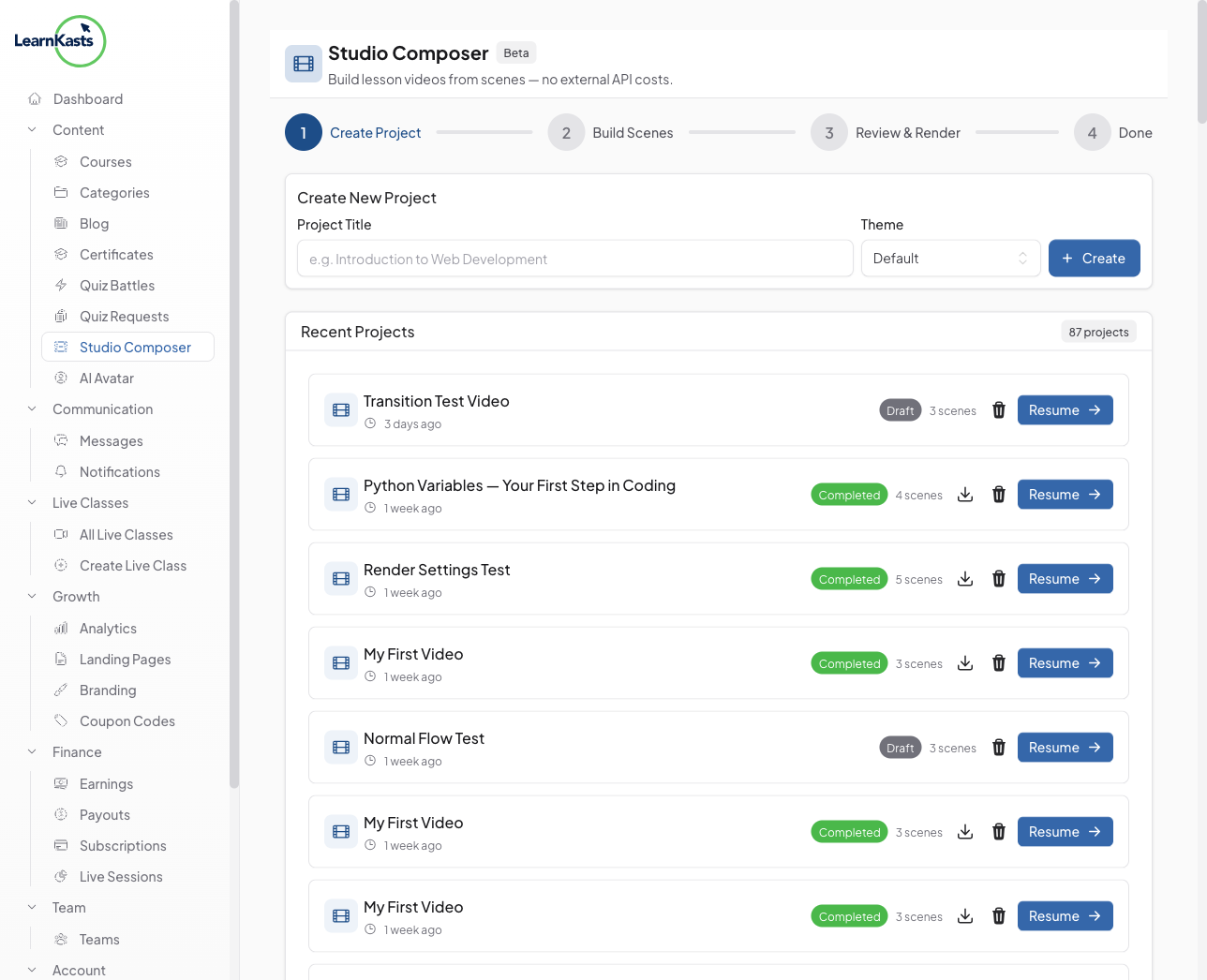
Open Studio Composer
From your educator dashboard, navigate to "AI Studio" in the sidebar. Click "New Project" to start creating a new AI-generated video. You'll see your existing projects listed with their status and creation dates.
-
02
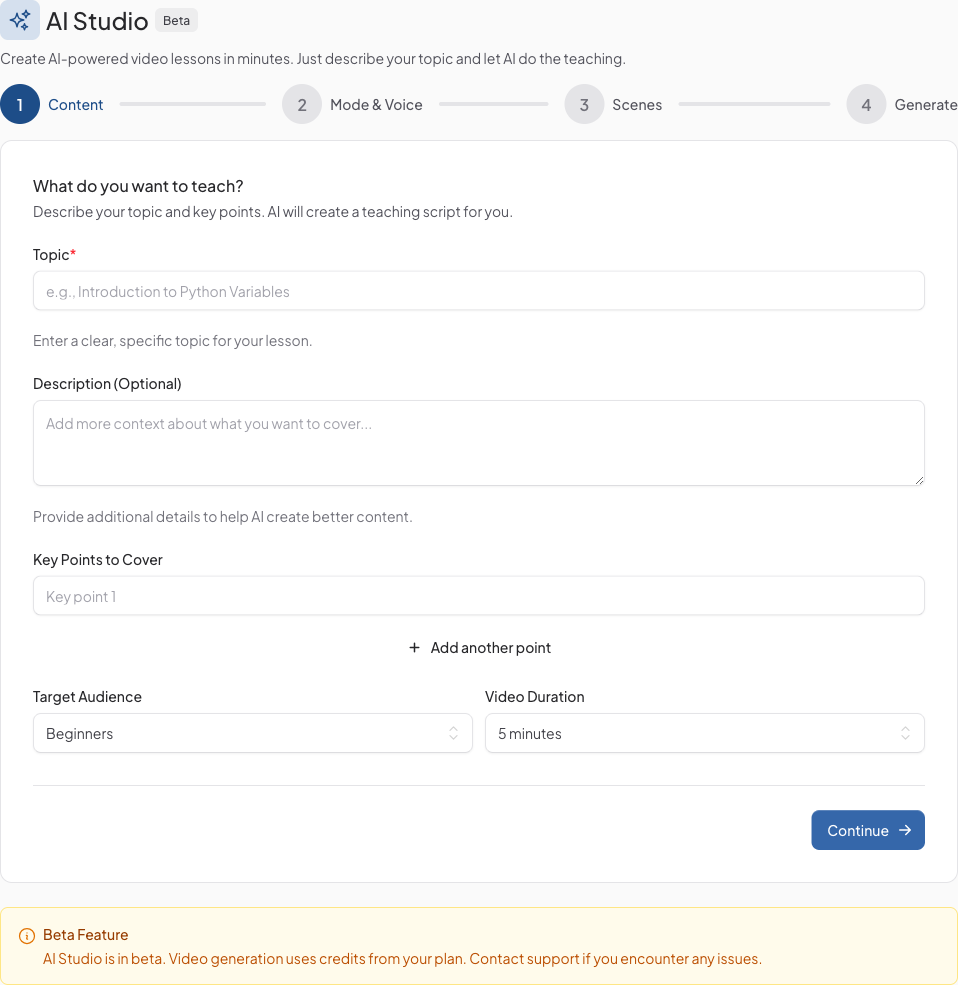
Enter your content
Give your project a title and enter the topic or script you want to turn into a video. Choose a visual theme and let the AI generate a polished script for you, or write your own. You can also select the language and tone for your content.
-
03
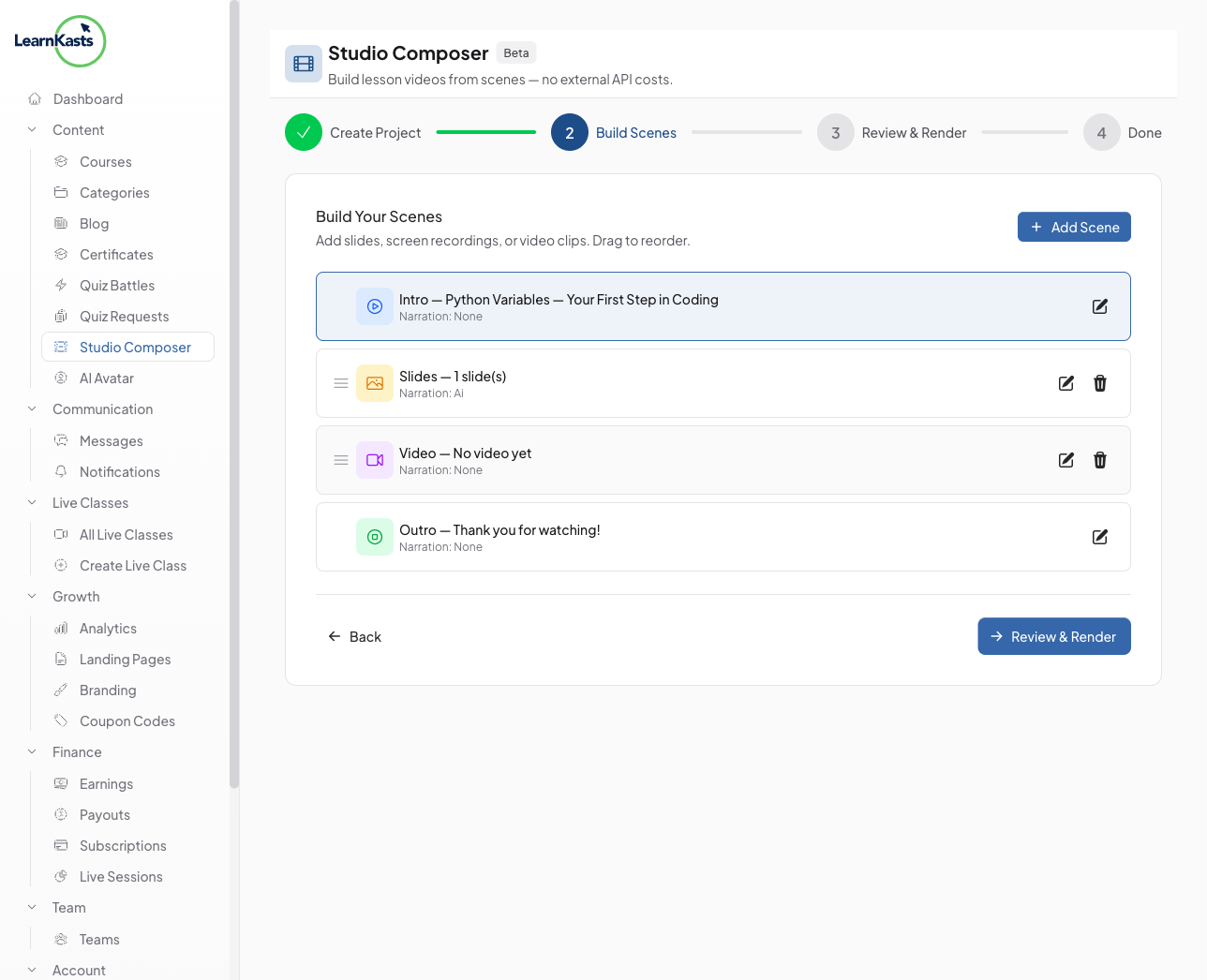
Build your scenes
The AI breaks your script into individual scenes - Intro, content slides, video segments, and Outro. You can drag and drop to reorder scenes, edit text and visuals for each one, and add or remove scenes as needed.
-
04
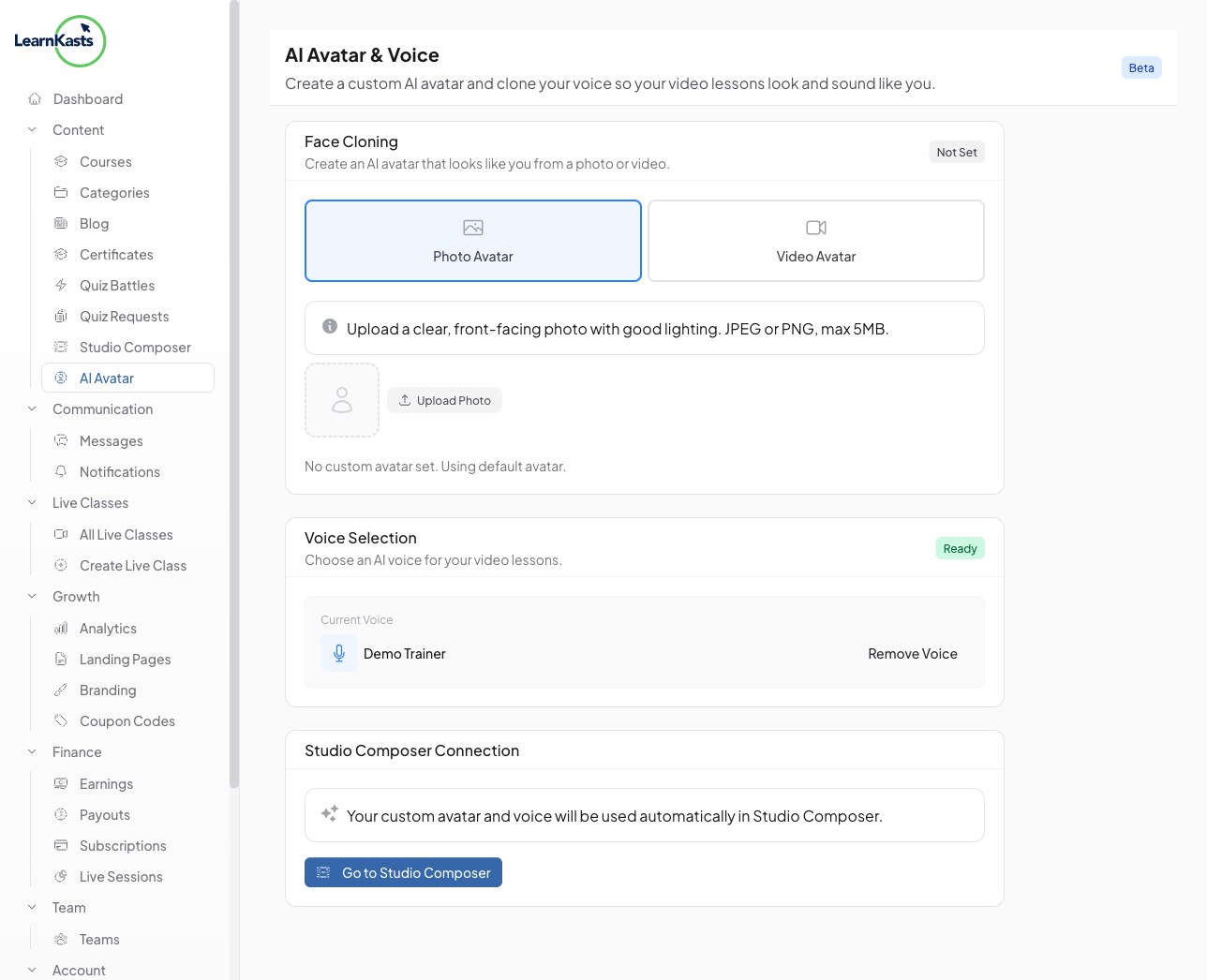
Choose a voice and mode
Select an AI voice for narration or use your own cloned voice (Creator plan and above). Pick between different presentation modes - slides, talking head, or mixed - to match your teaching style.
-
05
Review and render
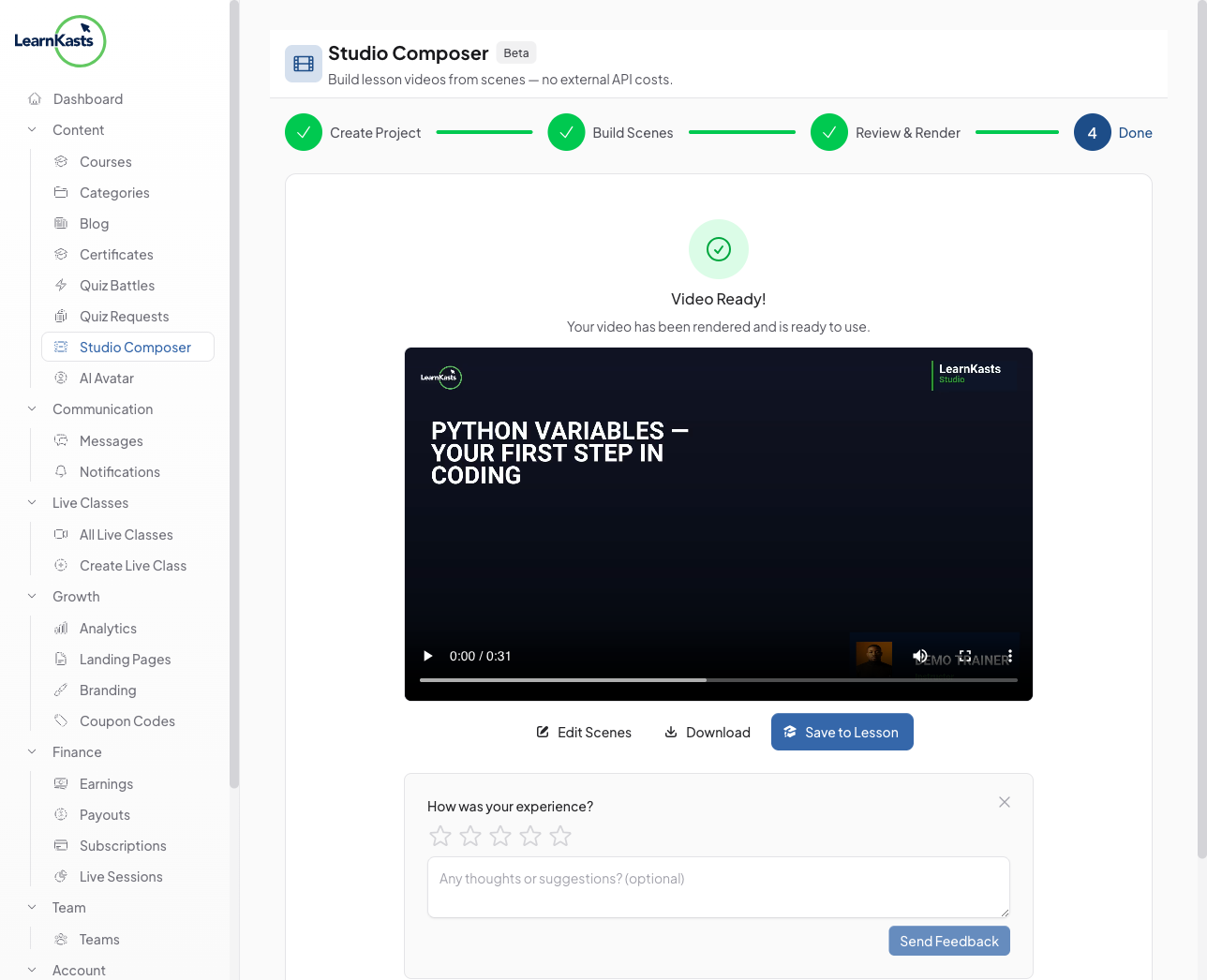
Preview your complete video before rendering. When you're happy with the result, click "Render Video" to generate the final output. You'll receive a notification when it's ready to download or publish directly to your course.
-
06
Usage limits
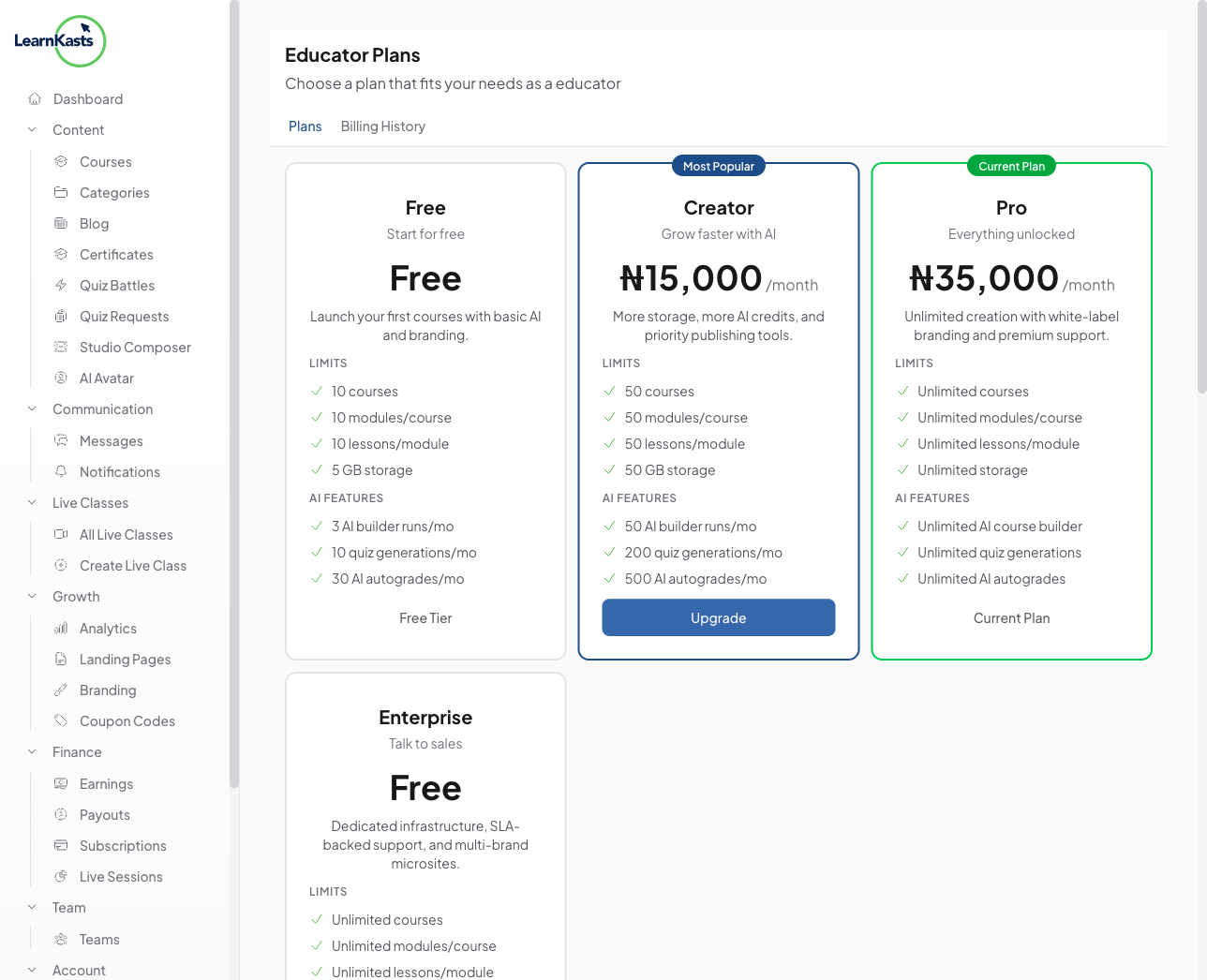
Free plan educators can generate up to 3 scripts and 1 video render per month. Creator plan and above get higher or unlimited usage. Your current usage is displayed in the Studio dashboard.
Did this guide help?
If you need a real human, our support team replies in plain English within one working day. Faster on WhatsApp.