
-
01
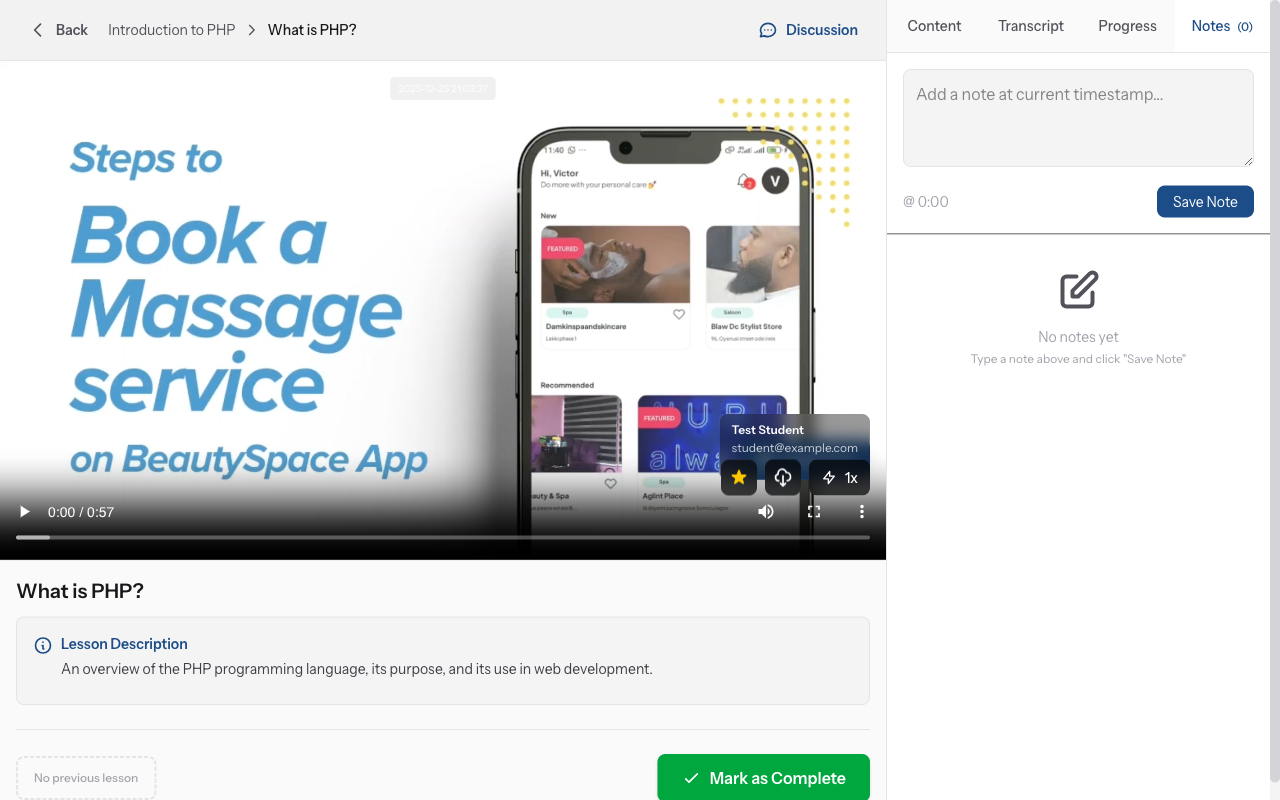
Open the notes panel
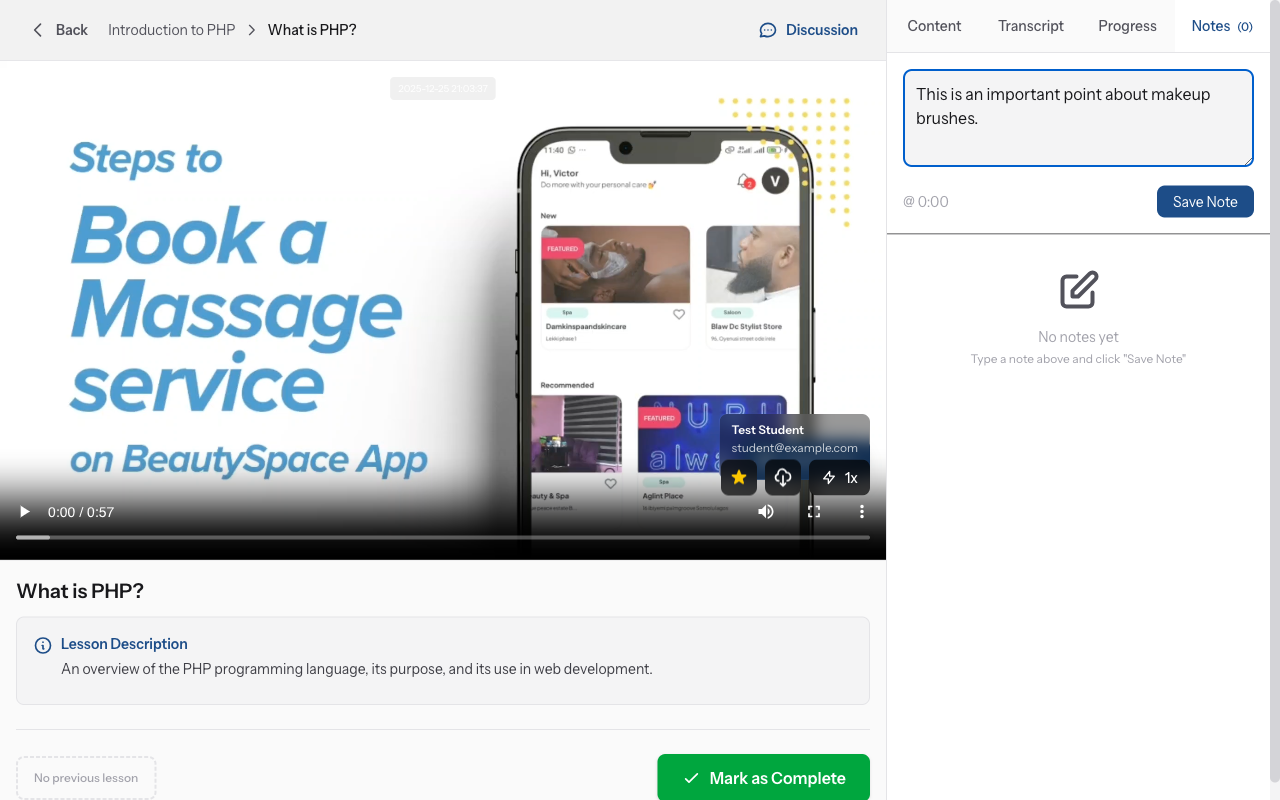
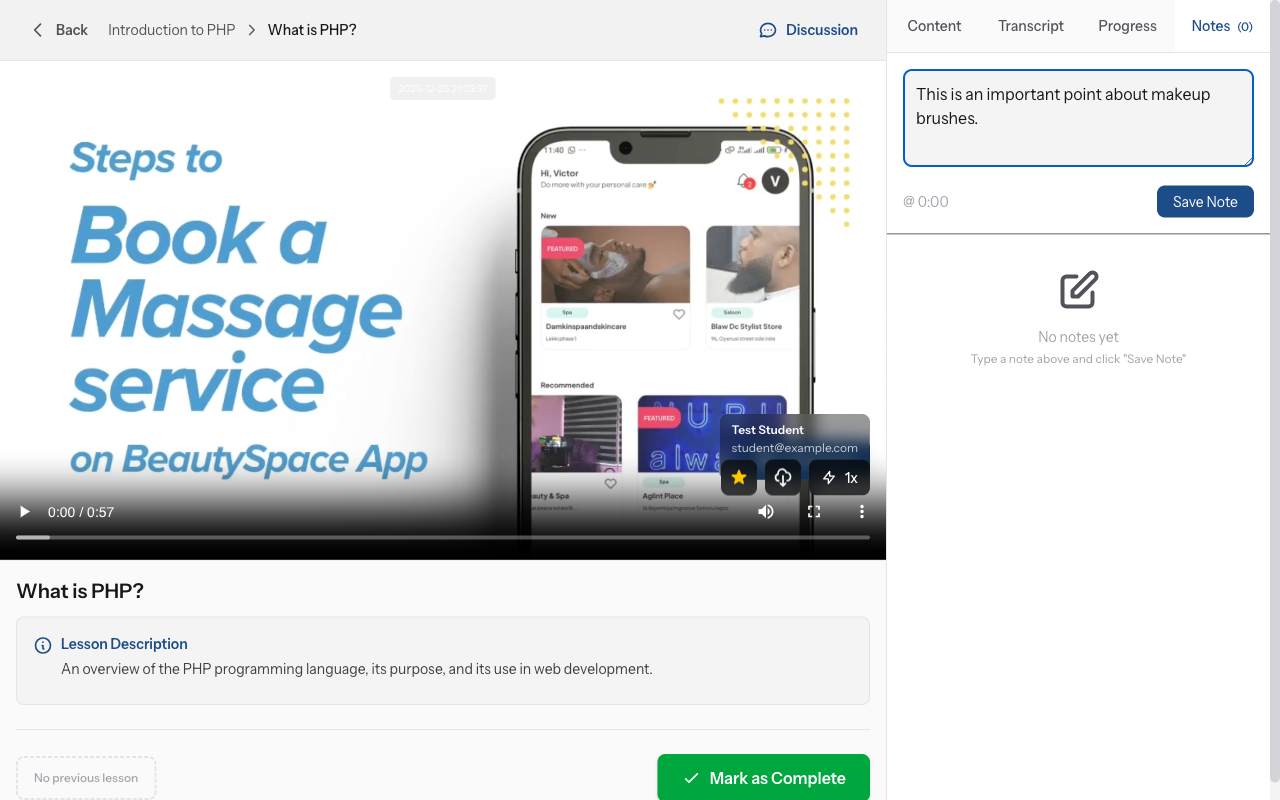
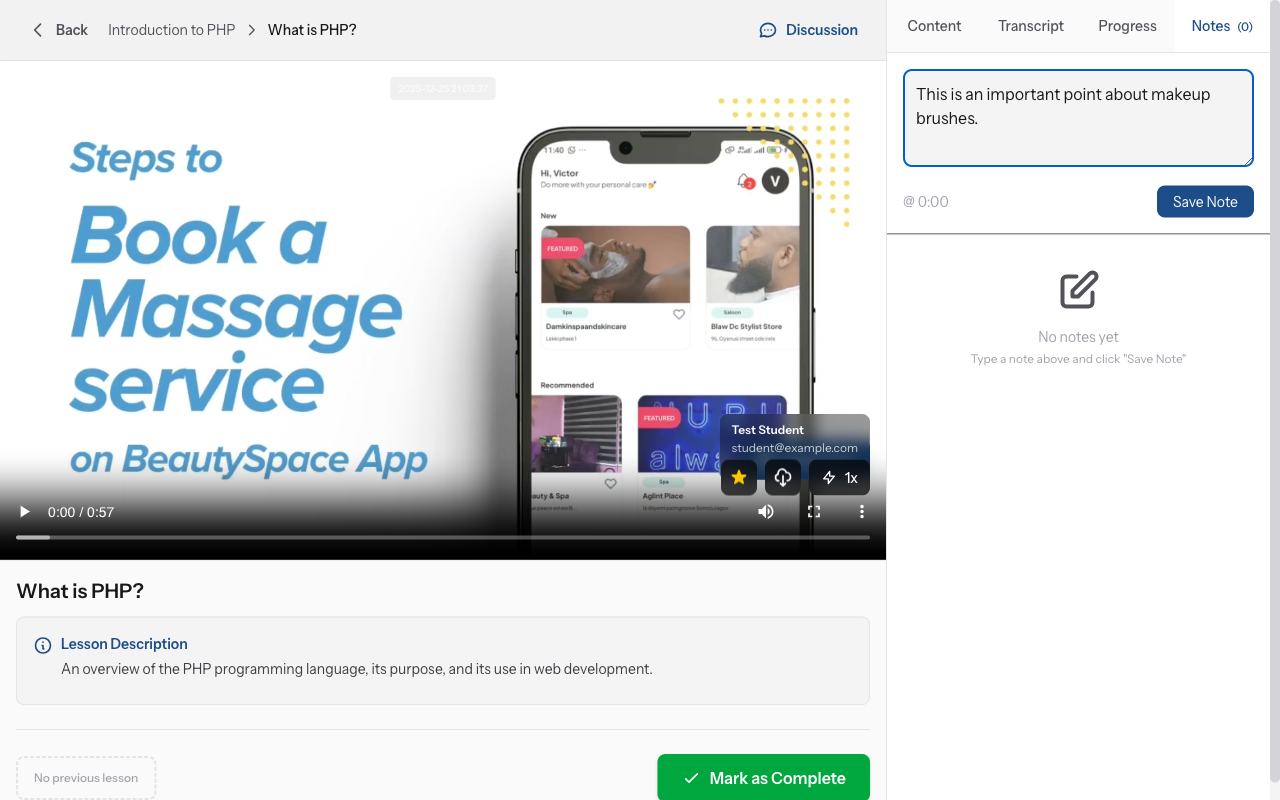
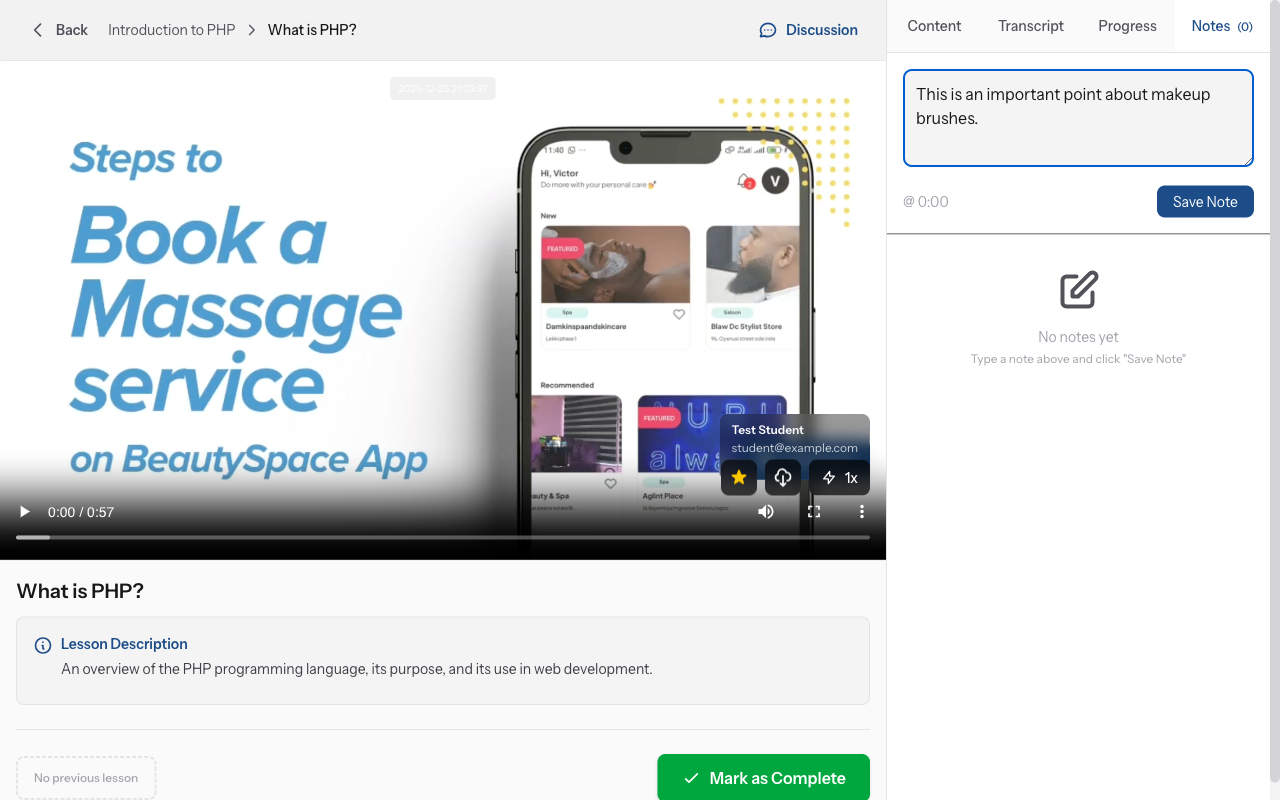
While watching a video lesson, look for the "Notes" tab next to or below the video player. Click it to open the notes panel. This is your personal notepad synced with the lesson.
-
02
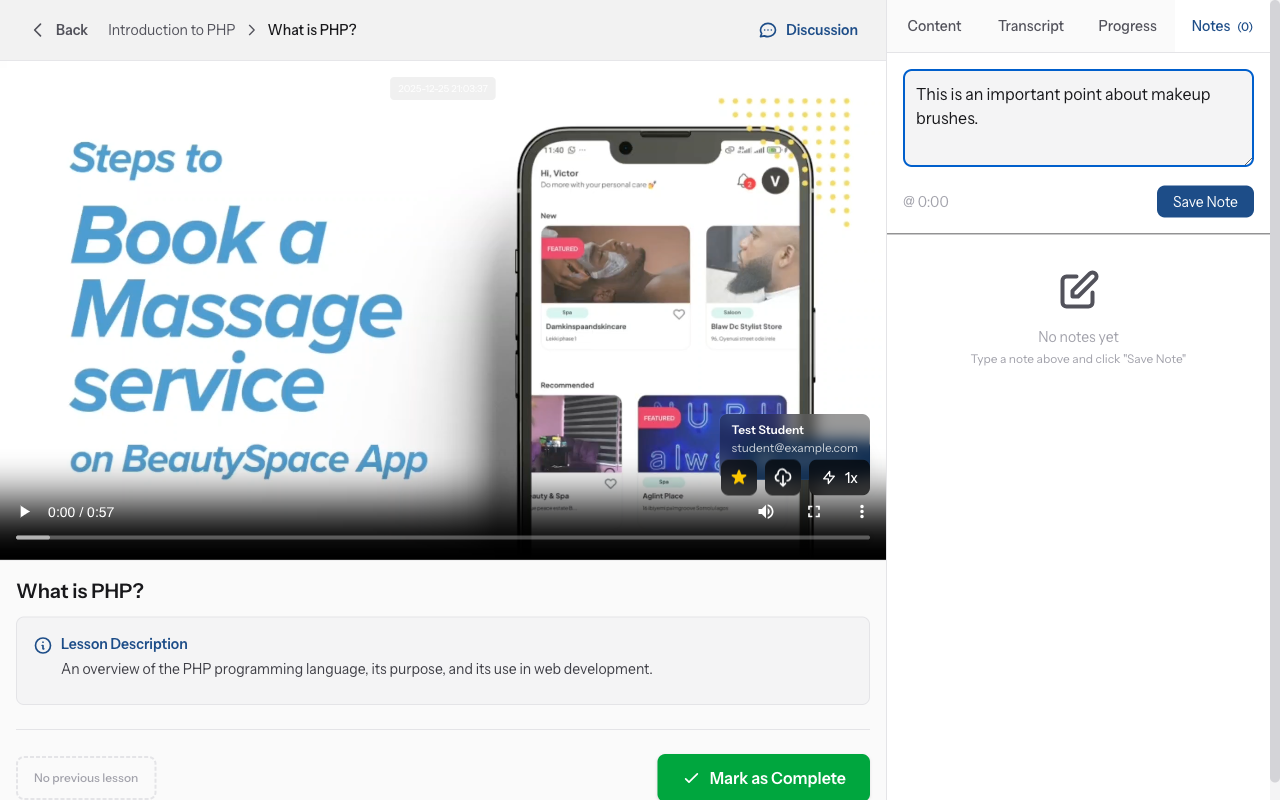
Create a new note
Click in the note text field and start typing. Write down important points, questions, or reminders. Press Enter or click "Save Note" to save it. Your note is automatically timestamped with the current video time.
-
03
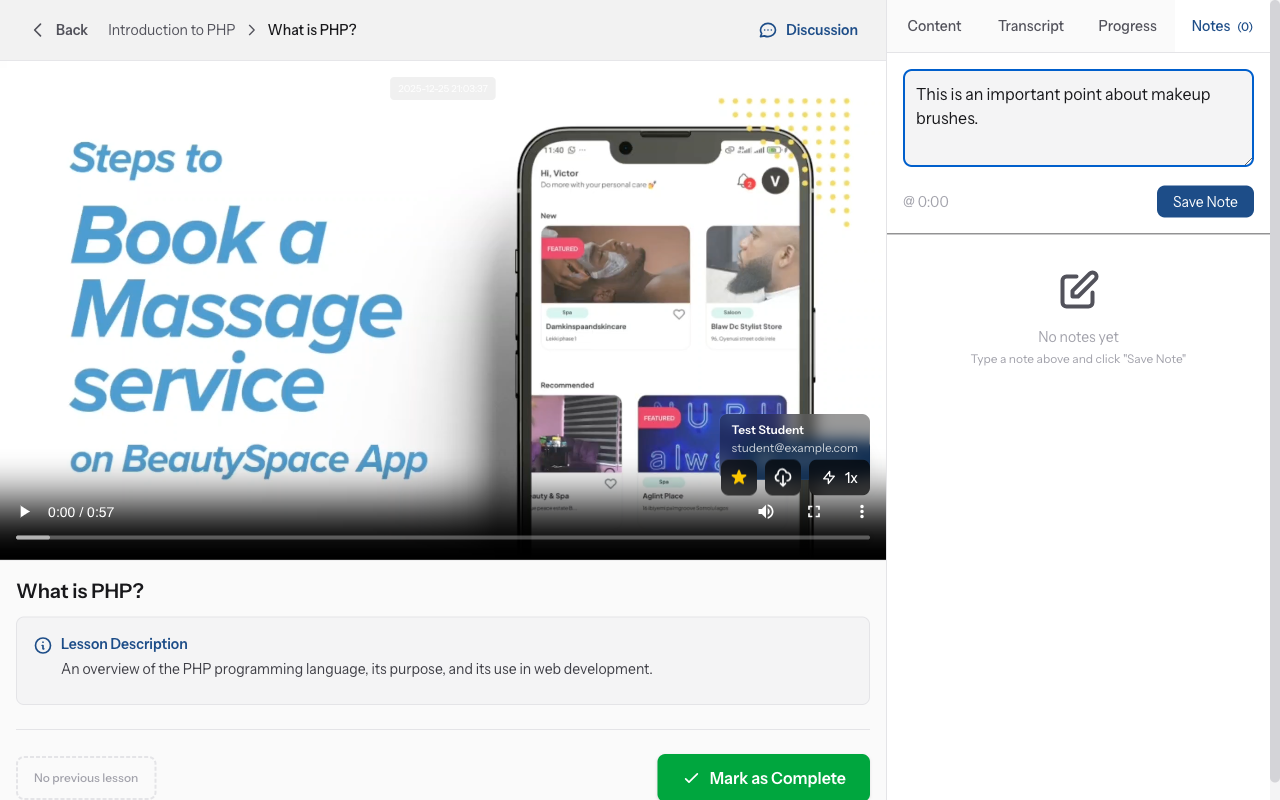
View your timestamped notes
All saved notes appear below the text field with timestamps (e.g., "05:23"). The timestamp shows when in the video you created that note. This helps you remember the context of each note.
-
04
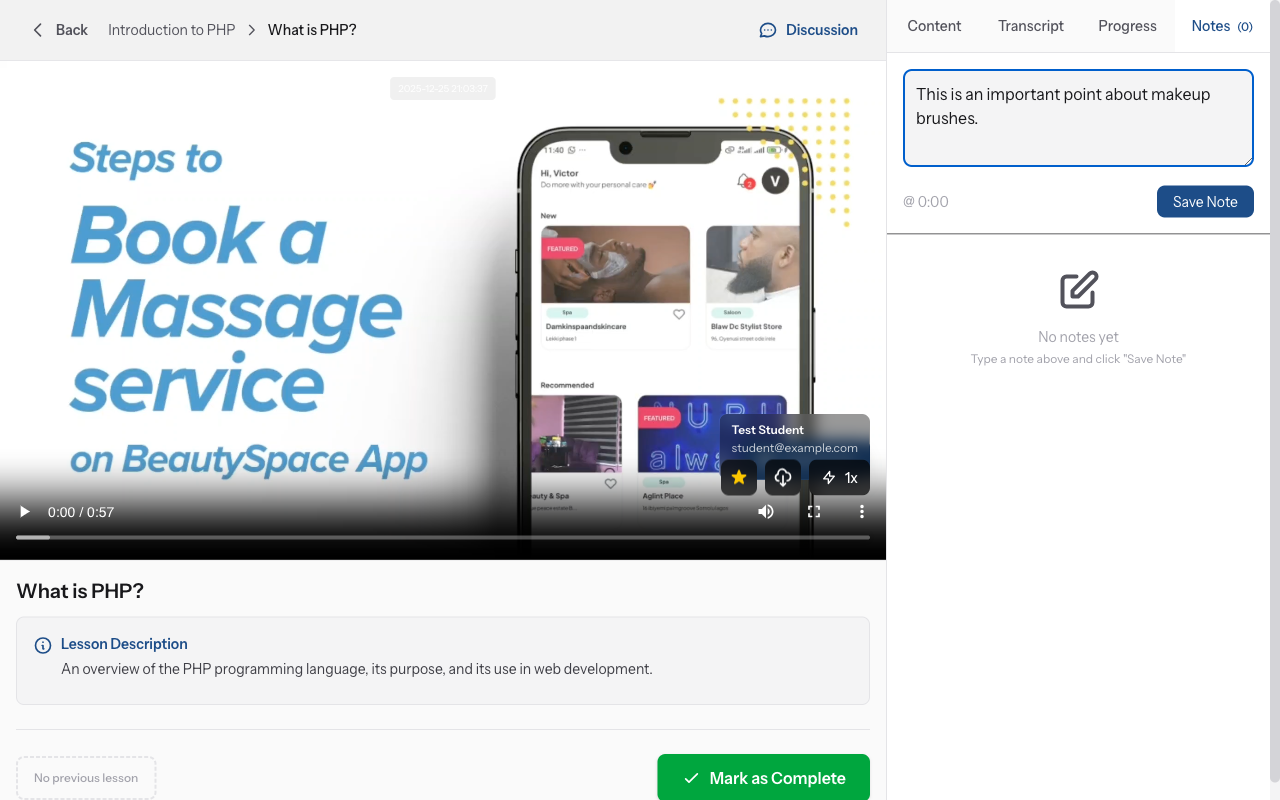
Jump to note timestamp
Click on any note's timestamp link. The video will jump directly to that moment, so you can review the content that inspired your note. Perfect for studying and reviewing key concepts.
-
05
Edit your notes
Click the edit icon (pencil) next to any note to modify it. Update your notes as you learn more or need to clarify points. Click "Save" to keep changes or "Cancel" to discard.
-
06
Delete notes
Click the delete icon (trash can) next to any note you no longer need. Confirm deletion when prompted. Deleted notes cannot be recovered, so be sure before deleting.
-
07
Export your notes
Click "Export Notes" button to download all your notes for this lesson as a text or PDF file. Use this for offline studying, sharing with study groups, or creating your own study materials.
-
08
Search through notes
Use the search box at the top of the notes panel to find specific notes by keyword. Helpful when you have many notes and need to quickly locate information.
Did this guide help?
If you need a real human, our support team replies in plain English within one working day. Faster on WhatsApp.