
-
01
Access subdomain settings
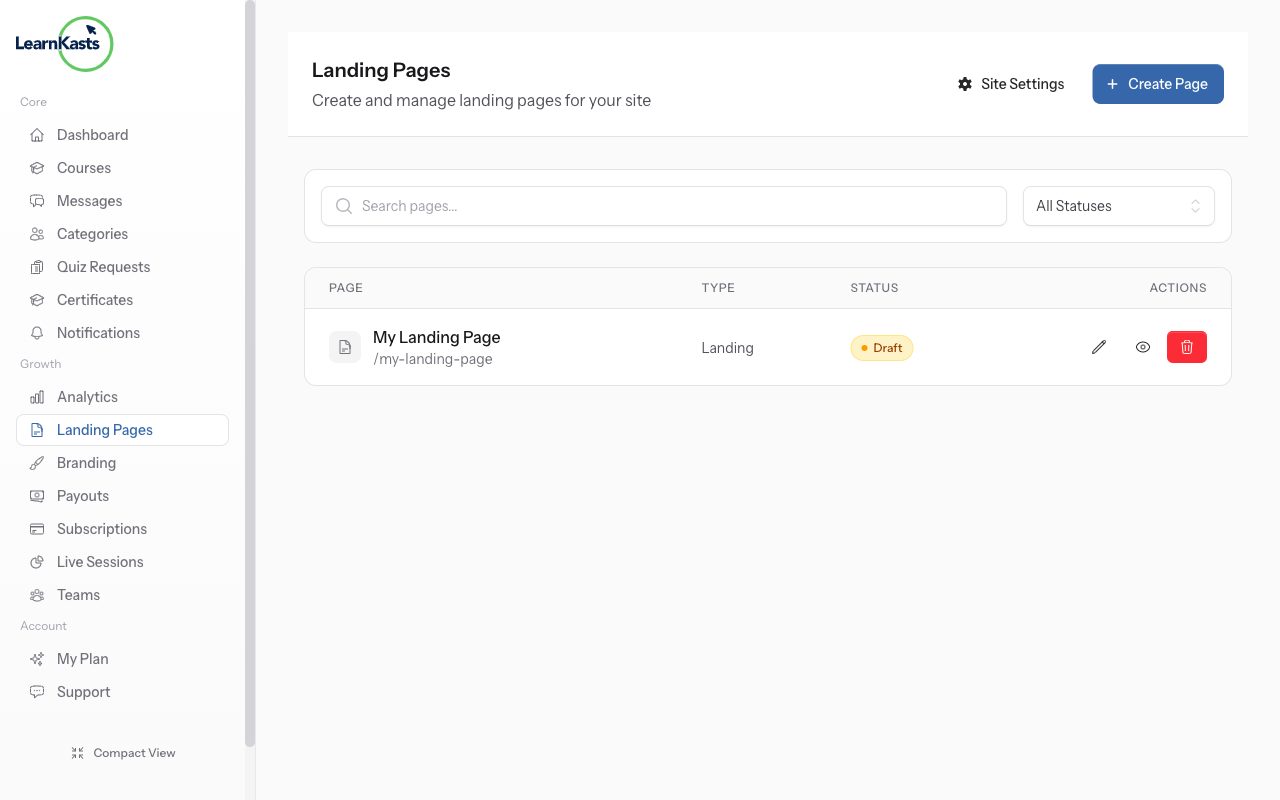
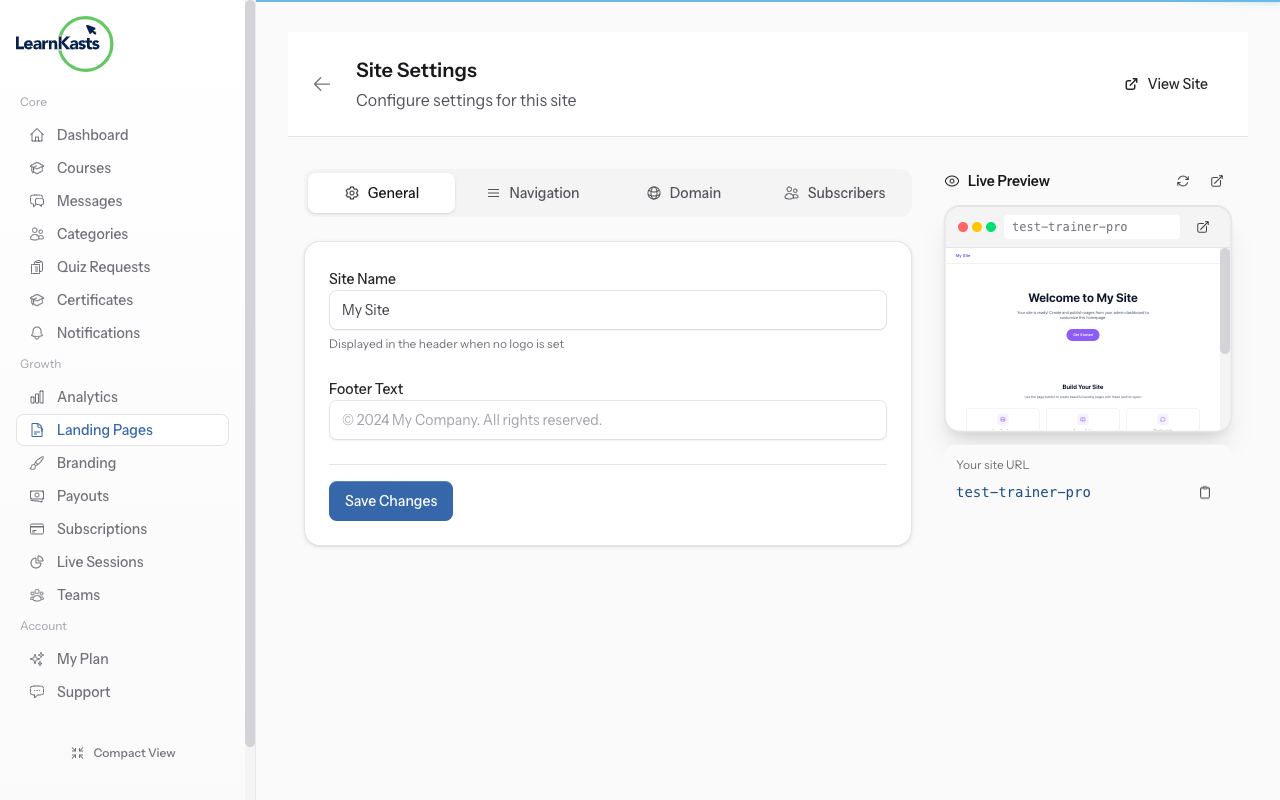
From Educator Dashboard, go to Landing Pages in the sidebar. Click on "Site" to access your subdomain settings. An auto-generated subdomain is already created for you.
-
02
View your subdomain
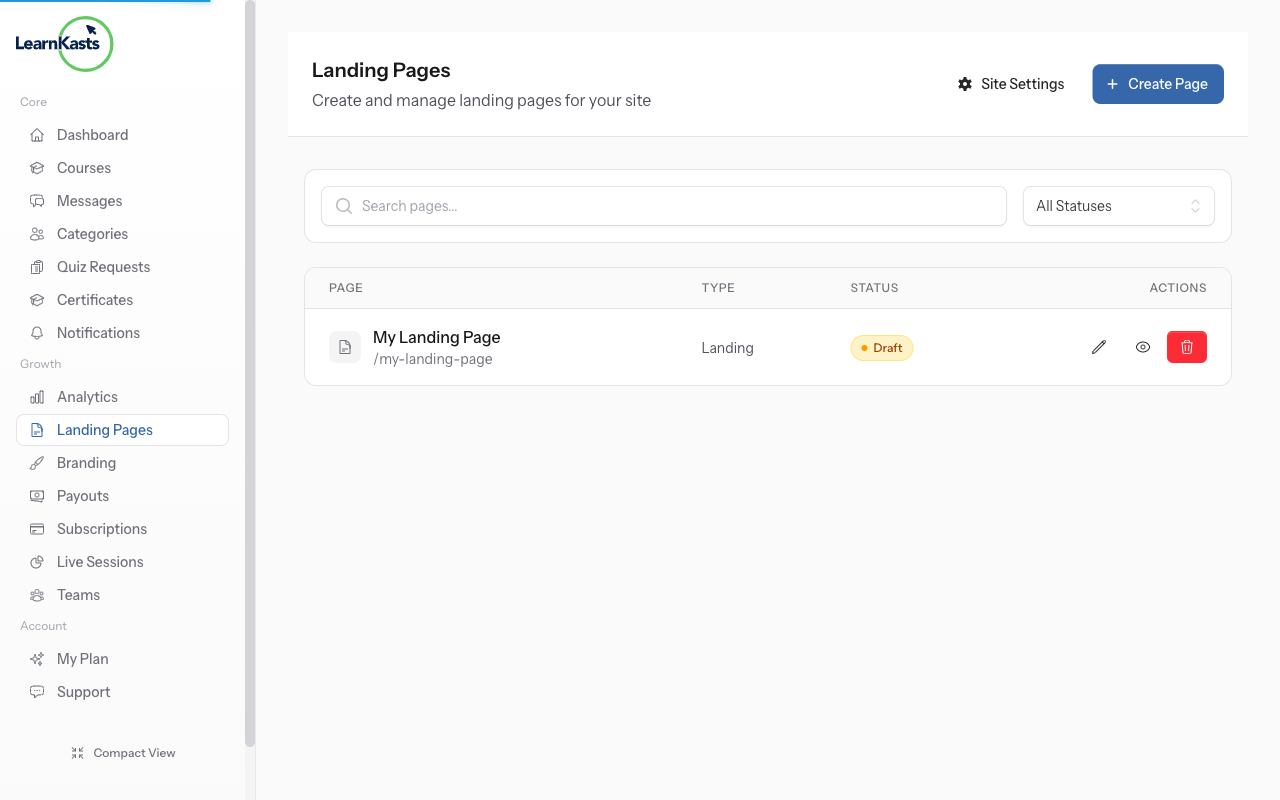
Your subdomain URL is displayed at the top (e.g., yourname.learnkasts.com). This is your personalized educator URL that students can use to find your courses and landing page.
-
03
Customize your landing page
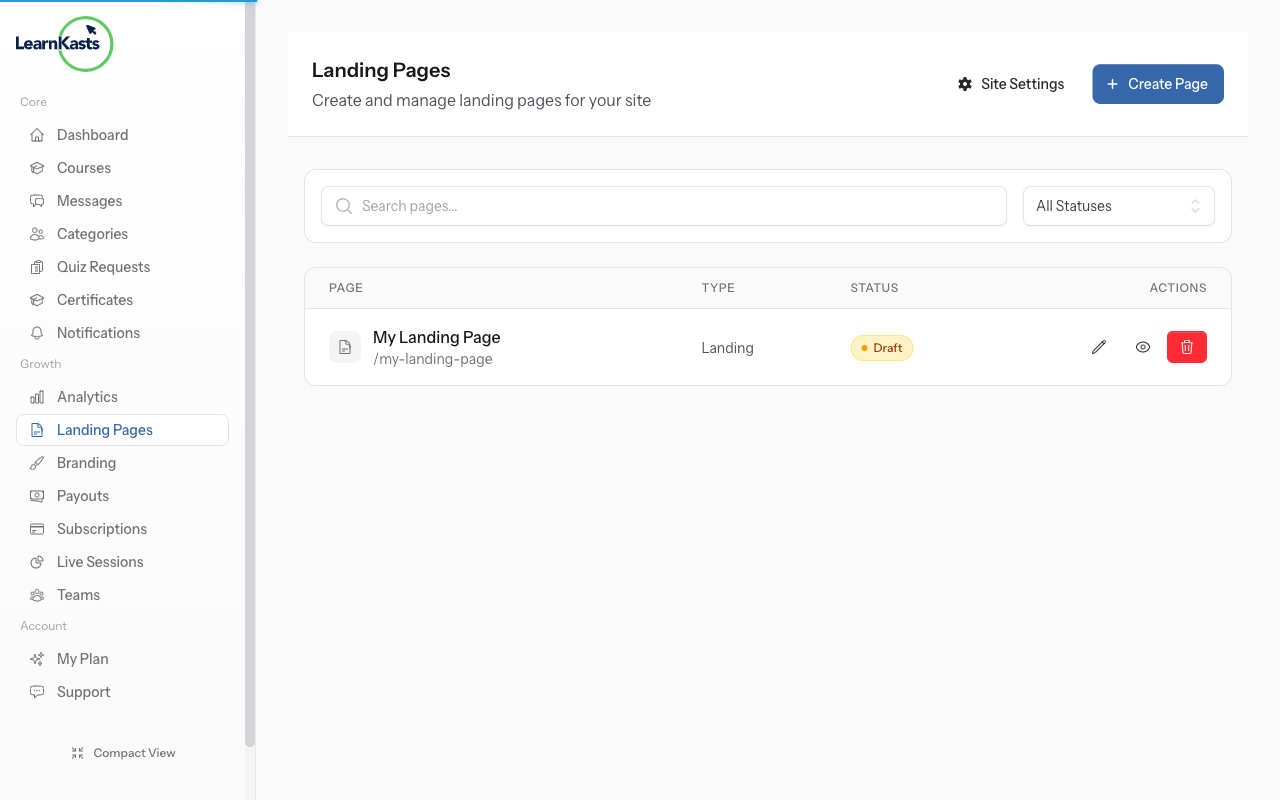
Use the visual editor to customize your subdomain landing page. Add your courses, bio, welcome message, and branding. Changes are saved automatically.
-
04
Preview your site
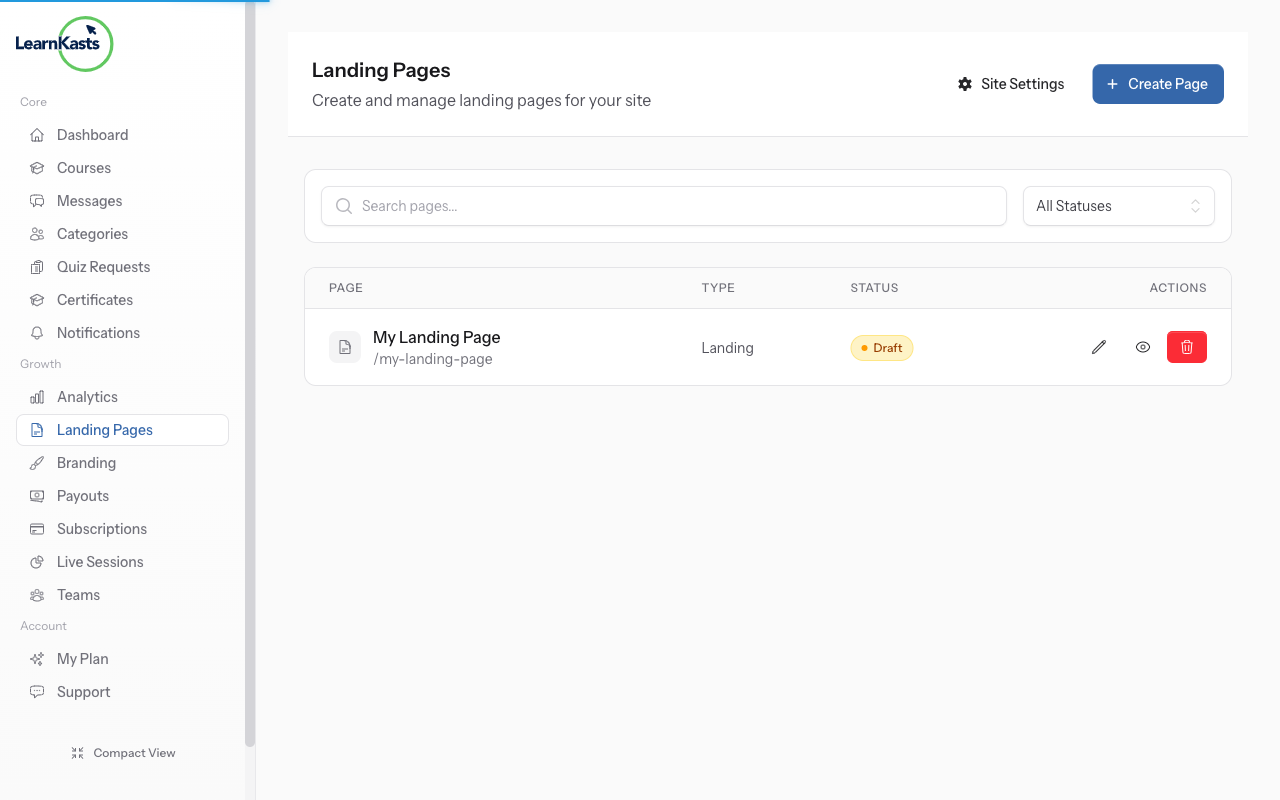
Click "Preview" to see how your subdomain looks to visitors. Your subdomain shows a branded landing page with your courses, bio, and social links.
-
05
Share your subdomain
Add your subdomain to business cards, social media bios, and email signatures. It's your professional teaching URL that's easy for students to remember.
-
06
Update subdomain settings
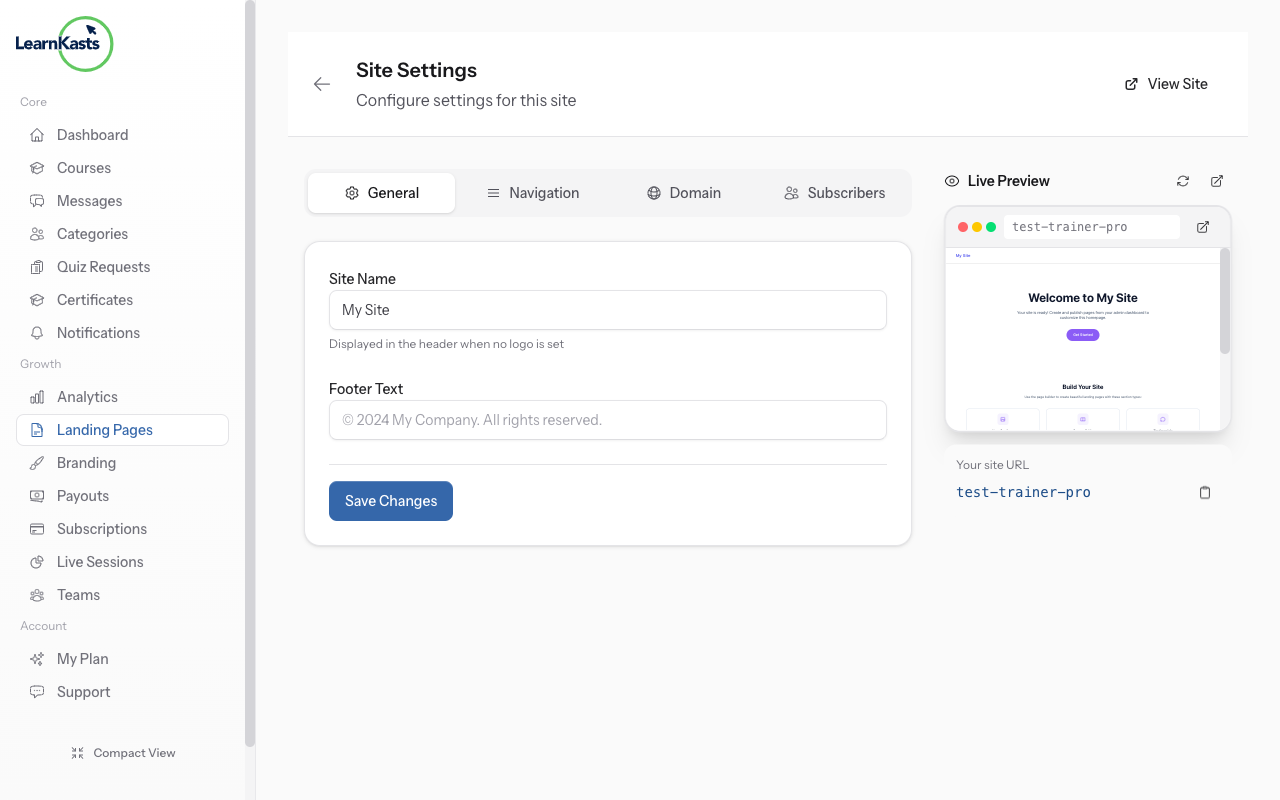
Return to Landing Pages → Site anytime to update your subdomain settings, change branding, or modify your landing page content.
Did this guide help?
If you need a real human, our support team replies in plain English within one working day. Faster on WhatsApp.