
-
01
Why use two-factor authentication
2FA adds extra security by requiring both your password AND a code from your phone to log in. This protects your account even if someone steals your password. Highly recommended for educator accounts with financial data.
-
02
Access security settings
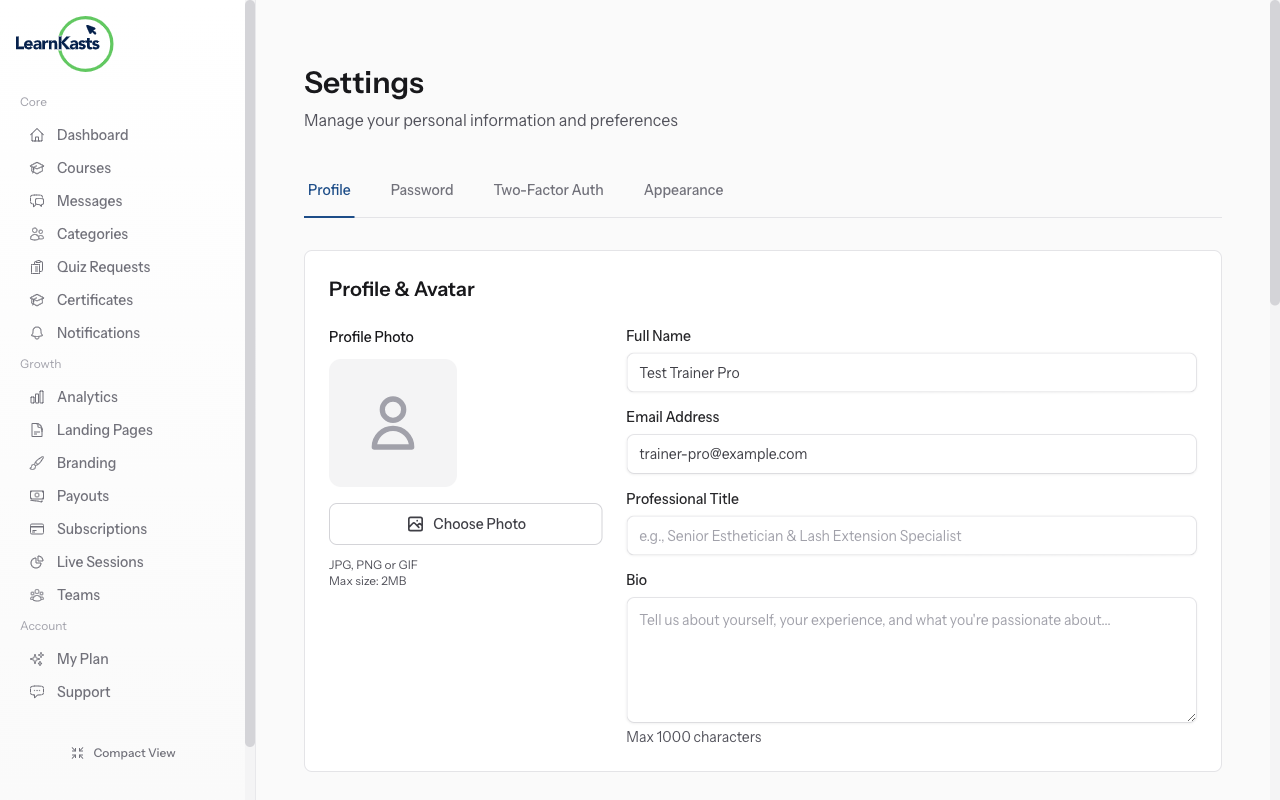
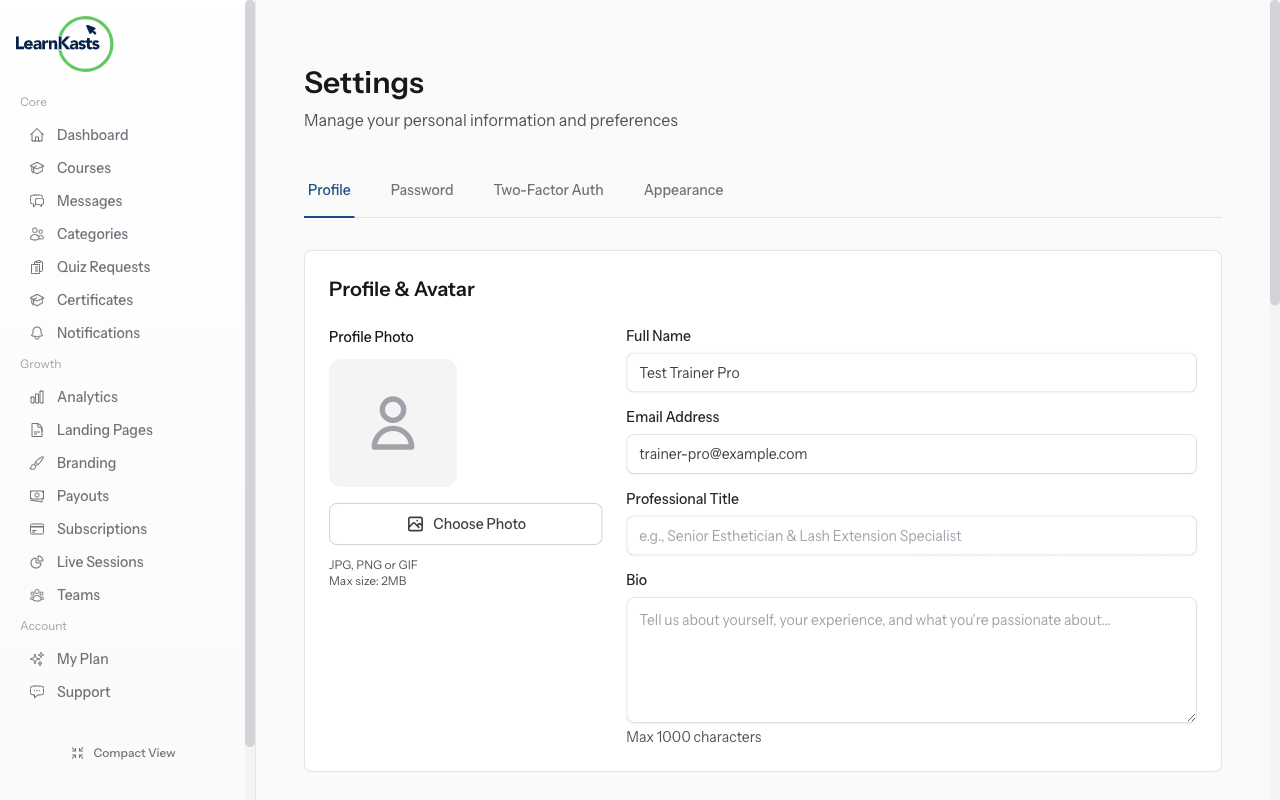
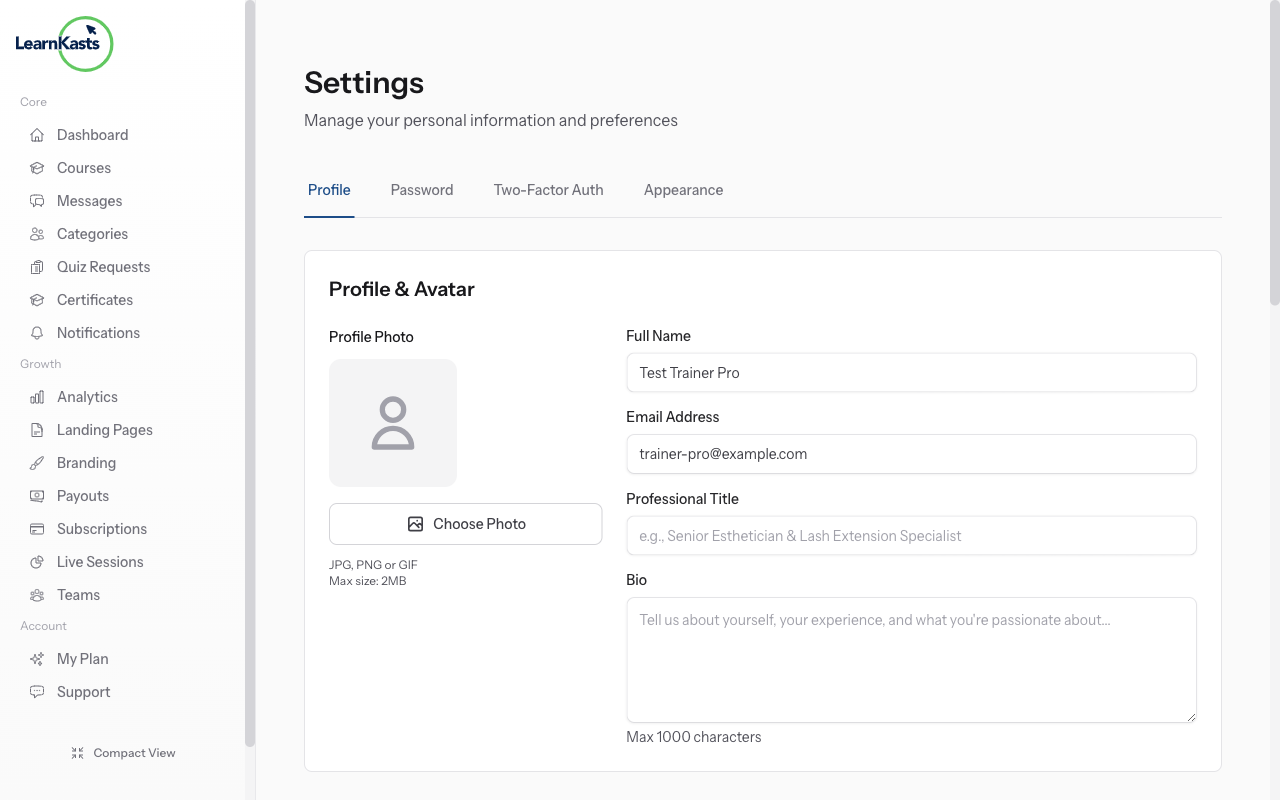
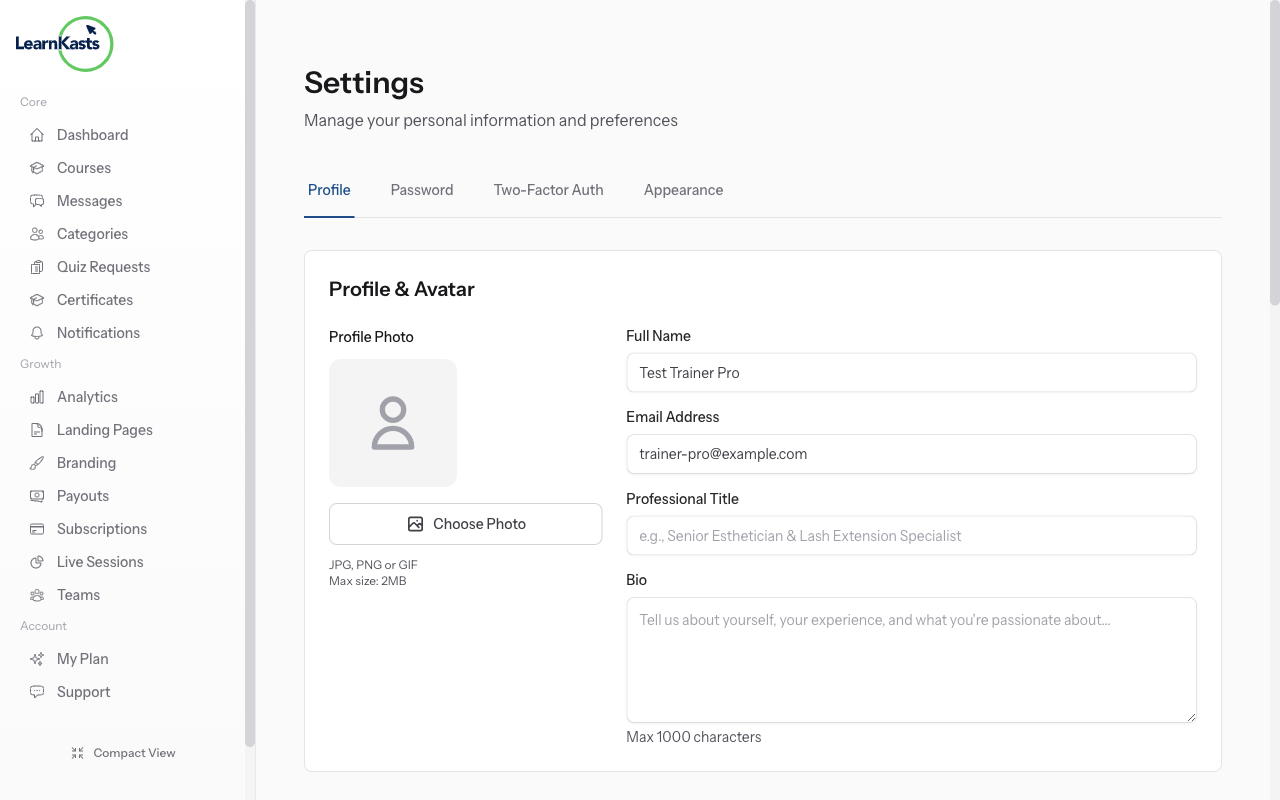
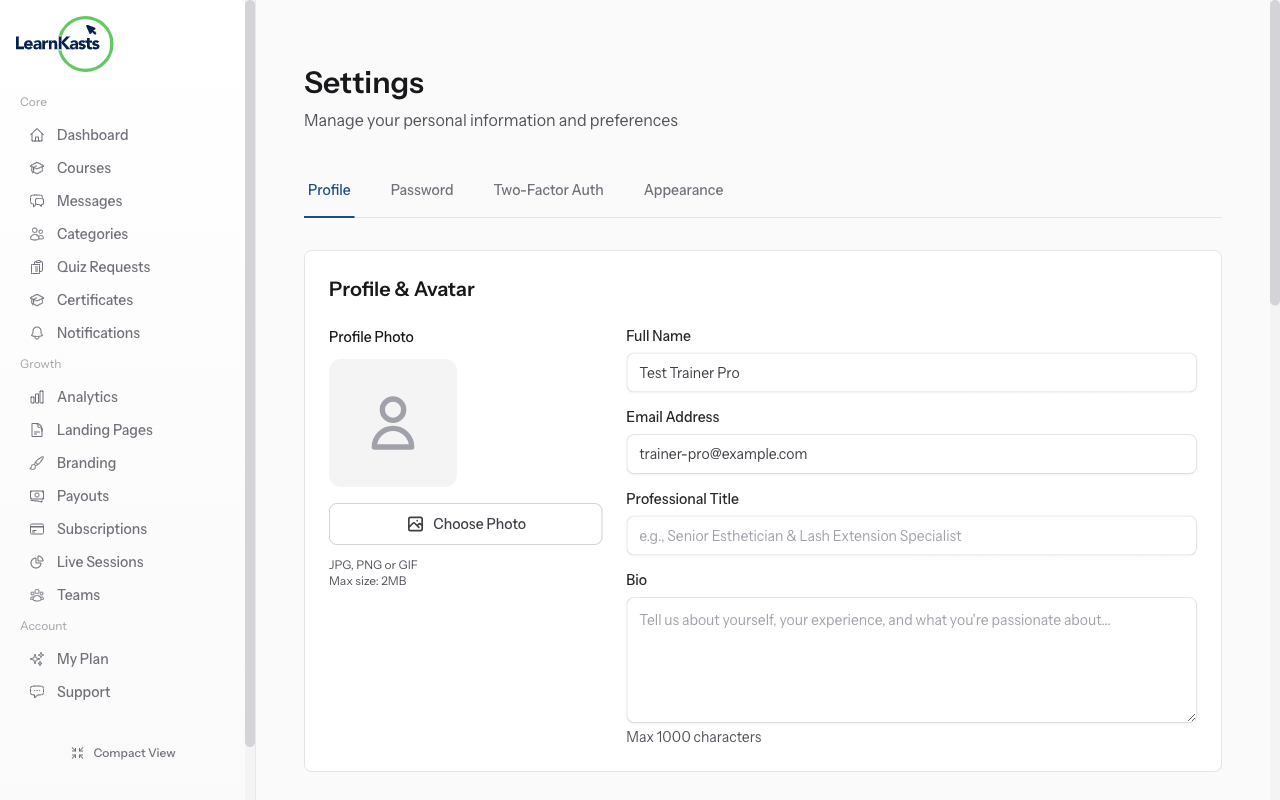
Click your profile icon → Settings → "Security" tab. Find the Two-Factor Authentication section. You'll see the current status (Disabled or Enabled) and a setup button.
-
03
Scan QR code
Before enabling 2FA, download an authenticator app on your phone: Google Authenticator (iOS/Android), Microsoft Authenticator, or Authy. These apps generate the security codes you'll need.
-
04
Verify setup with first code
Click "Enable 2FA" button. A QR code appears on screen. Open your authenticator app → Click "+" to add account → Scan the QR code with your phone camera. The app will add Learnkasts to your accounts.
-
05
Disable 2FA (if needed)
After scanning, you'll see backup codes. Copy these codes and store them safely (password manager, secure note). Use these if you lose your phone. Each code works once. Click "I've saved my codes" to continue.
-
06
Verify setup with first code
Your authenticator app now shows a 6-digit code that changes every 30 seconds. Enter the current code in the verification field. Click "Verify". This confirms 2FA is working correctly.
-
07
Login with 2FA enabled
Next time you log in: Enter email and password as normal → You'll see a "Two-Factor Code" field → Open your authenticator app → Enter the current 6-digit code → Click "Verify" → You're logged in!
-
08
Disable 2FA (if needed)
To turn off 2FA, go to Settings → Security → Click "Disable 2FA" → Enter your password and a current 2FA code → Confirm. Only disable if absolutely necessary - 2FA keeps your account safe.
Did this guide help?
If you need a real human, our support team replies in plain English within one working day. Faster on WhatsApp.