Enabling Two-Factor Authentication
Add an extra layer of security to your account with 2FA.
-
Why use two-factor authentication
2FA adds extra security by requiring both your password AND a code from your phone to log in. This protects your account even if someone steals your password. Highly recommended for educator accounts with financial data.
-
Access security settings
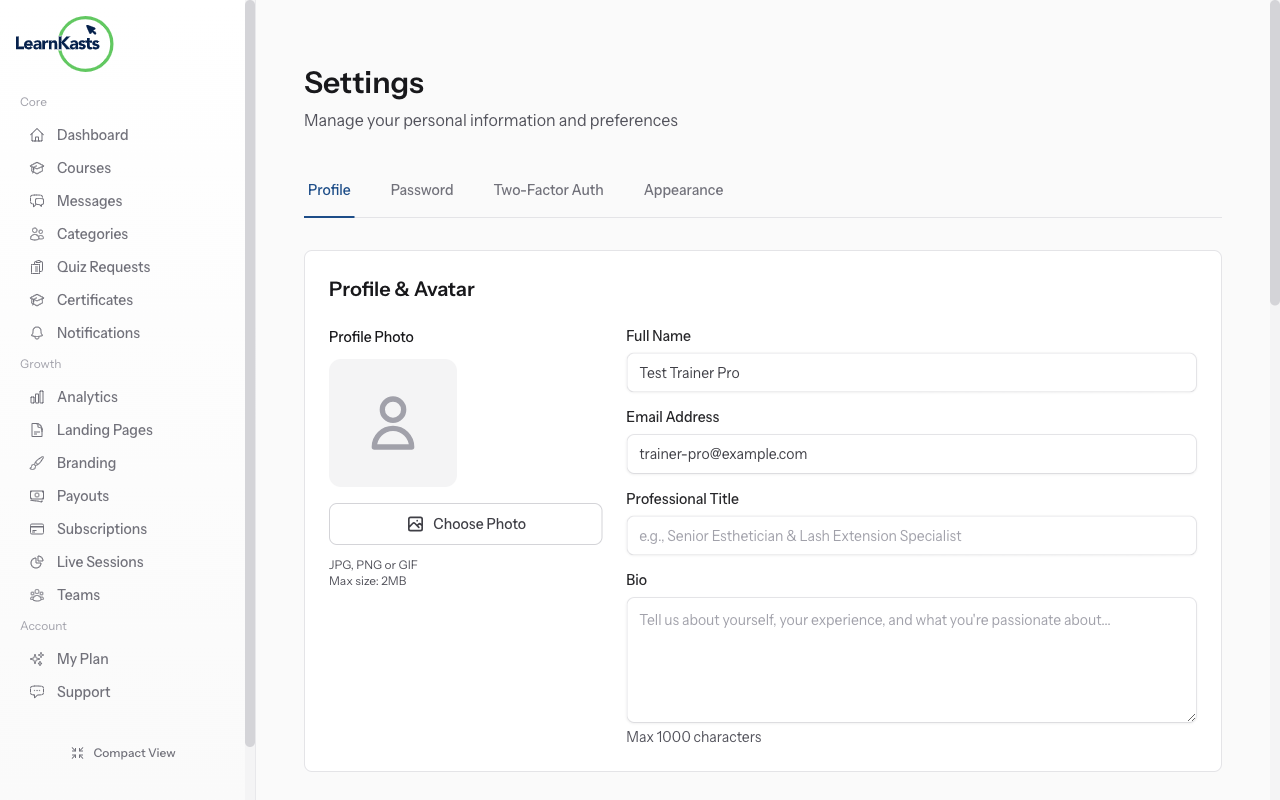
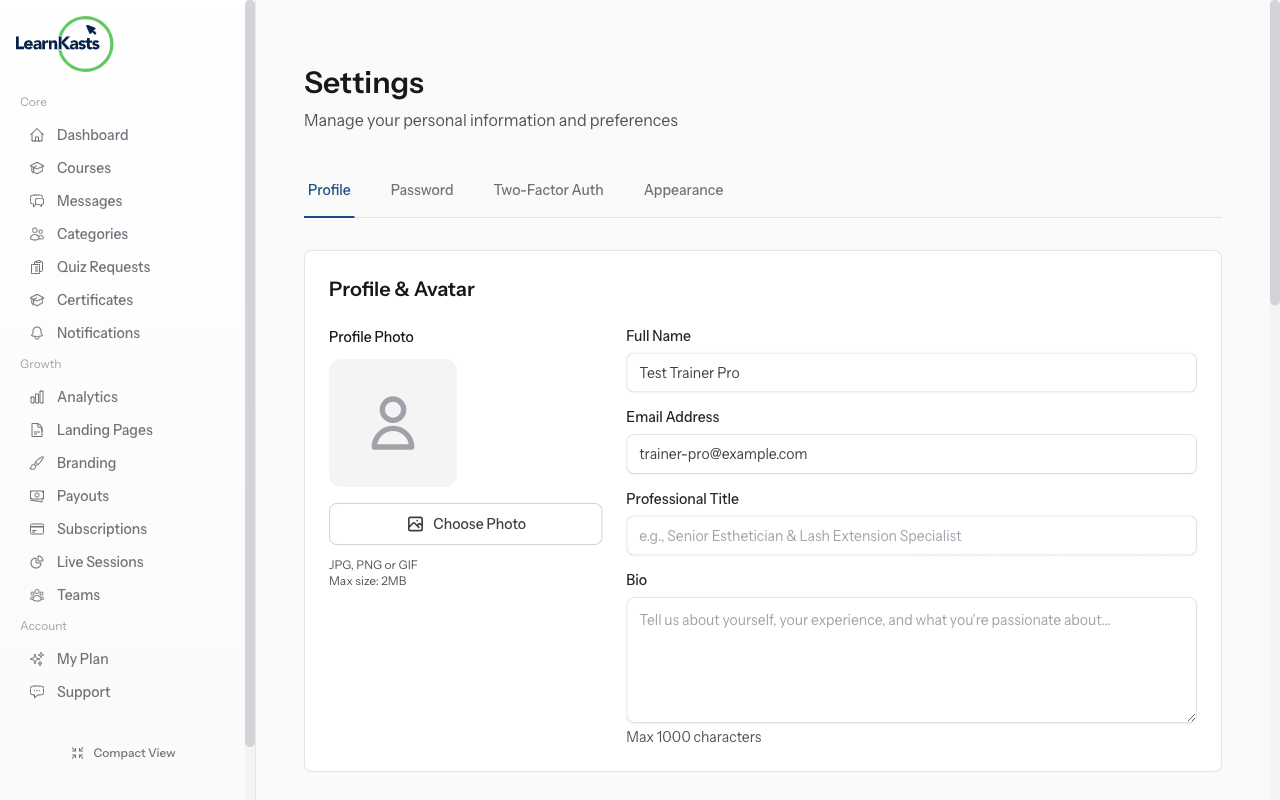
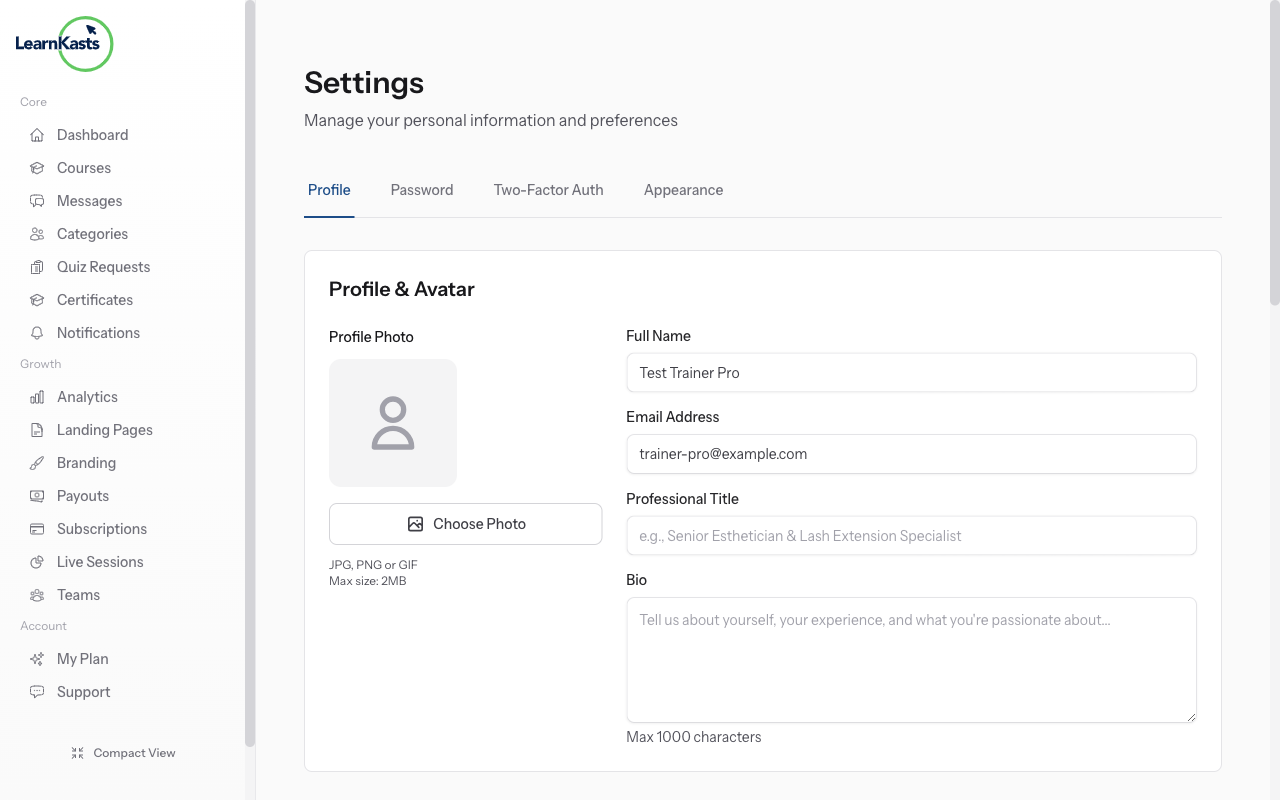
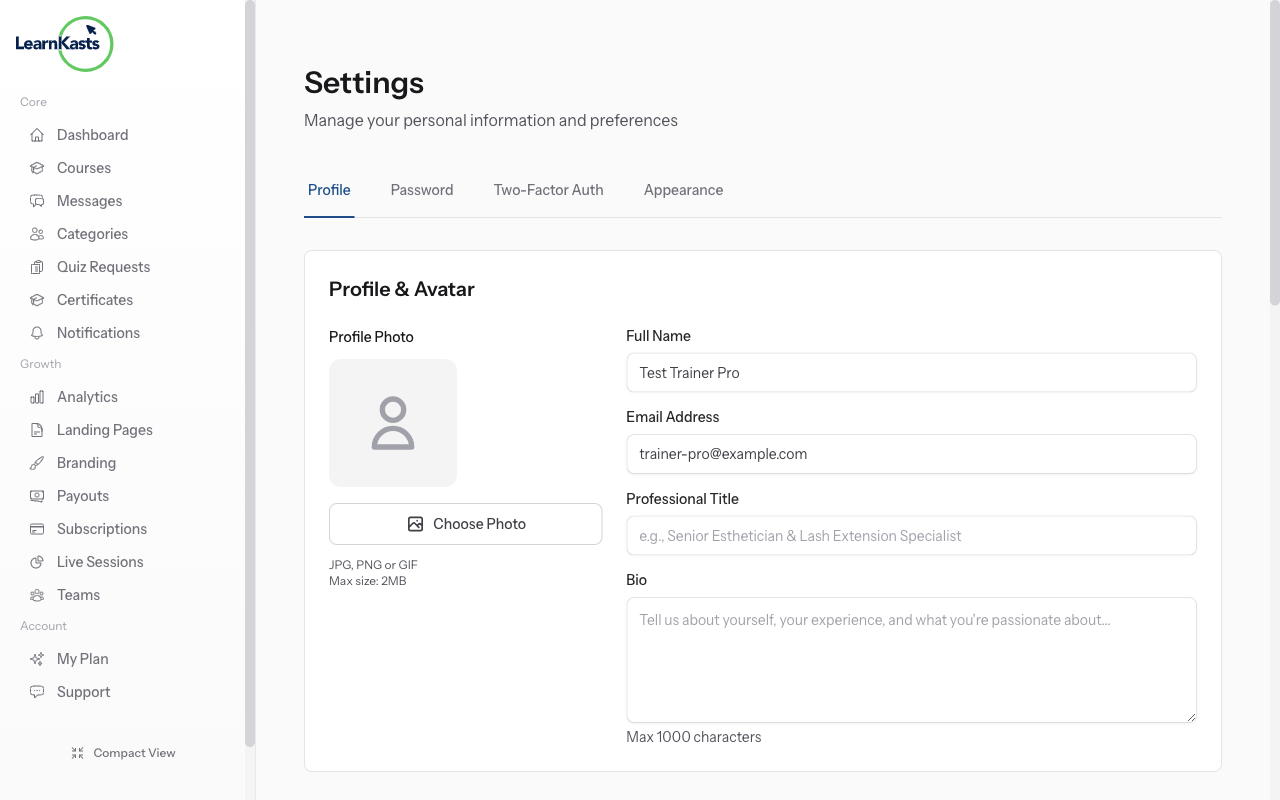
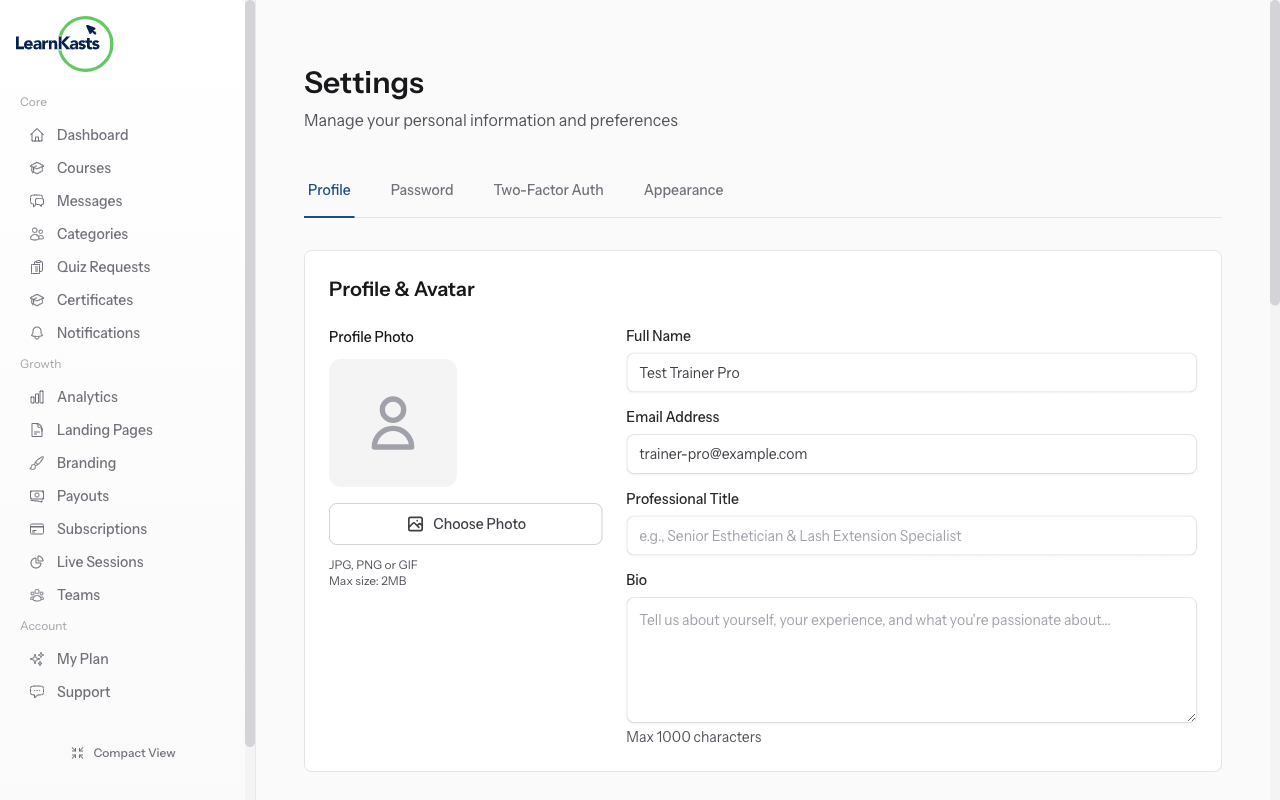
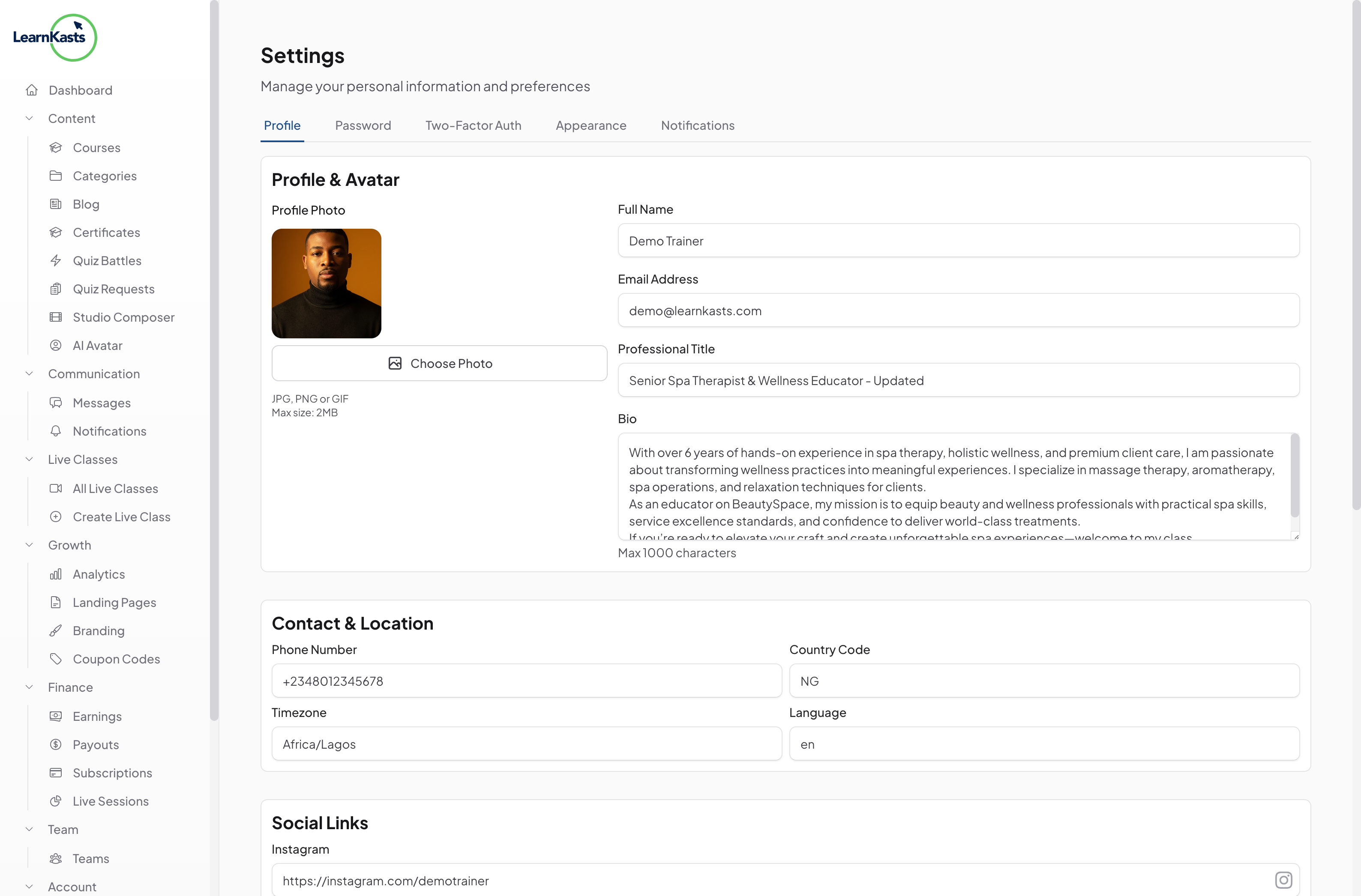
Click your profile icon → Settings → "Security" tab. Find the Two-Factor Authentication section. You'll see the current status (Disabled or Enabled) and a setup button.
-
Scan QR code
Before enabling 2FA, download an authenticator app on your phone: Google Authenticator (iOS/Android), Microsoft Authenticator, or Authy. These apps generate the security codes you'll need.
-
Verify setup with first code
Click "Enable 2FA" button. A QR code appears on screen. Open your authenticator app → Click "+" to add account → Scan the QR code with your phone camera. The app will add Learnkasts to your accounts.
-
Disable 2FA (if needed)
After scanning, you'll see backup codes. Copy these codes and store them safely (password manager, secure note). Use these if you lose your phone. Each code works once. Click "I've saved my codes" to continue.
-
Verify setup with first code
Your authenticator app now shows a 6-digit code that changes every 30 seconds. Enter the current code in the verification field. Click "Verify". This confirms 2FA is working correctly.
-
Login with 2FA enabled
Next time you log in: Enter email and password as normal → You'll see a "Two-Factor Code" field → Open your authenticator app → Enter the current 6-digit code → Click "Verify" → You're logged in!
-
Disable 2FA (if needed)
To turn off 2FA, go to Settings → Security → Click "Disable 2FA" → Enter your password and a current 2FA code → Confirm. Only disable if absolutely necessary - 2FA keeps your account safe.
Más guías
Guías para educadores
Guías paso a paso para crear cursos, dar sesiones en vivo y hacer crecer tu negocio de enseñanza.
- Getting started as an educator
- Creating your first course
- Building course curriculum
- Uploading video lessons
- Using AI to generate quizzes
- Creating quizzes and assignments
- Assignments and grading queues
- Hosting live sessions
- Creating and managing webinars
- Managing course cohorts
- Adding students to cohorts
- Setting up subscriptions
- Course reviews and ratings
- Issuing certificates
- Understanding course analytics
- Live session usage and billing
- Setting up payout methods
- Viewing revenue and payouts
- Setting up your educator subdomain
- Creating landing pages
- Using the visual page editor
- Adding page sections
- Page styling and branding
- AI Studio Composer
- AI Voice Clone & Avatar
- Traffic sources & UTM attribution
Guías para estudiantes
Todo lo que los estudiantes necesitan para explorar cursos, unirse a sesiones en vivo y seguir su progreso.
- Creating an account
- Browsing and finding courses
- Enrolling in a course
- Watching video lessons
- Taking notes during lessons
- Submitting assignments
- Taking quizzes
- Joining live classes
- Attending webinars
- Managing your subscriptions
- Viewing your certificates
- Writing course reviews
- Managing your orders
- Updating your profile
Equipo y administración
Gestión de equipos, permisos, facturación y herramientas administrativas para organizaciones.
¿Te ayudó esta guía?
Si necesitas a una persona real, nuestro equipo de soporte responde en lenguaje claro en un día hábil. Más rápido por WhatsApp.