
-
01
Access certificate settings
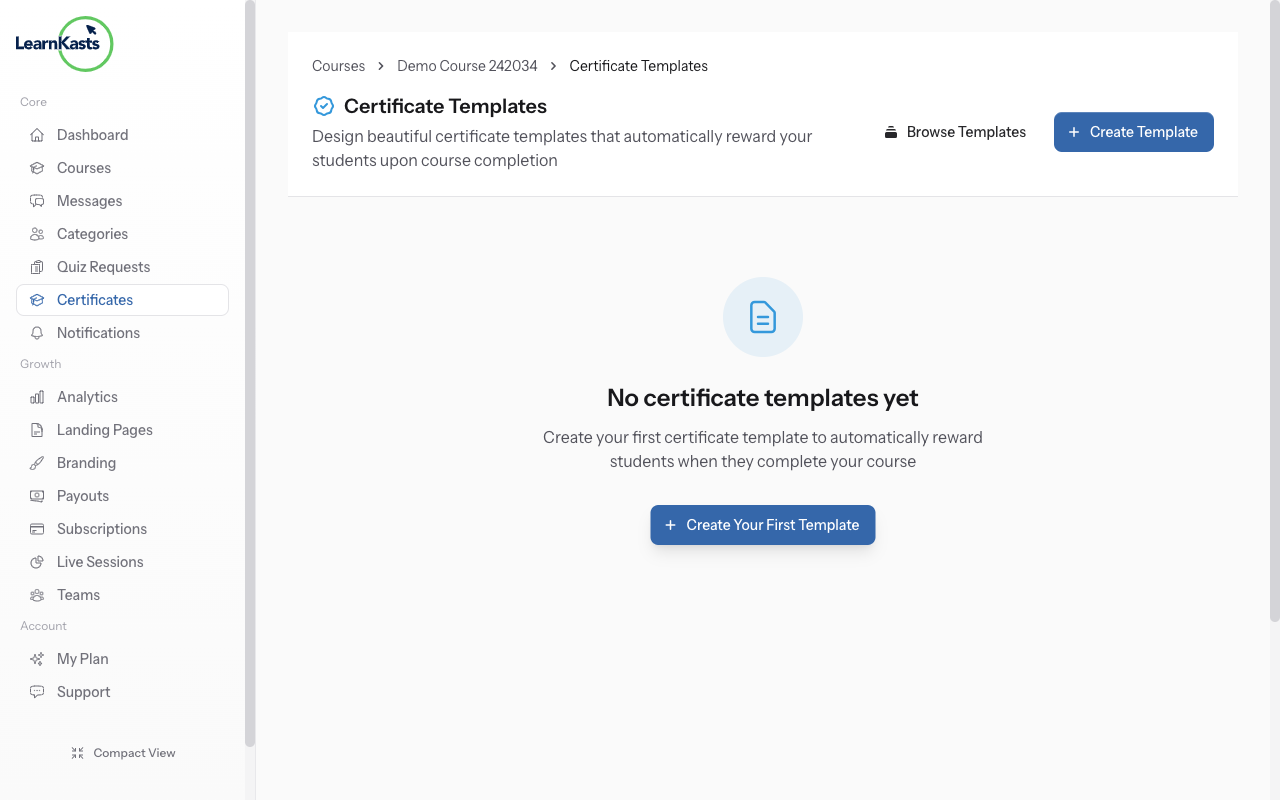
Certificate templates are configured per course. From your Educator Dashboard, go to Courses → click Edit on your course → select the "Certificates" tab. This is where you create and manage certificate templates for that course.
-
02
Create a certificate template
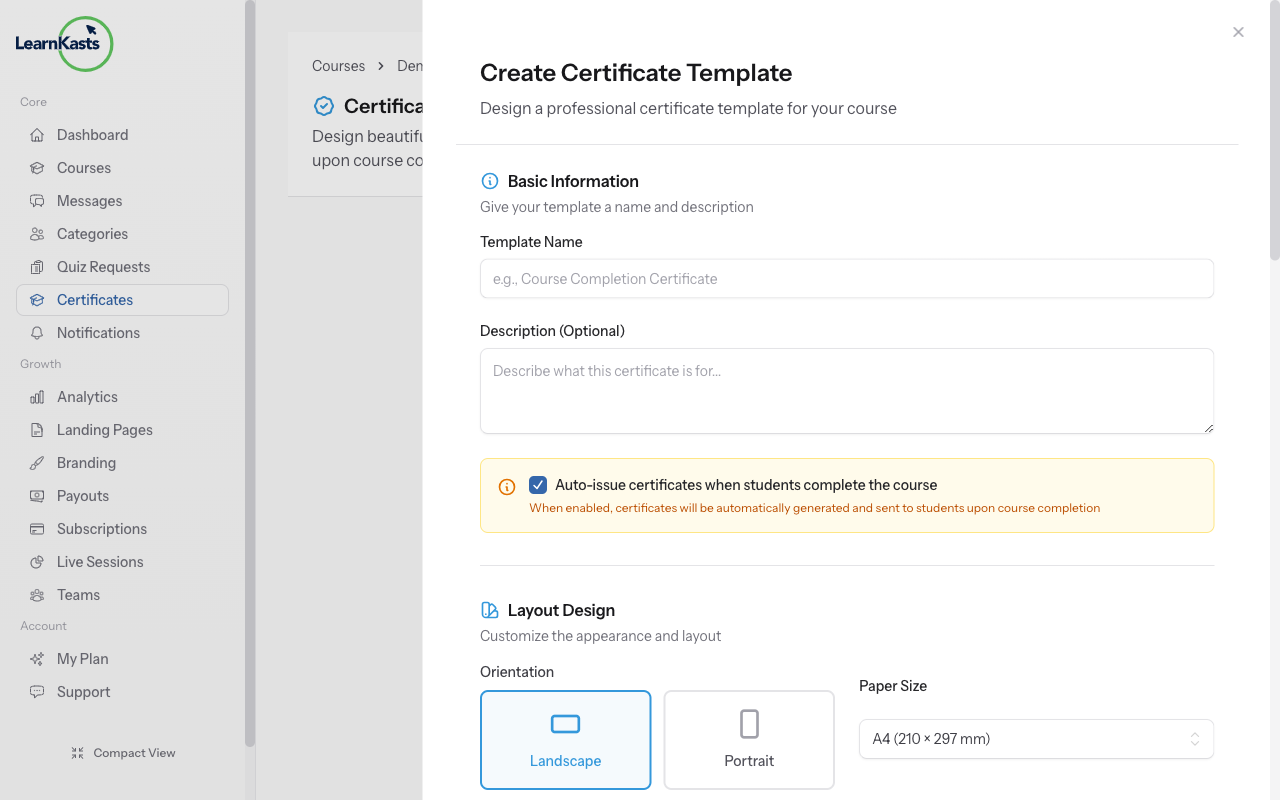
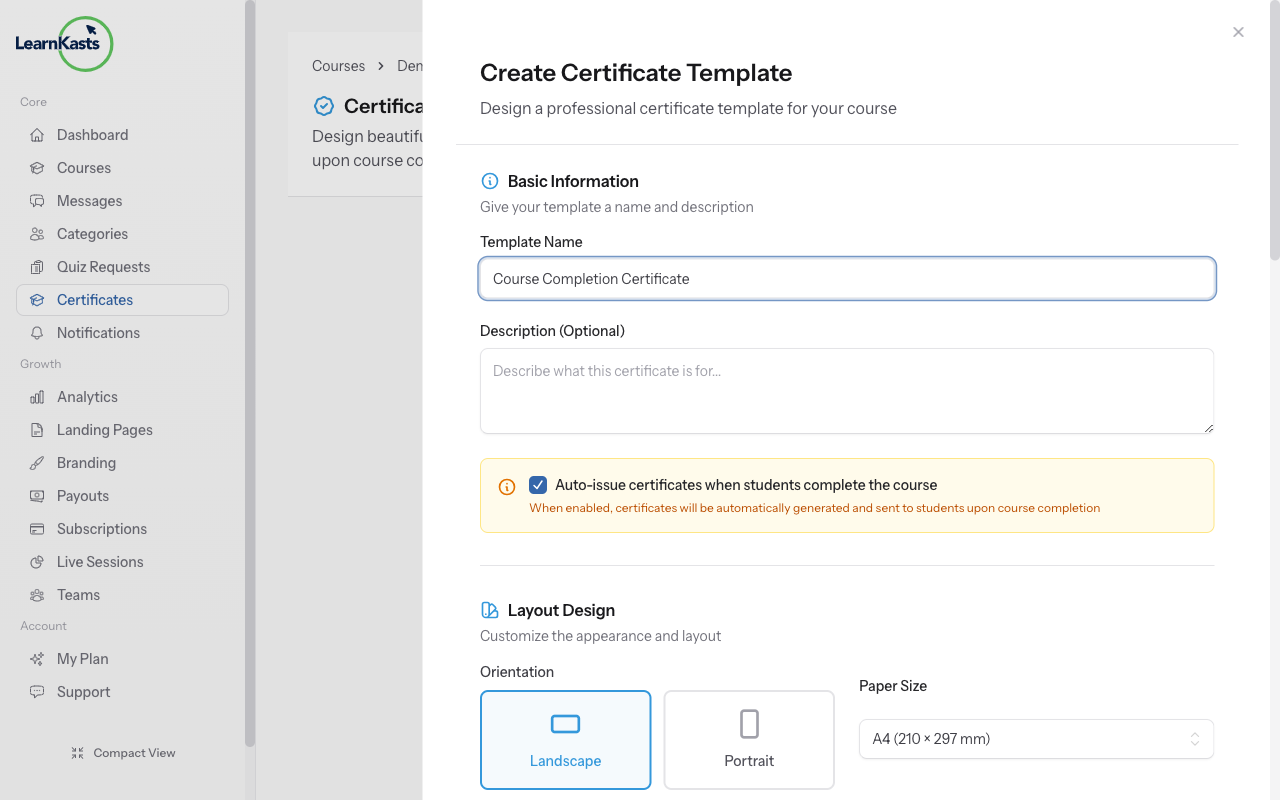
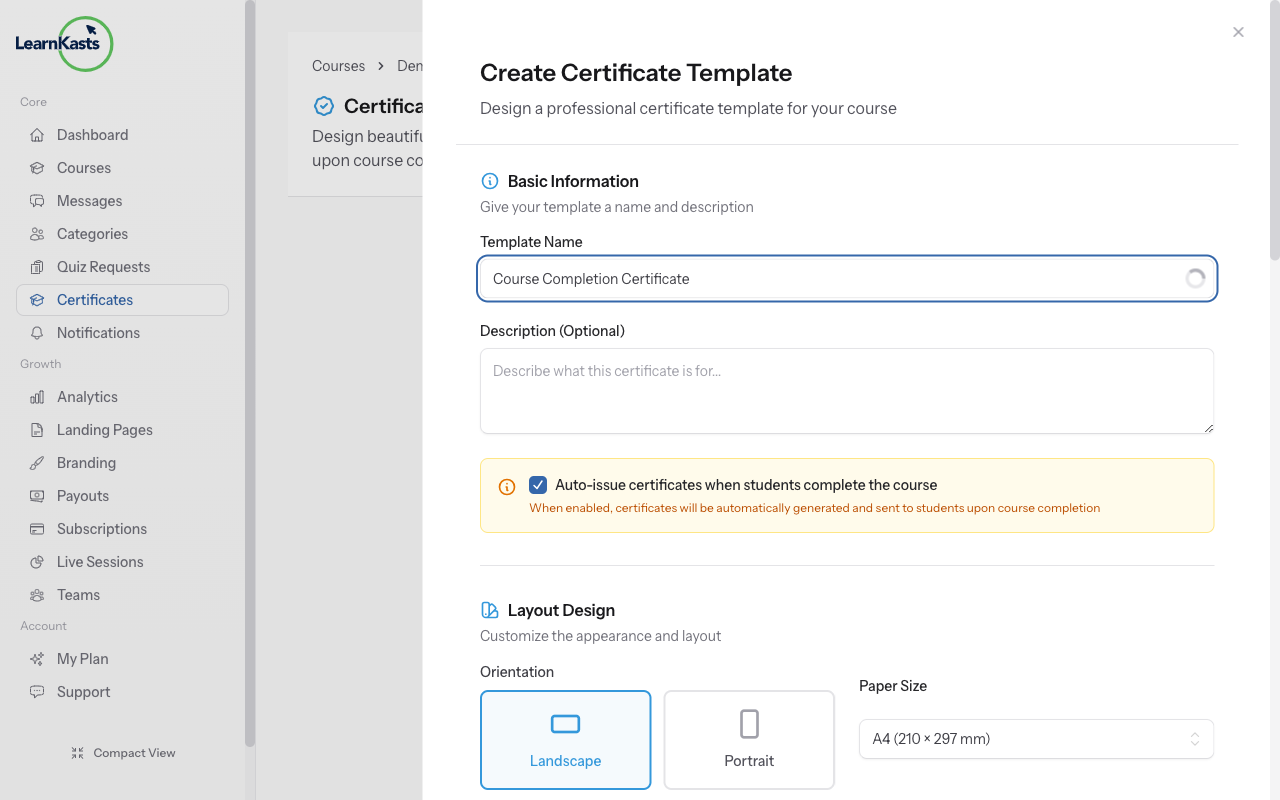
Click "Create Template" to design a new certificate for this course. Templates include placeholders for student name, course title, completion date, and your signature. Upload your logo, customize colors to match your brand, and click Save when finished.
-
03
Set completion requirements
Configure what students must complete to earn the certificate: minimum course progress percentage, quiz passing scores, and/or approved assignments. The certificate is automatically issued when all requirements are met.
-
04
Preview and publish
Use the preview button to see how the certificate will look with sample data. Once satisfied, enable the certificate for your course. Students can download their certificates from their dashboard and share verification links with employers.
Did this guide help?
If you need a real human, our support team replies in plain English within one working day. Faster on WhatsApp.