
-
01
Navigate to your courses
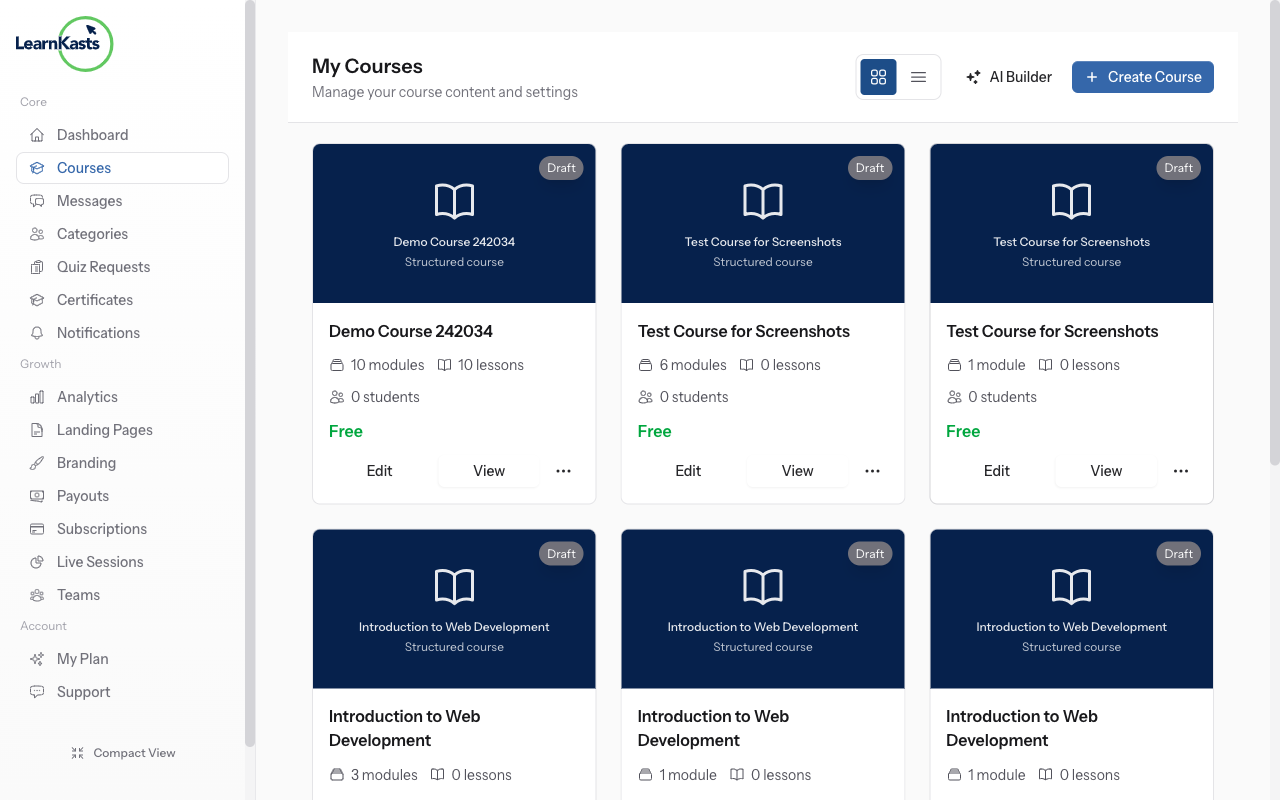
From your Educator Dashboard, click "Courses" in the sidebar to see all your courses. Find the course where you want to add a quiz and click "Edit" to open the course editor.
-
02
Open course curriculum
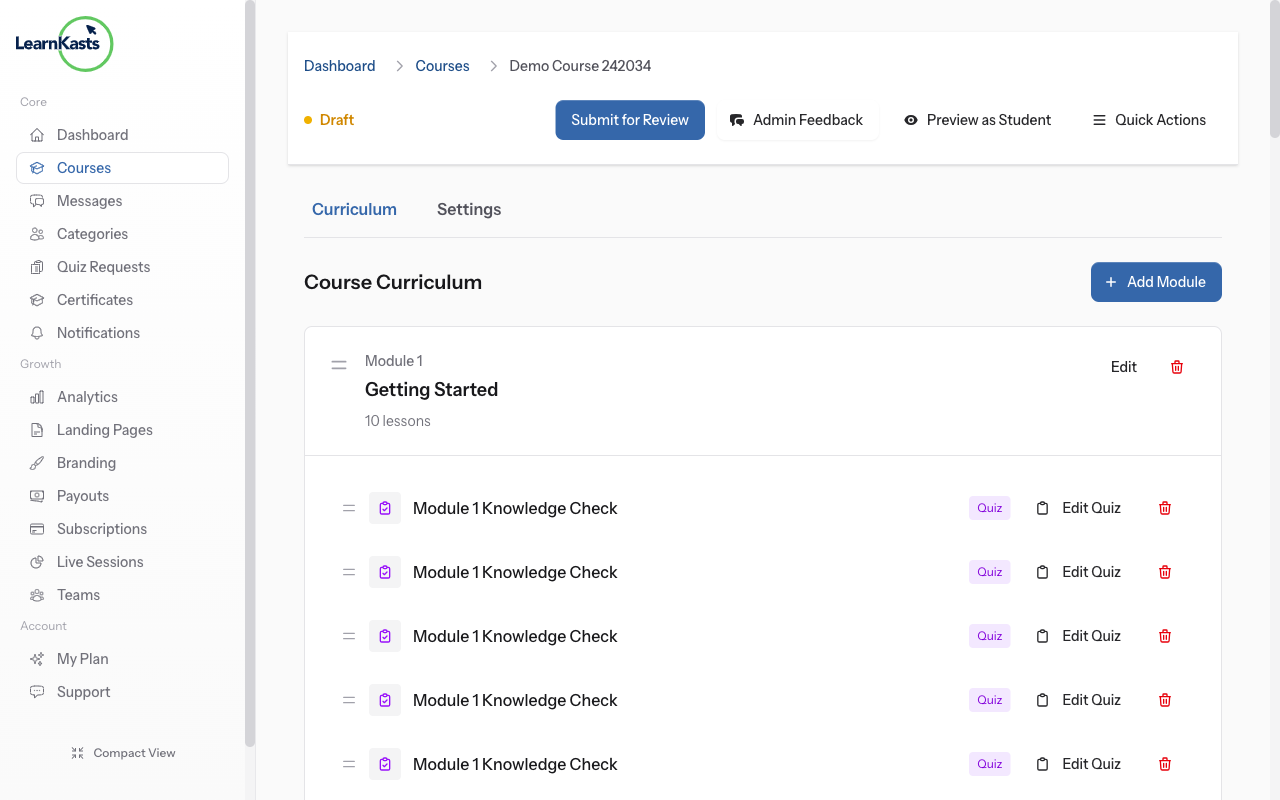
In the course editor, click on the "Curriculum" tab. You'll see your modules and lessons listed. Navigate to the module where you want to add the quiz.
-
03
View curriculum structure
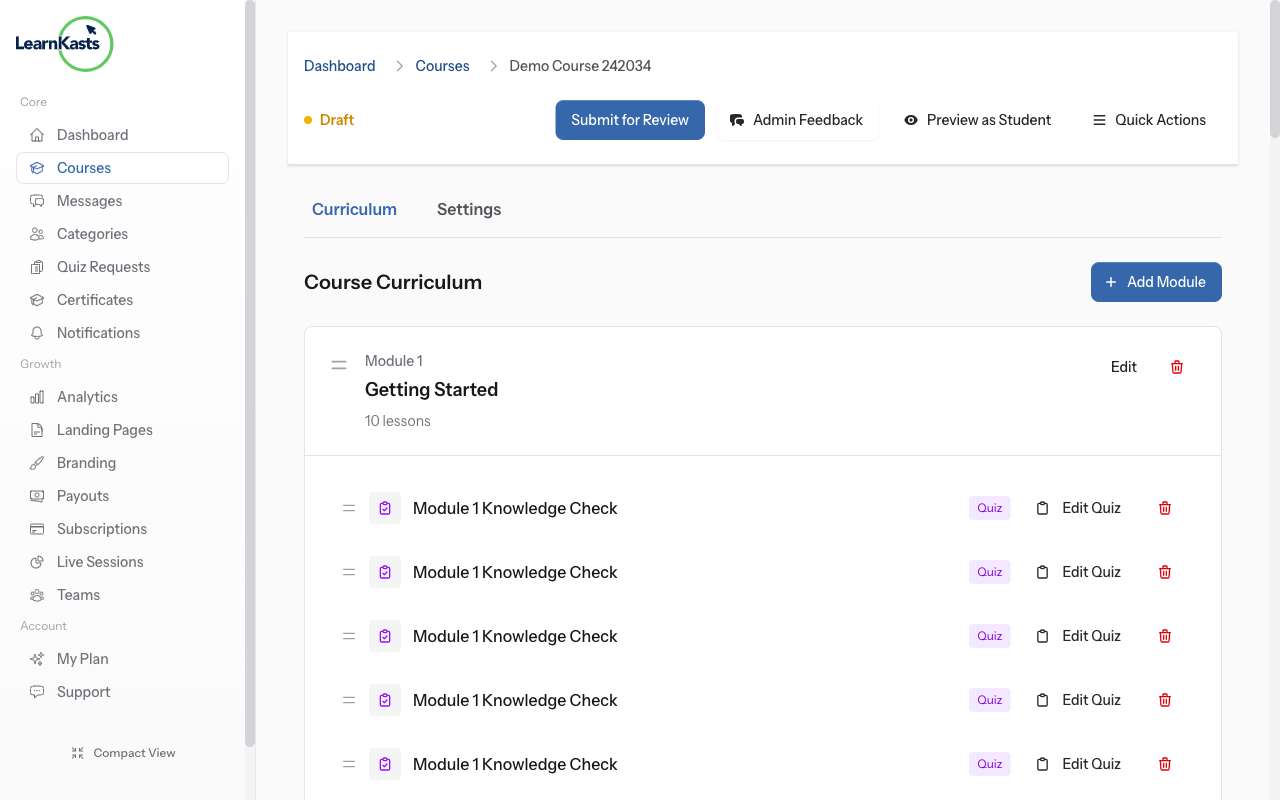
The curriculum view shows all your modules with their lessons. Each module can contain video lessons, documents, quizzes, and assignments. Click "Add Lesson" inside the module where you want to create the quiz.
-
04
Click Add Lesson
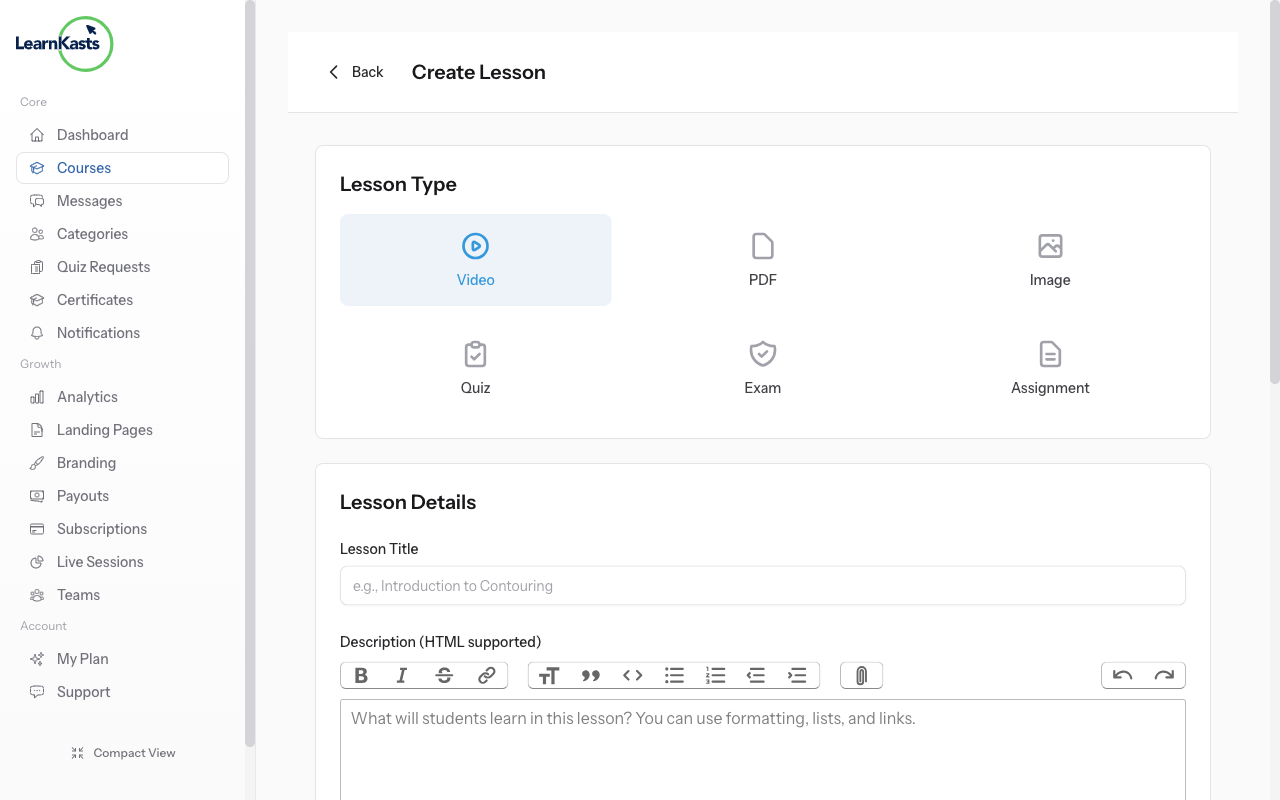
Click the "Add Lesson" button within your chosen module. A modal appears with lesson type options: Video, PDF, Image, Audio, Text, Quiz, Exam, and Assignment. Select "Quiz" to create a knowledge check.
-
05
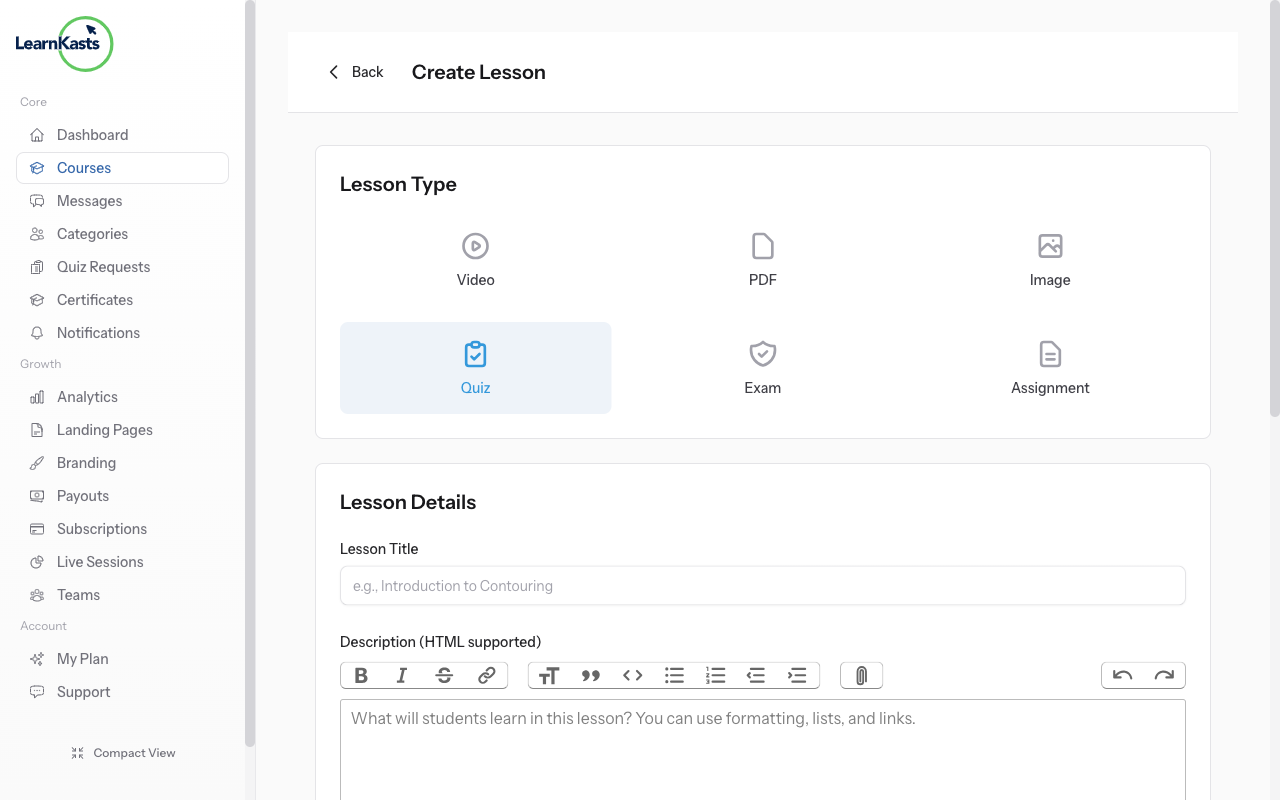
Select Quiz lesson type
Click on "Quiz" from the lesson type options. The form will update to show quiz-specific fields including title, description, time limit, passing score, and attempt settings.
-
06
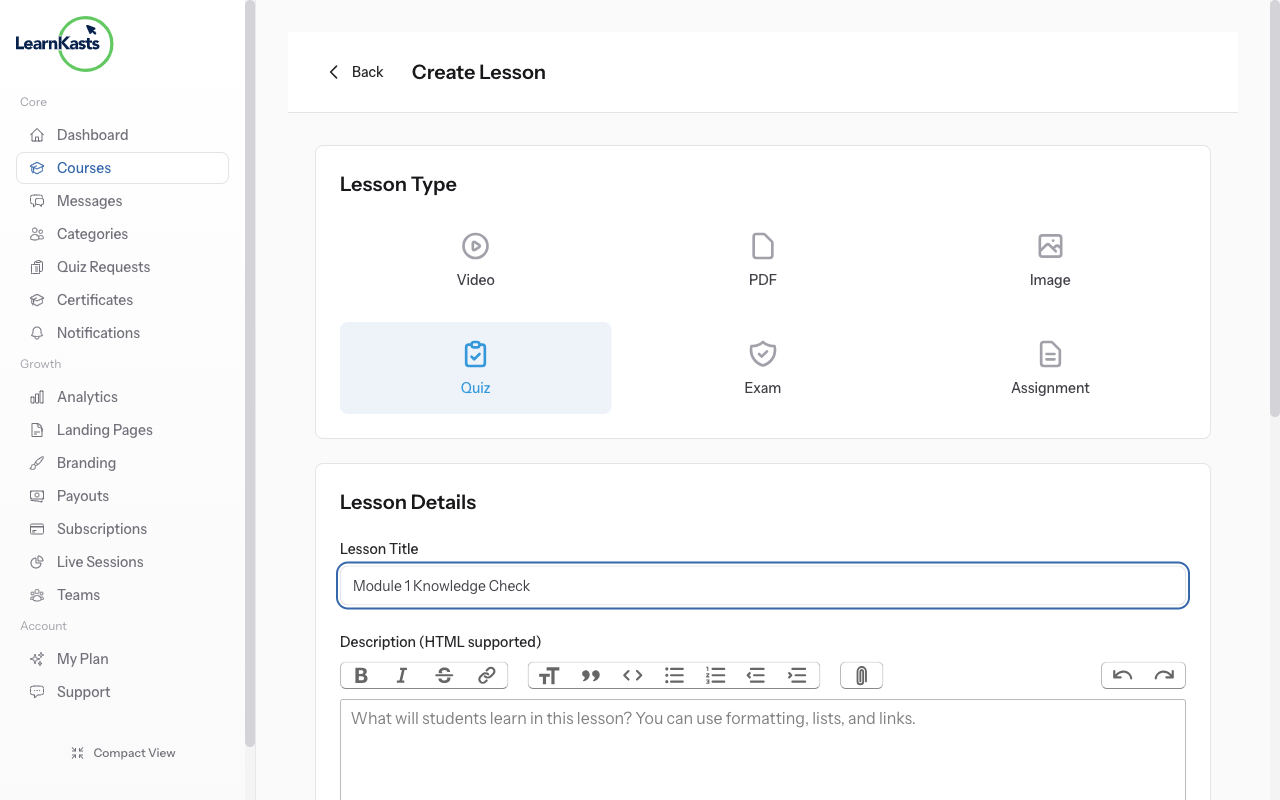
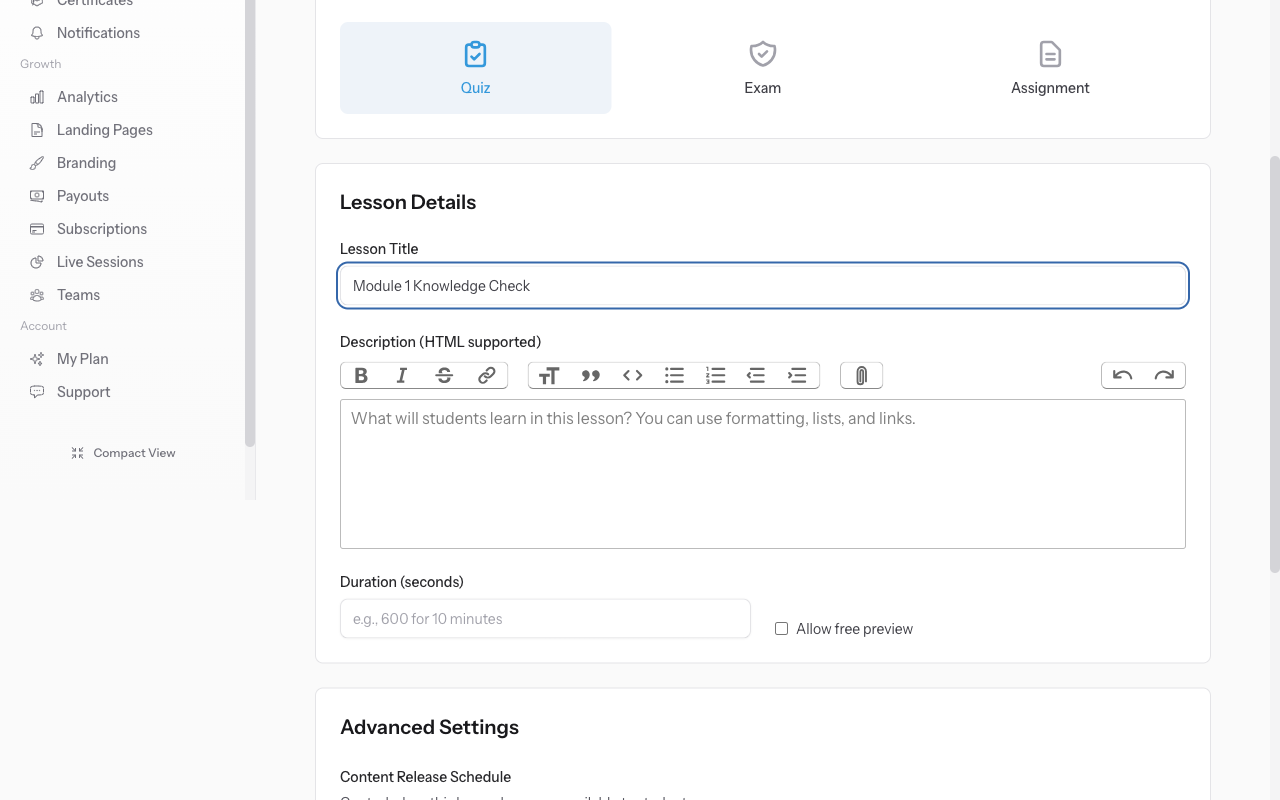
Enter quiz title and settings
Enter a descriptive quiz title (e.g., "Module 1 Knowledge Check"). Set the time limit in minutes (leave blank for no limit). Configure passing percentage (default 70%). Set maximum attempts (leave blank for unlimited).
-
07
Create quiz and add questions
Click "Create Lesson" to save the quiz. You'll be redirected to the Quiz Editor page where you can add questions. Click "Add Question" to choose from Multiple Choice, True/False, or Free Text question types. Add your questions, mark correct answers, and save. You can also use AI to generate questions automatically.
Did this guide help?
If you need a real human, our support team replies in plain English within one working day. Faster on WhatsApp.