
-
01
Create an assignment lesson
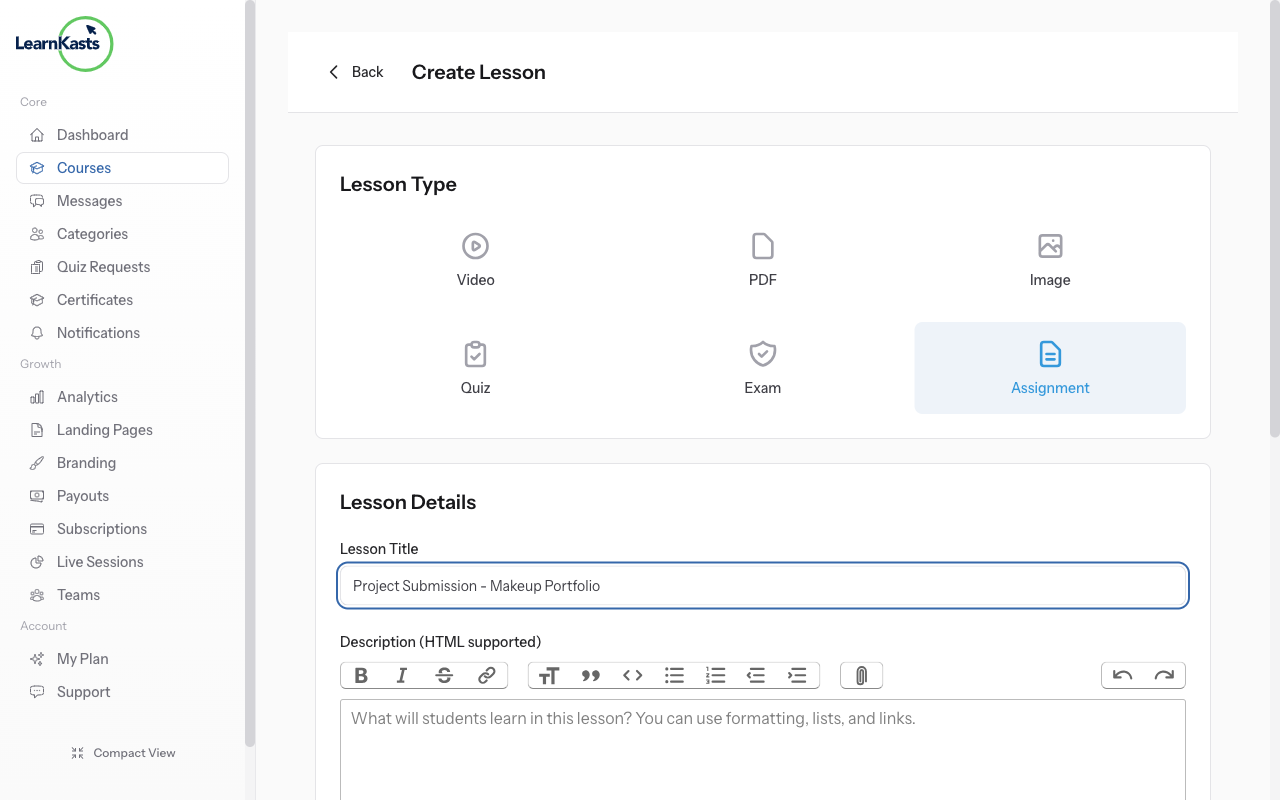
Go to Educator Dashboard → Courses → Edit your course → Curriculum tab. Click "Add Lesson" in a module → Select "Assignment" as the lesson type. Enter the assignment title, detailed instructions for students, set the due date, configure accepted file types (PDF, DOCX, ZIP, images), and set maximum file size. Click "Create Lesson" to save.
-
02
View assignment submissions
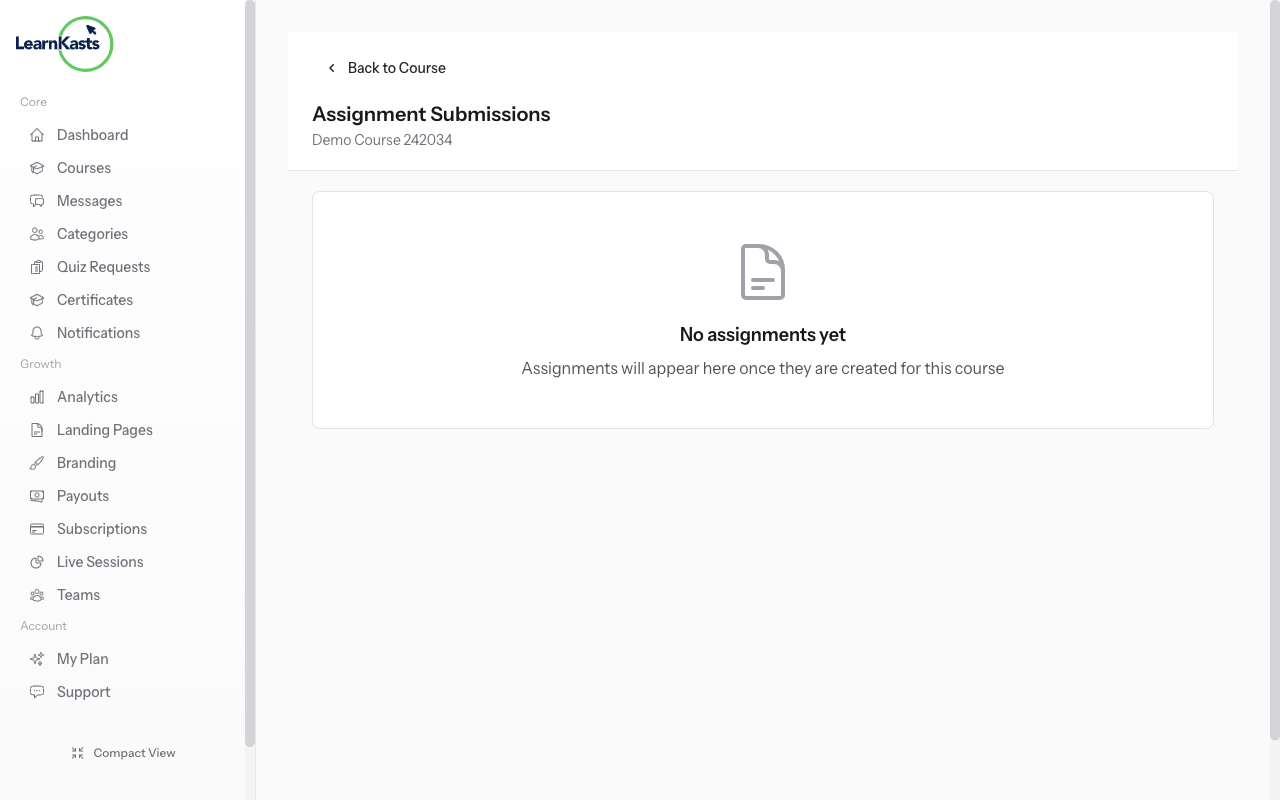
Navigate to /trainer/courses/{courseId}/assignments to see all assignments for your course. Each assignment card shows the title, number of pending submissions, and graded count. Click on an assignment to view all student submissions with their status (pending, graded, needs revision).
-
03
Grade a submission
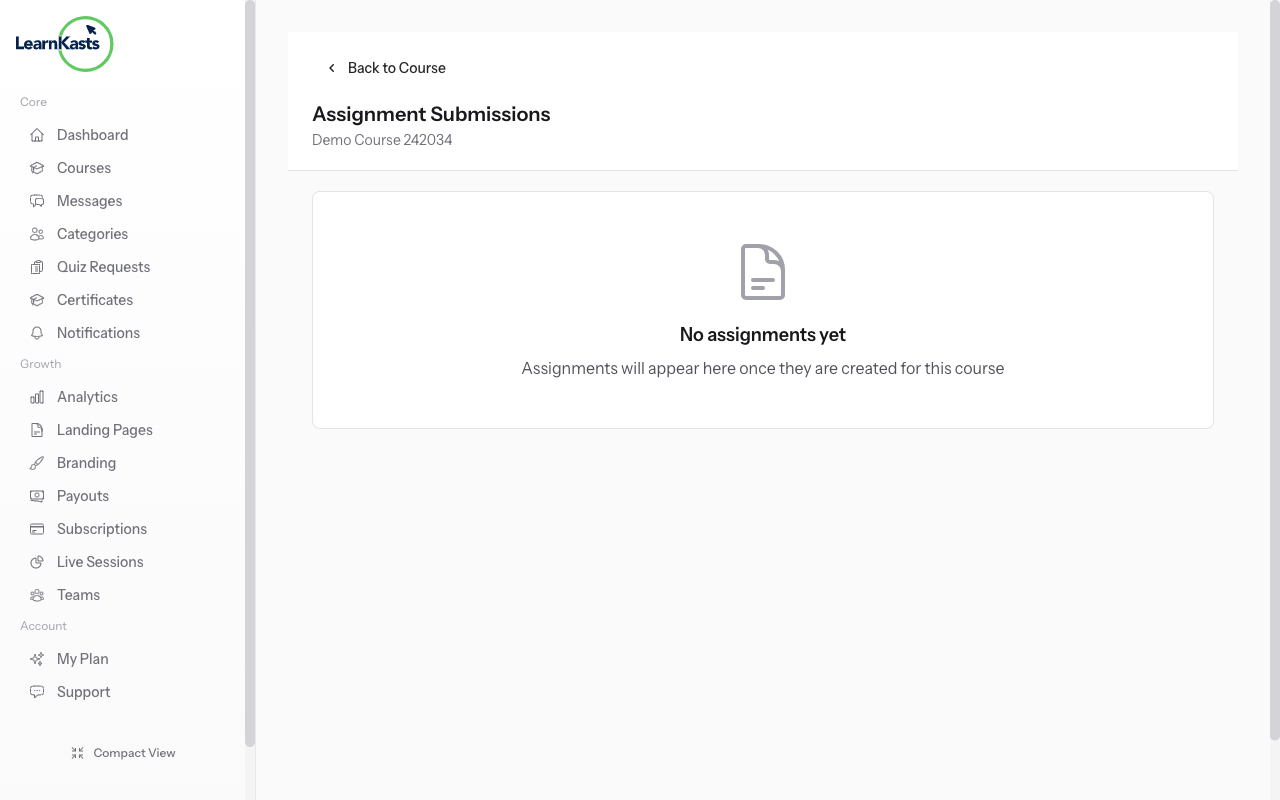
Click on any submission to open the grading view at /trainer/assignments/{assignmentId}/submissions. Download and review the submitted files. Write feedback comments in the text area. Assign a score or percentage grade. Select status: Approved, Needs Revision, or Rejected. Click "Submit Grade" - students receive email notification with your feedback.
-
04
Track completion status
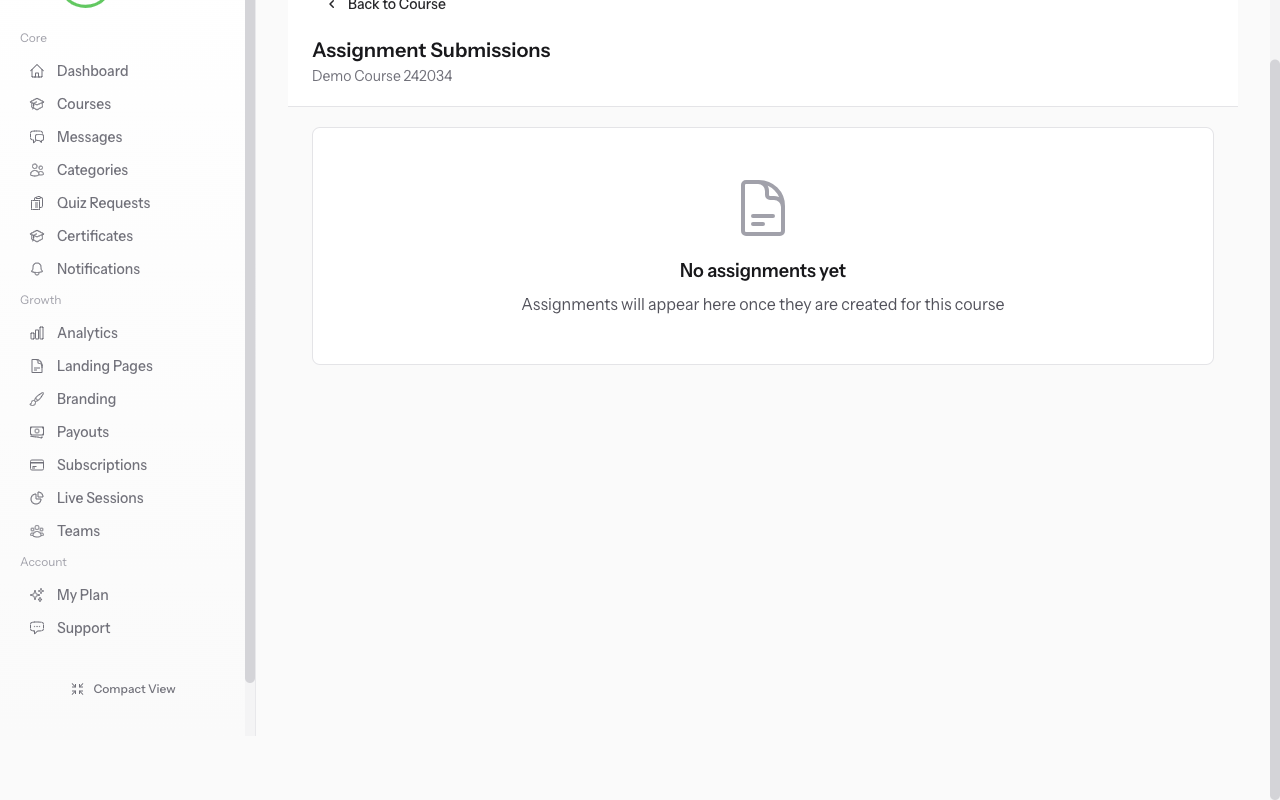
Assignment grades contribute to the student's overall course progress. View completion stats on the assignments page - see how many students have submitted, how many are graded, and average scores. When all required assignments are approved, students become eligible for course certificates.
Did this guide help?
If you need a real human, our support team replies in plain English within one working day. Faster on WhatsApp.