
-
01
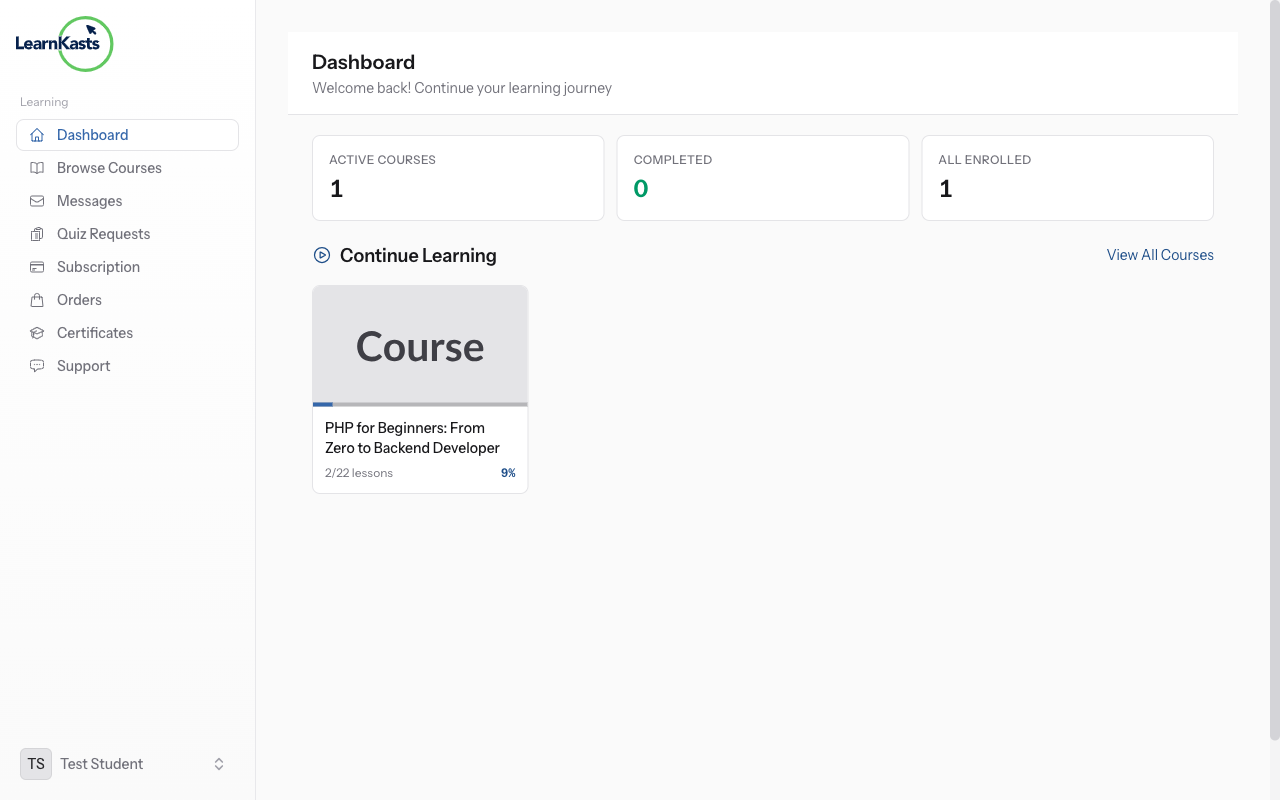
Student dashboard with enrolled courses
Go to your Student Dashboard and click "My Courses" or "Continue Learning". You'll see all courses you're enrolled in. Click on a course to view its curriculum.
-
02
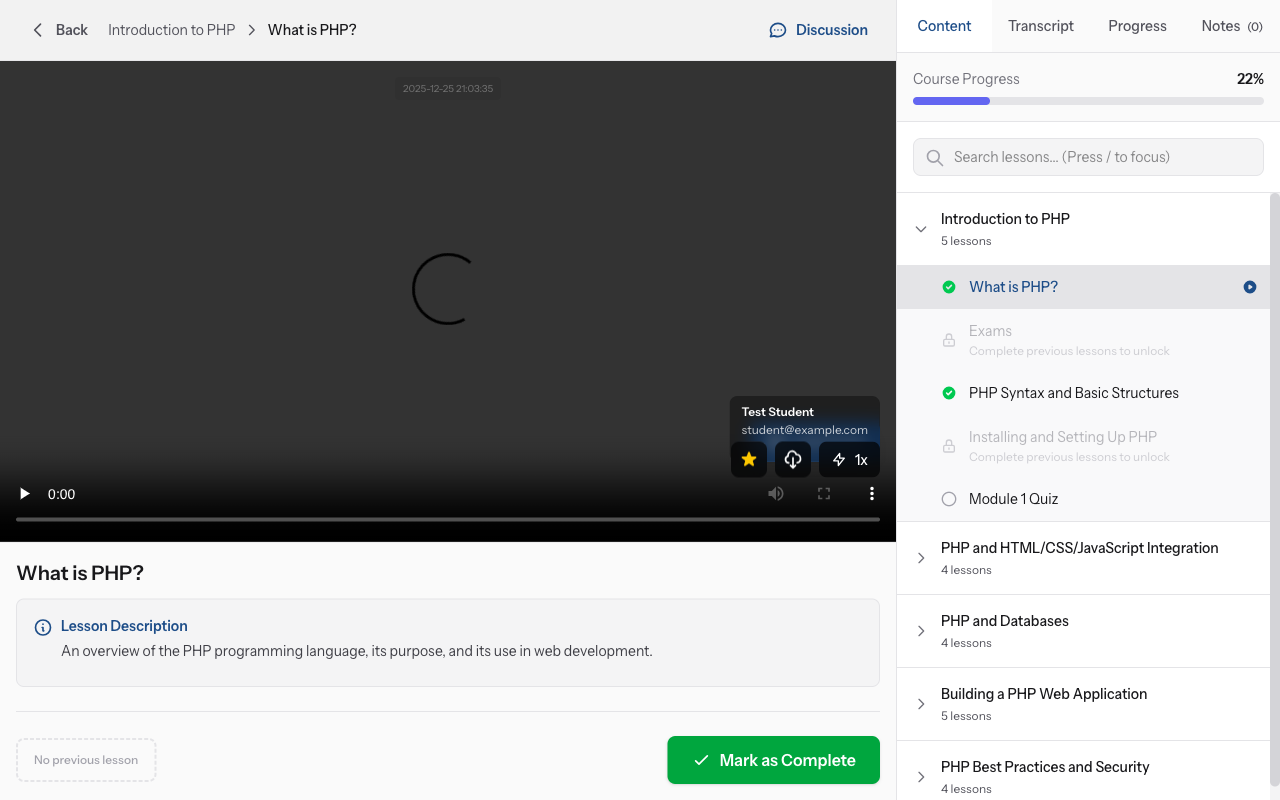
Course classroom with lessons
In the course curriculum, click on any video lesson (marked with a play icon). The video player will load. Your progress is automatically saved, so you can always pick up where you left off.
-
03
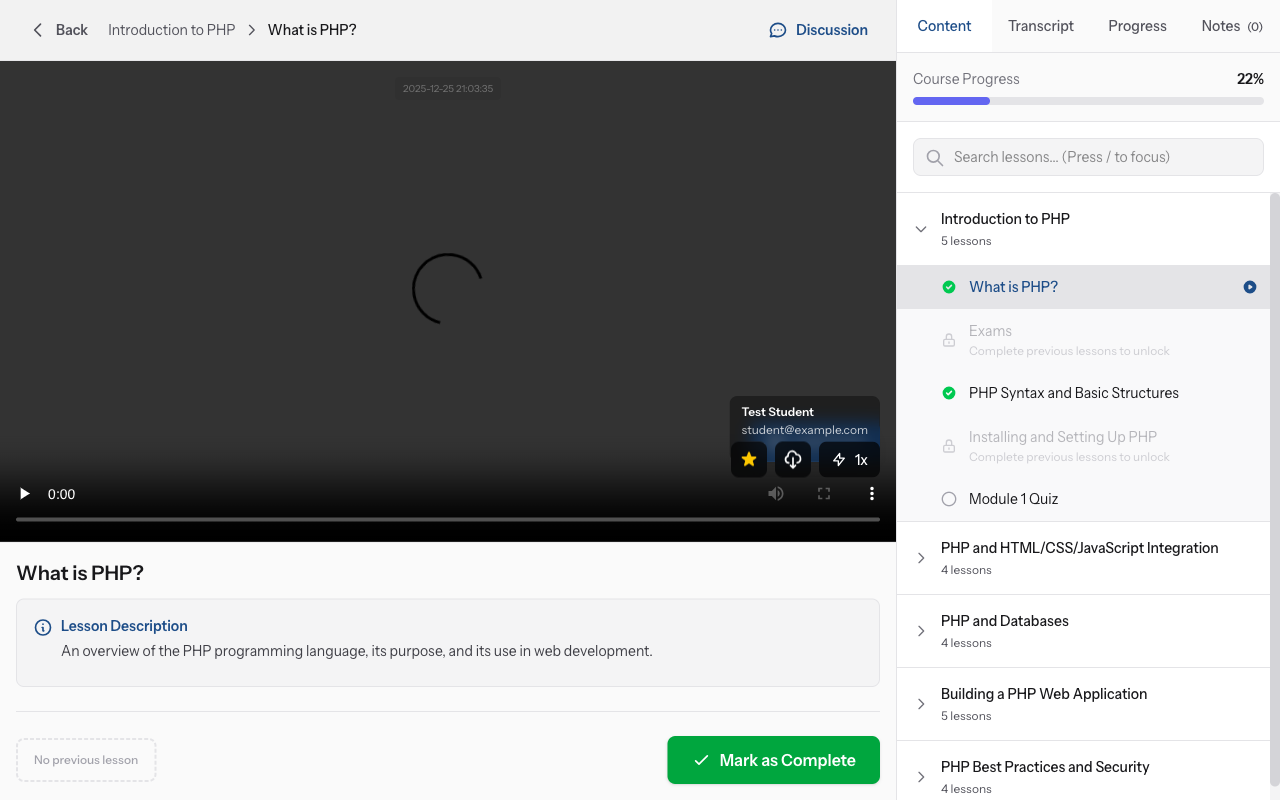
Course curriculum with video lessons
Click the play button to start the video. Use the pause button to stop. Drag the progress bar to skip forward or backward. Click the volume icon to adjust sound or mute. Click fullscreen icon for fullscreen view.
-
04
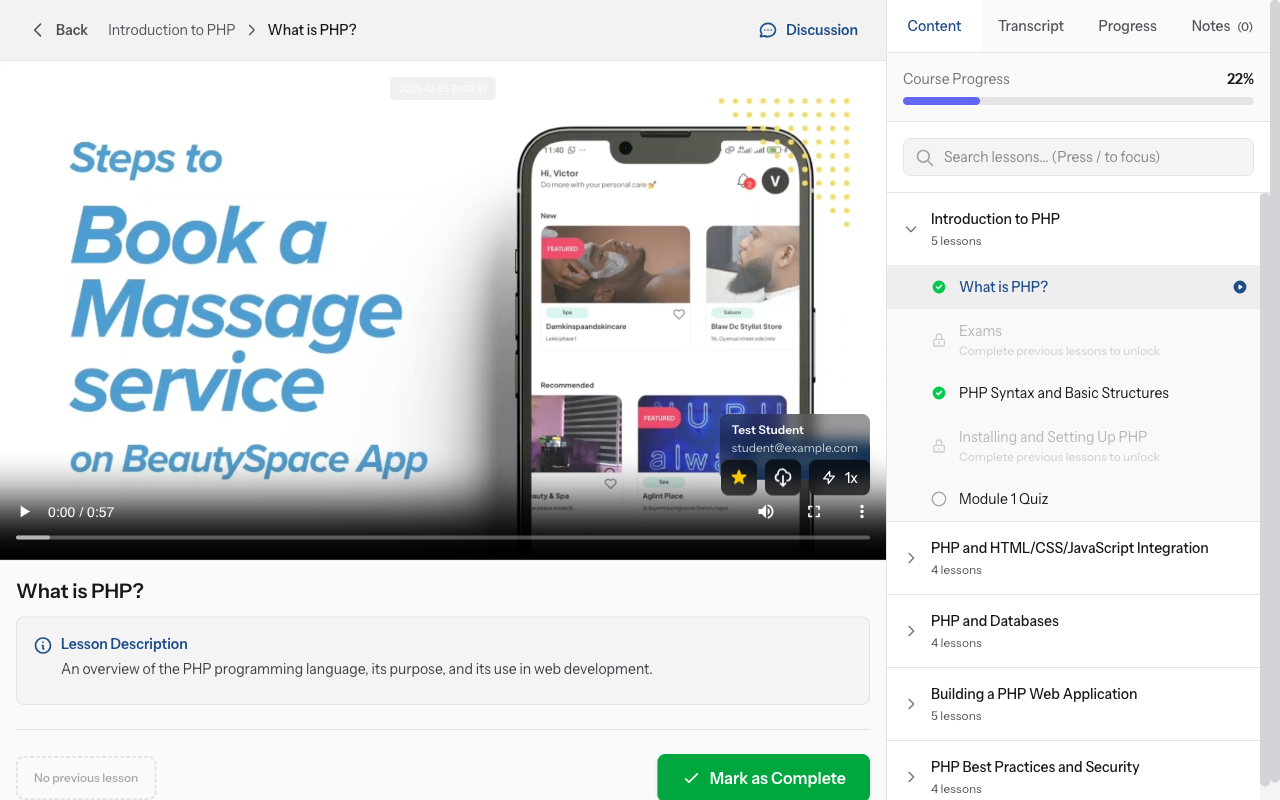
Video player interface
Click the settings (gear) icon → Select "Speed". Choose 0.5x (slower), 1x (normal), 1.25x, 1.5x, or 2x (faster). Faster speeds help you review content you're familiar with. Slower speeds help with complex topics.
-
05
Video player with all controls labeled
If available, click the CC (closed captions) button to show subtitles. Select your preferred language if multiple options are available. Subtitles help with understanding and learning in noisy environments.
-
06
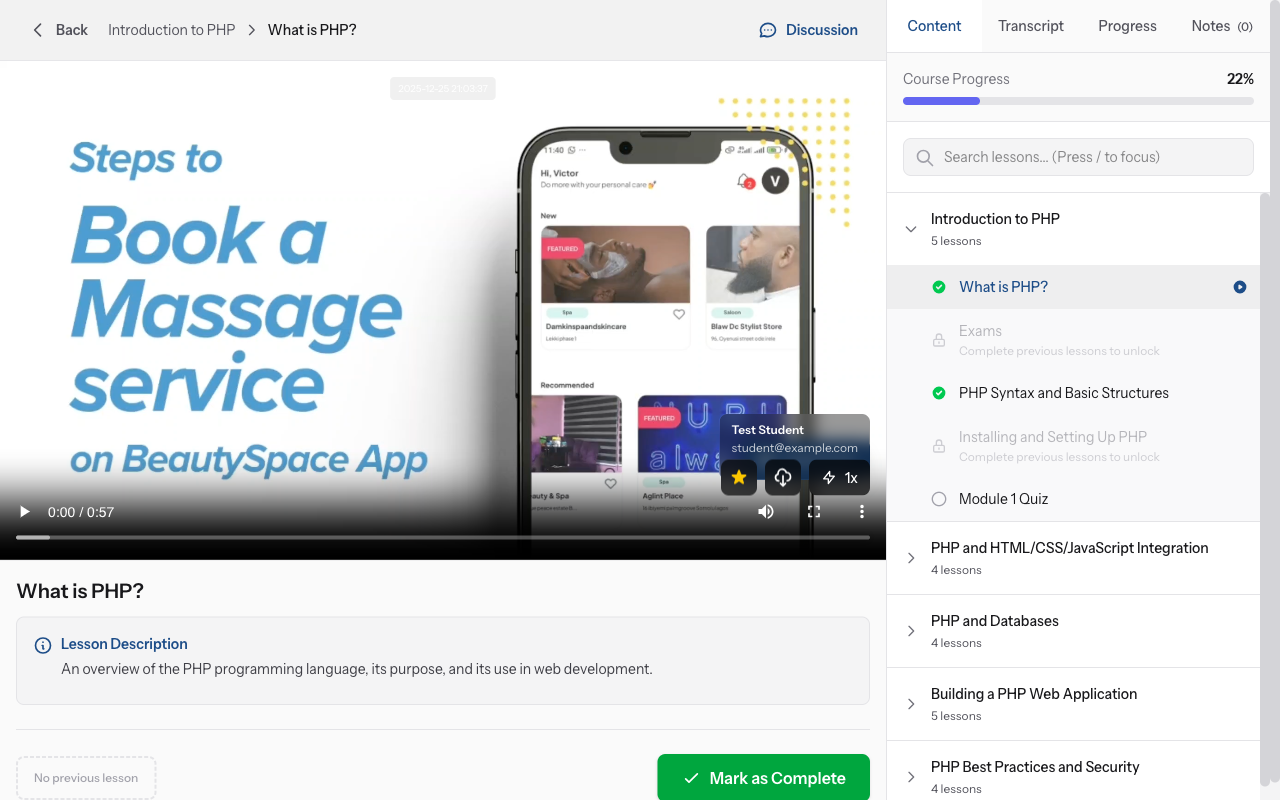
Mark as Complete button
Click the "Notes" tab next to the video player. Type your notes as you watch. Your notes are timestamped automatically, so you can click a note later to jump back to that moment in the video.
-
07
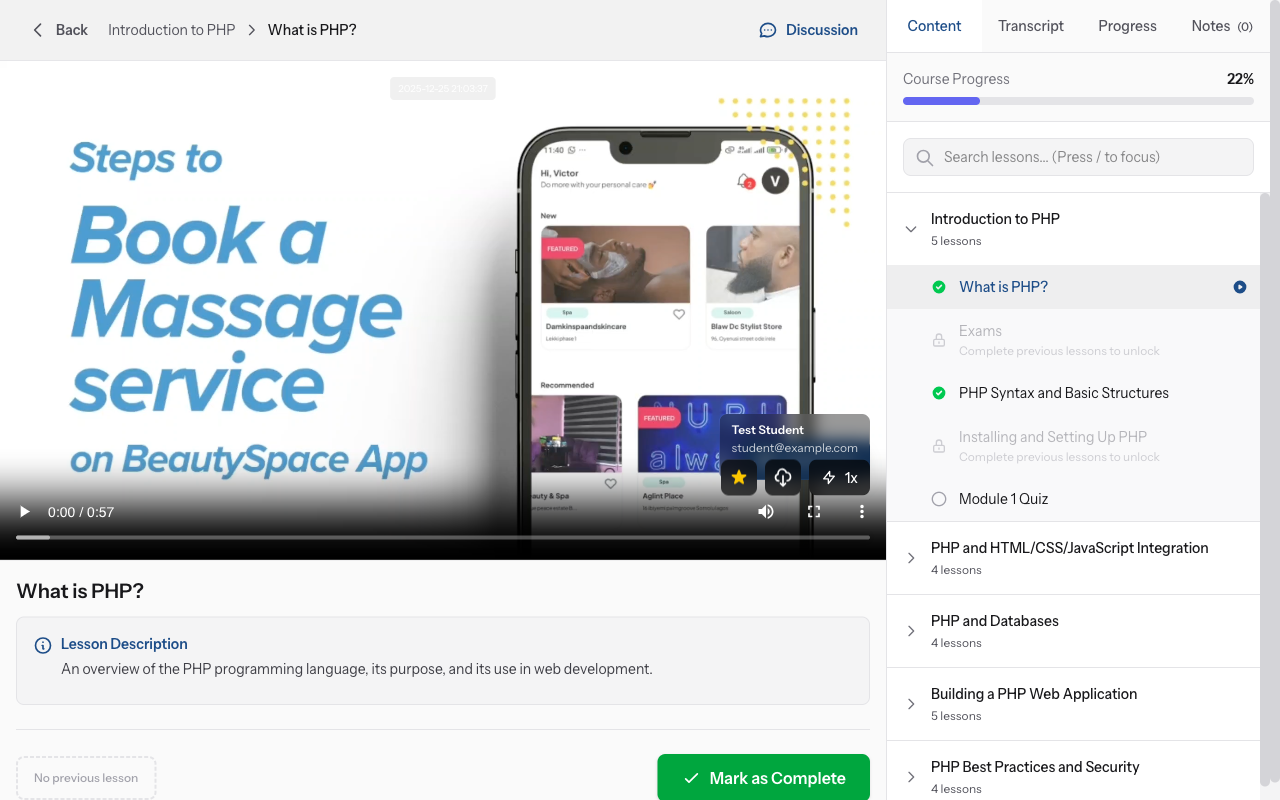
Lesson marked as complete with checkmark
When you finish watching, the lesson is automatically marked complete (usually at 90% progress). You can also manually click "Mark as Complete" button. Completed lessons show a checkmark and unlock the next lesson.
-
08
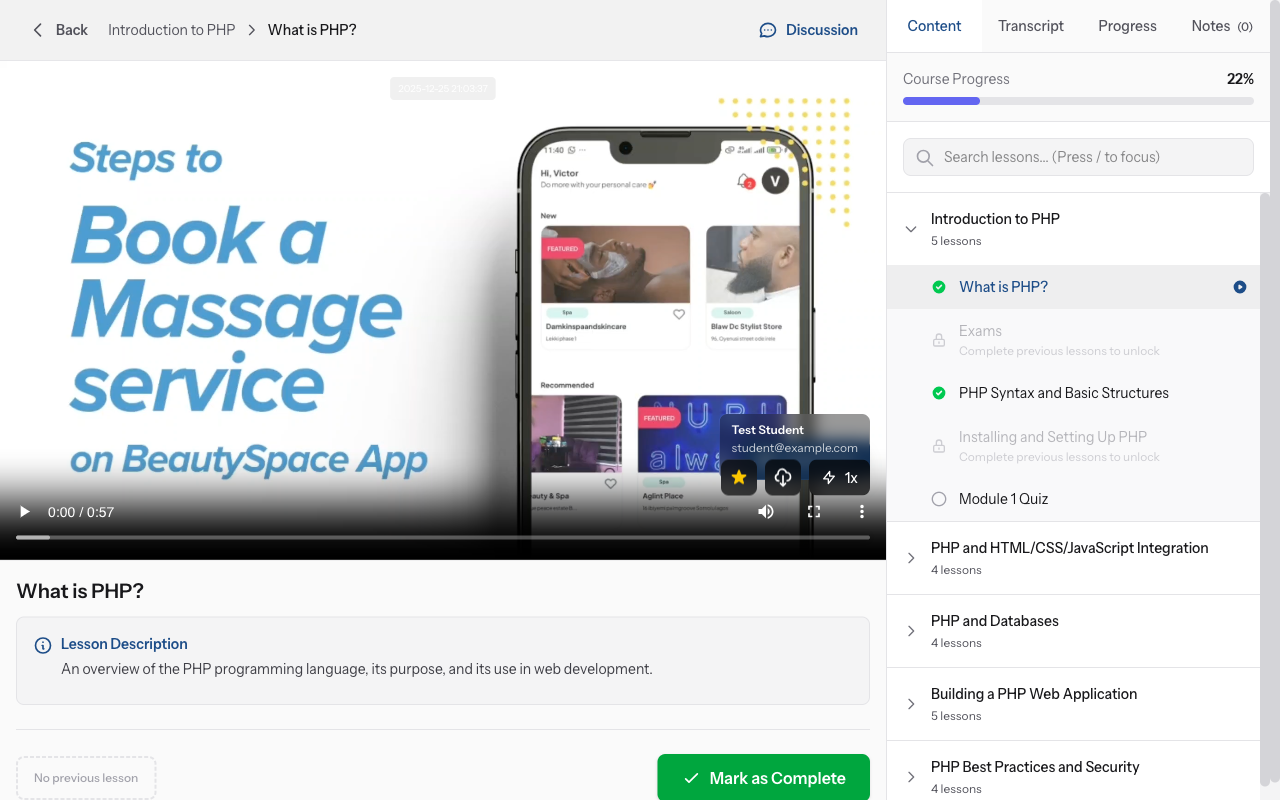
Next lesson unlocked in curriculum
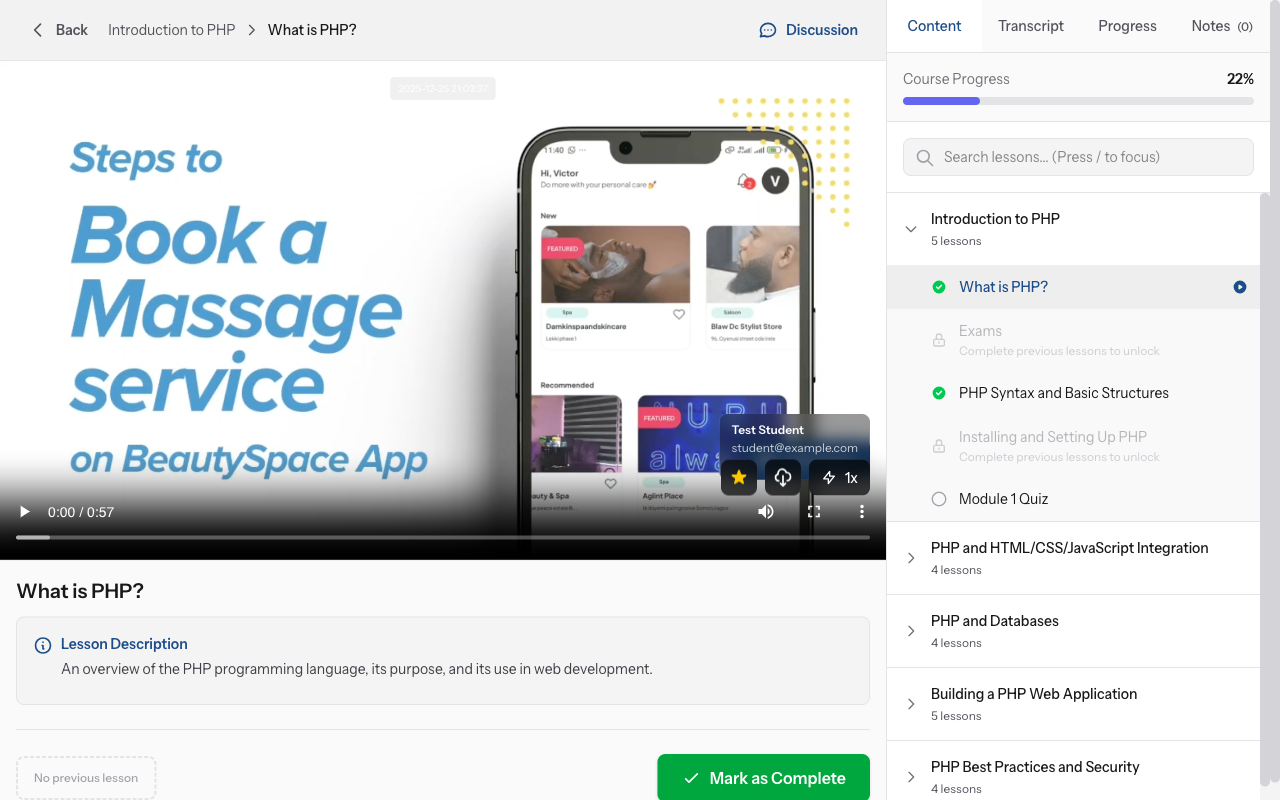
If you close a video mid-way, your progress is saved. When you return, the video will resume from exactly where you stopped. Your overall course progress updates in real-time.
Did this guide help?
If you need a real human, our support team replies in plain English within one working day. Faster on WhatsApp.