
-
01
Access AI Avatar settings
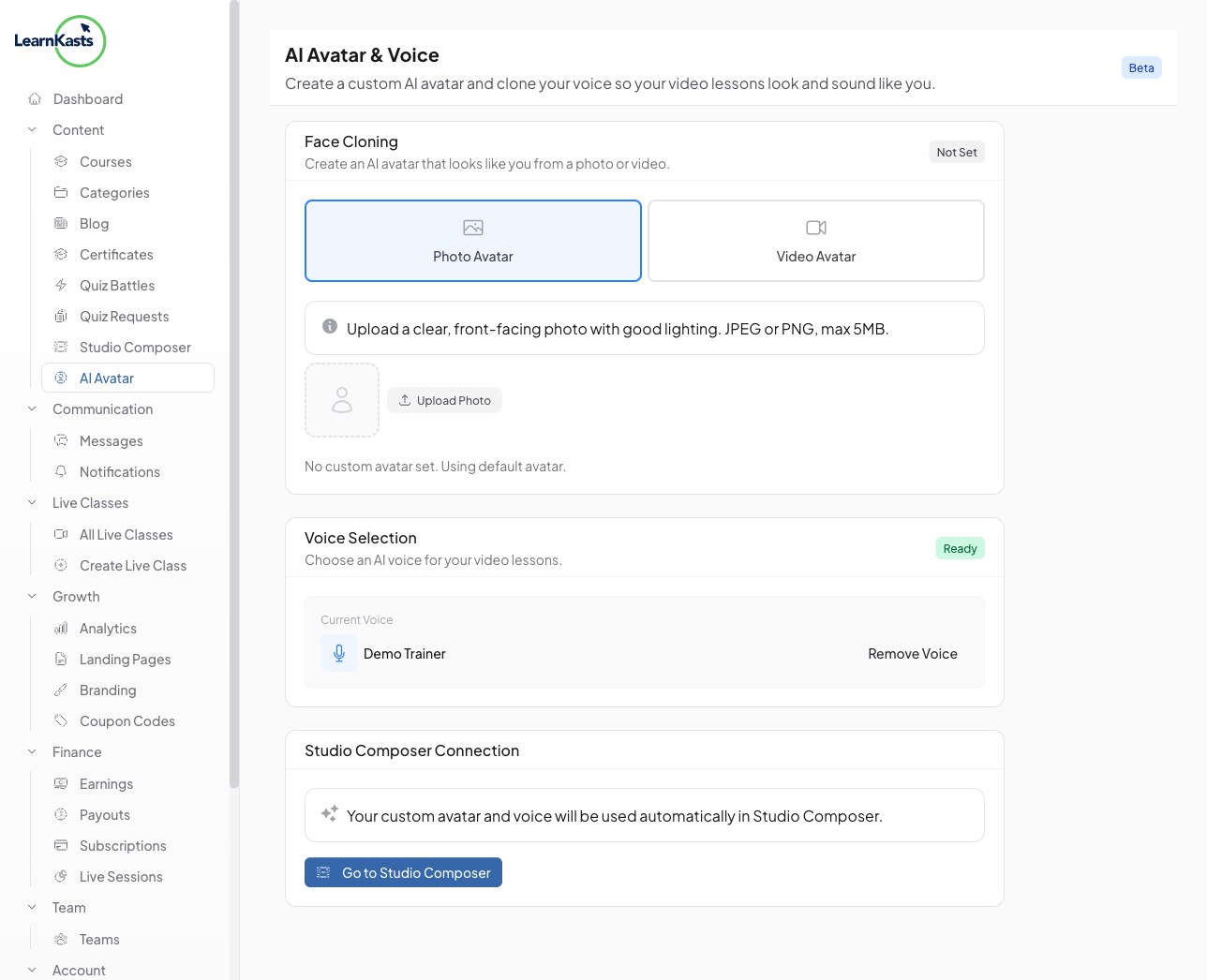
From your educator dashboard, navigate to "AI Avatar" in the sidebar under AI Studio. This page lets you set up Face Cloning (Photo Avatar or Video Avatar) and Voice Selection for your AI-generated content.
-
02
Set up Face Cloning
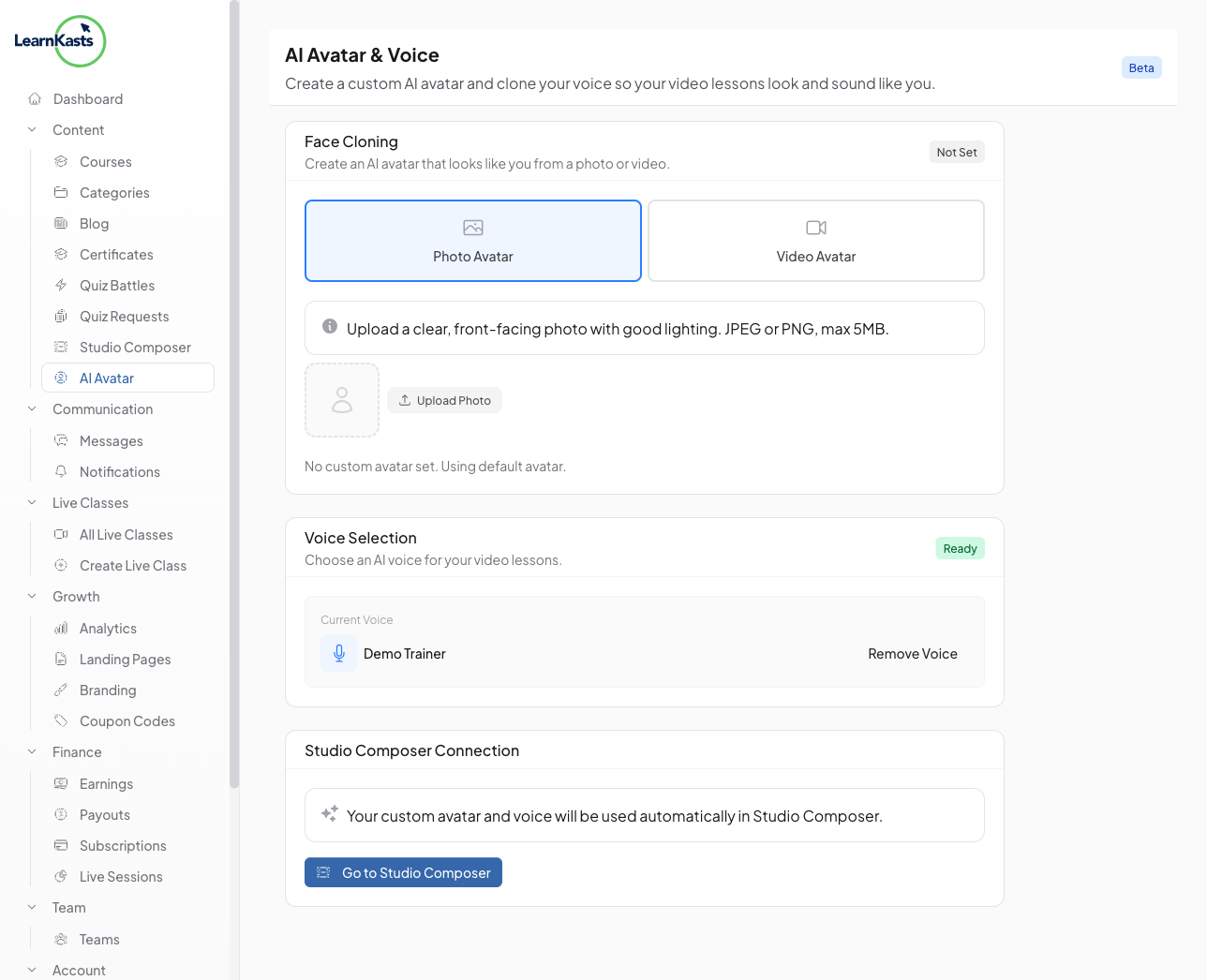
Choose between a Photo Avatar (upload a clear headshot) or a Video Avatar (record a short video clip). Your avatar will be used as the visual presenter in AI Studio videos. Follow the on-screen guidelines for best results - good lighting, neutral expression, and a plain background.
-
03
Record your voice
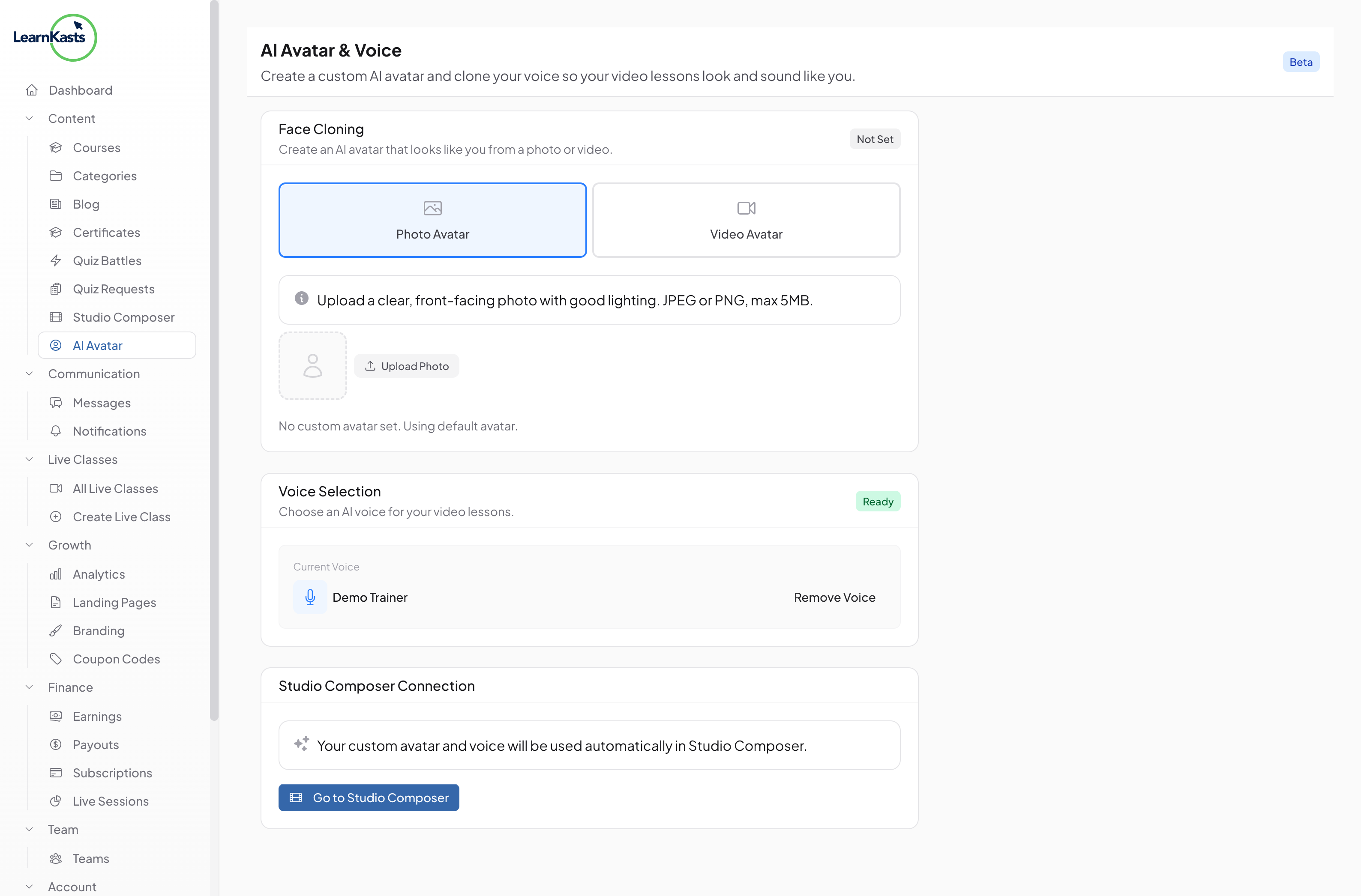
Click "Record Voice" and read the provided script aloud for 30 seconds. Use a quiet environment and a good microphone for the best clone quality. You can also upload a pre-recorded audio file if you prefer.
-
04
Connect to Studio Composer
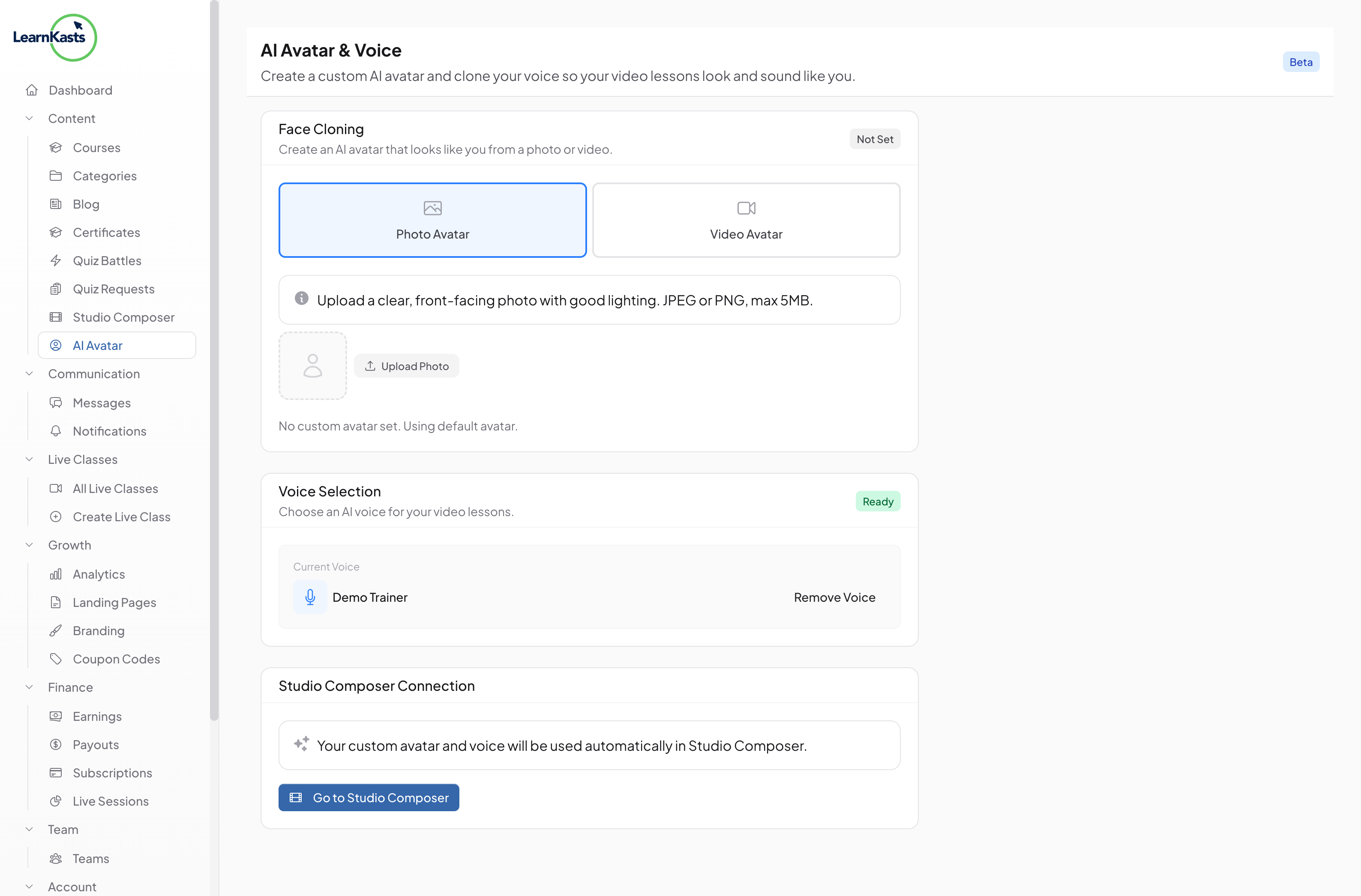
Once your voice clone is ready, it automatically appears as an option in the Studio Composer voice selection. When creating new videos, simply select "My Voice" to have the AI narrate using your cloned voice.
-
05
Plan requirements
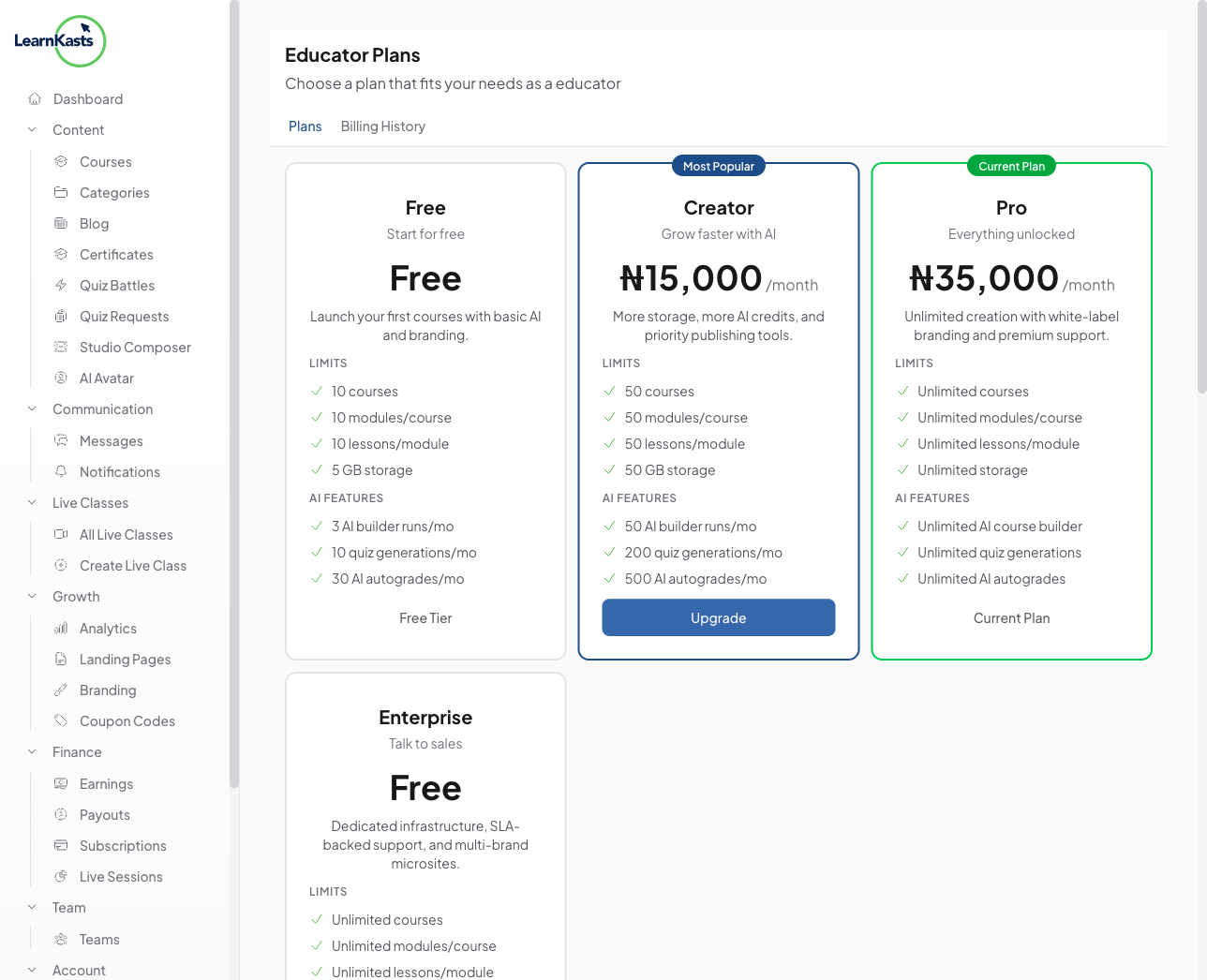
AI Voice Clone and Avatar features are available on Creator plan and above. Free plan educators can upgrade from the AI Avatar page to unlock these features.
Did this guide help?
If you need a real human, our support team replies in plain English within one working day. Faster on WhatsApp.