
-
01
Find assignment lessons
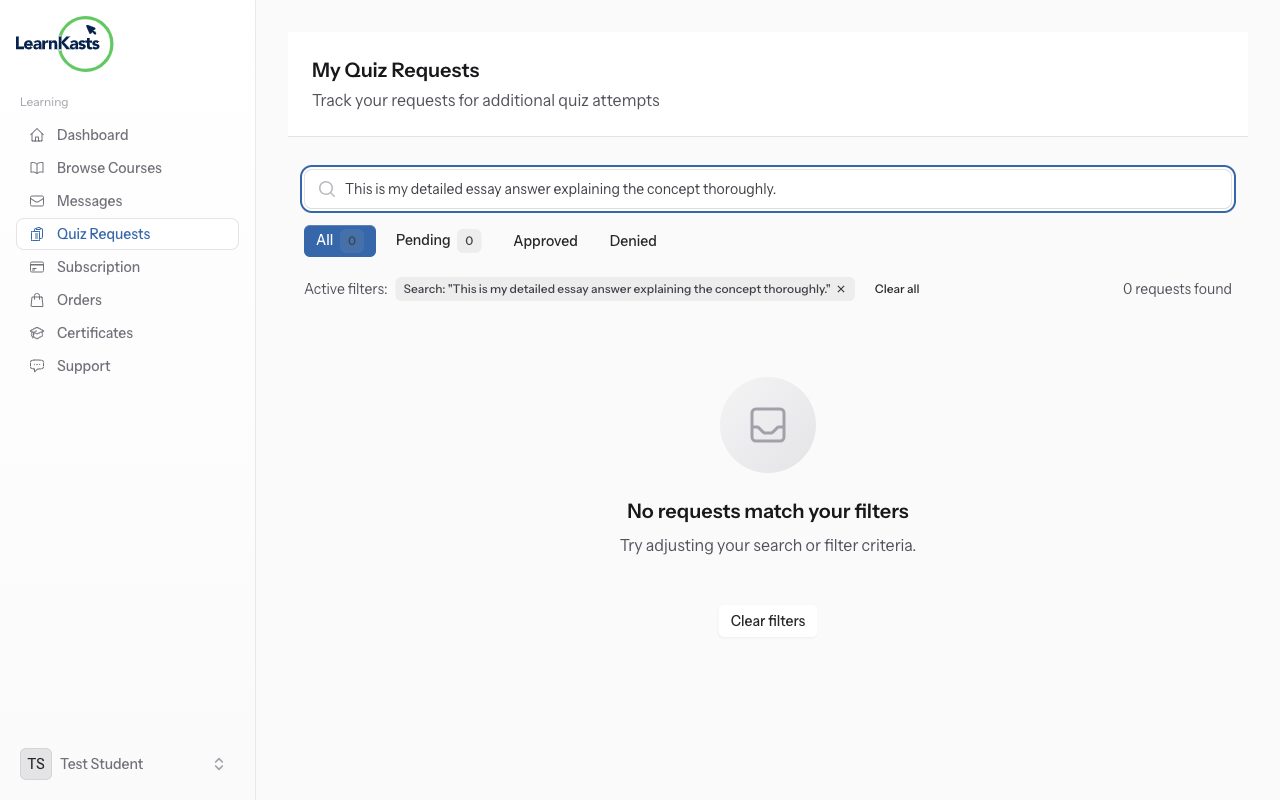
In your course curriculum, assignment lessons are marked with a document or clipboard icon. Click on an assignment to view the instructions, requirements, and due date.
-
02
Read assignment instructions
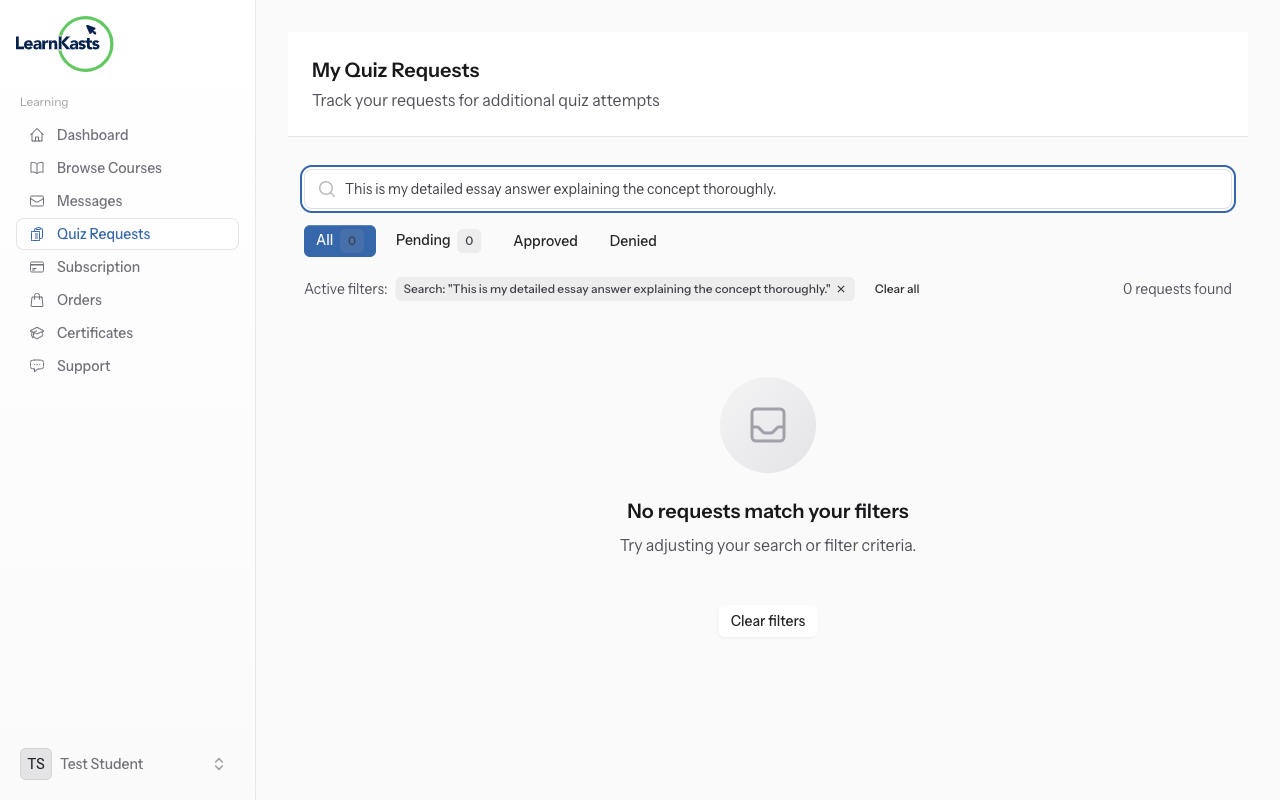
Carefully read the assignment description, requirements, and rubric (grading criteria). Note the due date, accepted file types, and file size limits. Make sure you understand what's expected before starting.
-
03
Prepare your assignment file
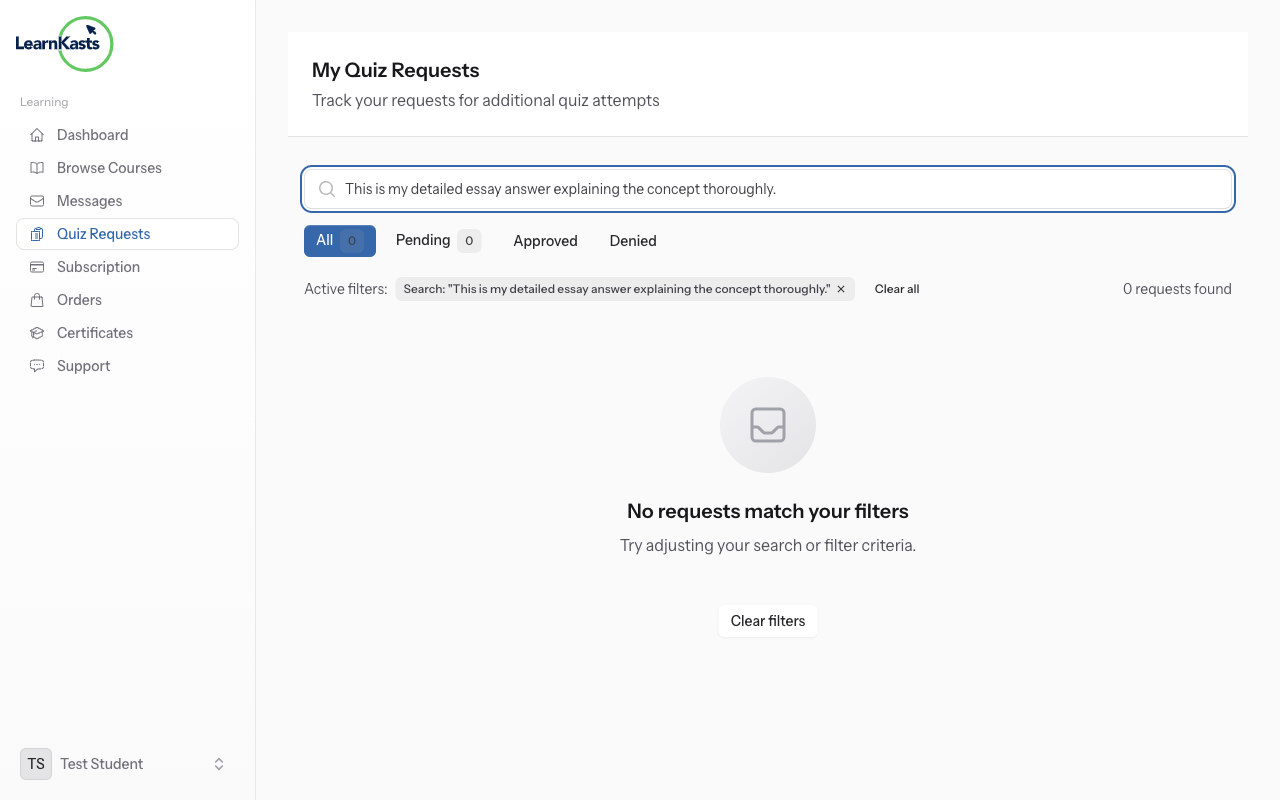
Complete your assignment according to the instructions. Save your work in an accepted format (PDF, DOCX, ZIP, etc. - check requirements). Name your file clearly (e.g., "YourName_Assignment1.pdf").
-
04
Upload your assignment
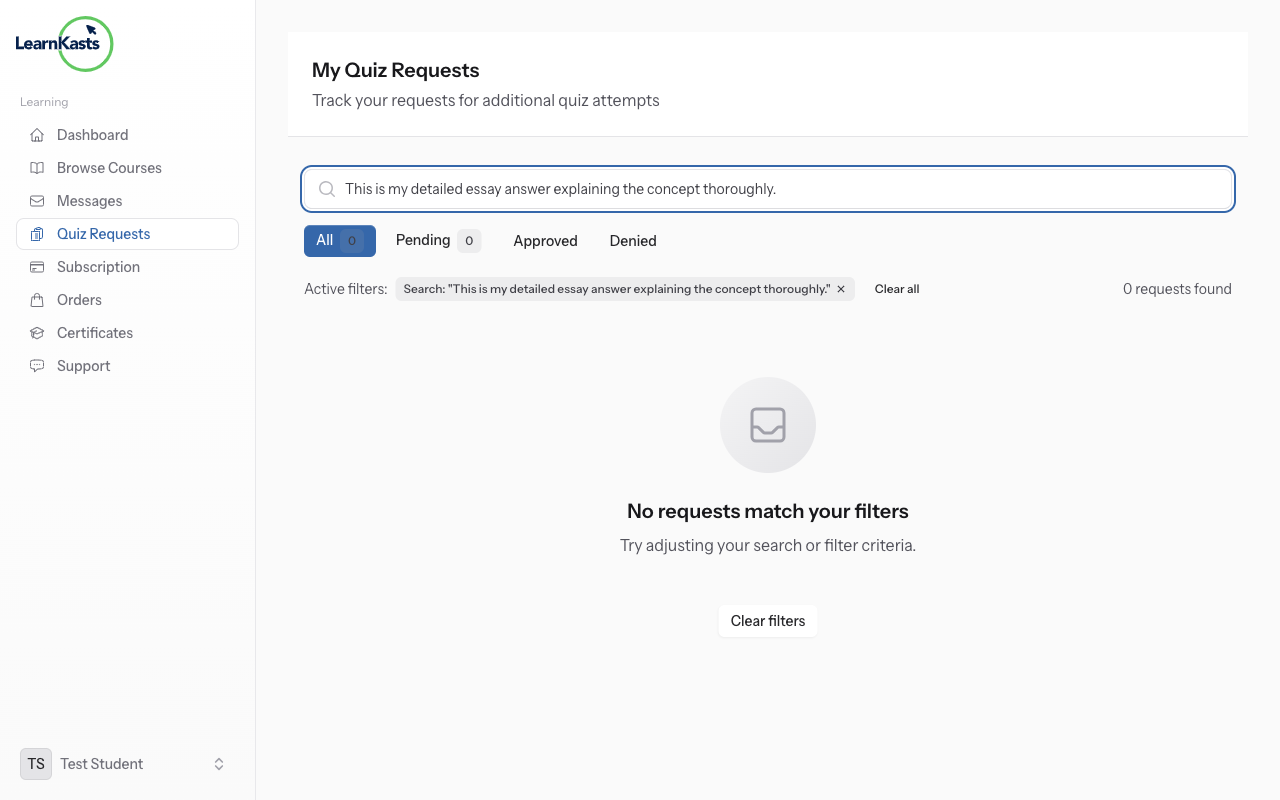
Click "Choose File" or drag and drop your file into the upload area. Select your assignment file from your computer. You'll see a progress bar during upload. Wait for "Upload Complete" message.
-
05
Add submission comments (optional)
In the comments box, you can add notes for your educator - questions, clarifications, or context about your submission. This helps educators understand your work better.
-
06
Submit your assignment
After file upload completes, click the "Submit Assignment" button. You'll see a confirmation message. Your submission is now sent to the educator for grading. The due date timer stops.
-
07
Track submission status
After submitting, you'll see the status: "Submitted" (waiting for grading), "Graded" (educator reviewed), or "Needs Revision" (resubmit required). Check back regularly for updates.
-
08
View feedback and grade
When graded, click "View Feedback" to see your score, educator comments, and any annotated files they uploaded. Learn from the feedback to improve future assignments.
-
09
Resubmit if needed
If status is "Needs Revision", you can upload a new file and resubmit. Read the feedback carefully, make improvements, and submit again. Some assignments allow multiple attempts.
Did this guide help?
If you need a real human, our support team replies in plain English within one working day. Faster on WhatsApp.