
-
01
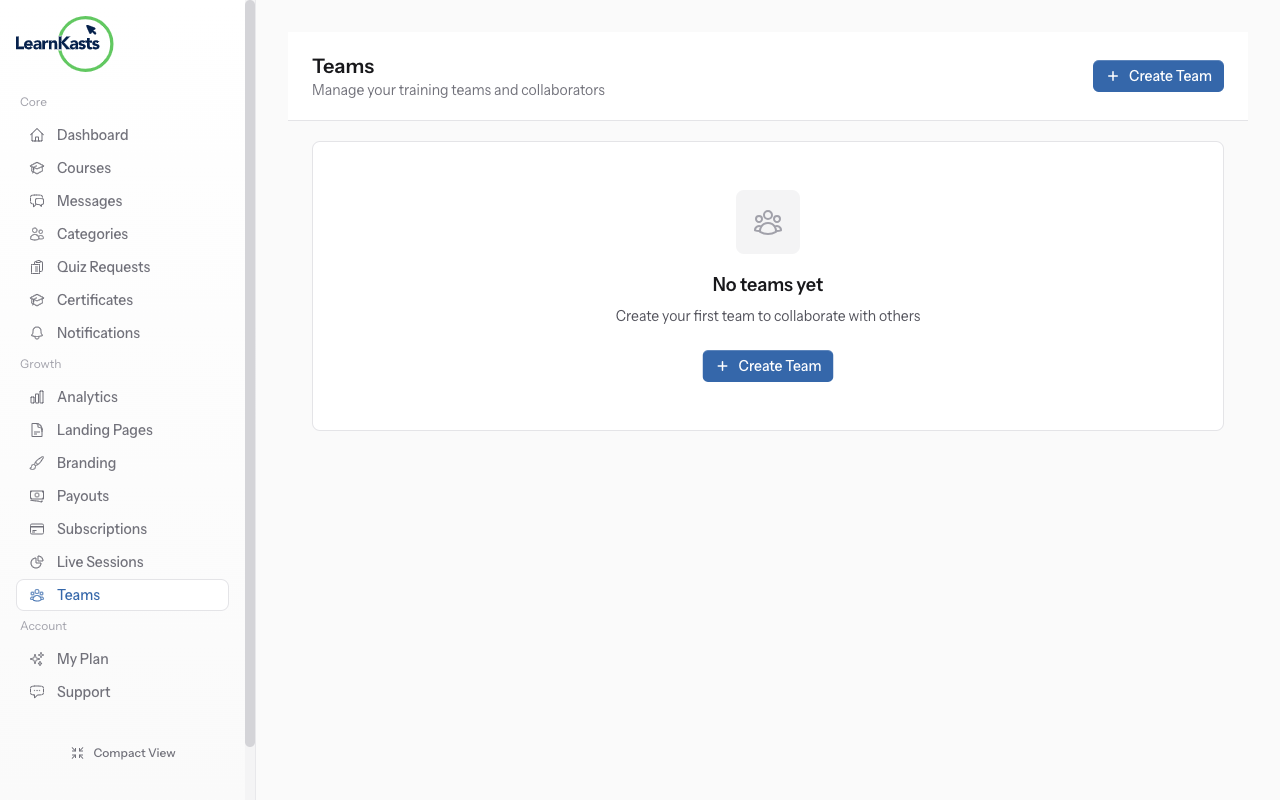
Navigate to team management
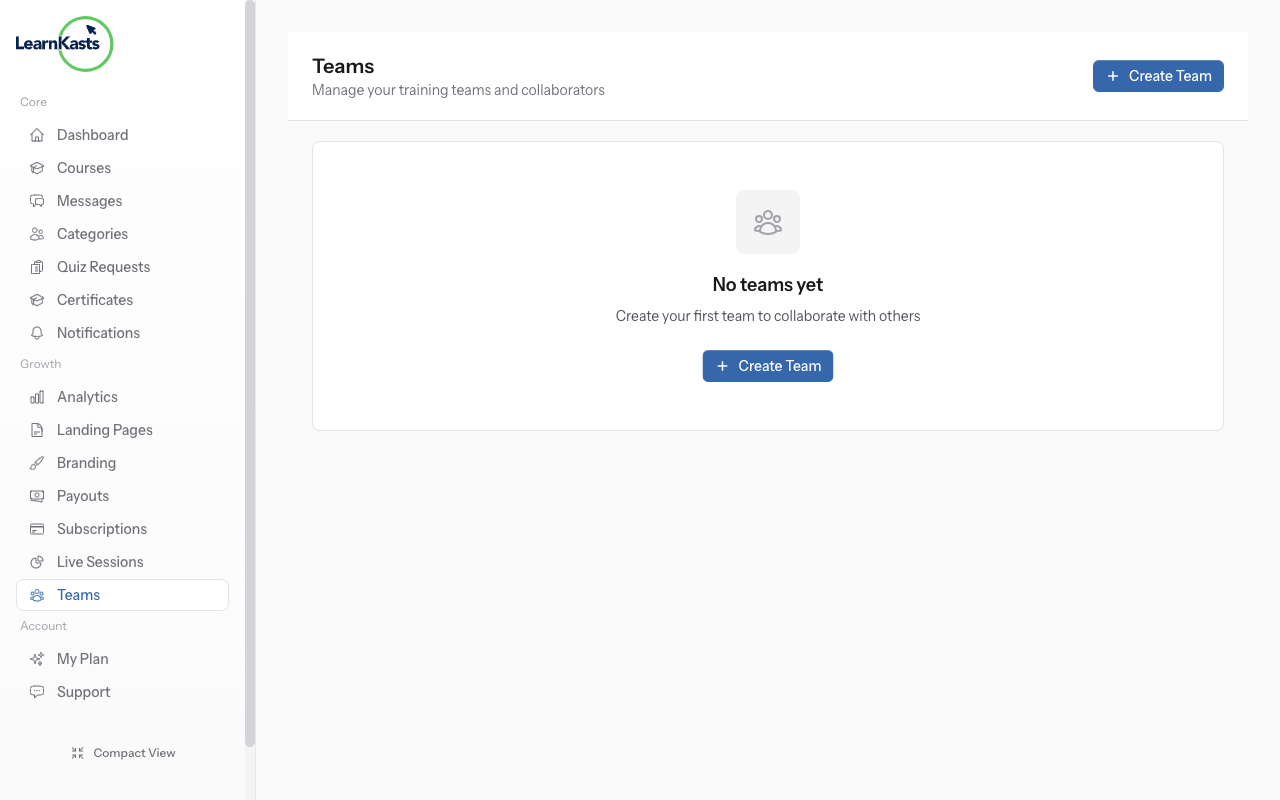
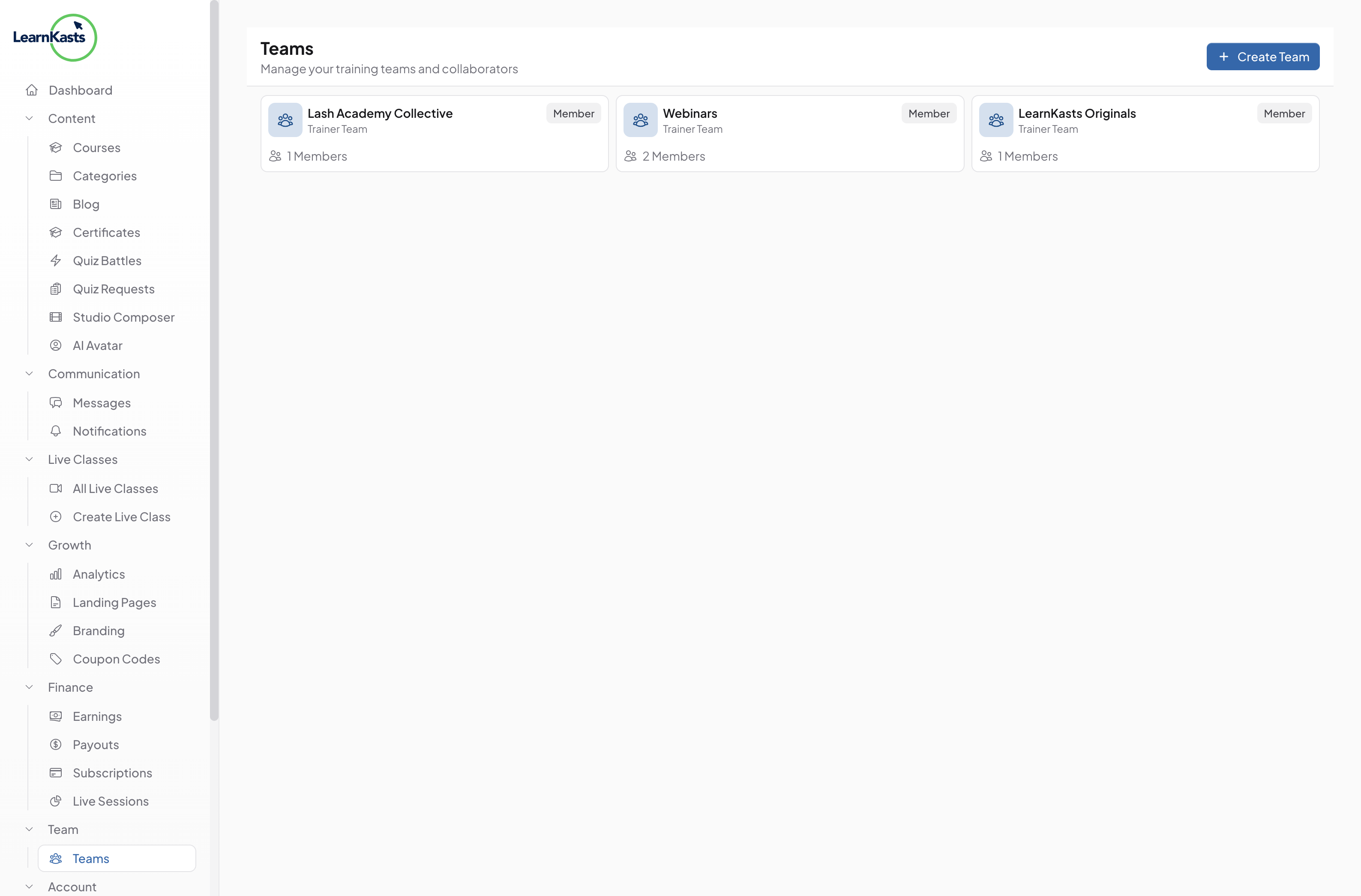
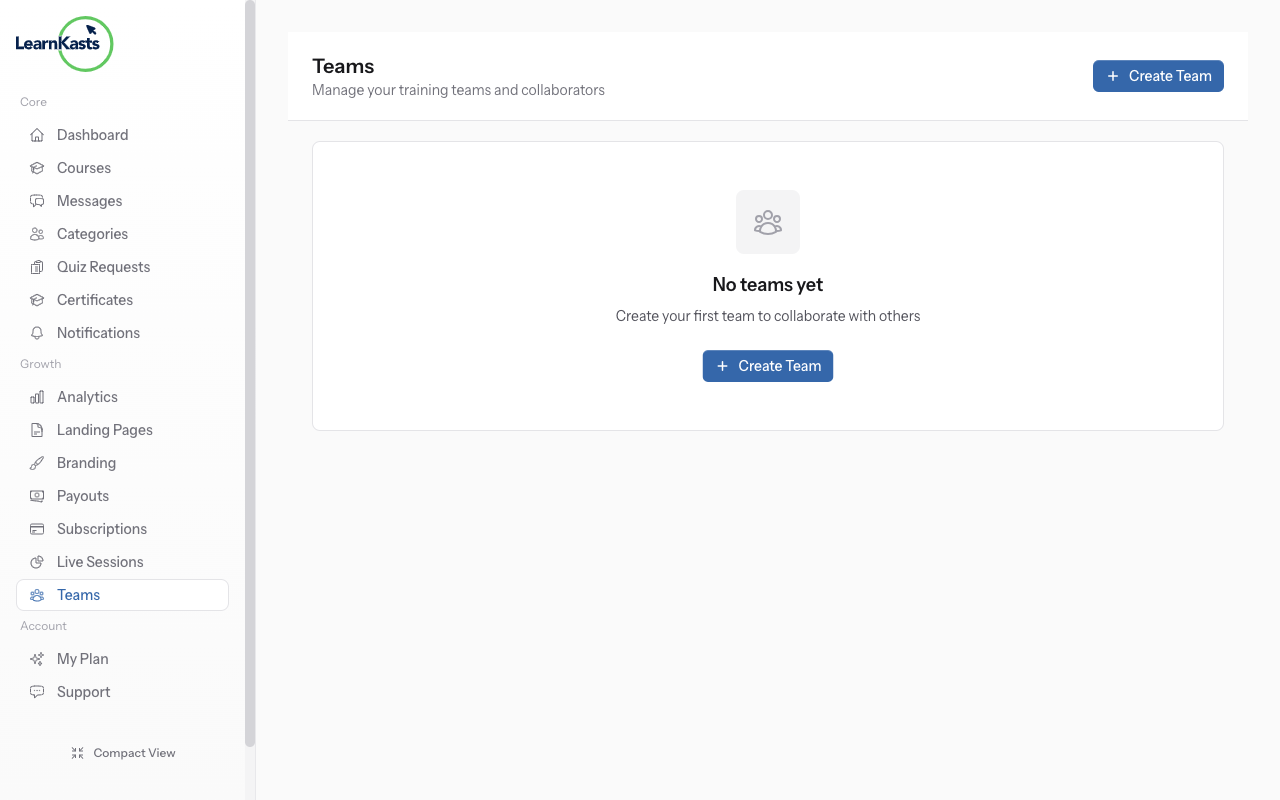
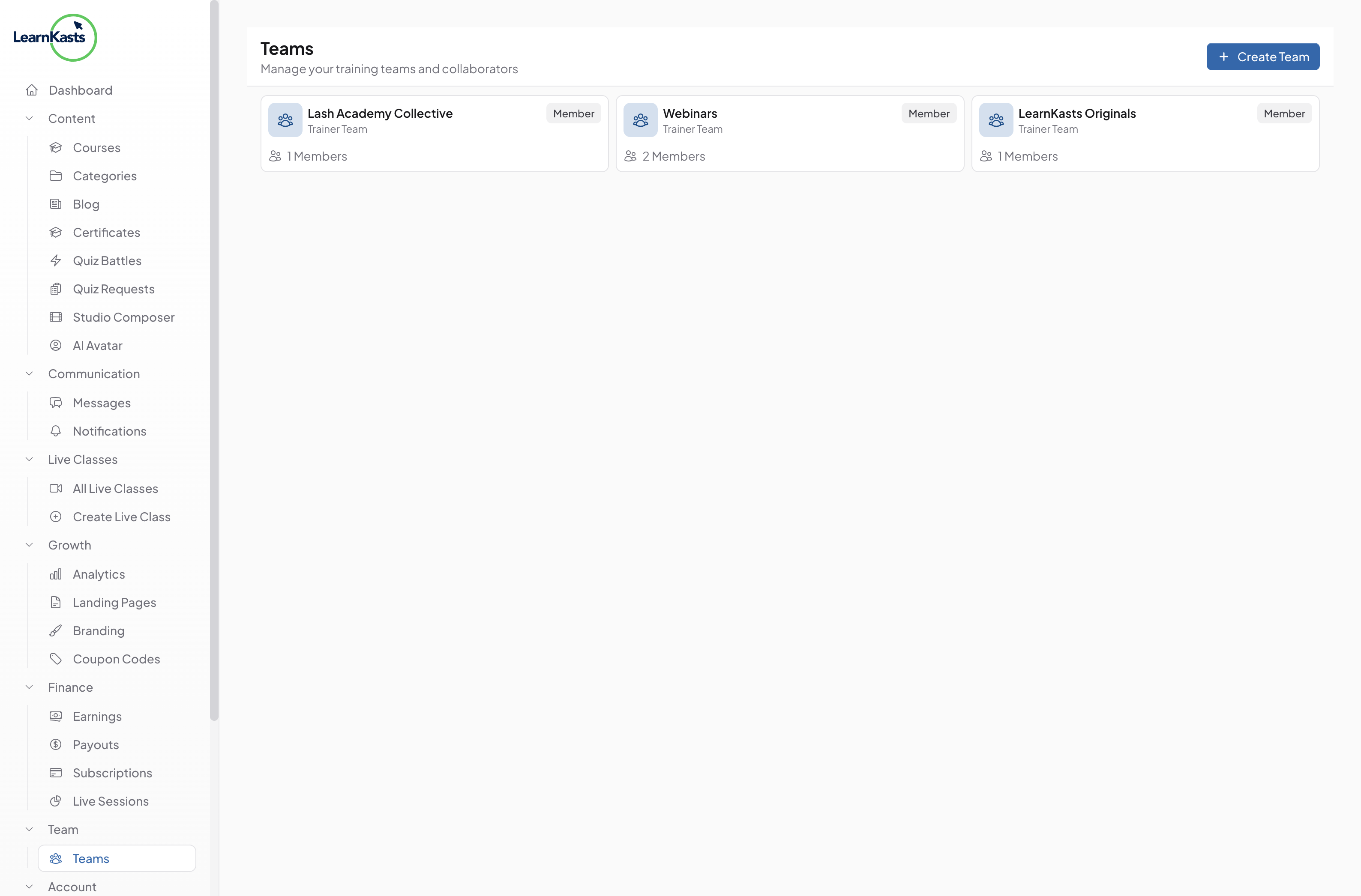
From Educator Dashboard, click "Team" or "Team Members" in the sidebar. You'll see your current team members and an "Invite" button. Only team owners and admins can invite members.
-
02
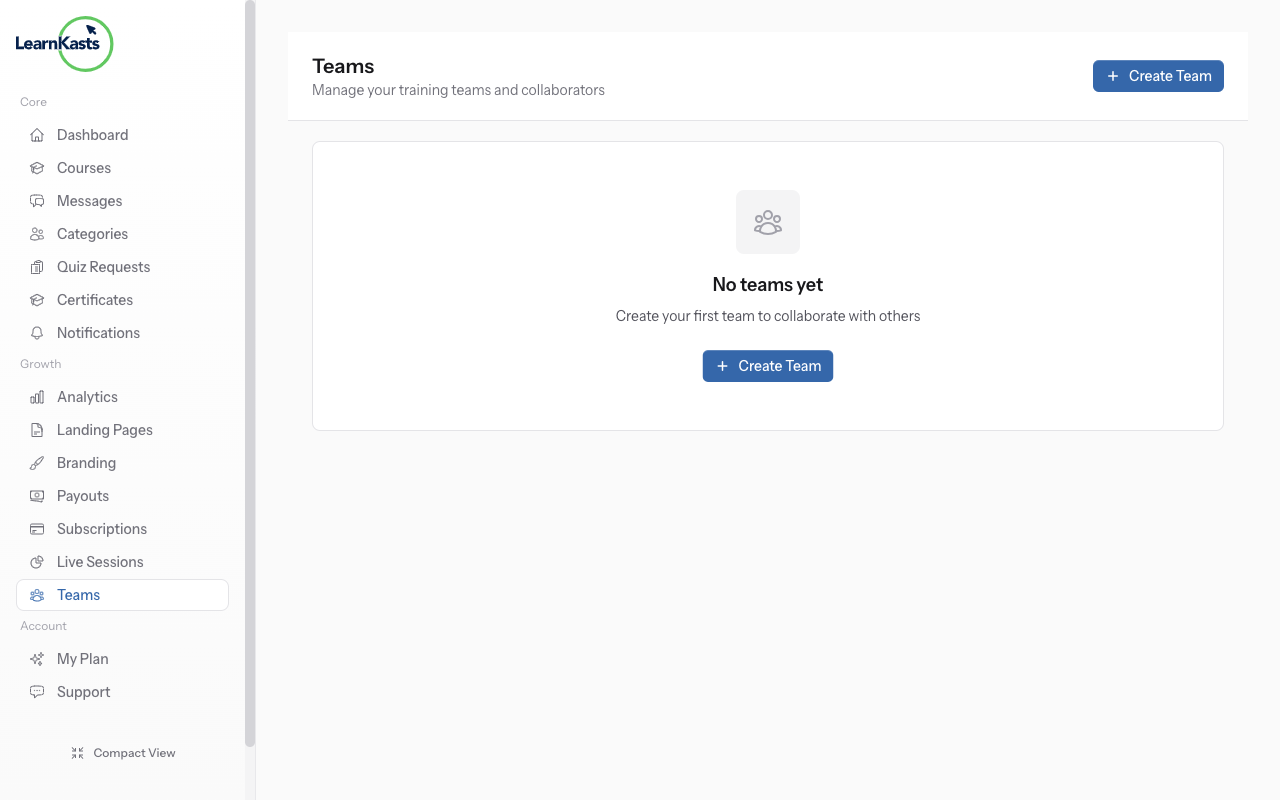
Click invite team member
Click "Invite Team Member" or "+ Add Member" button. A modal or form will appear where you can enter the new member's details and assign their role.
-
03
Select team role
Type the email address of the person you want to invite. Add their full name. Make sure the email is correct - they'll receive an invitation link at this address.
-
04
Add personal message (optional)
Choose their role from the dropdown: Owner (full access), Admin (manage team and courses), Instructor (create/edit courses), Teaching Assistant (grade assignments), or Editor (edit content only). Each role has different permissions.
-
05
Resend or cancel invitation
If you want to limit their access to specific courses only, check "Assign to specific courses" and select which courses they can access. Leave unchecked for access to all courses.
-
06
Add personal message (optional)
Include a personal note in the invitation email explaining why you're inviting them and what you'd like them to help with. Makes the invitation more welcoming and clear.
-
07
Send invitation
Click "Send Invitation" button. The person receives an email with an invite link. They have 7 days to accept (default). Pending invitations show in your team list with "Pending" status.
-
08
Resend or cancel invitation
If they didn't receive it, click "Resend Invitation". To cancel, click the three dots menu next to pending invite → "Cancel Invitation". Cancelled invites cannot be used even if they have the link.
Did this guide help?
If you need a real human, our support team replies in plain English within one working day. Faster on WhatsApp.