
-
01
Create your educator account
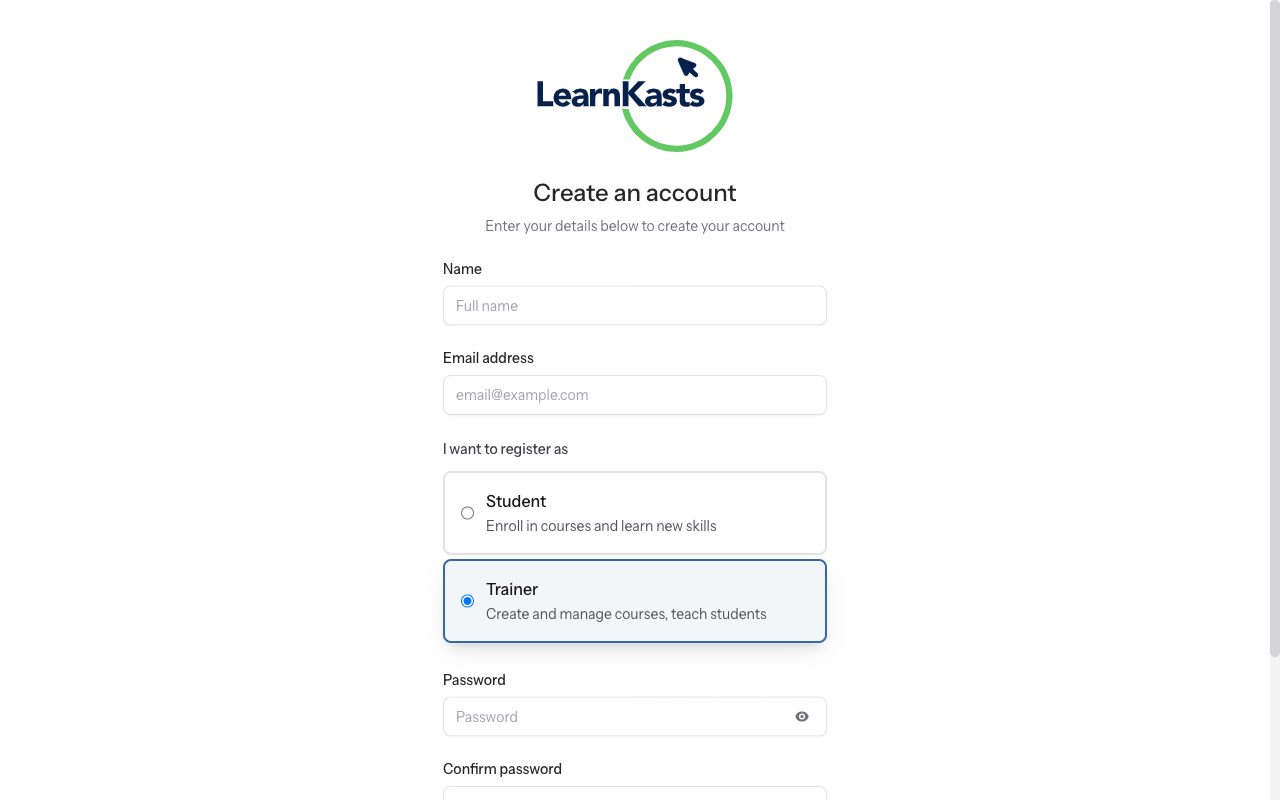
Visit the Learnkasts homepage and click "For educators" in the navigation. On the registration page, enter your full name, email address, and create a strong password. Select "Educator" as your account type. Click "Create Account" to register. Check your email for a verification link and click it to activate your account.
-
02
Complete your profile
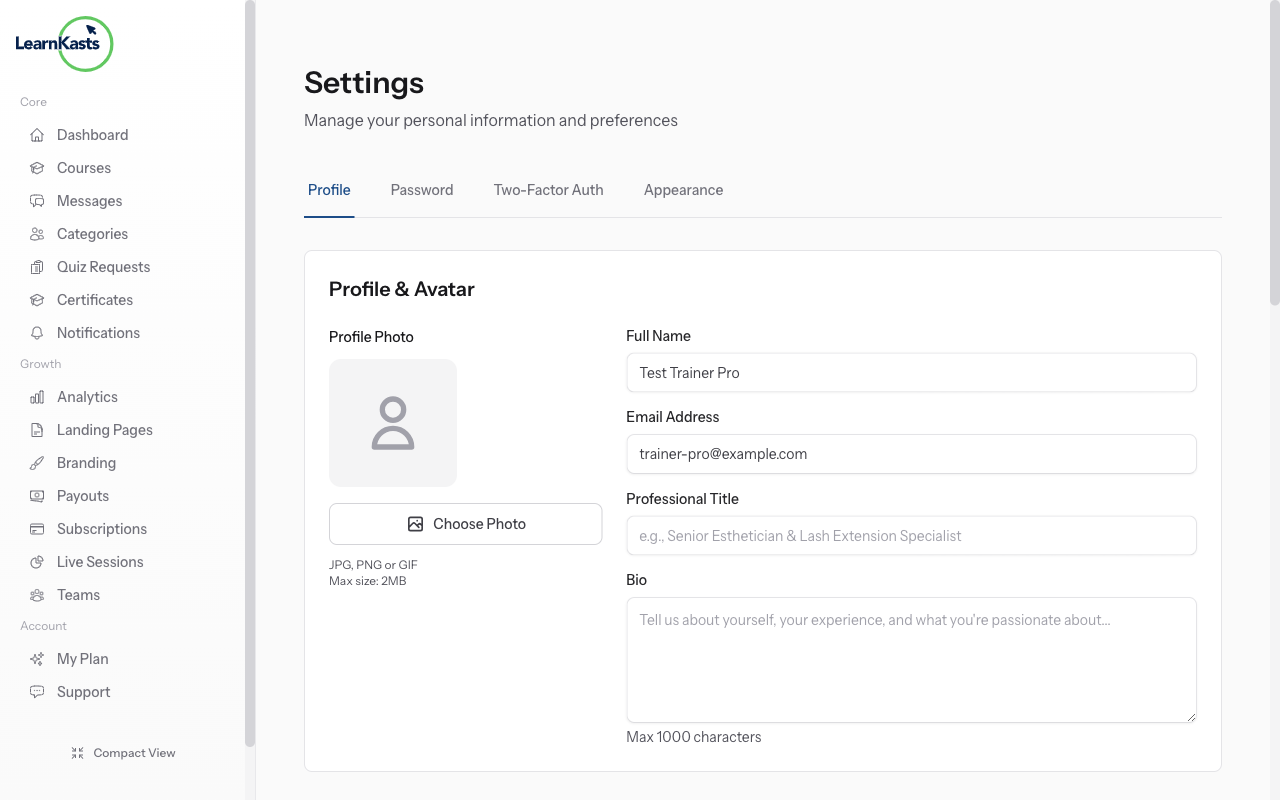
After logging in, go to Settings → Profile (or click your avatar → Profile). Fill in your professional headline that describes your expertise (e.g., "Makeup Artist & Beauty Educator"). Write a bio that showcases your experience and teaching style. Upload a professional profile photo. Add your phone number and select your timezone for scheduling.
-
03
Set up your payout method
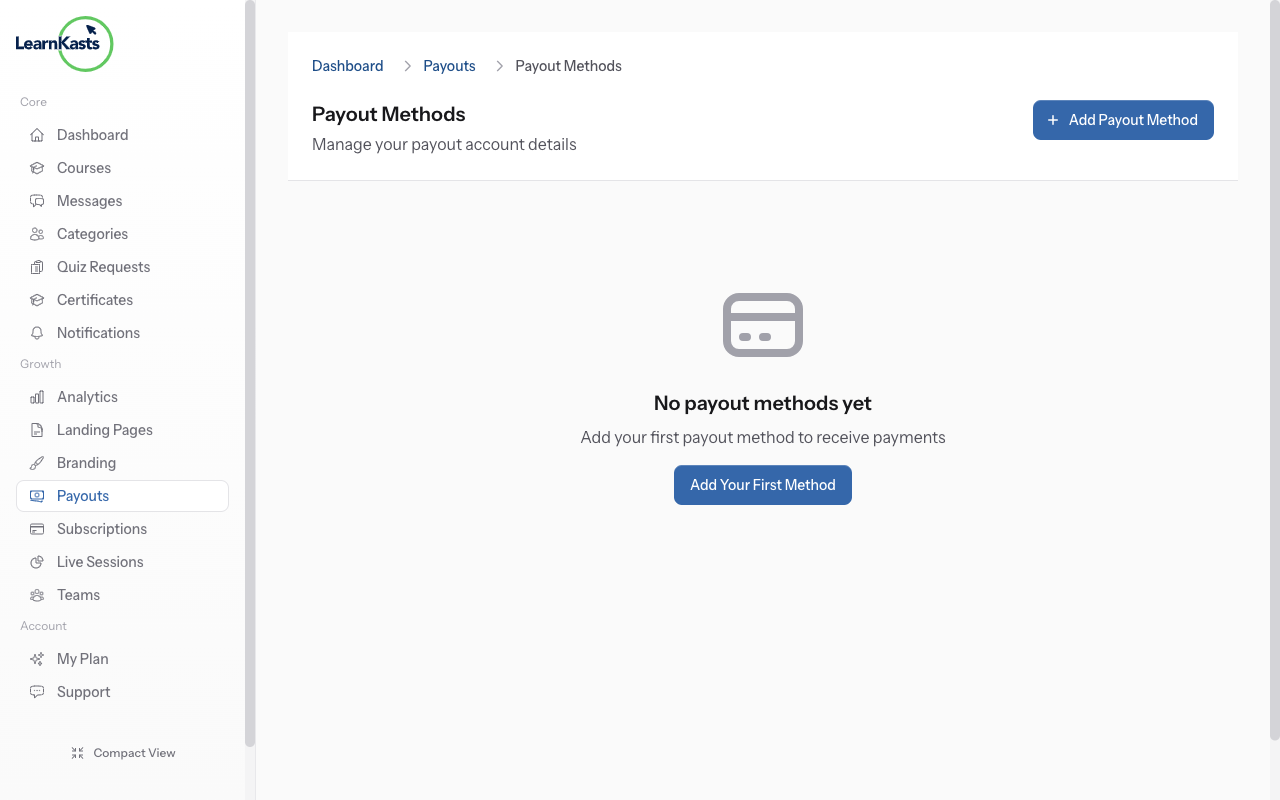
Navigate to your Educator Dashboard from the sidebar. Go to Payouts in the left menu, then click "Payout Methods". Click "Add Payout Method" and choose Bank Account or Mobile Money. Enter your account details carefully. This is where your course earnings will land. You must add at least one payout method before you can receive payments.
-
04
Explore your educator dashboard
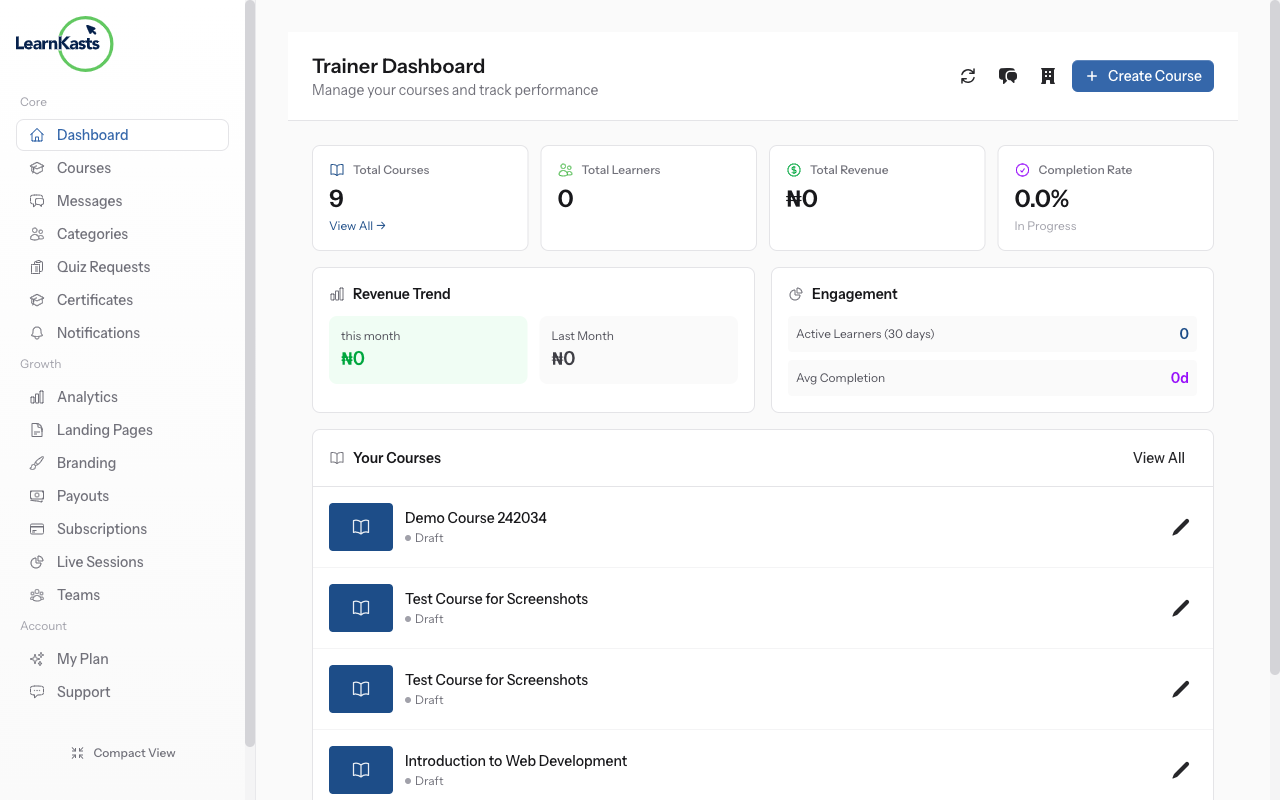
Your Educator Dashboard is your command centre. The top section shows key stats: total courses, enrolled students, revenue earned, and your average rating. Below that you'll see your recent courses with quick actions to edit or view analytics. The left sidebar provides navigation to every educator feature including Courses, Analytics, Payouts, Teams, and Settings.
-
05
Create your first course
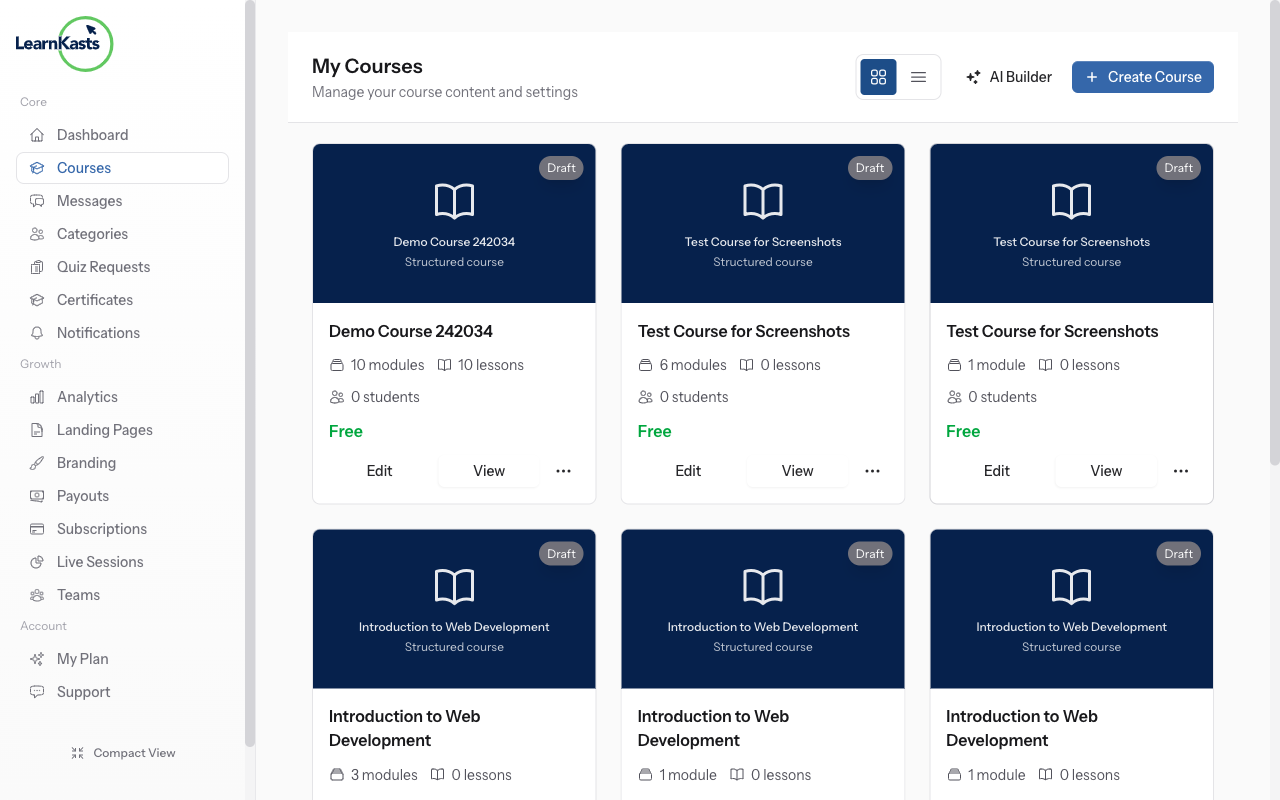
Click "Courses" in the sidebar, then click the "Create Course" button (or use the shortcut on your dashboard). This takes you to the course creation page where you'll enter your course title, description, and configure settings. You can save as draft at any time and return later to continue building your course.
Did this guide help?
If you need a real human, our support team replies in plain English within one working day. Faster on WhatsApp.