
-
01
Access your orders
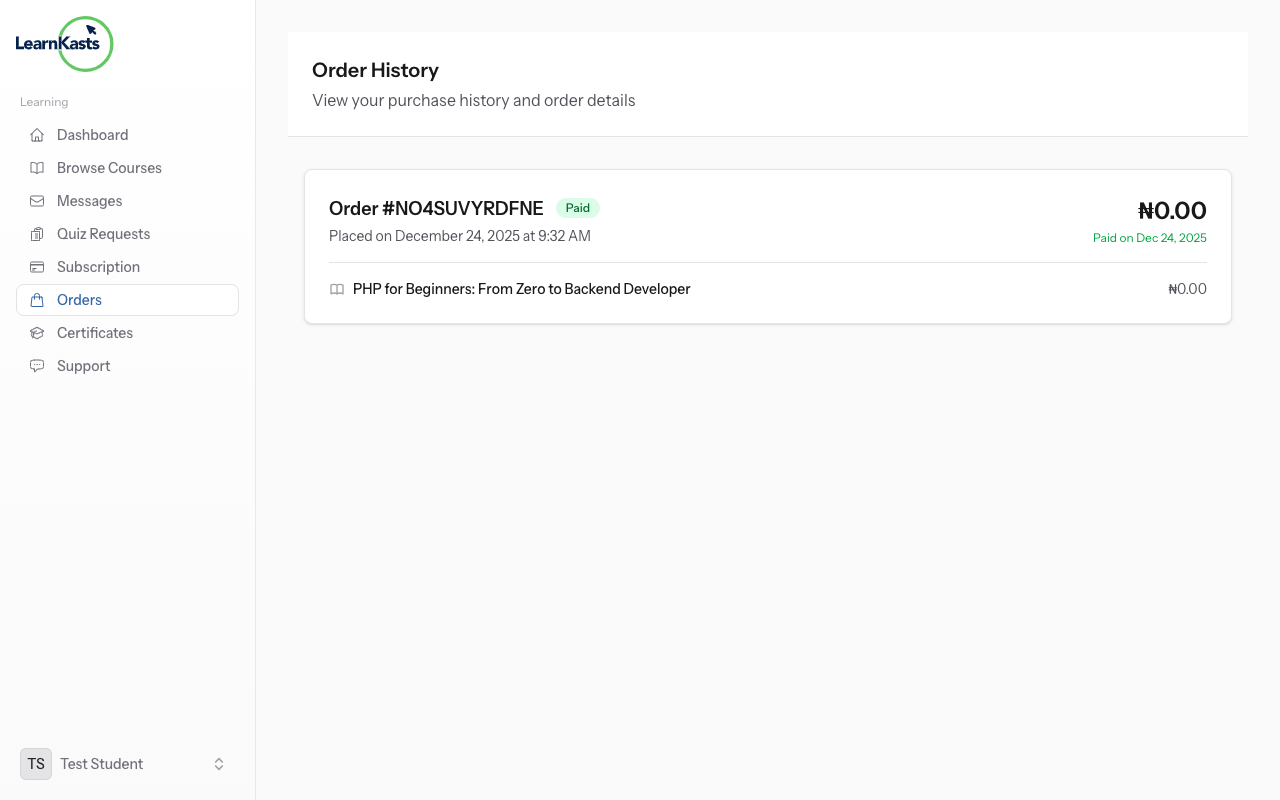
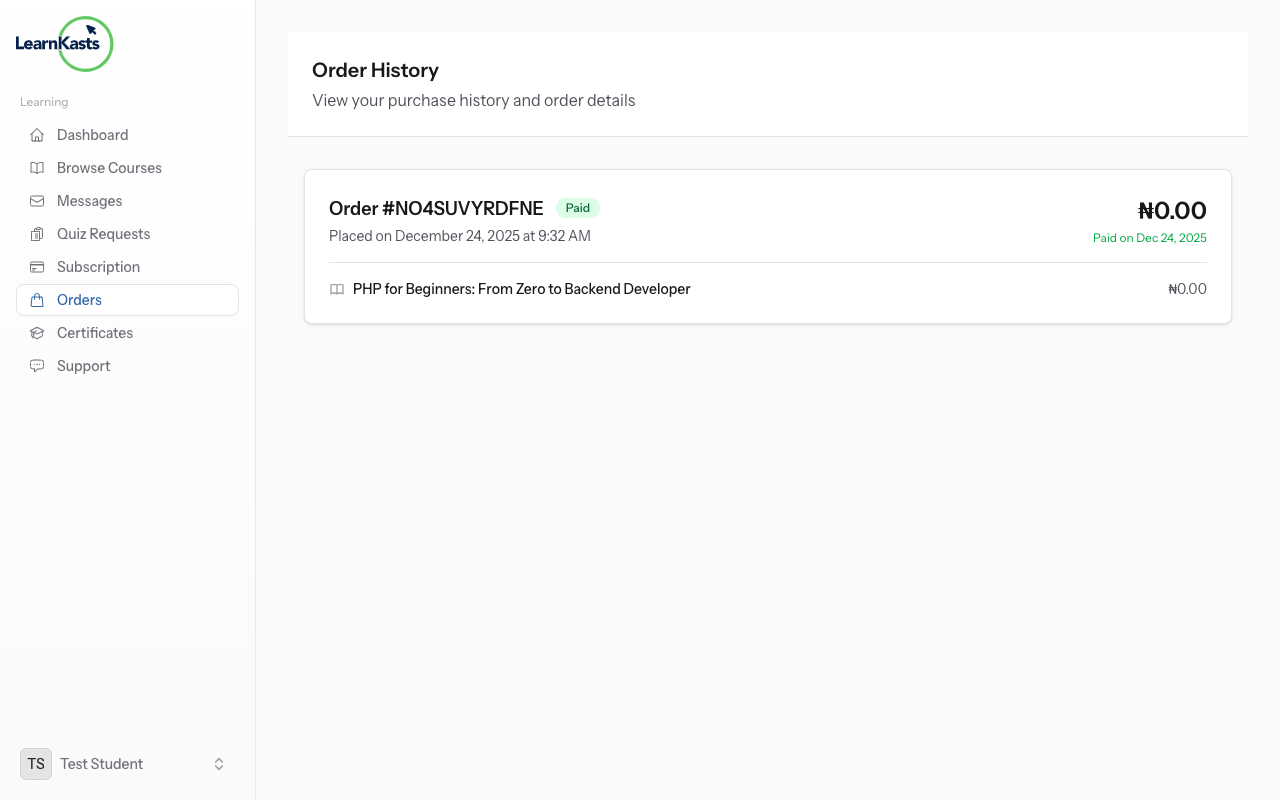
From your dashboard, click "Orders" in the sidebar navigation. You'll see a list of all your course purchases with order details and status.
-
02
View order list
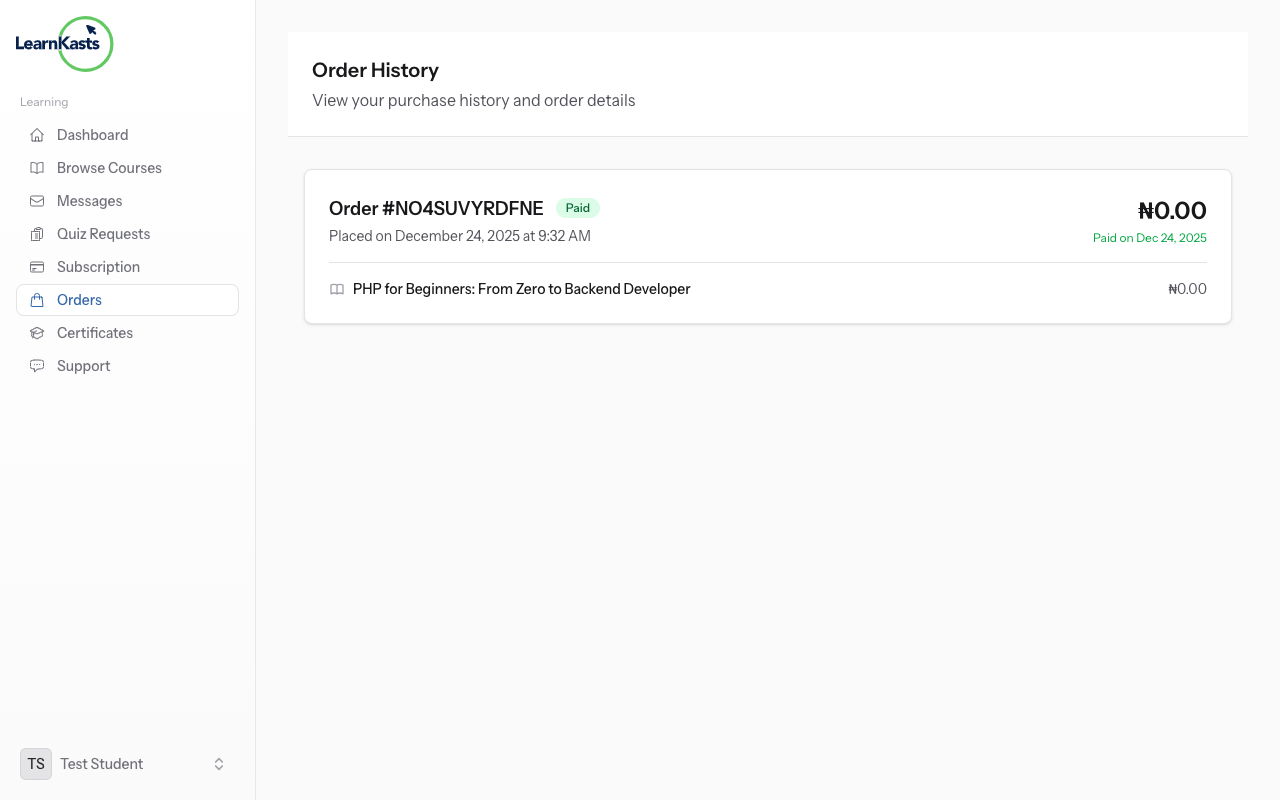
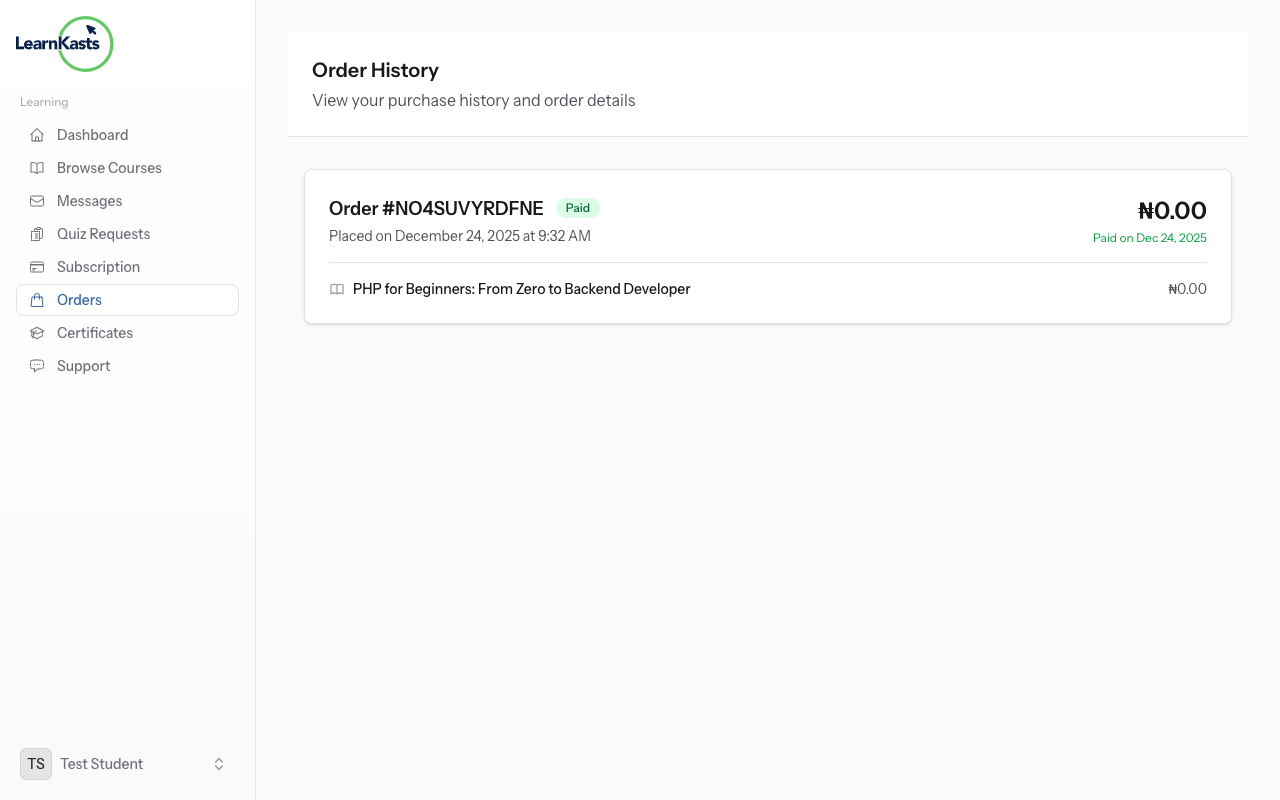
The orders page shows: order number, date, course name, amount paid, payment method, and order status (Completed, Pending, Failed). Orders appear newest first.
-
03
Check order details
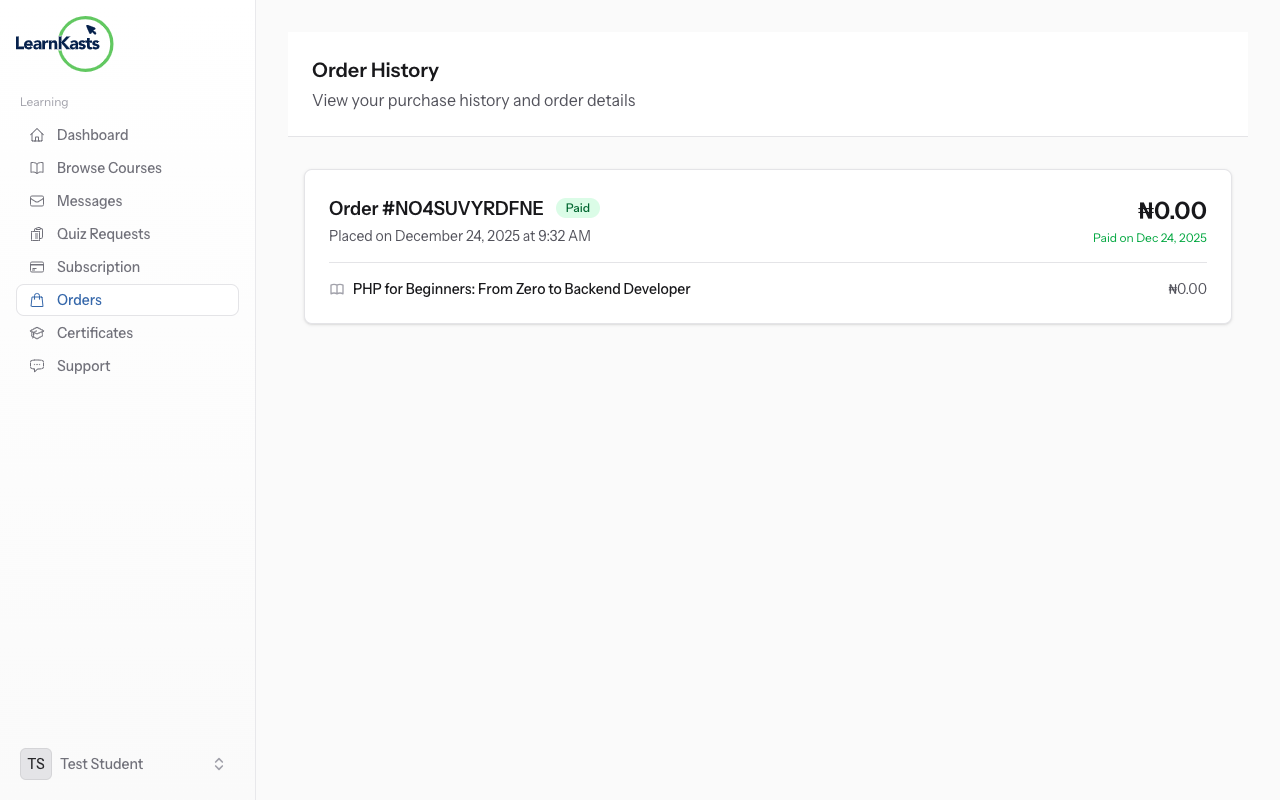
Click on any order to see full details including: itemized list of courses, subtotal, taxes, discounts applied, final total, and transaction ID. This is your proof of purchase.
-
04
Download invoice
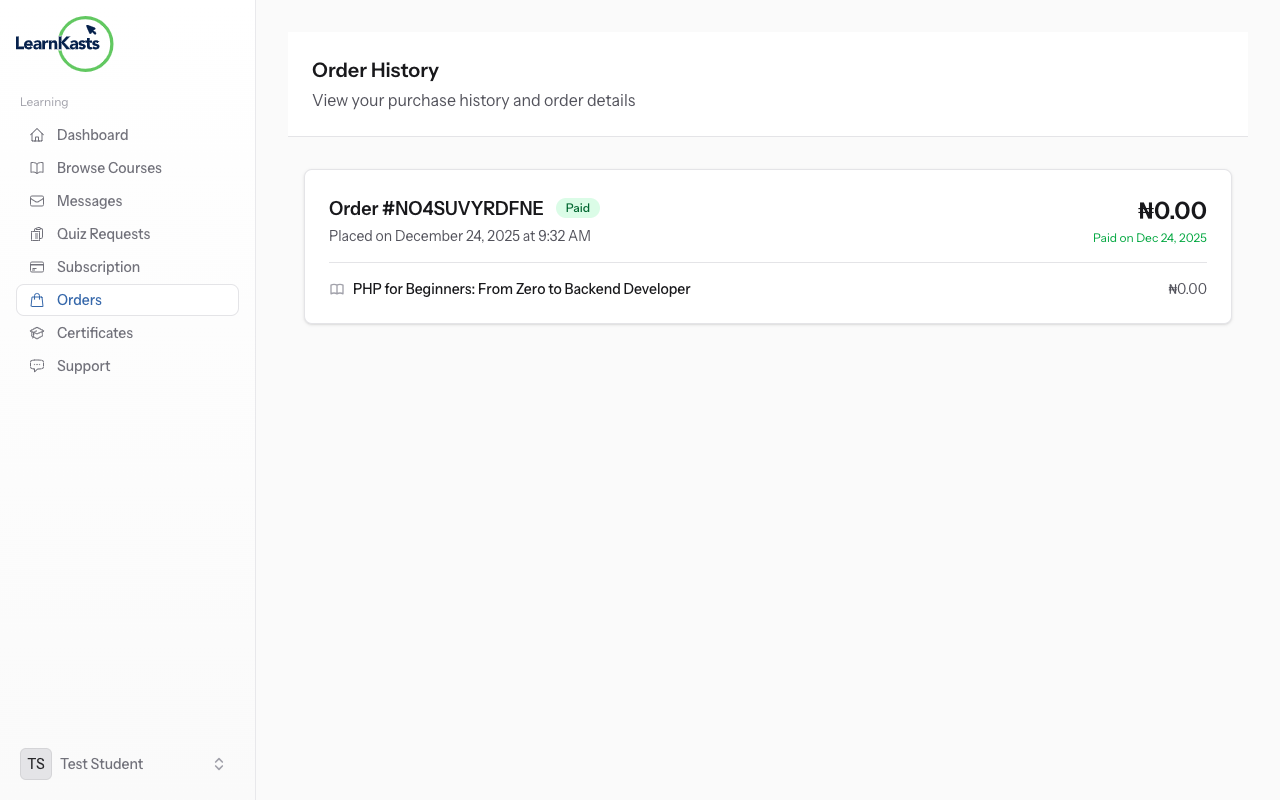
On the order detail page, click "Download Invoice" button. You'll get a PDF invoice with your purchase details, perfect for expense reports or record-keeping.
-
05
Track payment status
Order status shows: "Completed" (payment successful, course access granted), "Pending" (payment processing), or "Failed" (payment declined - retry needed). Contact support if status doesn't update.
-
06
Request refund (if applicable)
If you're unsatisfied within the refund period (usually 7-30 days), click "Request Refund" on the order. Fill out the refund form explaining your reason. Refunds are processed per platform policy.
-
07
View enrolled courses from orders
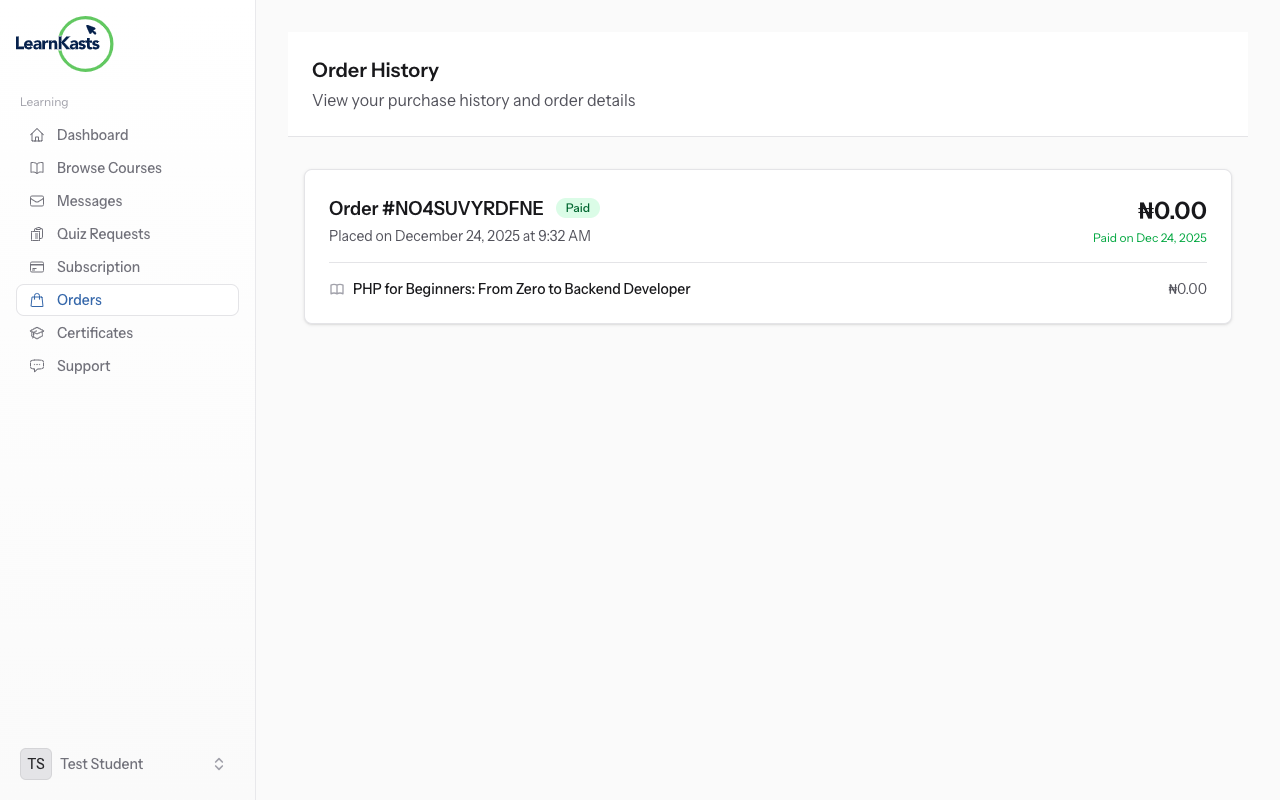
Each completed order shows the courses you purchased. Click "Go to Course" to directly access the course content and start learning. All your purchases are also in "My Courses".
Did this guide help?
If you need a real human, our support team replies in plain English within one working day. Faster on WhatsApp.