
-
01
Access course reviews
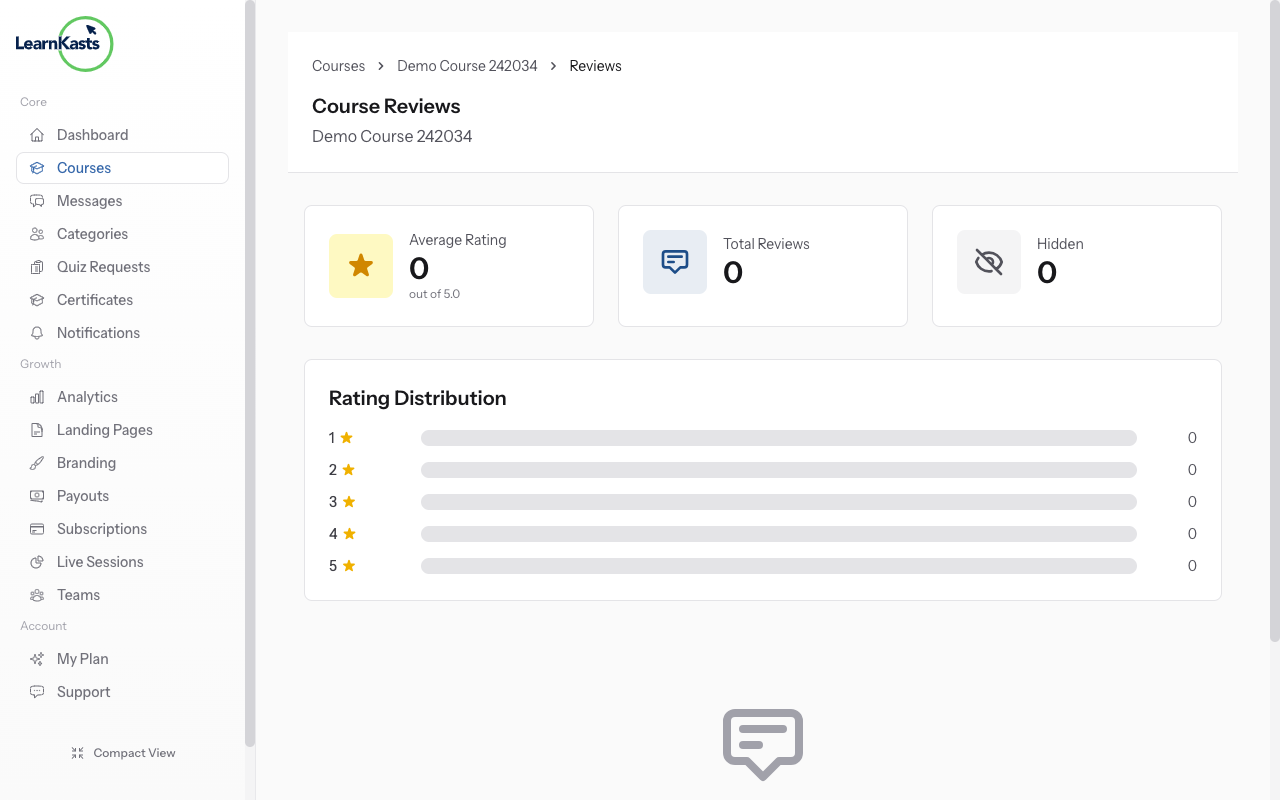
Go to Educator Dashboard → Courses → Click "Edit" on your course → Click the three dots (•••) menu in top right → Select "Manage Reviews". You'll see all reviews for this course.
-
02
View rating overview
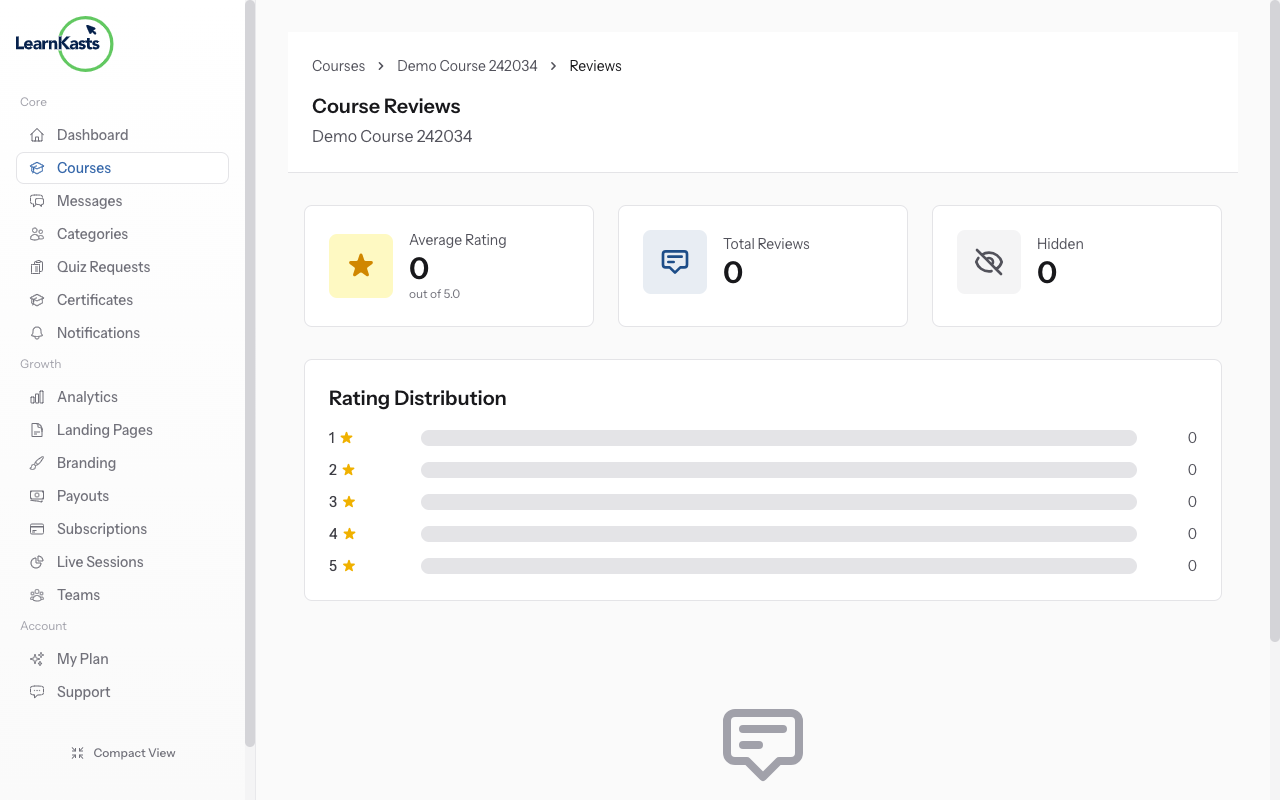
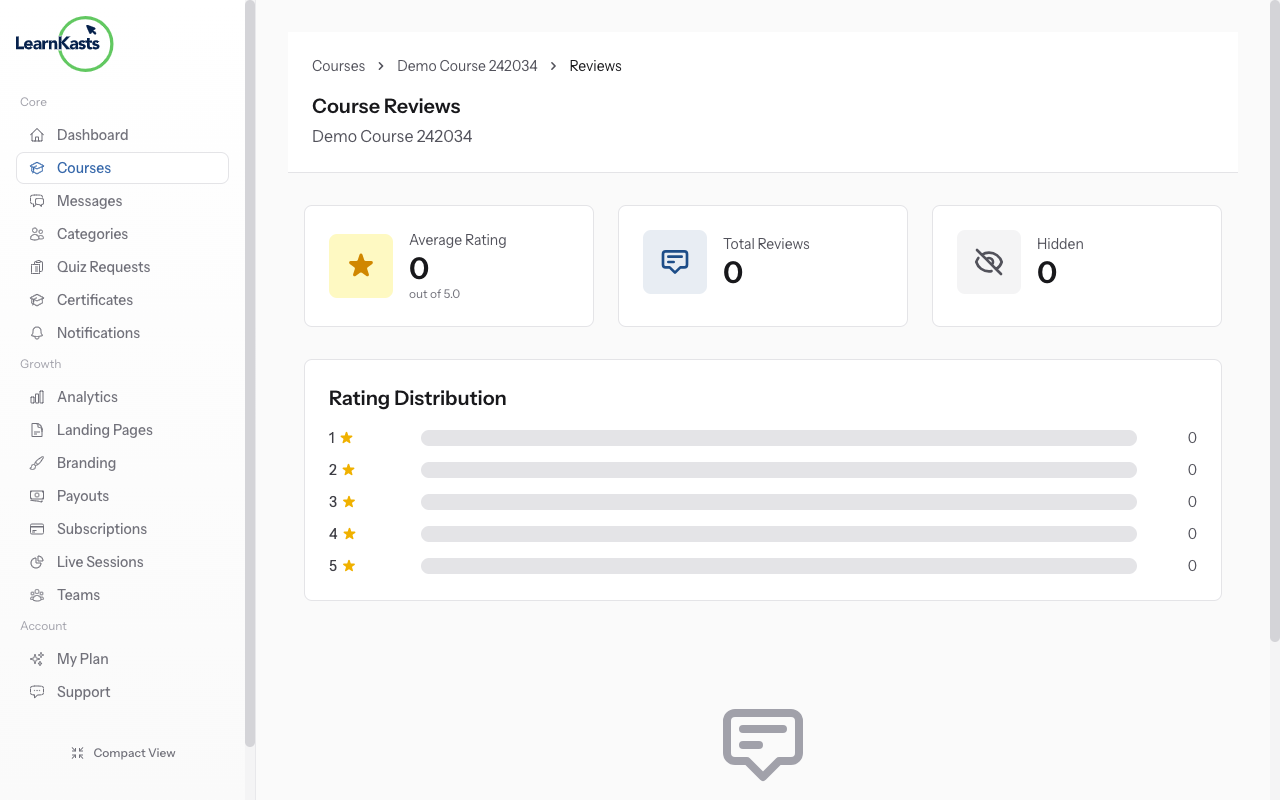
At the top, see your average rating (out of 5 stars), total number of reviews, and rating distribution chart showing how many 5-star, 4-star, etc. reviews you have. This helps you understand overall student satisfaction.
-
03
Hide inappropriate reviews
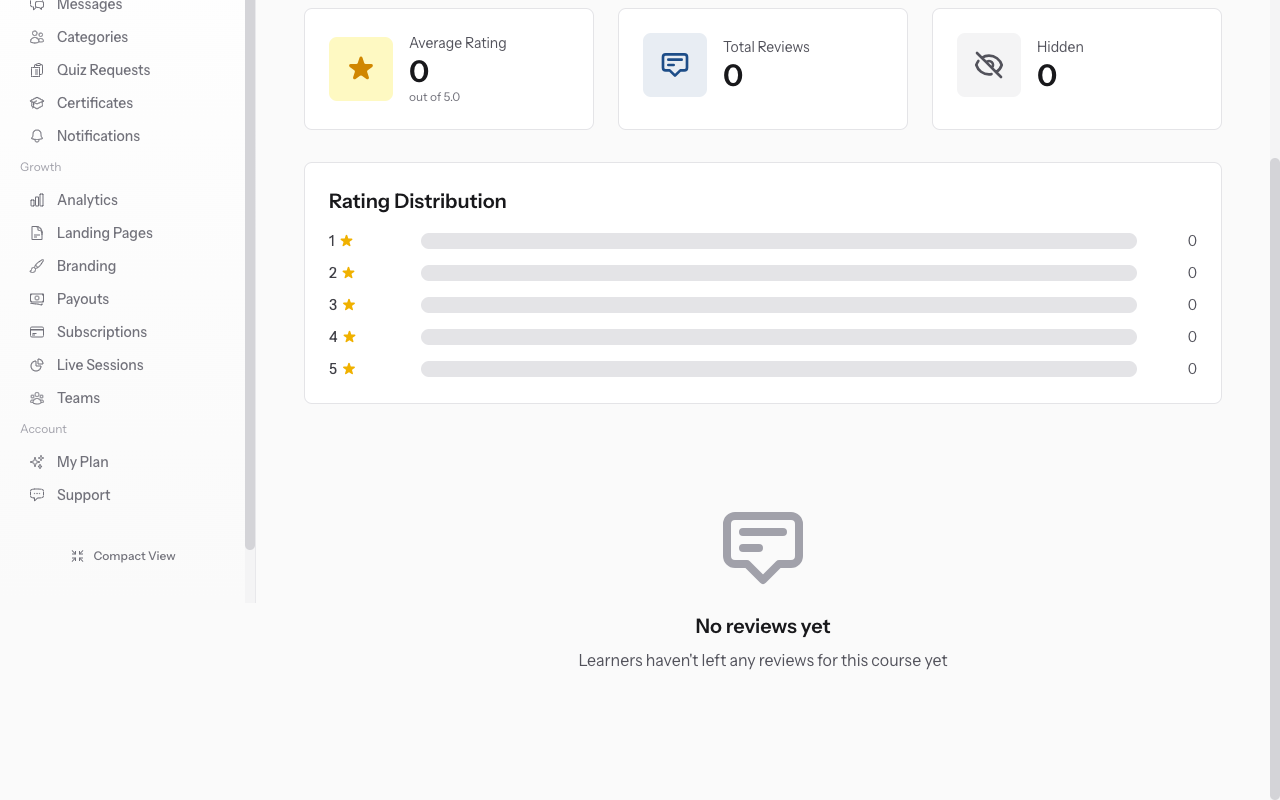
Scroll through all student reviews. Each shows: student name, rating (1-5 stars), comment text, and date posted. Reviews appear newest first. Use this feedback to improve your course.
-
04
Encourage more reviews
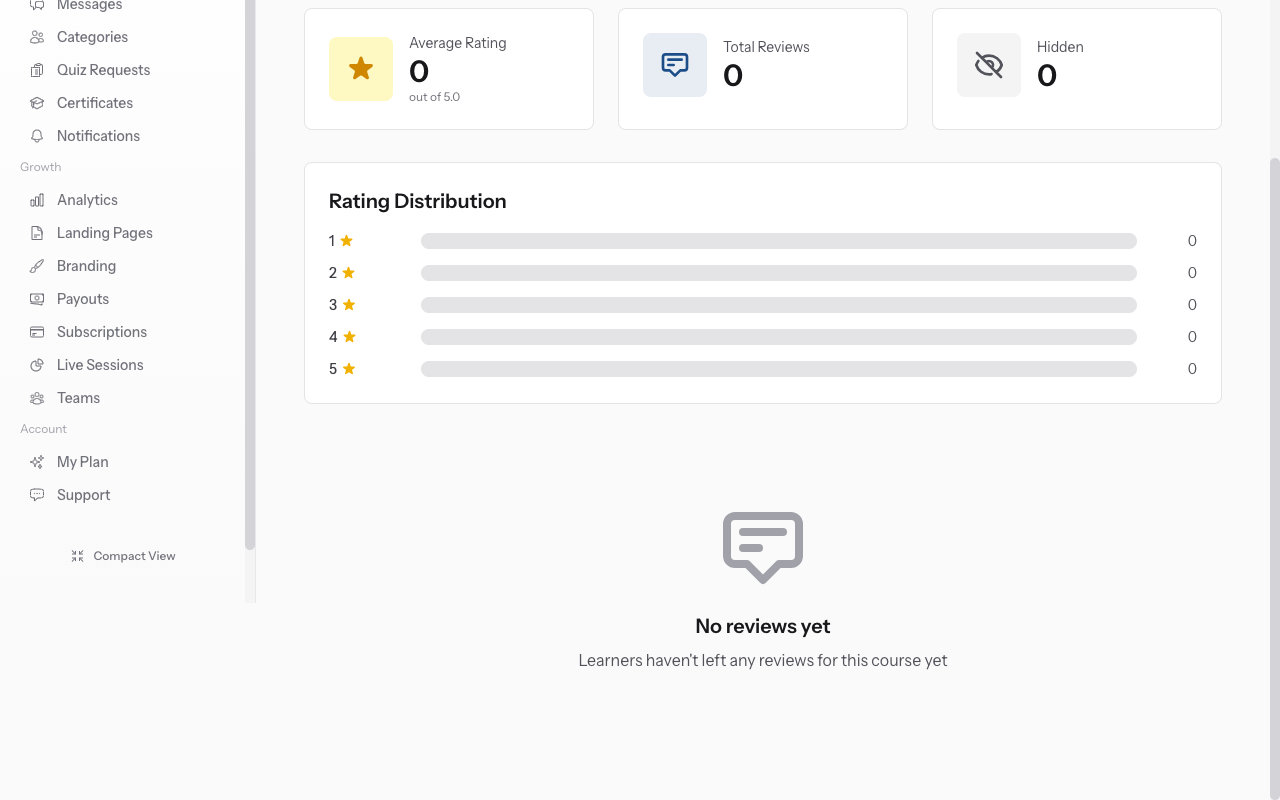
If a review violates guidelines, click the three dots menu next to it → "Hide Review". Hidden reviews won't show on your public course page but remain visible to you. You cannot delete reviews, only hide them.
-
05
Show previously hidden reviews
To unhide a review, find it in the hidden reviews section → Click three dots → "Show Review". It will reappear on your public course page. Use this if you hid a review by mistake.
-
06
Encourage more reviews
Reviews build trust with potential students. After students complete your course or major milestones, send a message encouraging them to leave honest feedback. More reviews = higher credibility.
Did this guide help?
If you need a real human, our support team replies in plain English within one working day. Faster on WhatsApp.