
-
01
Access a quiz lesson
In your course curriculum, quiz lessons are marked with a checkmark or quiz icon. Click on a quiz to view the introduction and start button. Read any instructions before beginning.
-
02
Review quiz settings
Before starting, check: time limit (if any), number of questions, passing score percentage, and maximum attempts allowed. Make sure you have enough uninterrupted time if there's a time limit.
-
03
Start the quiz
Click "Start Quiz" button to begin. If there's a time limit, the countdown timer starts immediately. You cannot pause once started, so ensure you're ready before clicking.
-
04
Answer multiple choice questions
Read each question carefully. Click the radio button next to your chosen answer. Only one answer can be selected for each question. You can change your answer before submitting.
-
05
Answer true/false questions
Read the statement and click either "True" or "False". These questions test your understanding of factual information from the lessons.
-
06
Answer text/essay questions
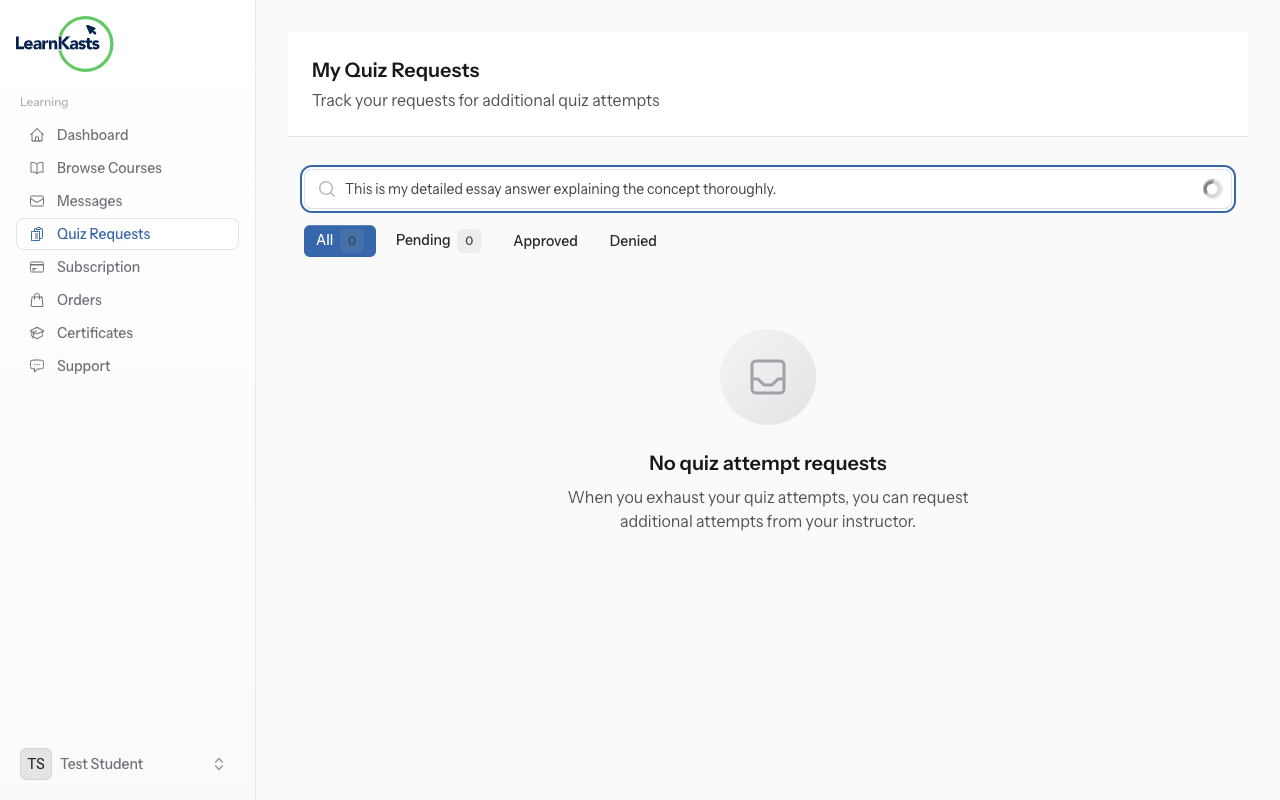
For open-ended questions, type your answer in the text box. Be thorough but concise. These answers are typically graded manually by the educator.
-
07
Navigate between questions
Use "Next" and "Previous" buttons to move between questions. A progress indicator shows which questions you've answered. You can skip questions and come back to them before submitting.
-
08
Review before submitting
Click "Review Answers" to see all your responses before final submission. Check for unanswered questions (usually highlighted). Make any last-minute changes.
-
09
Submit and view results
Click "Submit Quiz" when ready. You'll immediately see your score for auto-graded questions. View correct answers and explanations to learn from mistakes. Your score is recorded in your progress.
-
10
Retake if allowed
If you didn't pass or want to improve your score, click "Retake Quiz" (if attempts remain). Your highest score is usually kept. Use feedback from previous attempts to improve.
Did this guide help?
If you need a real human, our support team replies in plain English within one working day. Faster on WhatsApp.