AI Voice Clone & Avatar
Clone your voice and create an AI avatar to narrate your course videos automatically.
-
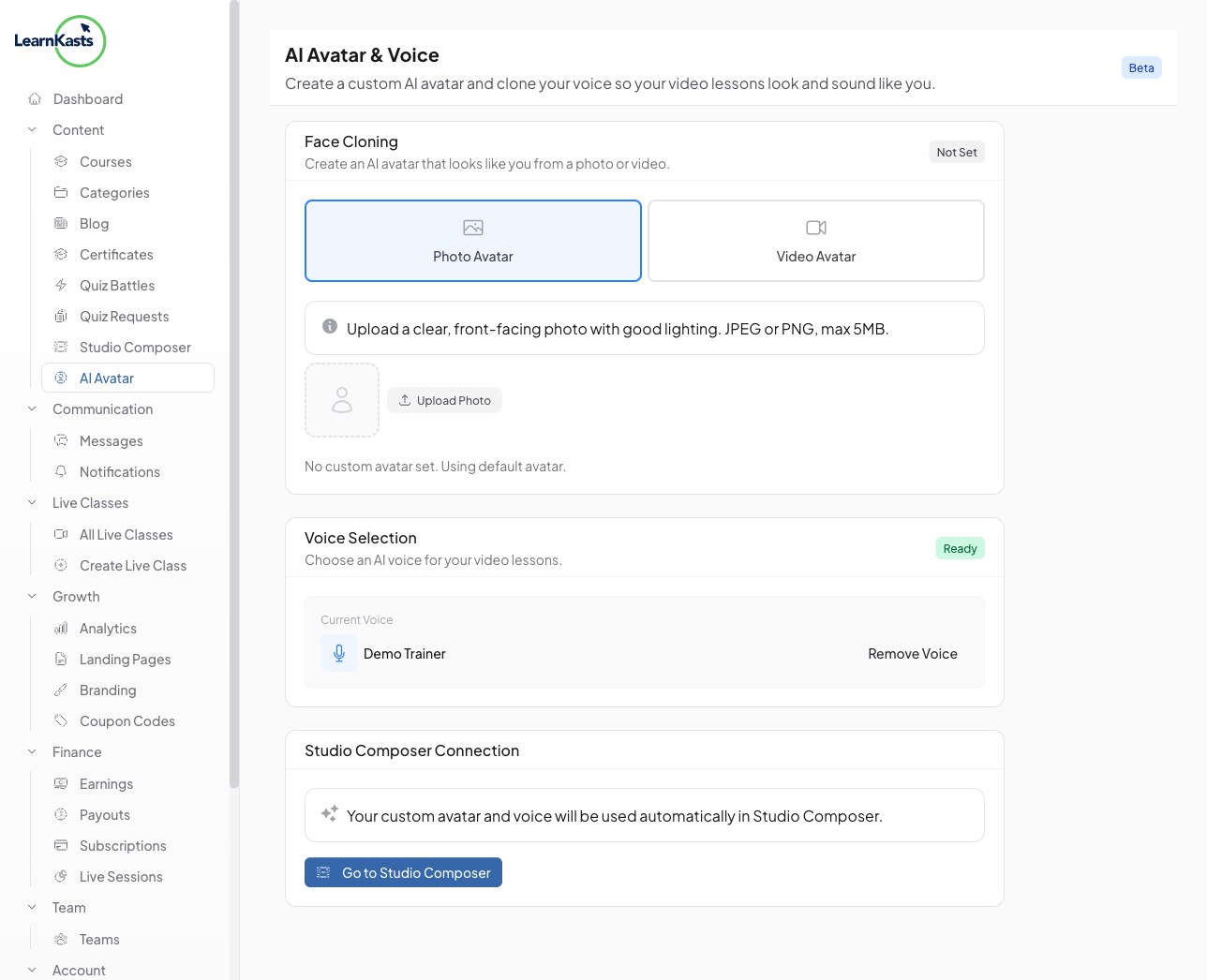
Access AI Avatar settings
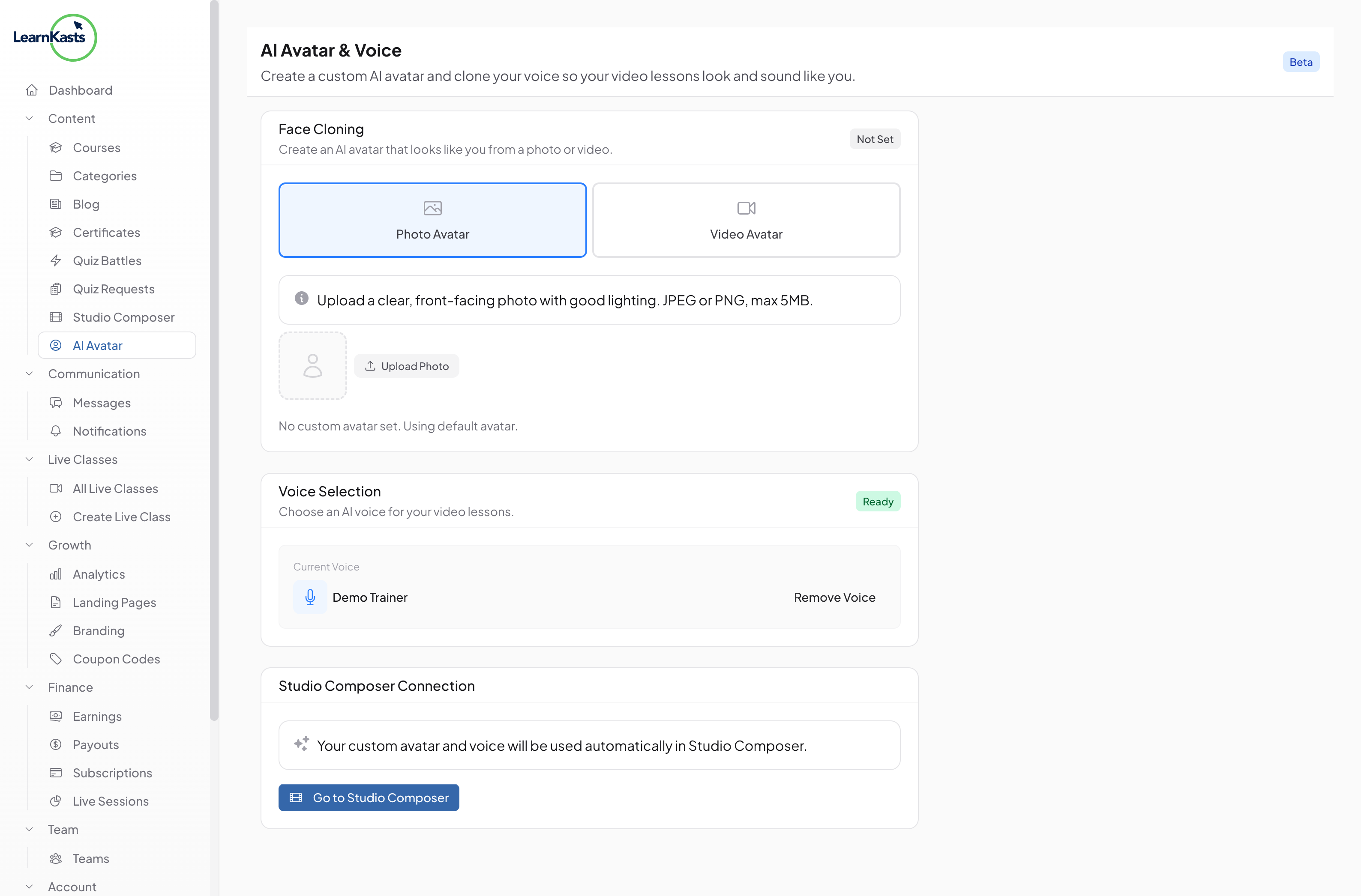
From your educator dashboard, navigate to "AI Avatar" in the sidebar under AI Studio. This page lets you set up Face Cloning (Photo Avatar or Video Avatar) and Voice Selection for your AI-generated content.
-
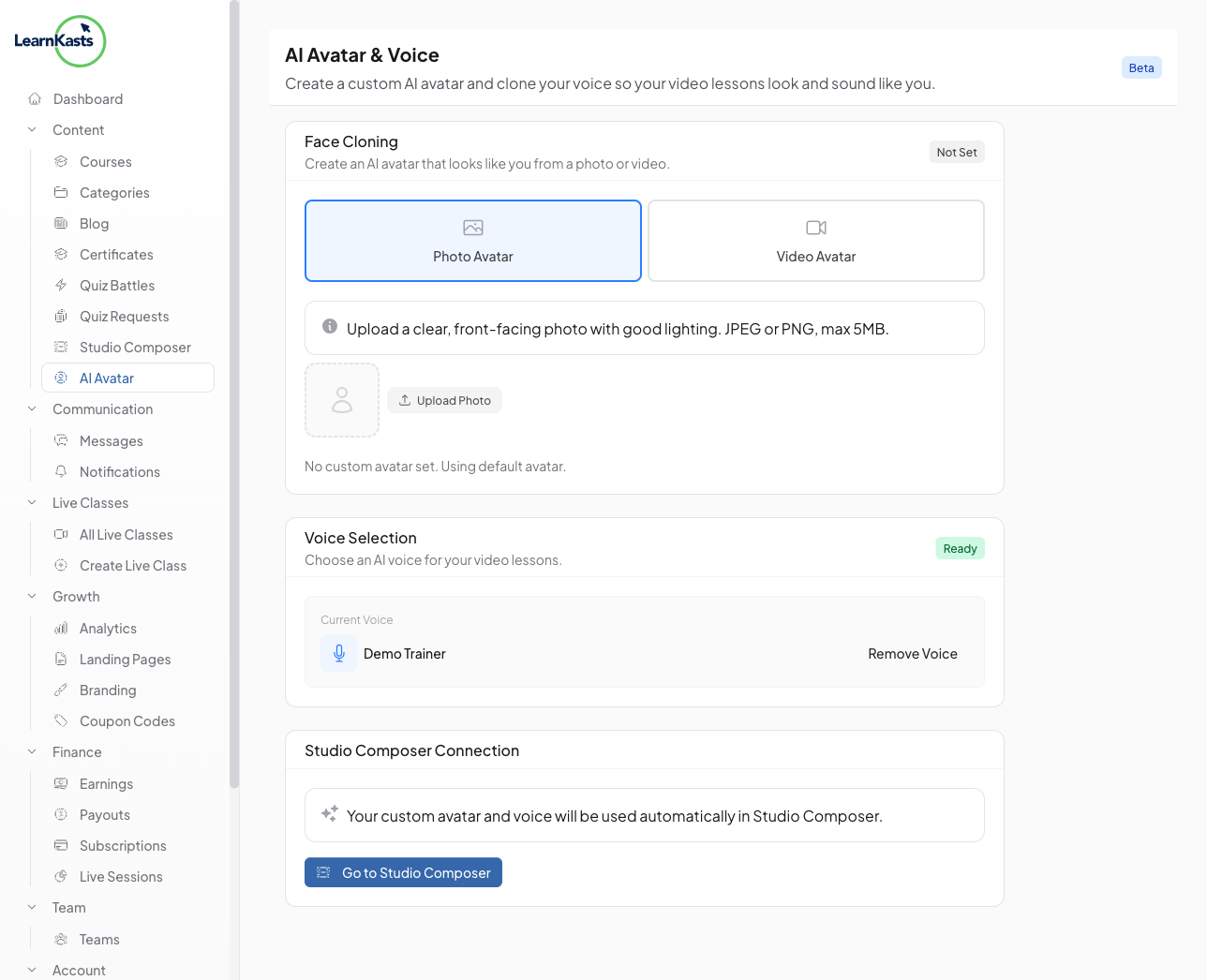
Set up Face Cloning
Choose between a Photo Avatar (upload a clear headshot) or a Video Avatar (record a short video clip). Your avatar will be used as the visual presenter in AI Studio videos. Follow the on-screen guidelines for best results - good lighting, neutral expression, and a plain background.
-
Record your voice
Click "Record Voice" and read the provided script aloud for 30 seconds. Use a quiet environment and a good microphone for the best clone quality. You can also upload a pre-recorded audio file if you prefer.
-
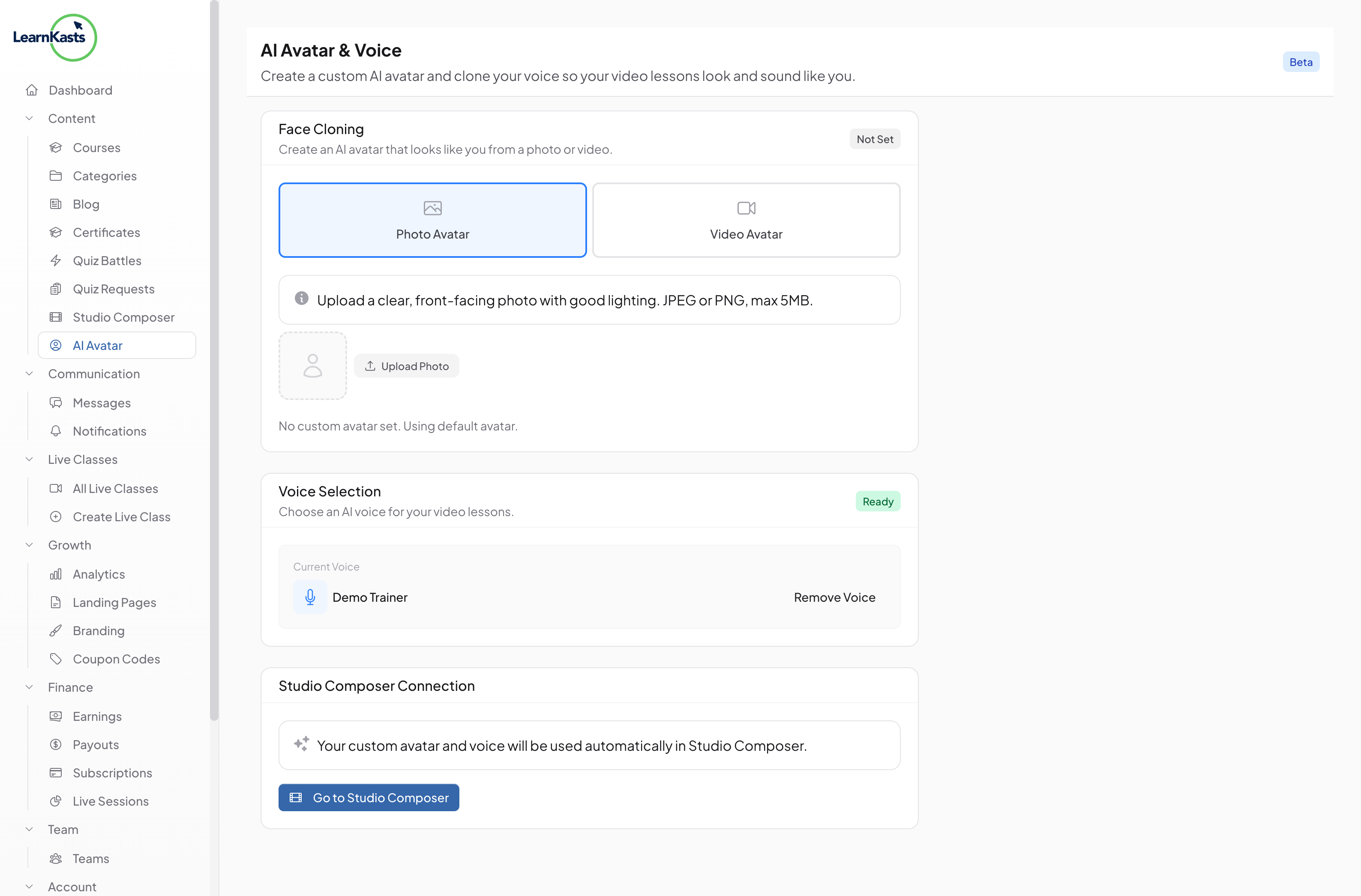
Connect to Studio Composer
Once your voice clone is ready, it automatically appears as an option in the Studio Composer voice selection. When creating new videos, simply select "My Voice" to have the AI narrate using your cloned voice.
-
Plan requirements
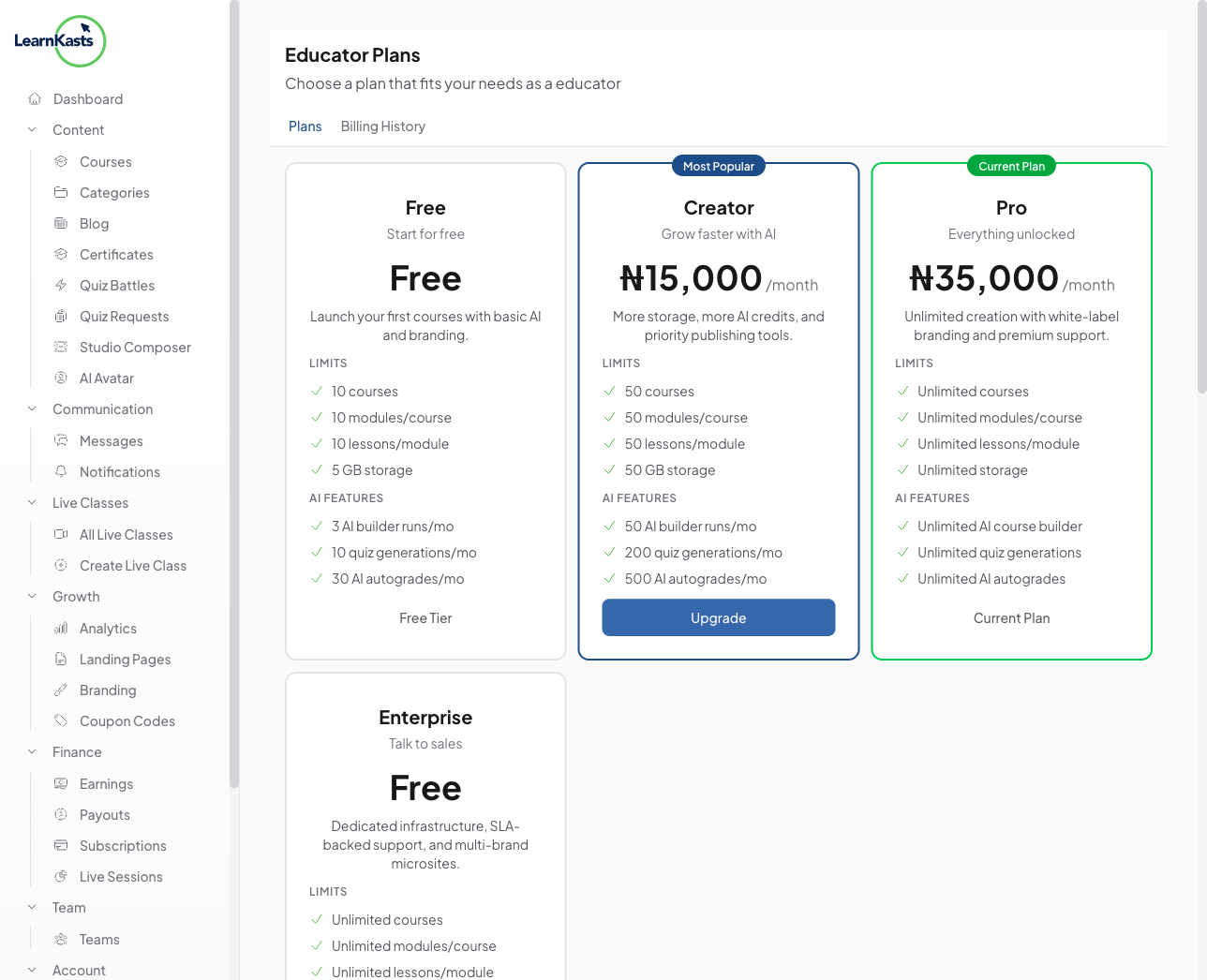
AI Voice Clone and Avatar features are available on Creator plan and above. Free plan educators can upgrade from the AI Avatar page to unlock these features.
More guides
Educator guides
Step-by-step guides to create courses, run live sessions and grow your teaching business.
- Getting started as an educator
- Creating your first course
- Building course curriculum
- Uploading video lessons
- Using AI to generate quizzes
- Creating quizzes and assignments
- Assignments and grading queues
- Hosting live sessions
- Creating and managing webinars
- Managing course cohorts
- Adding students to cohorts
- Setting up subscriptions
- Course reviews and ratings
- Issuing certificates
- Understanding course analytics
- Live session usage and billing
- Setting up payout methods
- Viewing revenue and payouts
- Setting up your educator subdomain
- Creating landing pages
- Using the visual page editor
- Adding page sections
- Page styling and branding
- AI Studio Composer
- AI Voice Clone & Avatar
- Traffic sources & UTM attribution
Learner guides
Everything learners need to check courses, join live sessions and follow their progress.
- Creating an account
- Browsing and finding courses
- Enrolling in a course
- Watching video lessons
- Taking notes during lessons
- Submitting assignments
- Taking quizzes
- Joining live classes
- Attending webinars
- Managing your subscriptions
- Viewing your certificates
- Writing course reviews
- Managing your orders
- Updating your profile
Team & admin
Team management, permissions, billing and admin tools for organisations.
This guide help you?
If you need real human, our support team dey reply for plain English inside one working day. E faster for WhatsApp.