Certificate Templates
Create professional certificates for course completion and configure automatic issuance.
-
Access certificate settings
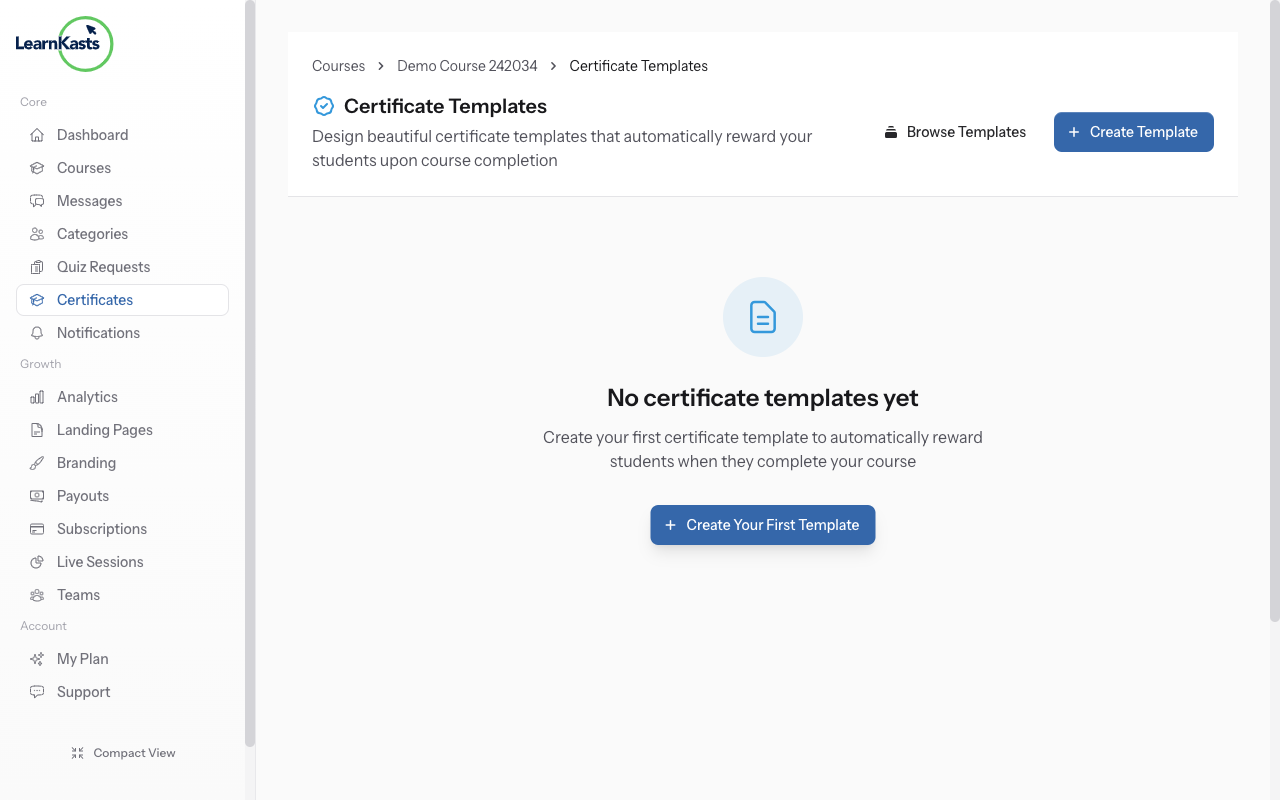
Certificate templates are configured per course. From your Educator Dashboard, go to Courses → click Edit on your course → select the "Certificates" tab. This is where you create and manage certificate templates for that course.
-
Create a certificate template
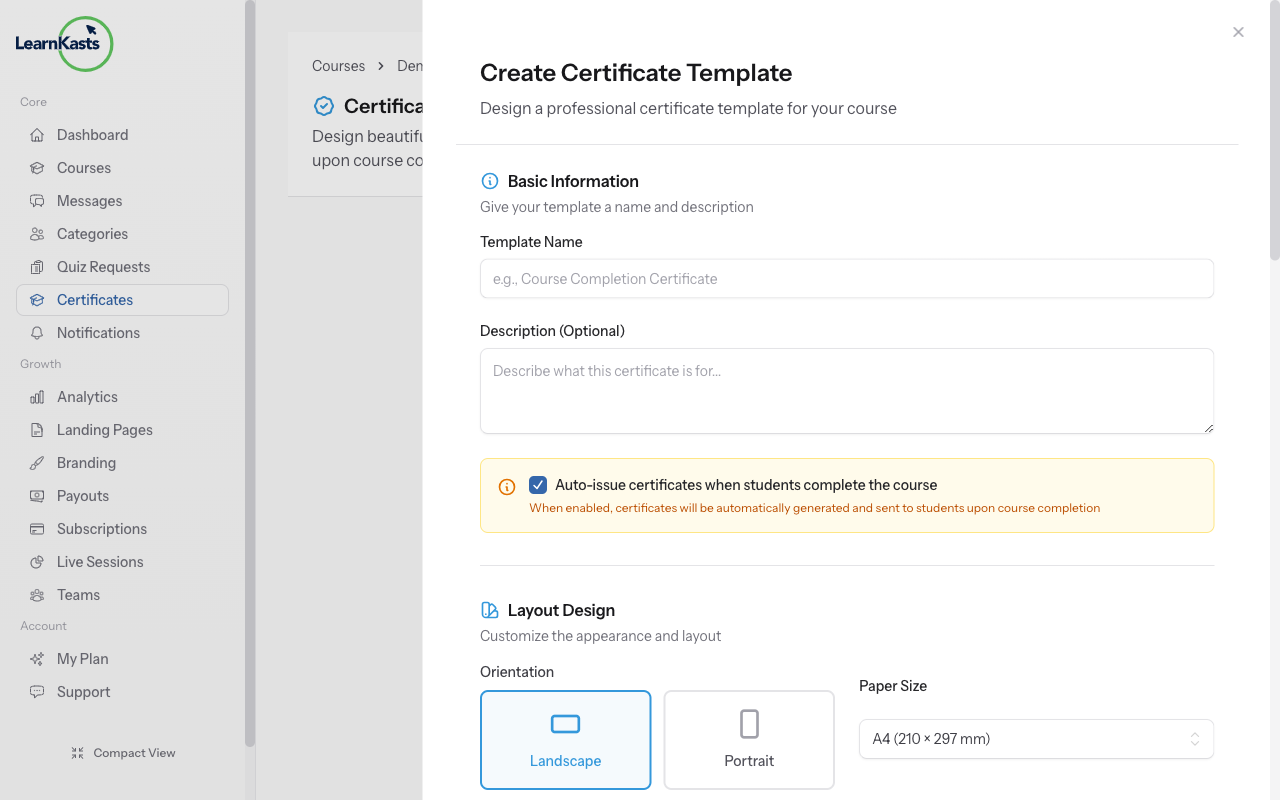
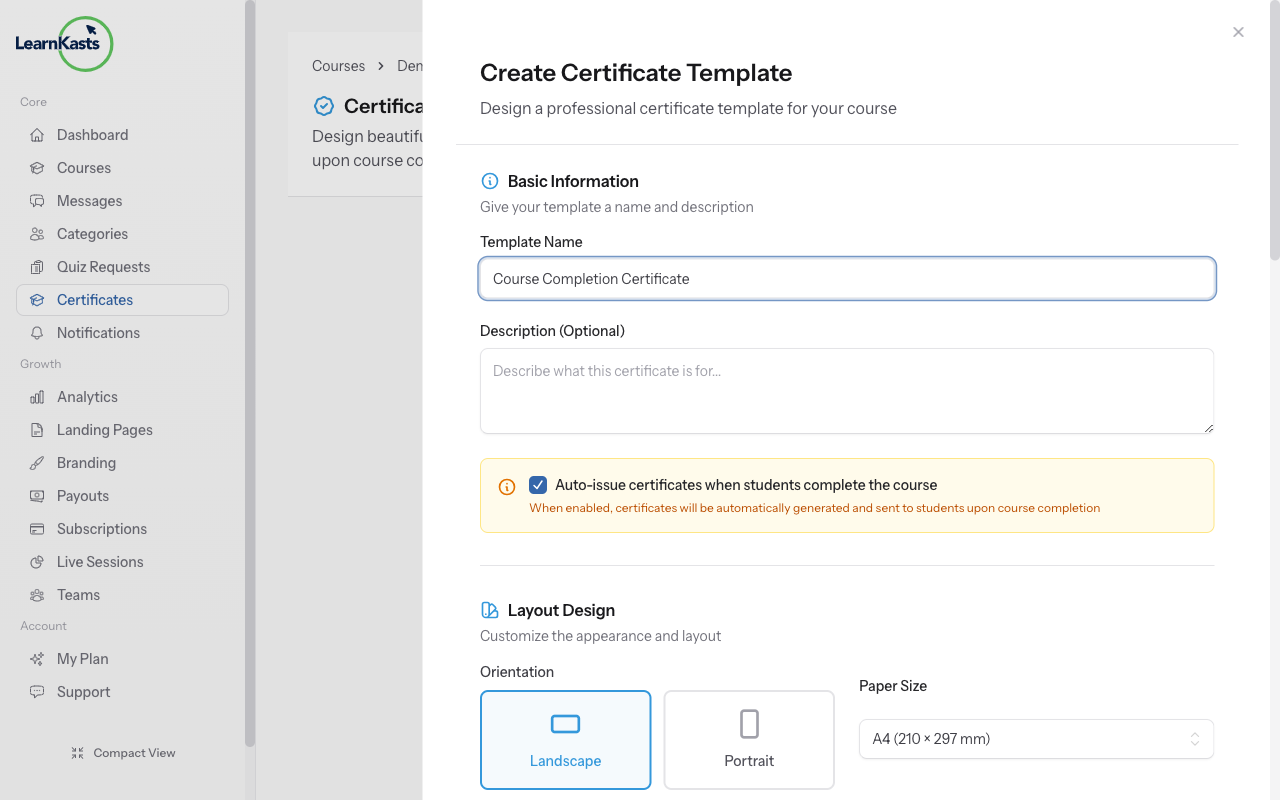
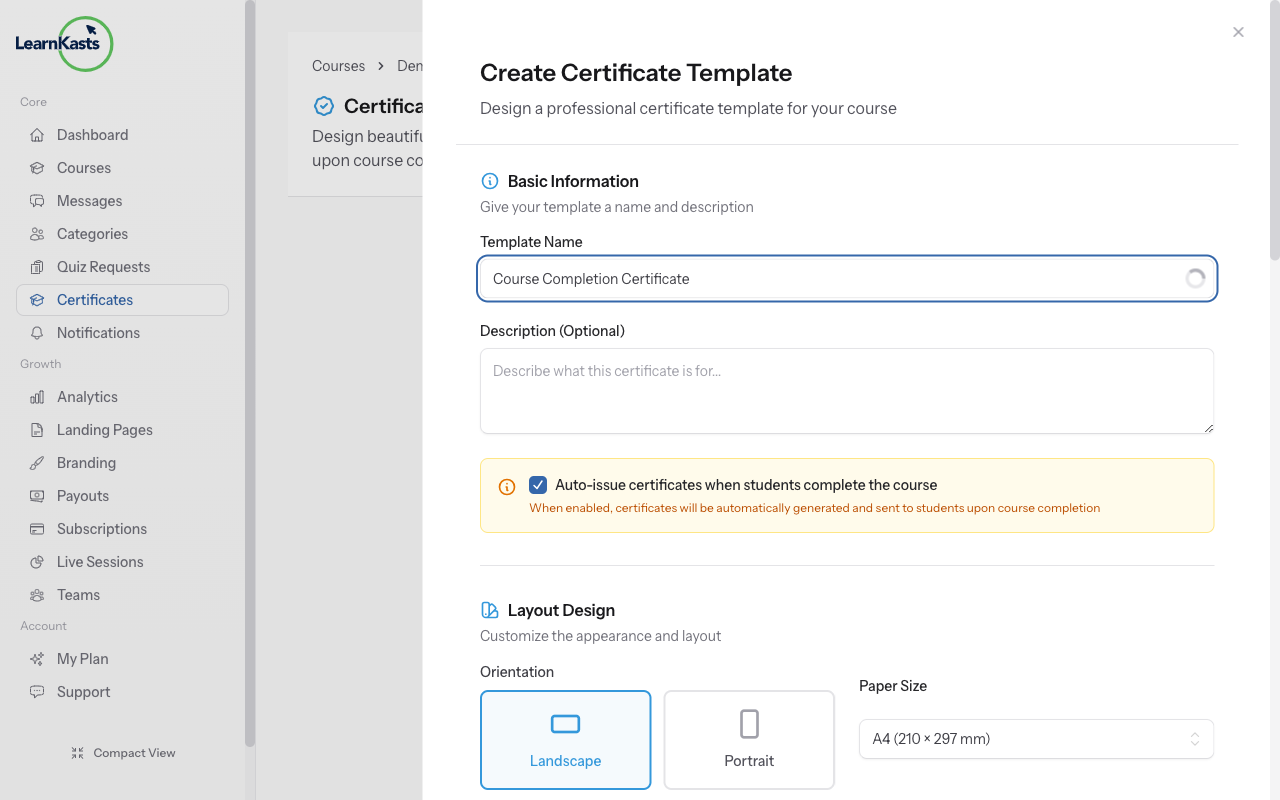
Click "Create Template" to design a new certificate for this course. Templates include placeholders for student name, course title, completion date, and your signature. Upload your logo, customize colors to match your brand, and click Save when finished.
-
Set completion requirements
Configure what students must complete to earn the certificate: minimum course progress percentage, quiz passing scores, and/or approved assignments. The certificate is automatically issued when all requirements are met.
-
Preview and publish
Use the preview button to see how the certificate will look with sample data. Once satisfied, enable the certificate for your course. Students can download their certificates from their dashboard and share verification links with employers.
Autres guides
Guides formateurs
Des guides pas à pas pour créer des cours, animer des sessions en direct et développer votre activité de formation.
- Getting started as an educator
- Creating your first course
- Building course curriculum
- Uploading video lessons
- Using AI to generate quizzes
- Creating quizzes and assignments
- Assignments and grading queues
- Hosting live sessions
- Creating and managing webinars
- Managing course cohorts
- Adding students to cohorts
- Setting up subscriptions
- Course reviews and ratings
- Issuing certificates
- Understanding course analytics
- Live session usage and billing
- Setting up payout methods
- Viewing revenue and payouts
- Setting up your educator subdomain
- Creating landing pages
- Using the visual page editor
- Adding page sections
- Page styling and branding
- AI Studio Composer
- AI Voice Clone & Avatar
- Traffic sources & UTM attribution
Guides apprenants
Tout ce dont les apprenants ont besoin pour parcourir les cours, rejoindre les sessions en direct et suivre leur progression.
- Creating an account
- Browsing and finding courses
- Enrolling in a course
- Watching video lessons
- Taking notes during lessons
- Submitting assignments
- Taking quizzes
- Joining live classes
- Attending webinars
- Managing your subscriptions
- Viewing your certificates
- Writing course reviews
- Managing your orders
- Updating your profile
Équipe et administration
Gestion d'équipe, autorisations, facturation et outils d'administration pour les organisations.
Ce guide vous a-t-il aidé ?
Si vous avez besoin d'une vraie personne, notre équipe d'assistance répond en termes simples sous un jour ouvré. Plus vite sur WhatsApp.