Setting Up Your Educator Subdomain
Get your own branded subdomain for a professional presence.
-
Access subdomain settings
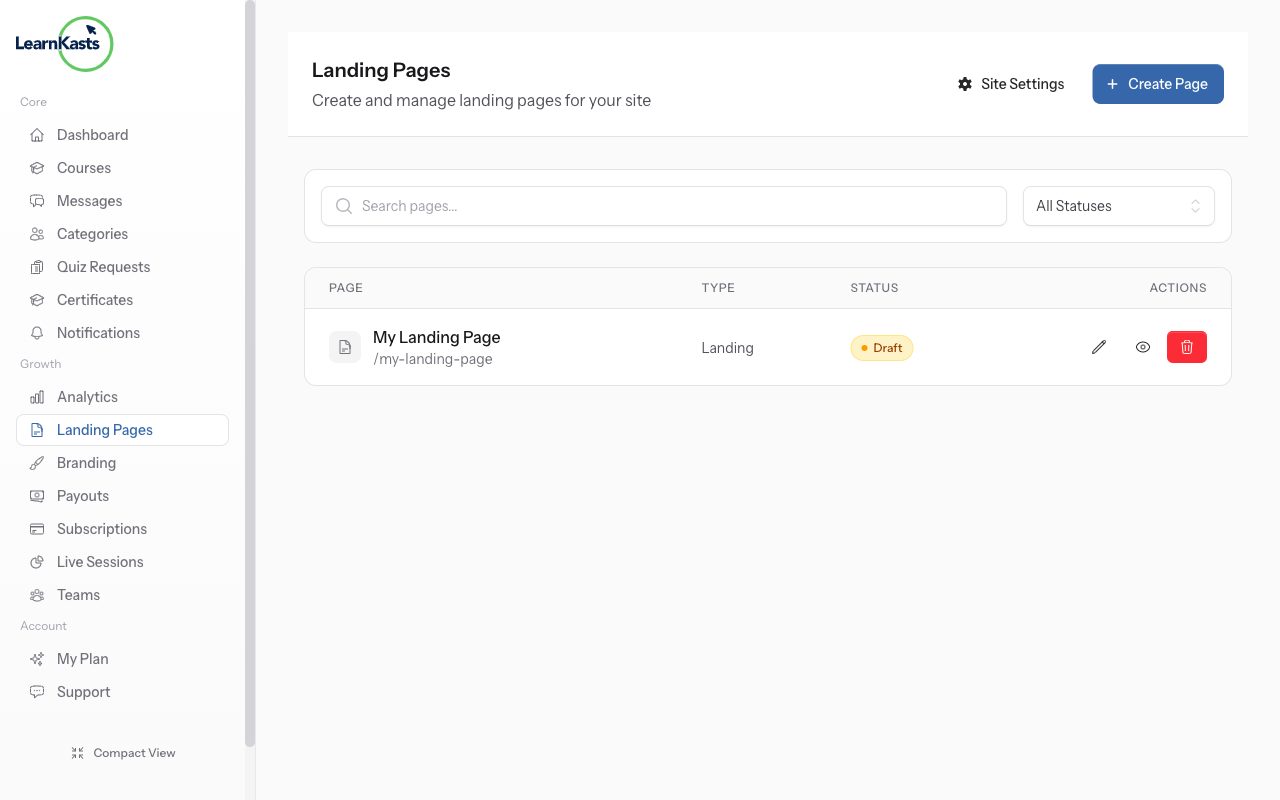
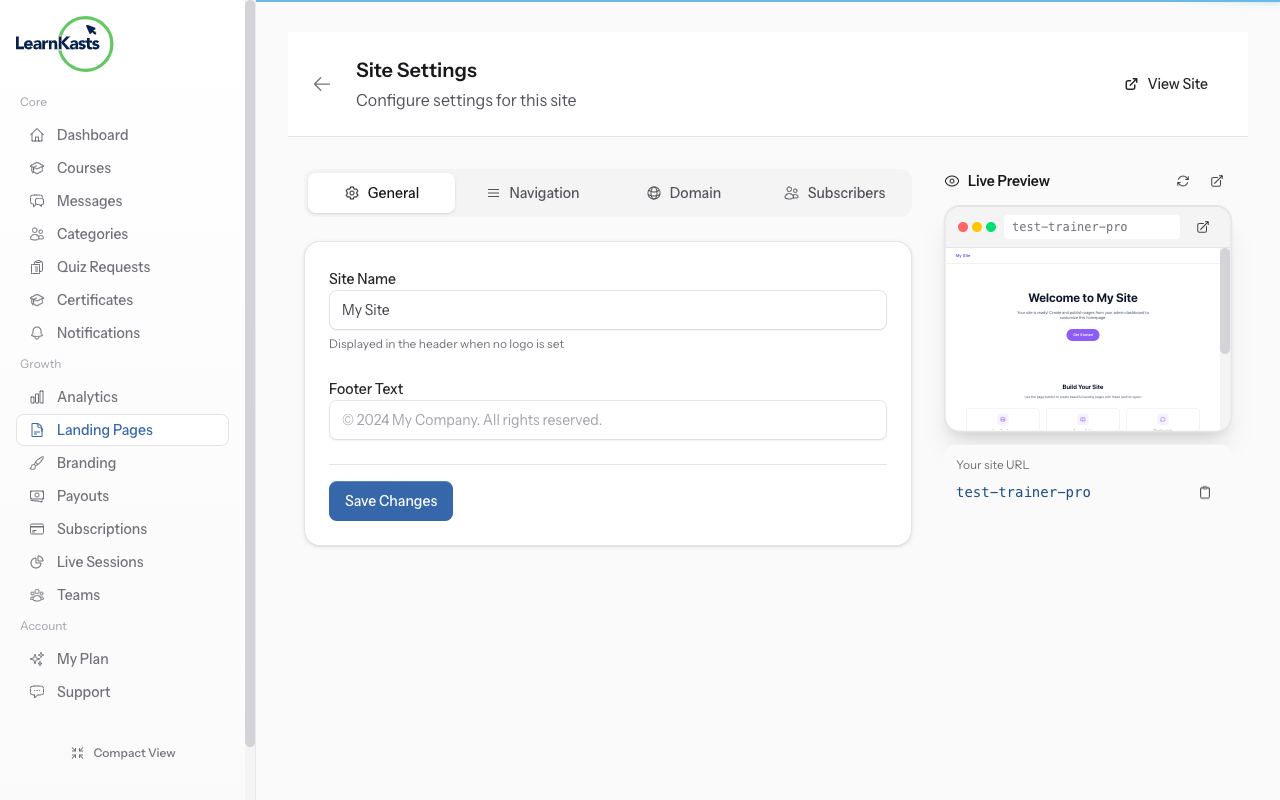
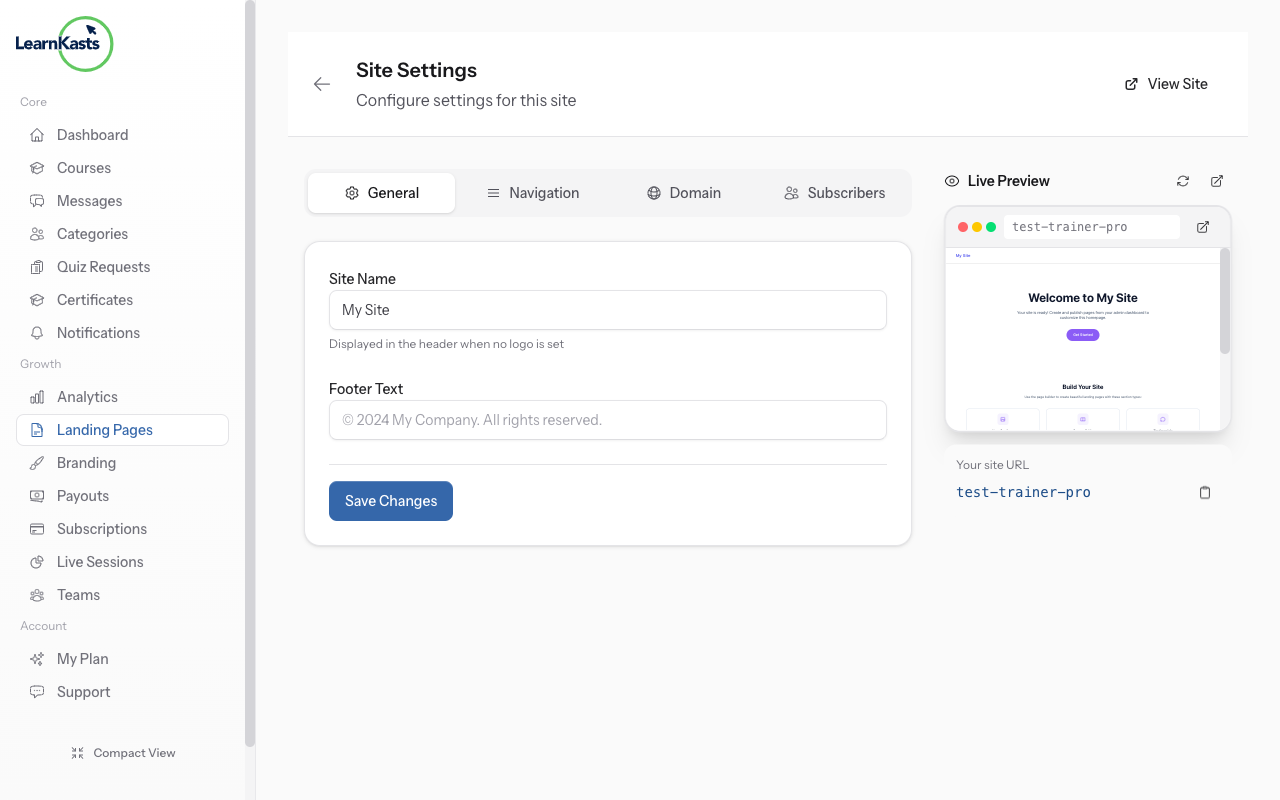
From Educator Dashboard, go to Landing Pages in the sidebar. Click on "Site" to access your subdomain settings. An auto-generated subdomain is already created for you.
-
View your subdomain
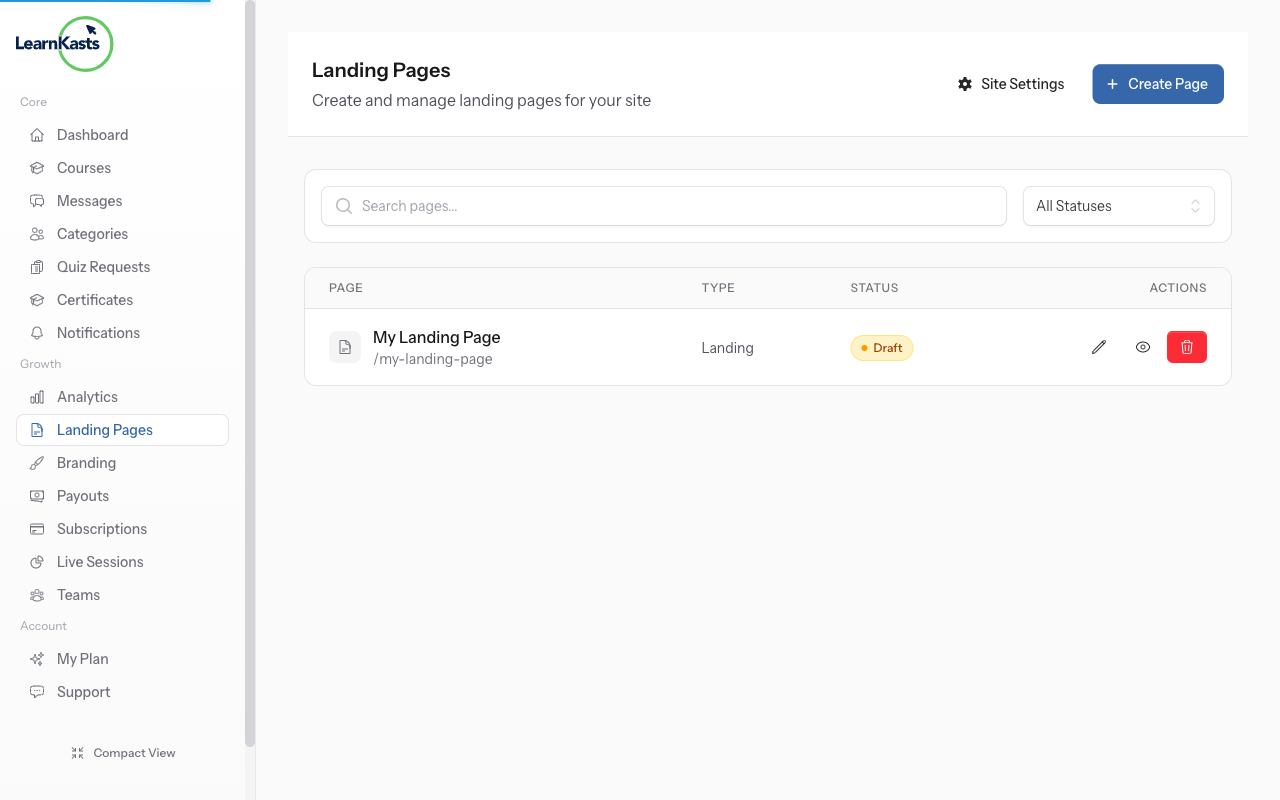
Your subdomain URL is displayed at the top (e.g., yourname.learnkasts.com). This is your personalized educator URL that students can use to find your courses and landing page.
-
Customize your landing page
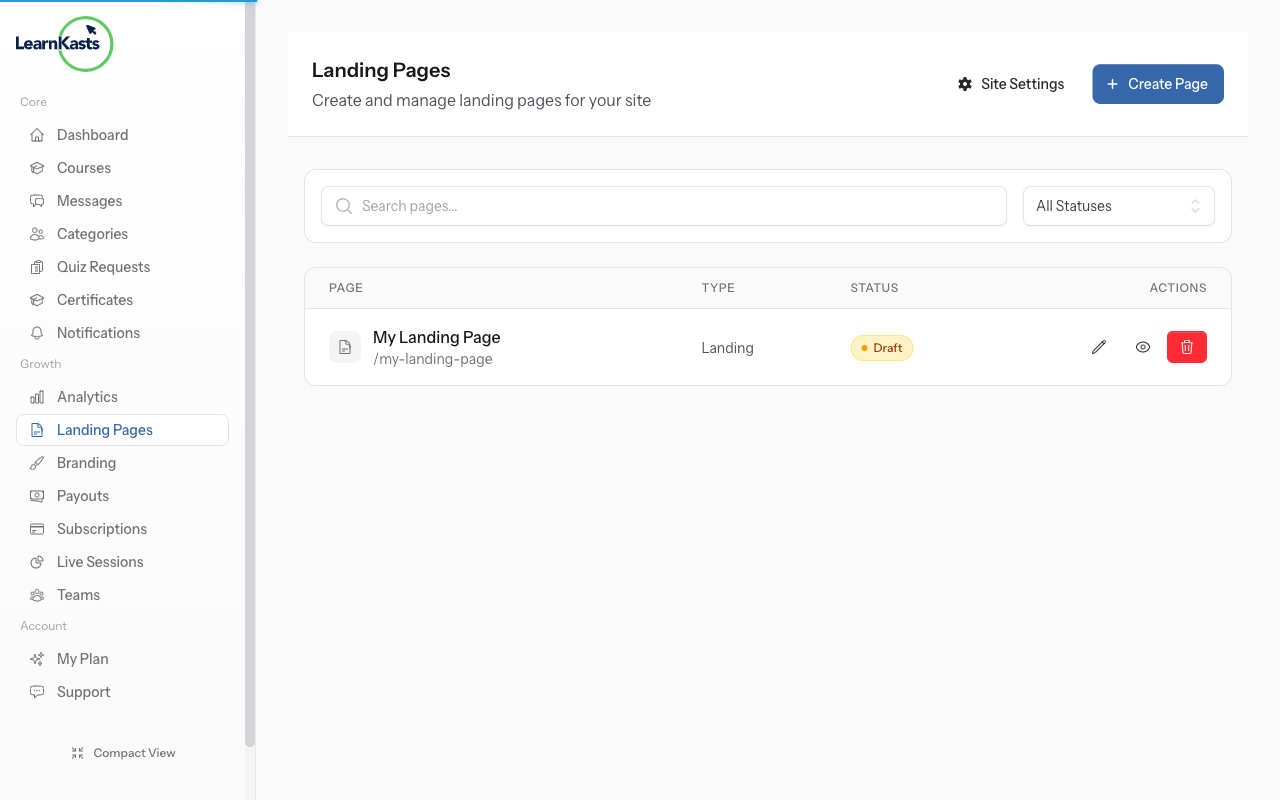
Use the visual editor to customize your subdomain landing page. Add your courses, bio, welcome message, and branding. Changes are saved automatically.
-
Preview your site
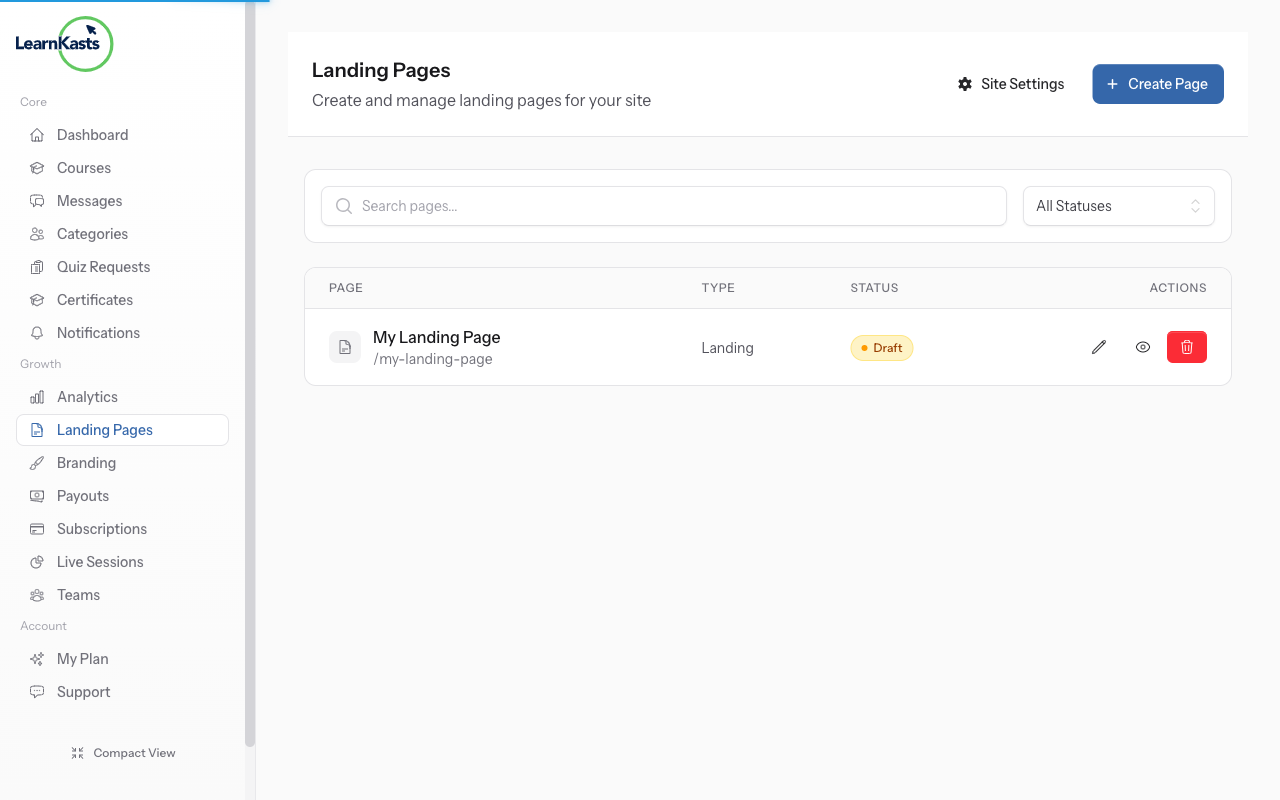
Click "Preview" to see how your subdomain looks to visitors. Your subdomain shows a branded landing page with your courses, bio, and social links.
-
Share your subdomain
Add your subdomain to business cards, social media bios, and email signatures. It's your professional teaching URL that's easy for students to remember.
-
Update subdomain settings
Return to Landing Pages → Site anytime to update your subdomain settings, change branding, or modify your landing page content.
Más guías
Guías para educadores
Guías paso a paso para crear cursos, dar sesiones en vivo y hacer crecer tu negocio de enseñanza.
- Getting started as an educator
- Creating your first course
- Building course curriculum
- Uploading video lessons
- Using AI to generate quizzes
- Creating quizzes and assignments
- Assignments and grading queues
- Hosting live sessions
- Creating and managing webinars
- Managing course cohorts
- Adding students to cohorts
- Setting up subscriptions
- Course reviews and ratings
- Issuing certificates
- Understanding course analytics
- Live session usage and billing
- Setting up payout methods
- Viewing revenue and payouts
- Setting up your educator subdomain
- Creating landing pages
- Using the visual page editor
- Adding page sections
- Page styling and branding
- AI Studio Composer
- AI Voice Clone & Avatar
- Traffic sources & UTM attribution
Guías para estudiantes
Todo lo que los estudiantes necesitan para explorar cursos, unirse a sesiones en vivo y seguir su progreso.
- Creating an account
- Browsing and finding courses
- Enrolling in a course
- Watching video lessons
- Taking notes during lessons
- Submitting assignments
- Taking quizzes
- Joining live classes
- Attending webinars
- Managing your subscriptions
- Viewing your certificates
- Writing course reviews
- Managing your orders
- Updating your profile
Equipo y administración
Gestión de equipos, permisos, facturación y herramientas administrativas para organizaciones.
¿Te ayudó esta guía?
Si necesitas a una persona real, nuestro equipo de soporte responde en lenguaje claro en un día hábil. Más rápido por WhatsApp.