Using AI to Generate Quizzes
Let AI help you create engaging quizzes from your course content in seconds.
-
Create a quiz lesson first
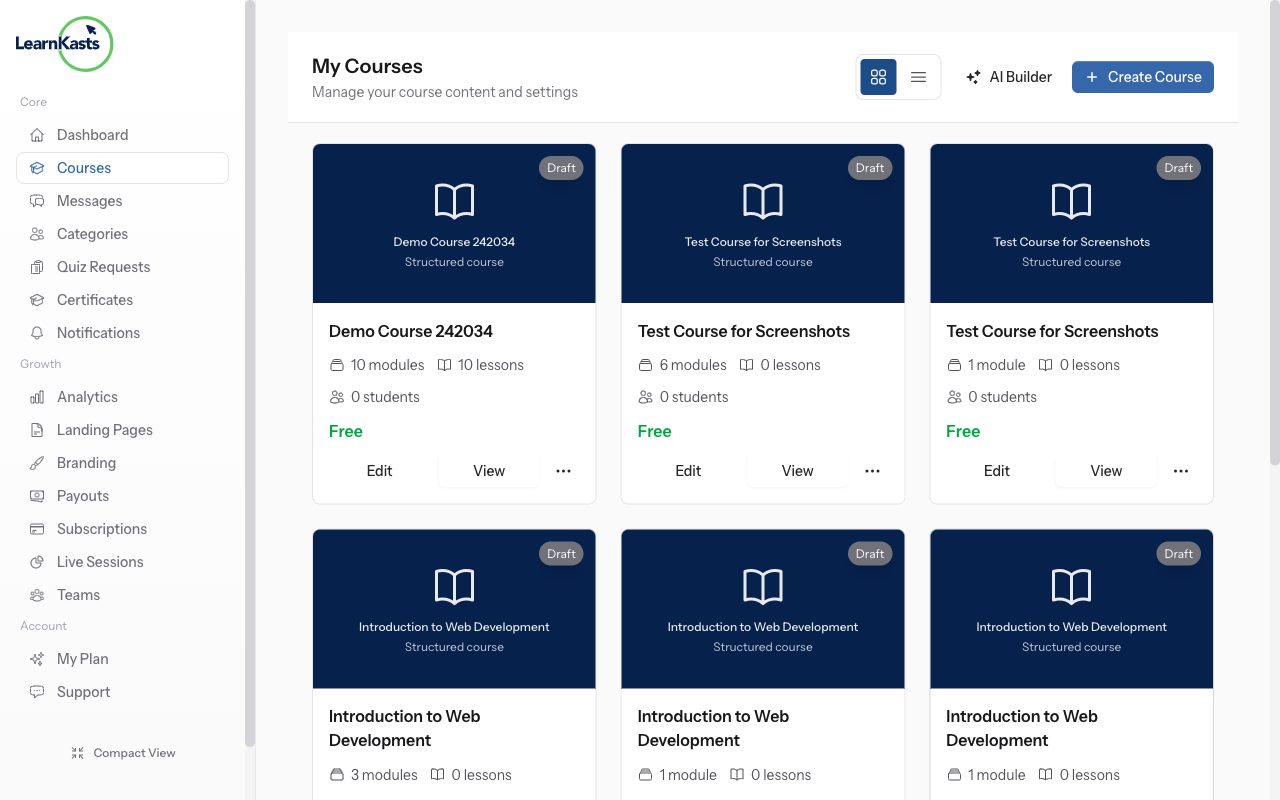
Go to Educator Dashboard → Courses → Edit your course → Curriculum tab. Click "Add Lesson" in a module and select "Quiz" as the lesson type. Enter a title like "Module 1 Quiz" and configure settings (time limit, passing score, attempts). Click "Create Lesson" to save.
-
Open the quiz editor
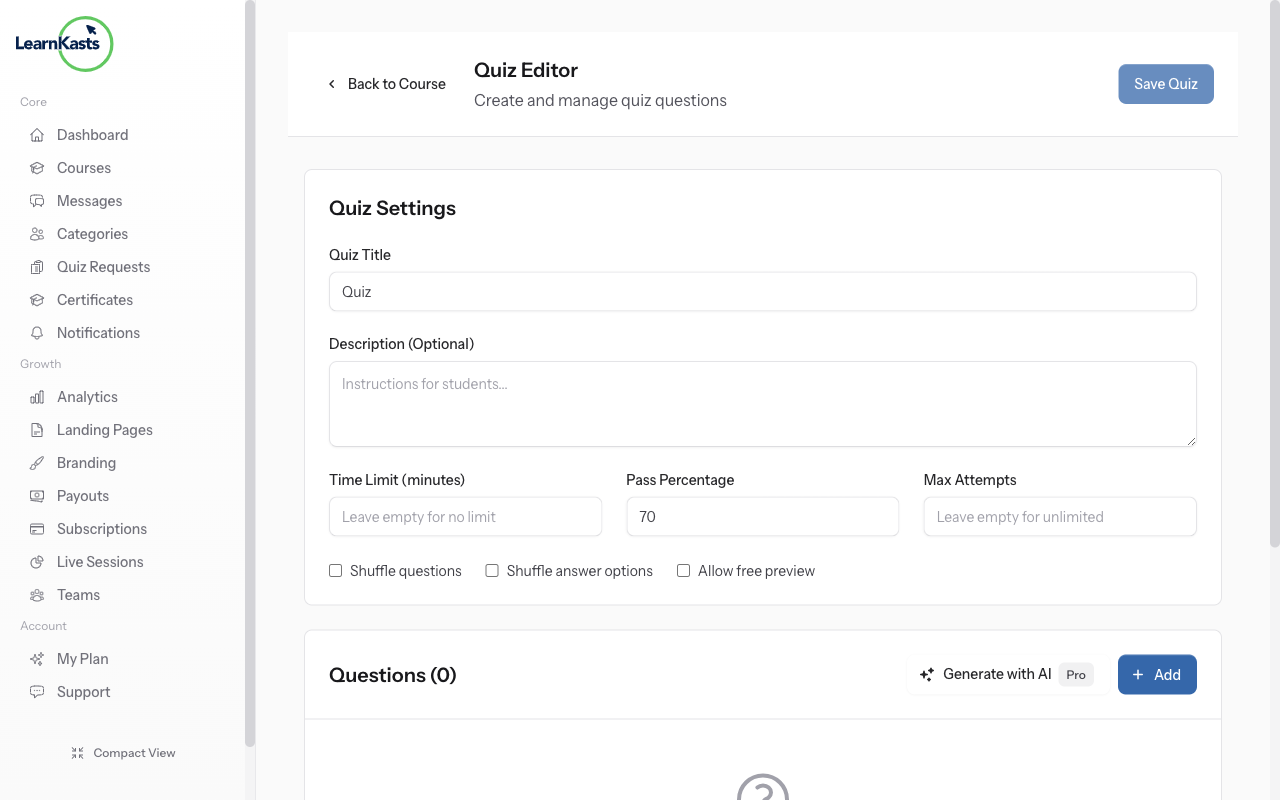
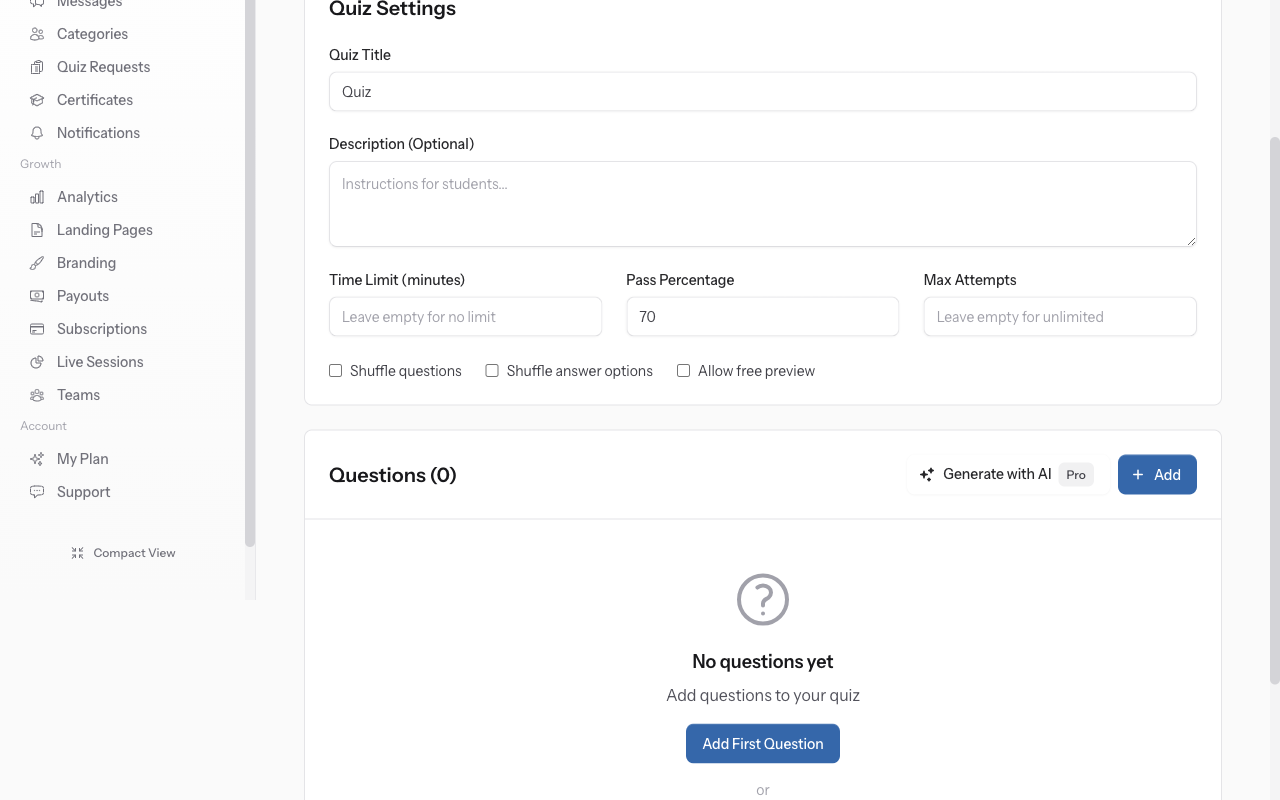
After creating the quiz lesson, you'll be redirected to the Quiz Editor page. This is where you add questions to your quiz. The page shows your quiz title at the top and an empty questions list.
-
Find the AI Generate button
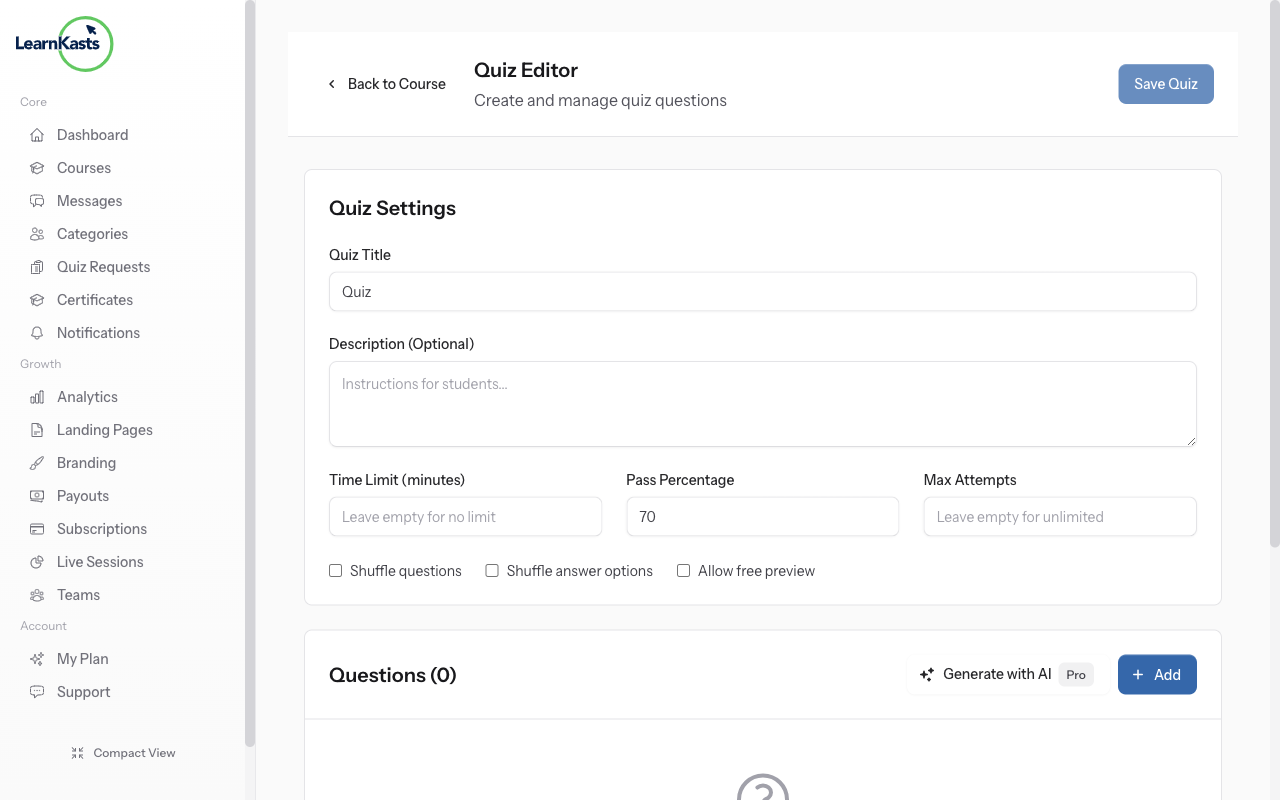
Look for the "Generate with AI" button (with sparkle icon) near the top of the Quiz Editor. This powerful feature uses AI to automatically create quiz questions based on your course content or a topic you specify.
-
Configure AI generation settings
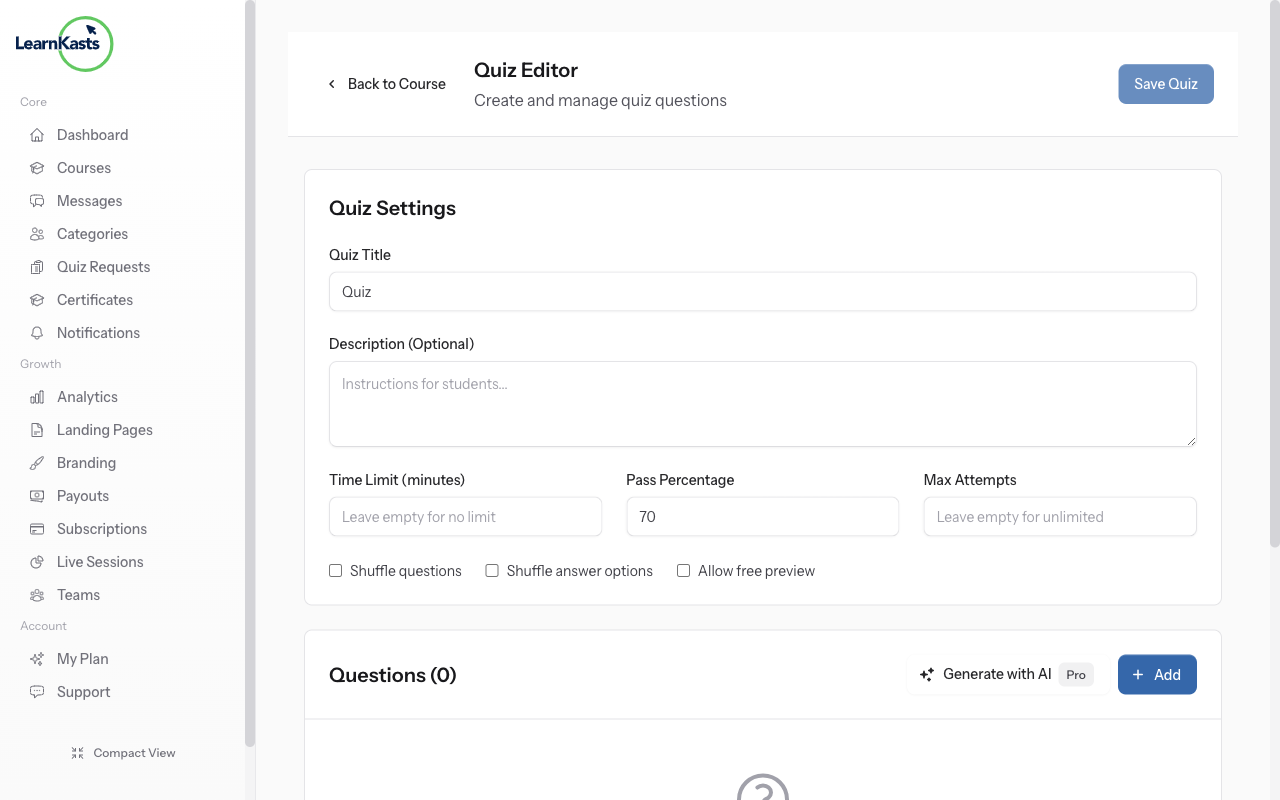
Click "Generate with AI" to open the generation modal. Enter a topic or paste content for the AI to generate questions from. Select the number of questions (5, 10, 15, or 20). Choose difficulty level (Easy, Medium, Hard). Select question types to include (Multiple Choice, True/False).
-
Generate and review questions
Click "Generate Questions" and wait a few seconds. AI creates questions with answer options and correct answers marked. Review each question - you can edit text, change answers, or delete questions that don't fit. Each question shows a preview of how students will see it.
-
Save your AI-generated quiz
After reviewing all questions, click "Save Quiz" to finalize. Questions are saved to your quiz lesson. Students enrolled in the course can now access this quiz from the curriculum. You can always edit questions later by returning to the Quiz Editor.
Àwọn ìtọ́sọ́nà mìíràn
Ìtọ́sọ́nà fún olùkọ́
Ìtọ́sọ́nà ìgbésẹ̀-sí-ìgbésẹ̀ fún ṣíṣẹ̀dá ẹ̀kọ́, ṣíṣe ìpàdé tààrà àti mímú iṣẹ́ ìkọ́ni rẹ dàgbà.
- Getting started as an educator
- Creating your first course
- Building course curriculum
- Uploading video lessons
- Using AI to generate quizzes
- Creating quizzes and assignments
- Assignments and grading queues
- Hosting live sessions
- Creating and managing webinars
- Managing course cohorts
- Adding students to cohorts
- Setting up subscriptions
- Course reviews and ratings
- Issuing certificates
- Understanding course analytics
- Live session usage and billing
- Setting up payout methods
- Viewing revenue and payouts
- Setting up your educator subdomain
- Creating landing pages
- Using the visual page editor
- Adding page sections
- Page styling and branding
- AI Studio Composer
- AI Voice Clone & Avatar
- Traffic sources & UTM attribution
Ìtọ́sọ́nà fún akẹ́kọ̀ọ́
Gbogbo ohun tí akẹ́kọ̀ọ́ nílò láti wo ẹ̀kọ́, darapọ̀ mọ́ ìpàdé tààrà àti tẹ̀lé ìlọsíwájú wọn.
- Creating an account
- Browsing and finding courses
- Enrolling in a course
- Watching video lessons
- Taking notes during lessons
- Submitting assignments
- Taking quizzes
- Joining live classes
- Attending webinars
- Managing your subscriptions
- Viewing your certificates
- Writing course reviews
- Managing your orders
- Updating your profile
Ẹgbẹ́ àti ìṣàkóso
Ìṣàkóso ẹgbẹ́, àṣẹ, ìsanwó àti irinṣẹ́ ìṣàkóso fún àwọn àjọ.
Ṣé ìtọ́sọ́nà yìí ràn ọ́ lọ́wọ́?
Bí o bá nílò ènìyàn gidi, ẹgbẹ́ ìrànlọ́wọ́ wa ń dáhùn ní èdè tó yé láàrin ọjọ́ iṣẹ́ kan. Ó yára jù lórí WhatsApp.