AI Studio Composer
Create professional AI-generated videos in three simple steps using the Studio Composer.
-
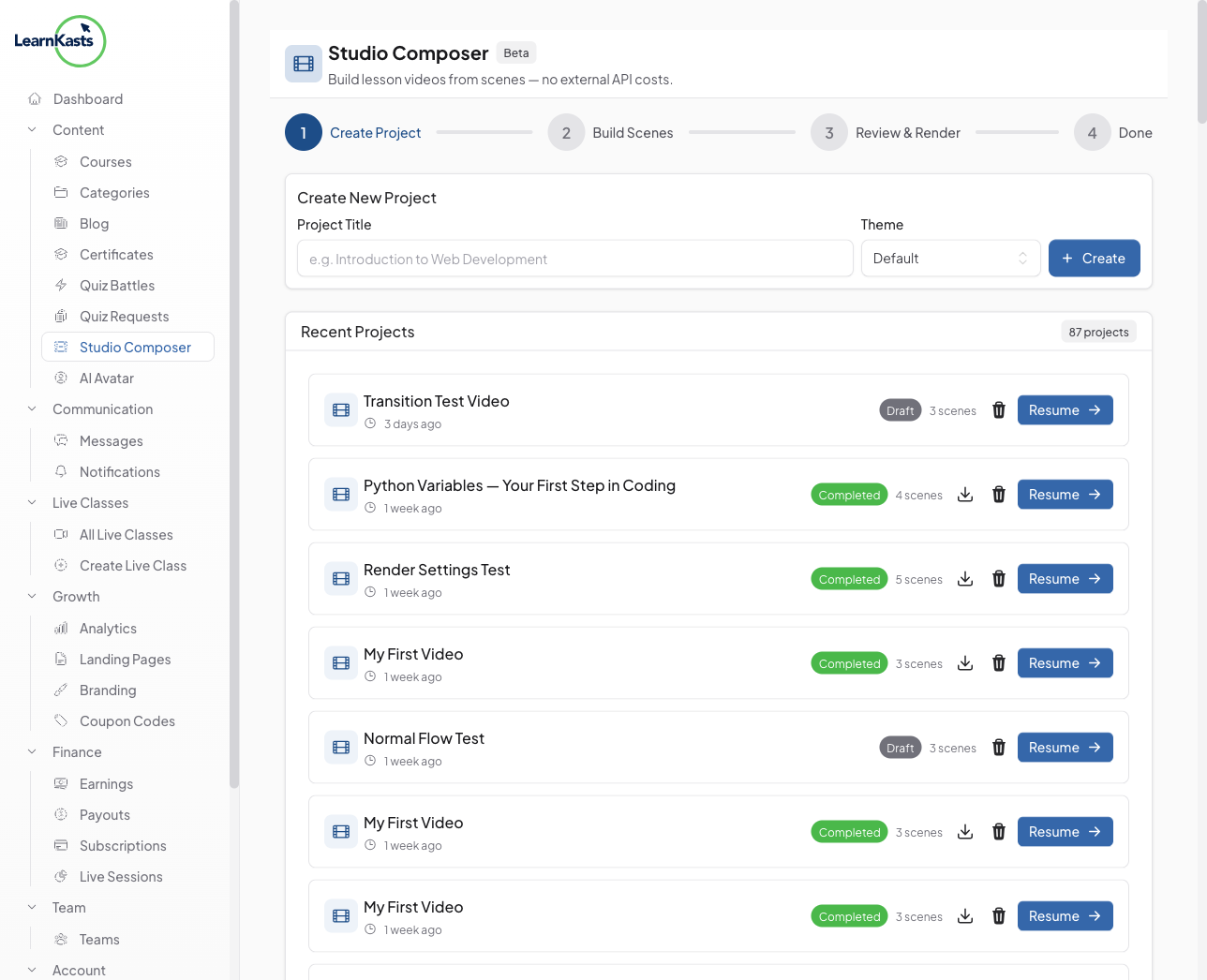
Open Studio Composer
From your educator dashboard, navigate to "AI Studio" in the sidebar. Click "New Project" to start creating a new AI-generated video. You'll see your existing projects listed with their status and creation dates.
-
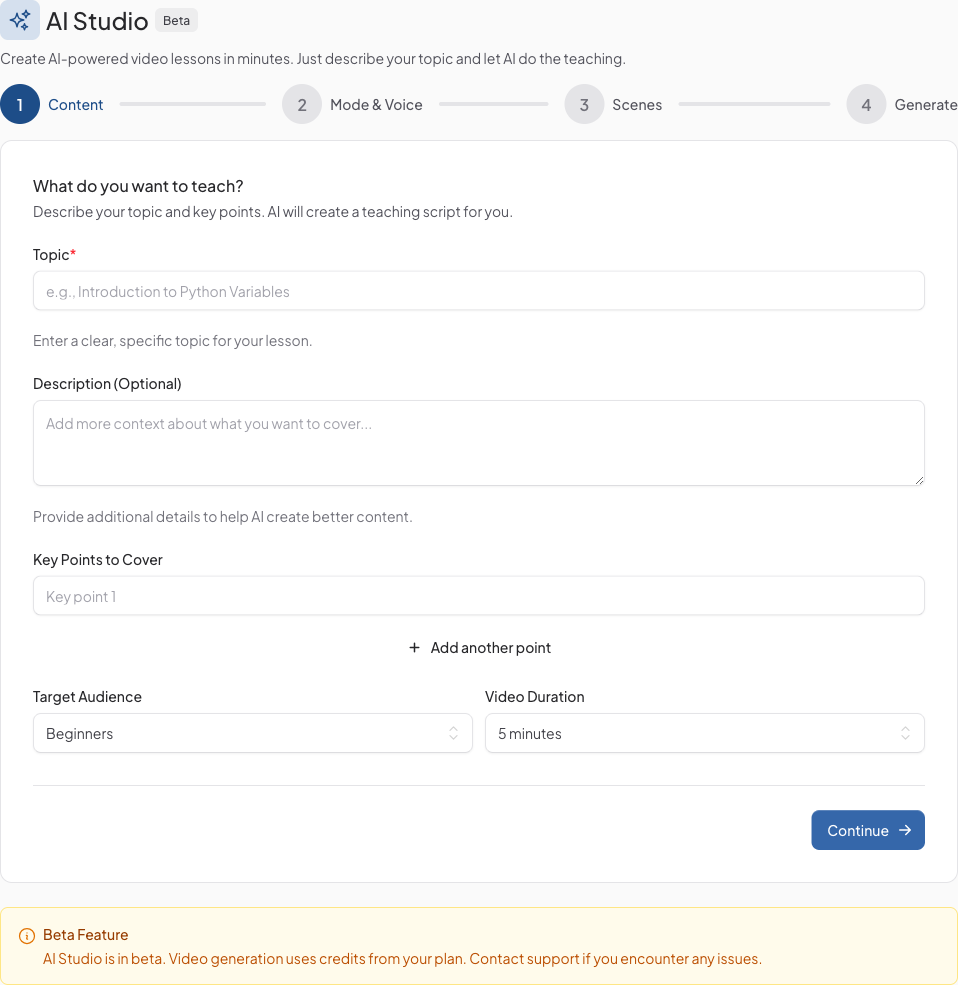
Enter your content
Give your project a title and enter the topic or script you want to turn into a video. Choose a visual theme and let the AI generate a polished script for you, or write your own. You can also select the language and tone for your content.
-
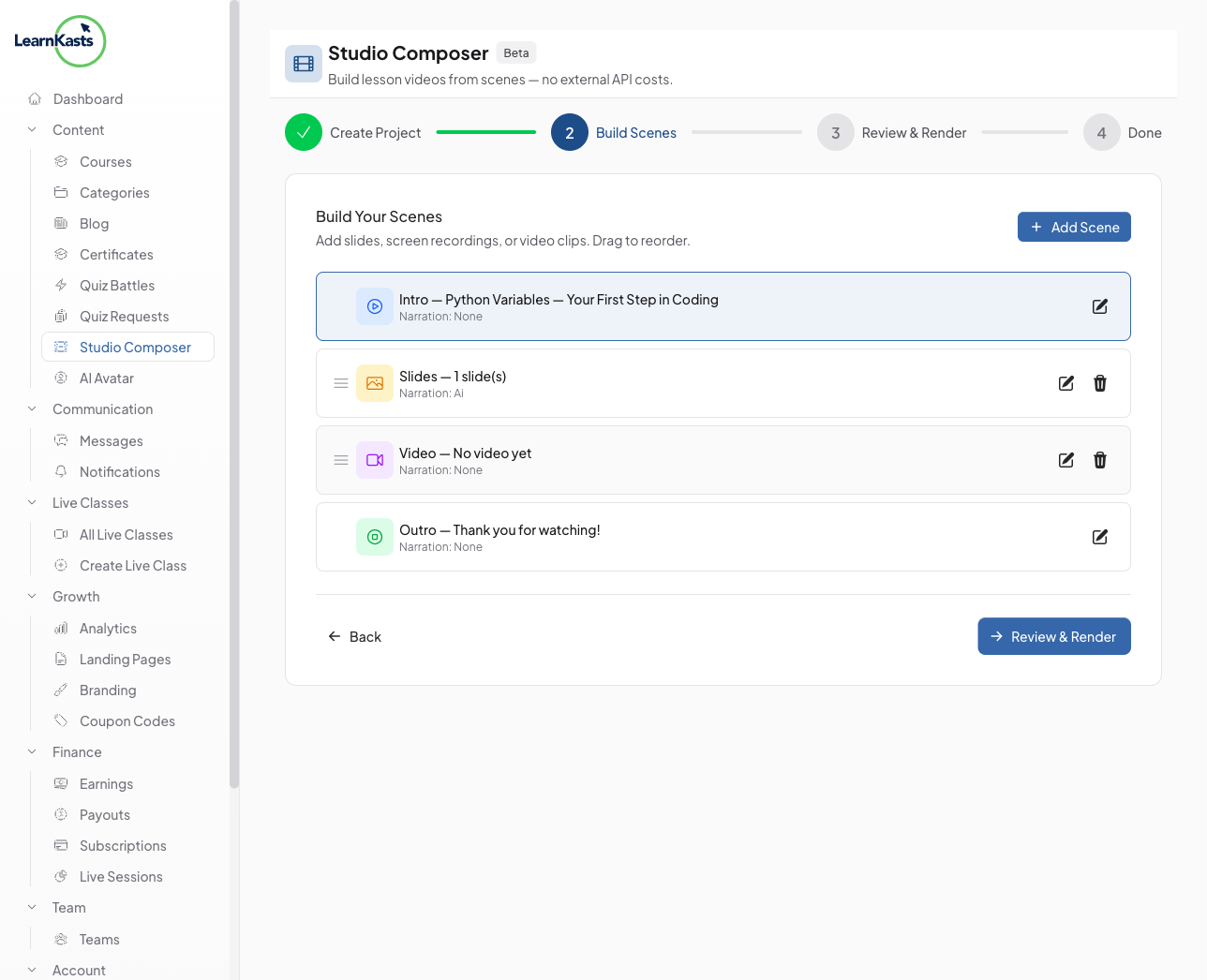
Build your scenes
The AI breaks your script into individual scenes - Intro, content slides, video segments, and Outro. You can drag and drop to reorder scenes, edit text and visuals for each one, and add or remove scenes as needed.
-
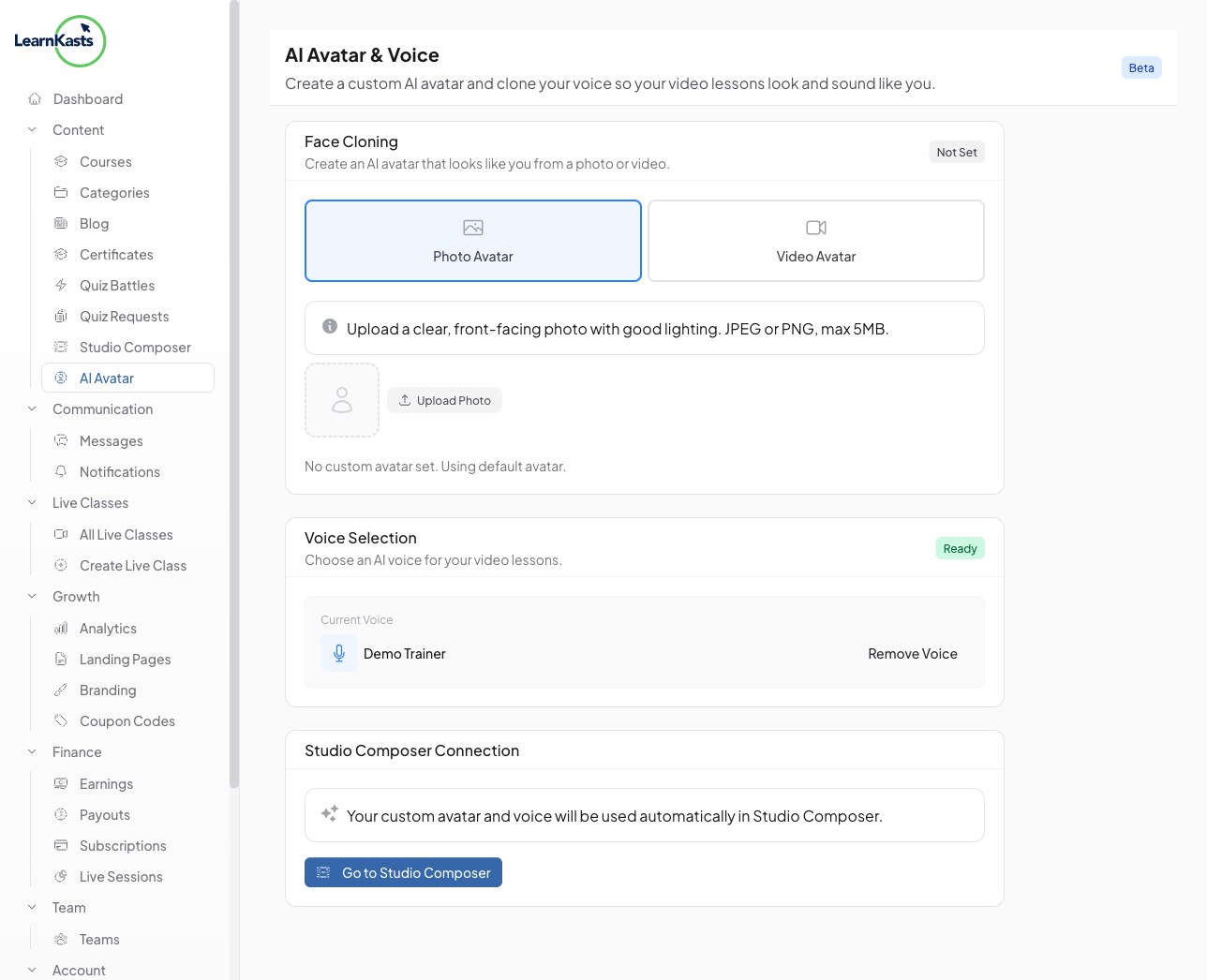
Choose a voice and mode
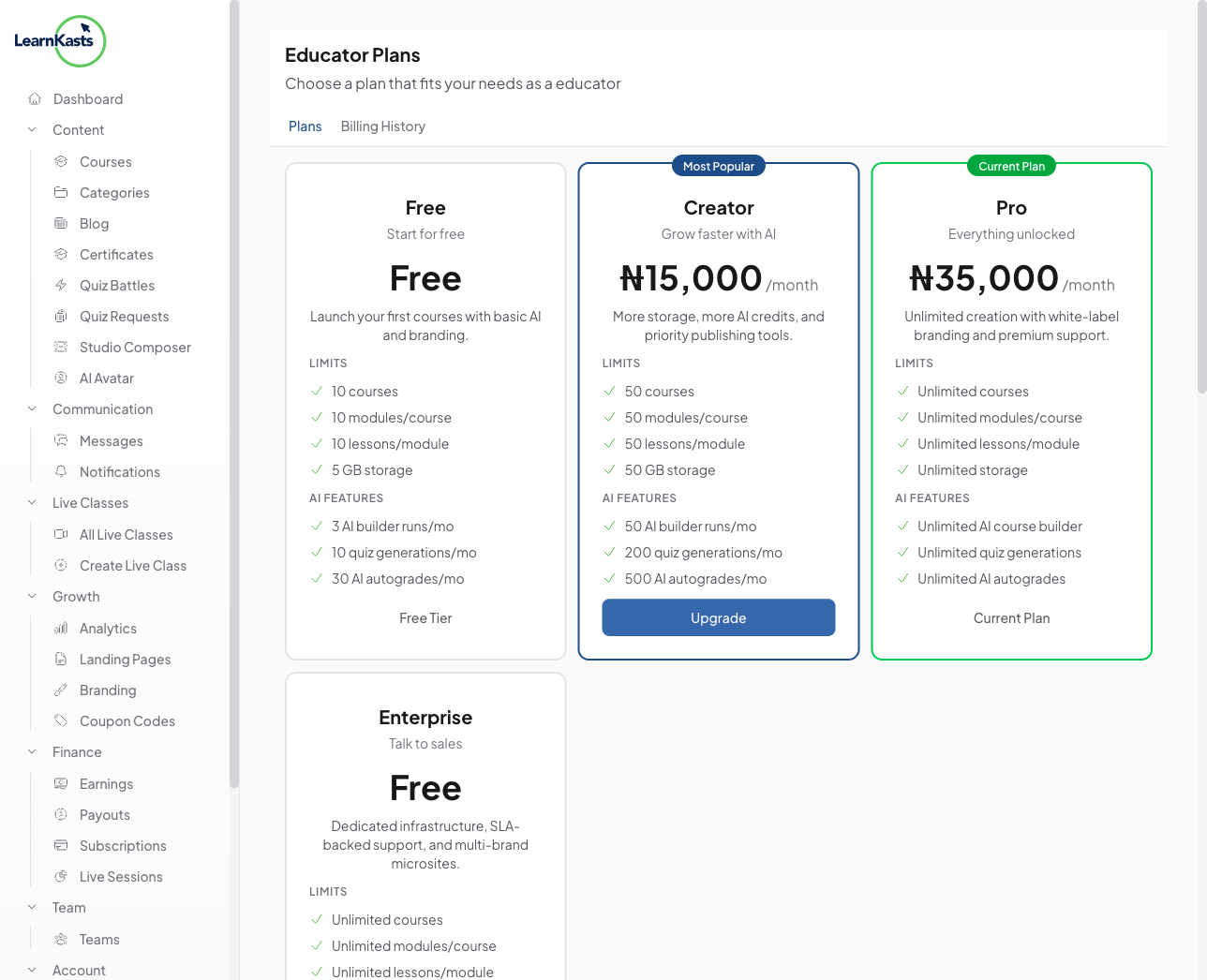
Select an AI voice for narration or use your own cloned voice (Creator plan and above). Pick between different presentation modes - slides, talking head, or mixed - to match your teaching style.
-
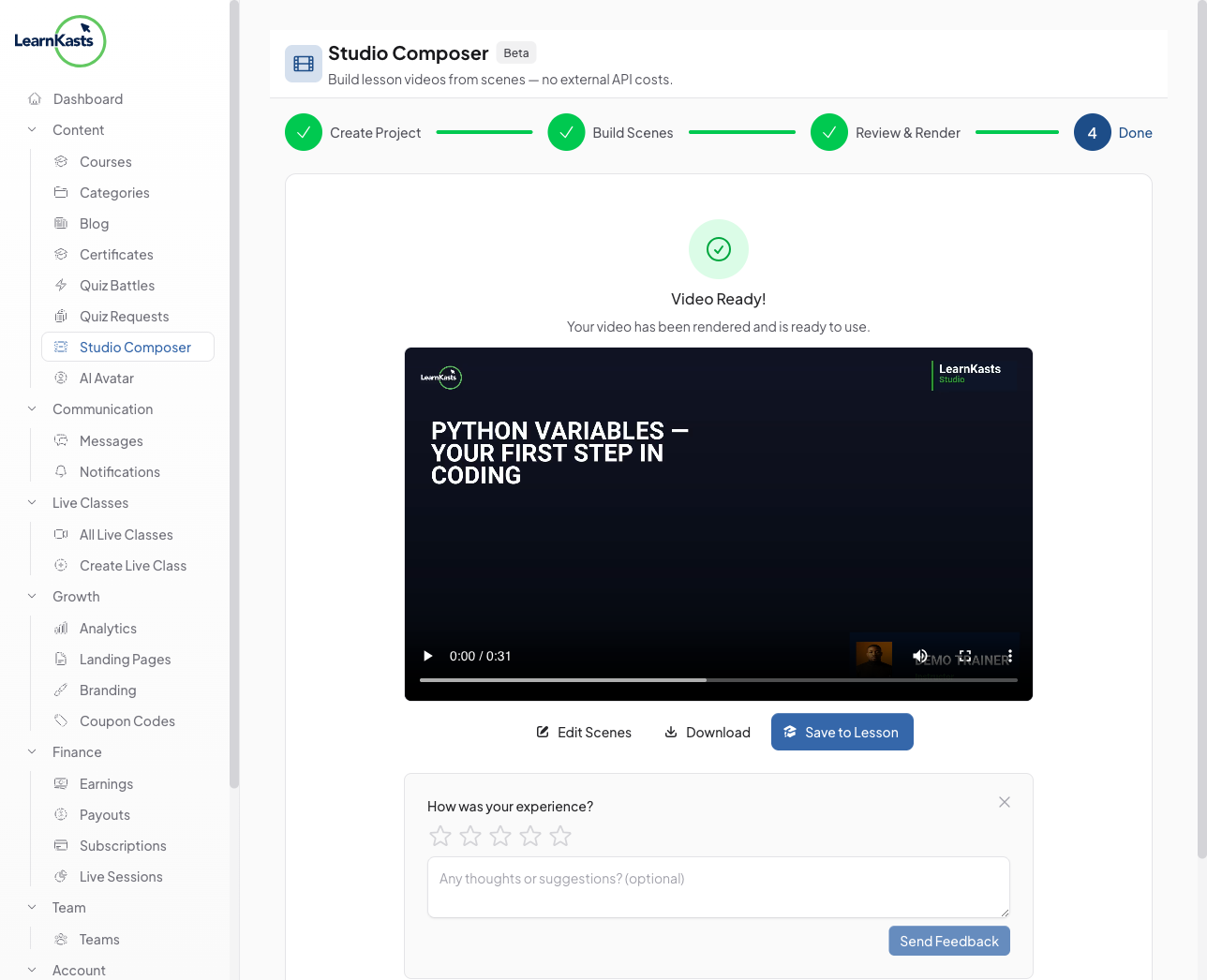
Review and render
Preview your complete video before rendering. When you're happy with the result, click "Render Video" to generate the final output. You'll receive a notification when it's ready to download or publish directly to your course.
-
Usage limits
Free plan educators can generate up to 3 scripts and 1 video render per month. Creator plan and above get higher or unlimited usage. Your current usage is displayed in the Studio dashboard.
Ƙarin jagorori
Jagororin malamai
Jagorori mataki-mataki don ƙirƙirar kwasakwasai, gudanar da zaman kai tsaye da bunƙasa sana'ar koyarwarka.
- Getting started as an educator
- Creating your first course
- Building course curriculum
- Uploading video lessons
- Using AI to generate quizzes
- Creating quizzes and assignments
- Assignments and grading queues
- Hosting live sessions
- Creating and managing webinars
- Managing course cohorts
- Adding students to cohorts
- Setting up subscriptions
- Course reviews and ratings
- Issuing certificates
- Understanding course analytics
- Live session usage and billing
- Setting up payout methods
- Viewing revenue and payouts
- Setting up your educator subdomain
- Creating landing pages
- Using the visual page editor
- Adding page sections
- Page styling and branding
- AI Studio Composer
- AI Voice Clone & Avatar
- Traffic sources & UTM attribution
Jagororin ɗalibai
Duk abin da ɗalibai ke buƙata don duba kwasakwasai, shiga zaman kai tsaye da bin diddigin ci gabansu.
- Creating an account
- Browsing and finding courses
- Enrolling in a course
- Watching video lessons
- Taking notes during lessons
- Submitting assignments
- Taking quizzes
- Joining live classes
- Attending webinars
- Managing your subscriptions
- Viewing your certificates
- Writing course reviews
- Managing your orders
- Updating your profile
Ƙungiya da gudanarwa
Gudanar da ƙungiya, izini, biyan kuɗi da kayan aikin gudanarwa ga ƙungiyoyi.
Shin wannan jagorar ta taimaka?
Idan kana buƙatar mutum na gaske, ƙungiyar tallafinmu tana amsawa cikin sauƙaƙan harshe a cikin ranar aiki ɗaya. Ya fi sauri a WhatsApp.