
-
01
Access the course catalog
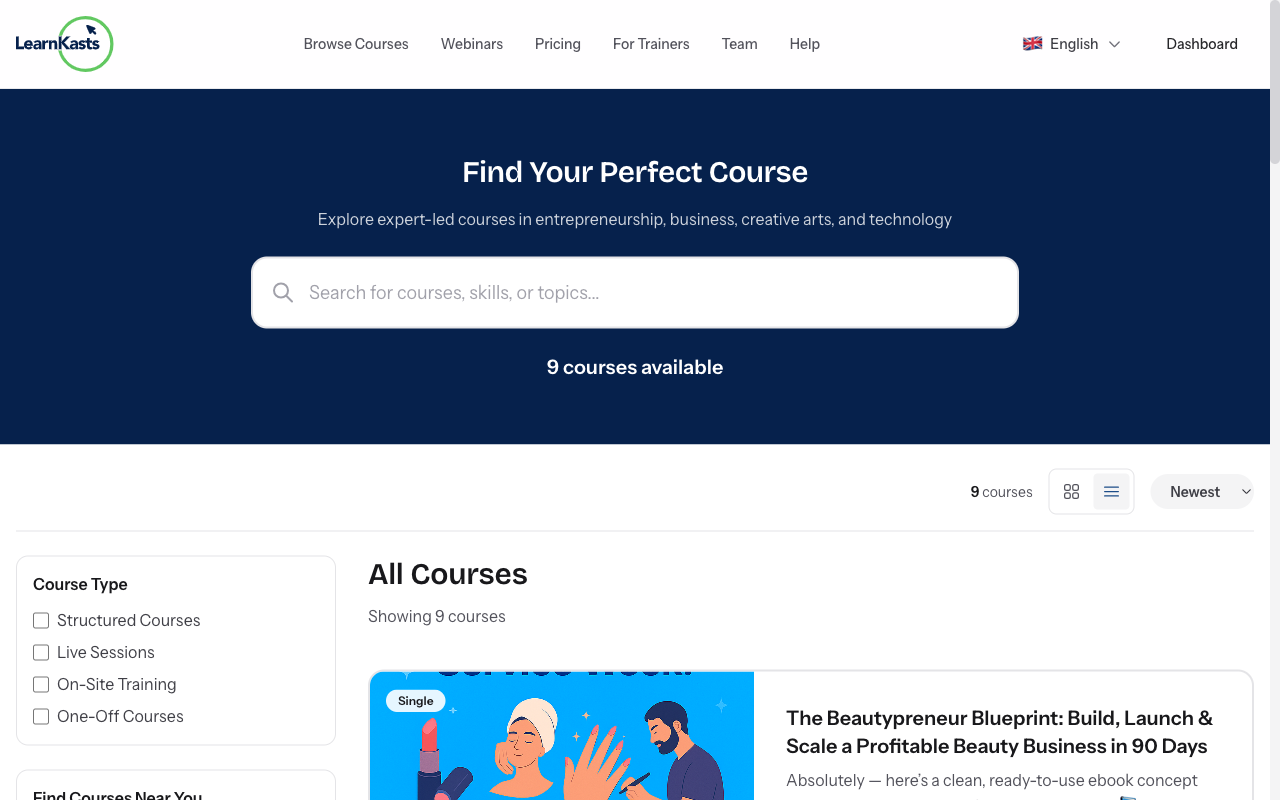
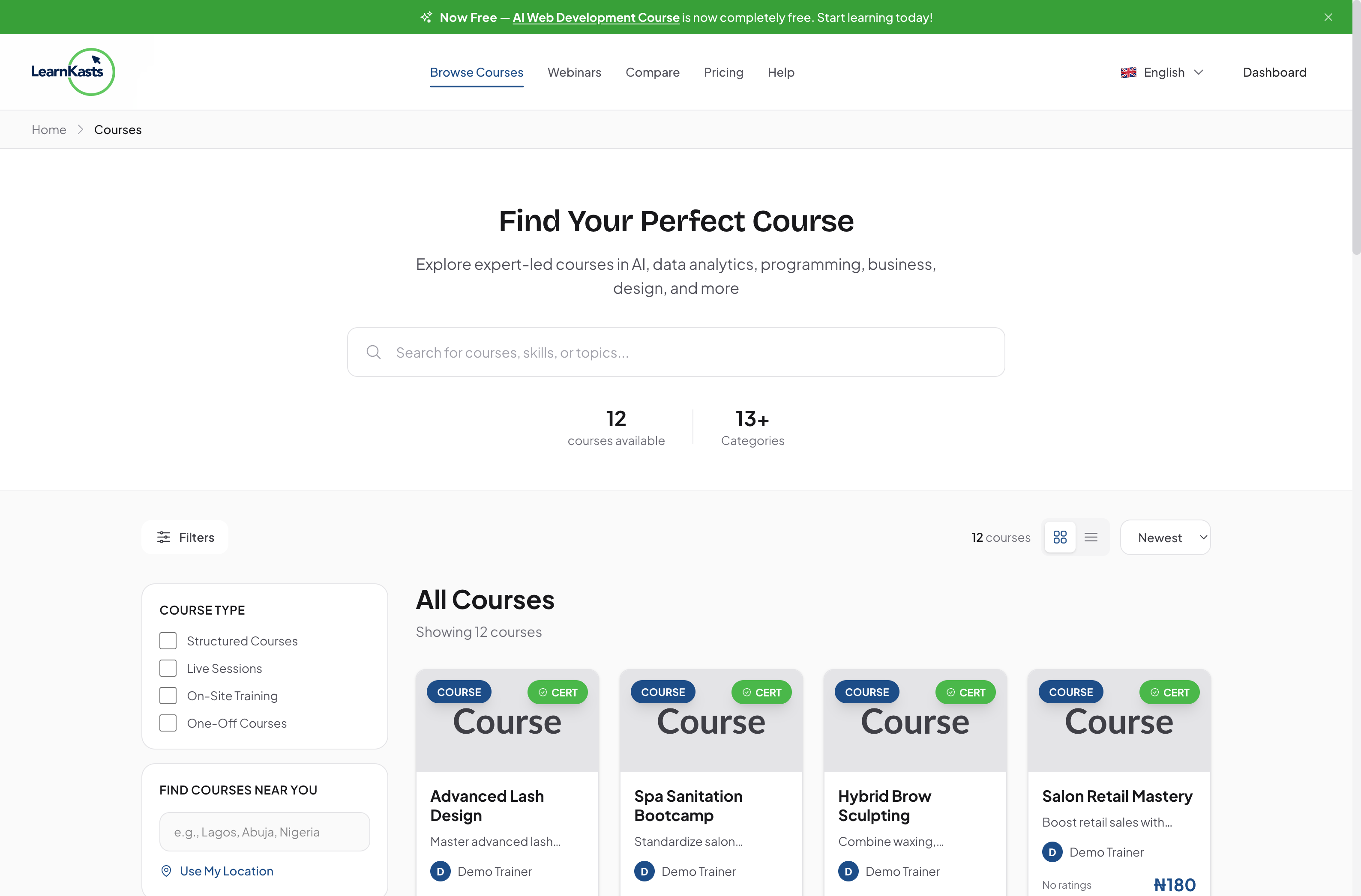
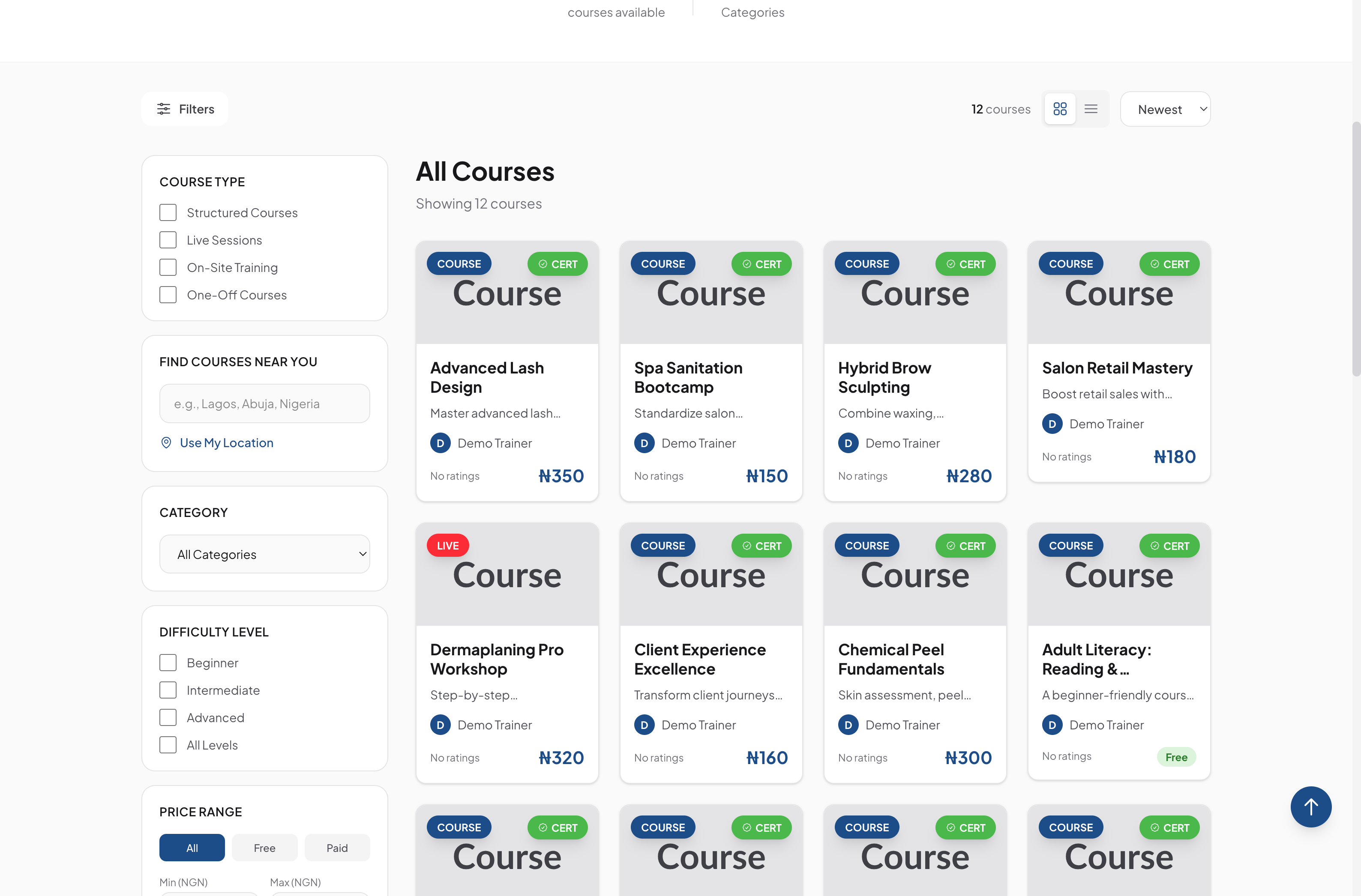
Click "Browse Courses" from the main navigation menu or go to /courses. You'll see the full catalog of available courses with thumbnails, titles, prices, and ratings.
-
02
Use the search bar
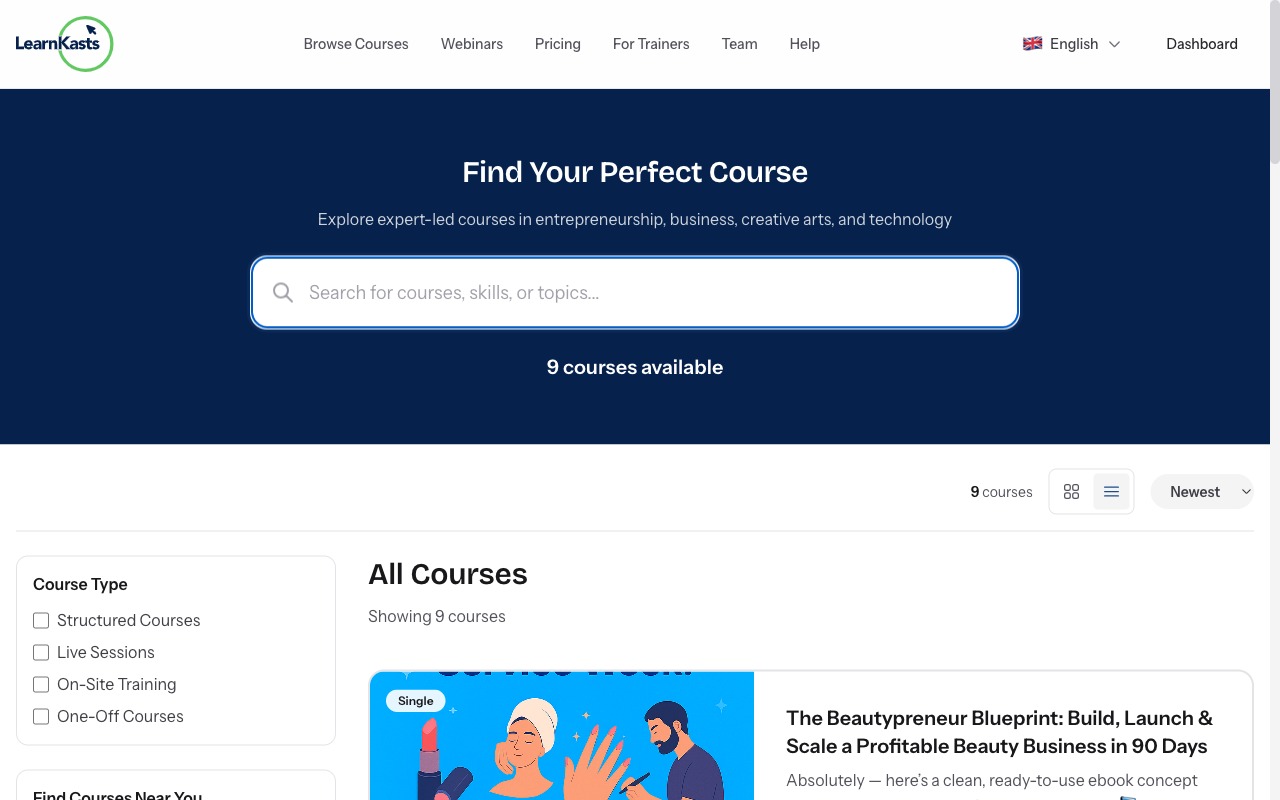
Type keywords into the search bar to find specific courses. For example, search "makeup" to find makeup courses or "Excel" for Excel courses. The search looks through course titles, descriptions, and tags.
-
03
Filter by price
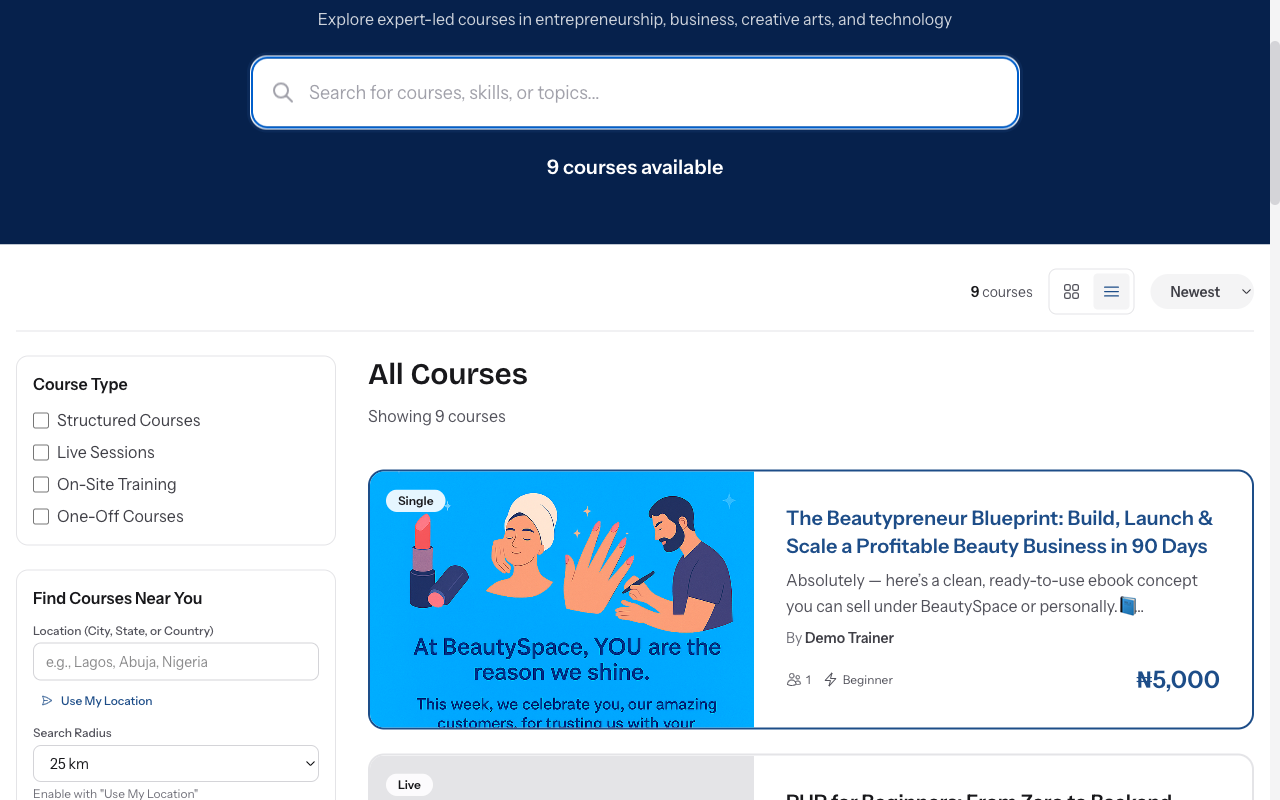
Click on a category (Beauty, Business, Tech, Creative Arts, etc.) to see only courses in that category. Categories help you narrow down to your area of interest quickly.
-
04
View course details
Use the price filter to show Free courses only, or set a price range. Slide the price range selector to match your budget. You can also filter by payment type (One-time or Subscription).
-
05
Save courses for later
Select Beginner, Intermediate, Advanced, or Expert to find courses matching your skill level. Start with beginner courses if you're new to a topic, or jump to advanced for expert training.
-
06
View course details
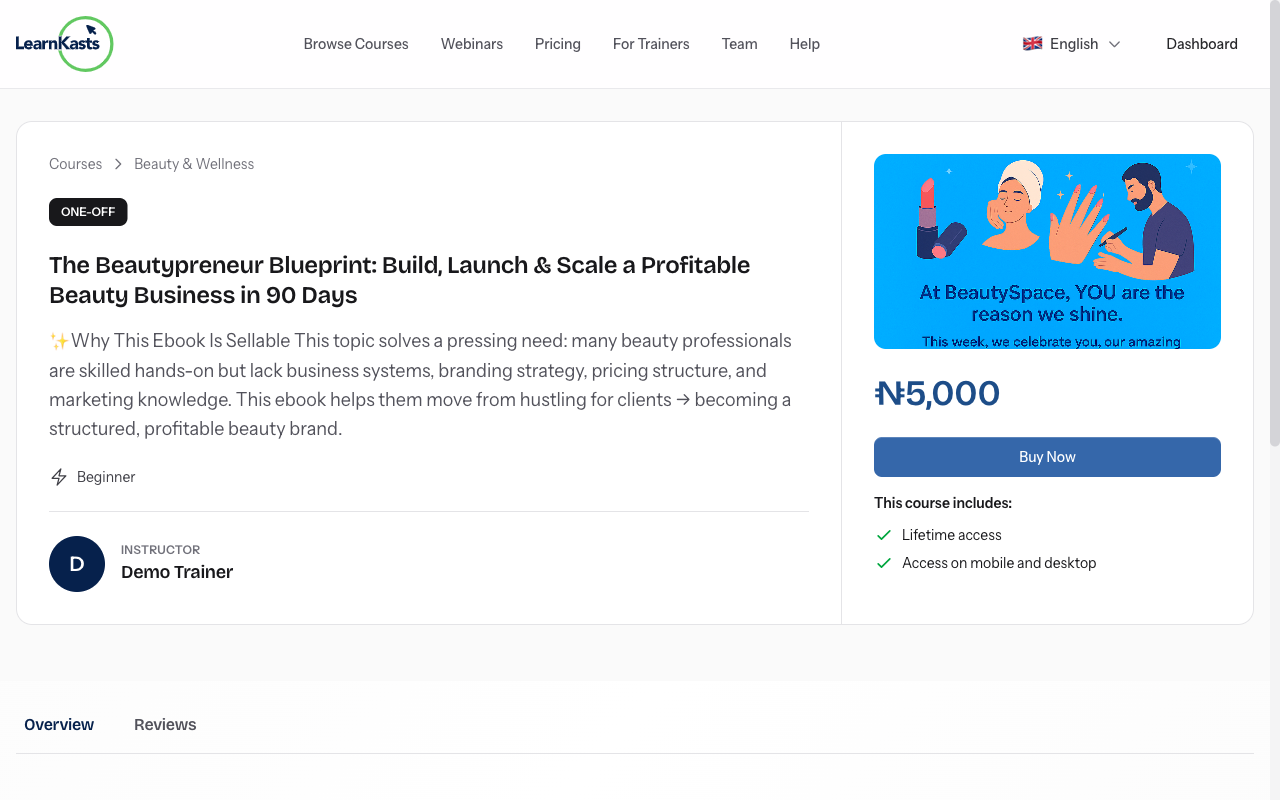
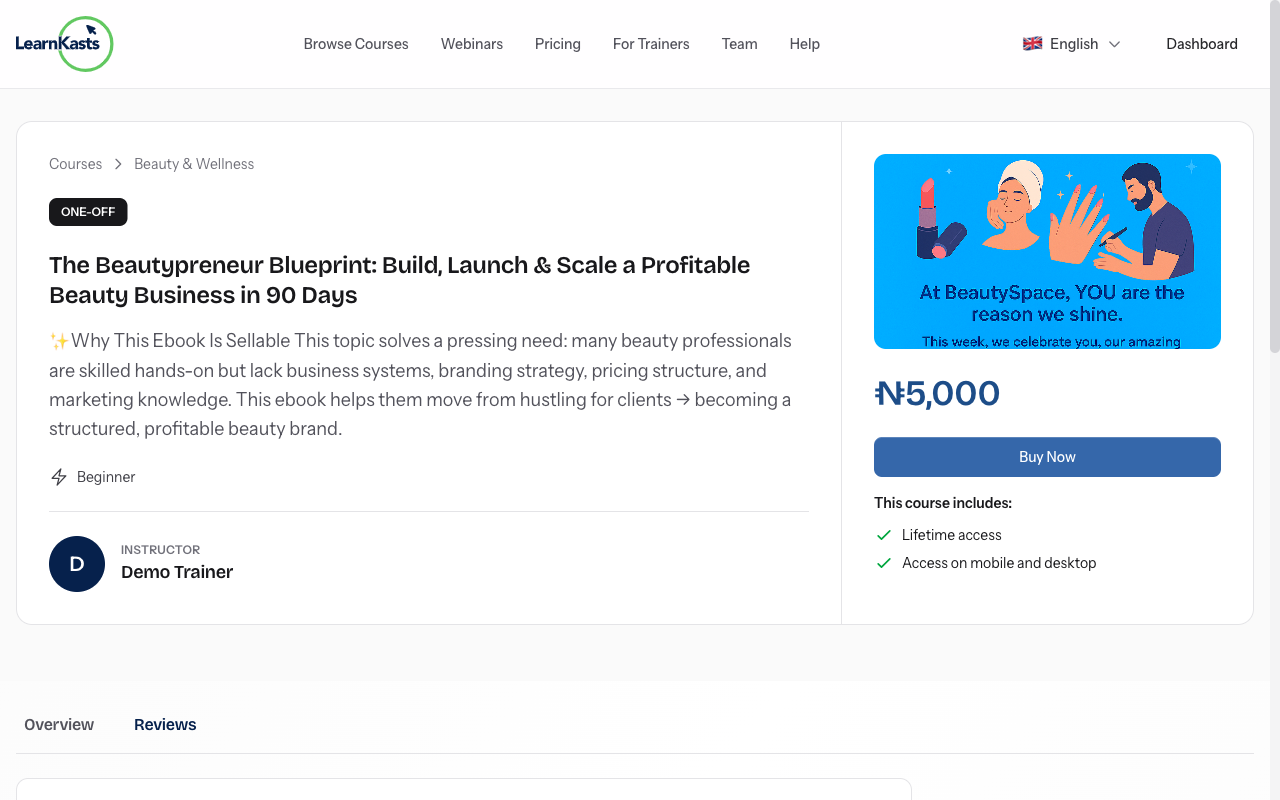
Click on any course card to see full details including: course description, curriculum (modules and lessons), educator bio, student reviews, and pricing options. Watch the course trailer if available.
-
07
Check course reviews
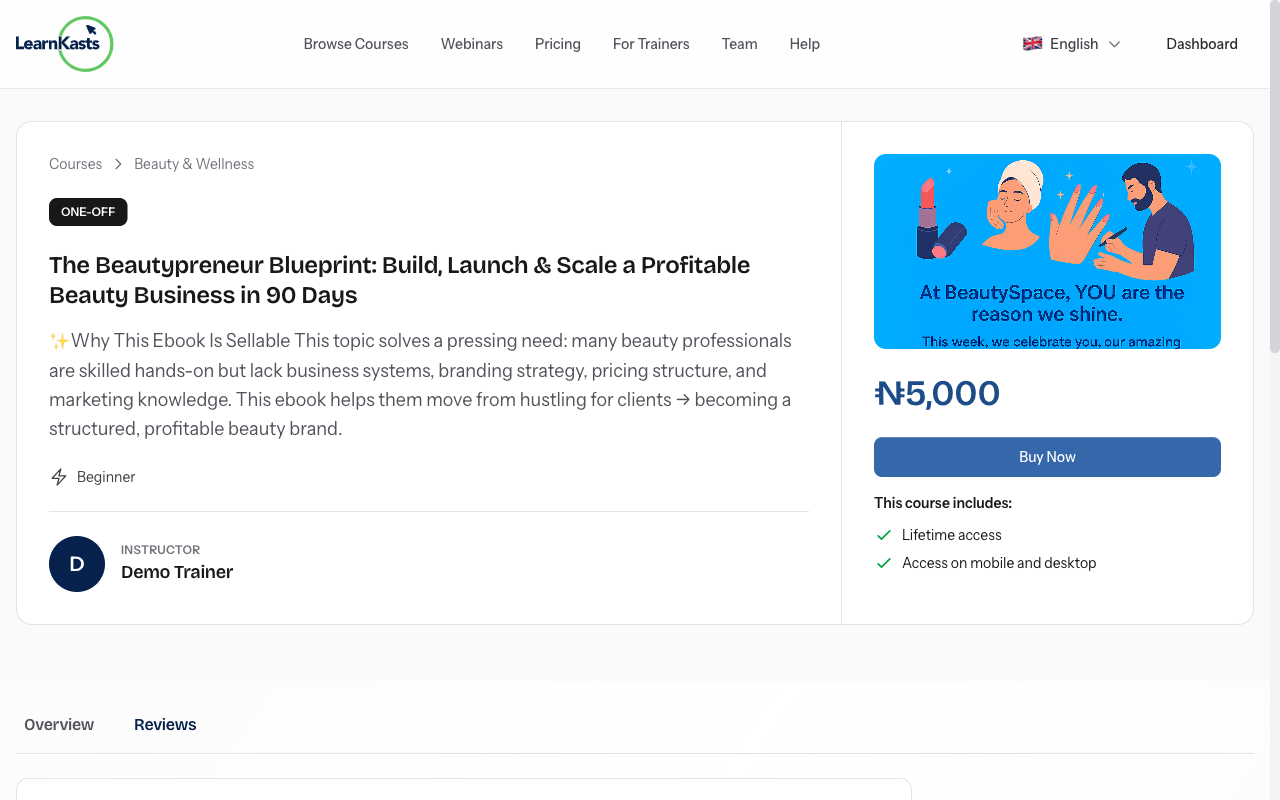
Click on the "Reviews" tab on the course page to read reviews from other students. See the average rating out of 5 stars, read detailed feedback about course quality, and check how many students have enrolled. Reviews help you make informed decisions about which courses to take.
-
08
Save courses for later
Click the bookmark or heart icon to save interesting courses to your wishlist. Access your saved courses anytime from your dashboard to enroll when you're ready.
Did this guide help?
If you need a real human, our support team replies in plain English within one working day. Faster on WhatsApp.