Building Course Curriculum
Master the curriculum builder with modules, lessons, and drag-and-drop organization.
-
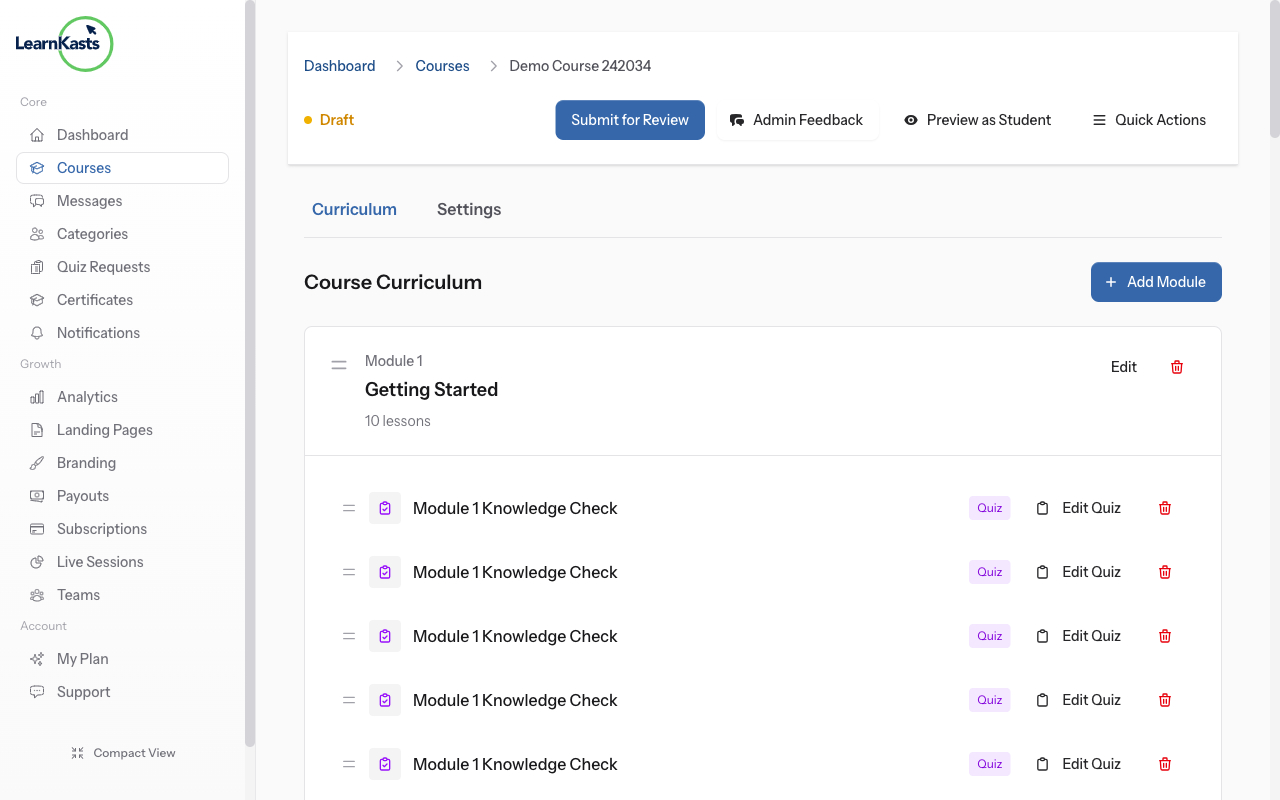
Course edit page with Curriculum tab selected
After creating your course, go to Educator Dashboard → My Courses → Click "Edit" on your course. Click the "Curriculum" tab. This is where you'll organize all your course content into modules and lessons.
-
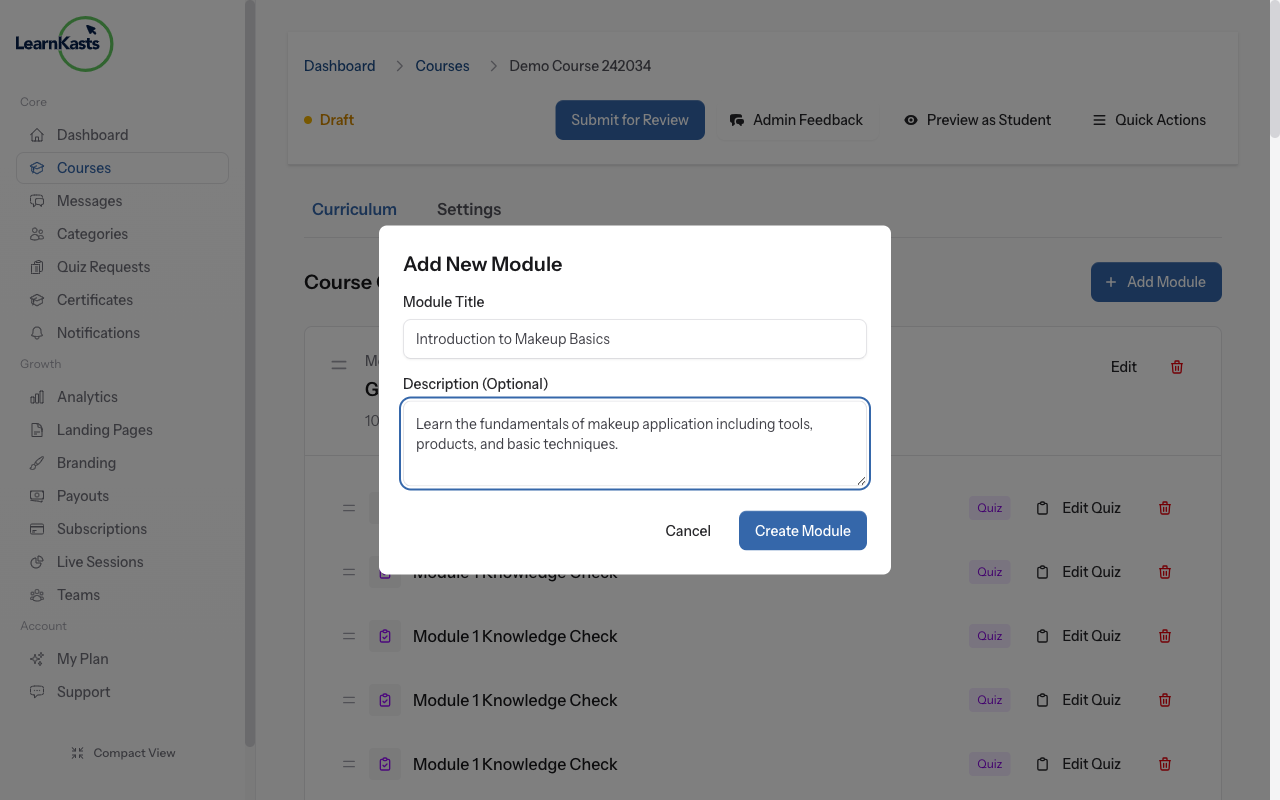
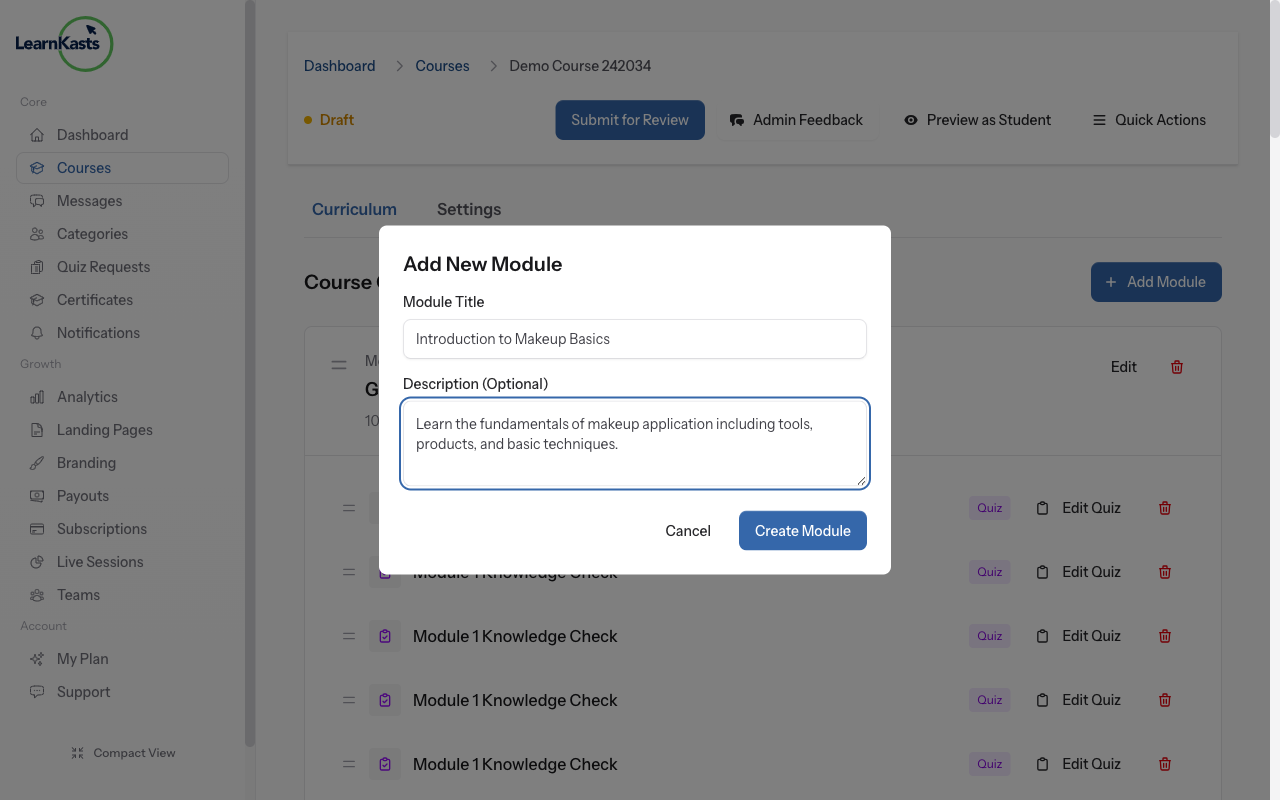
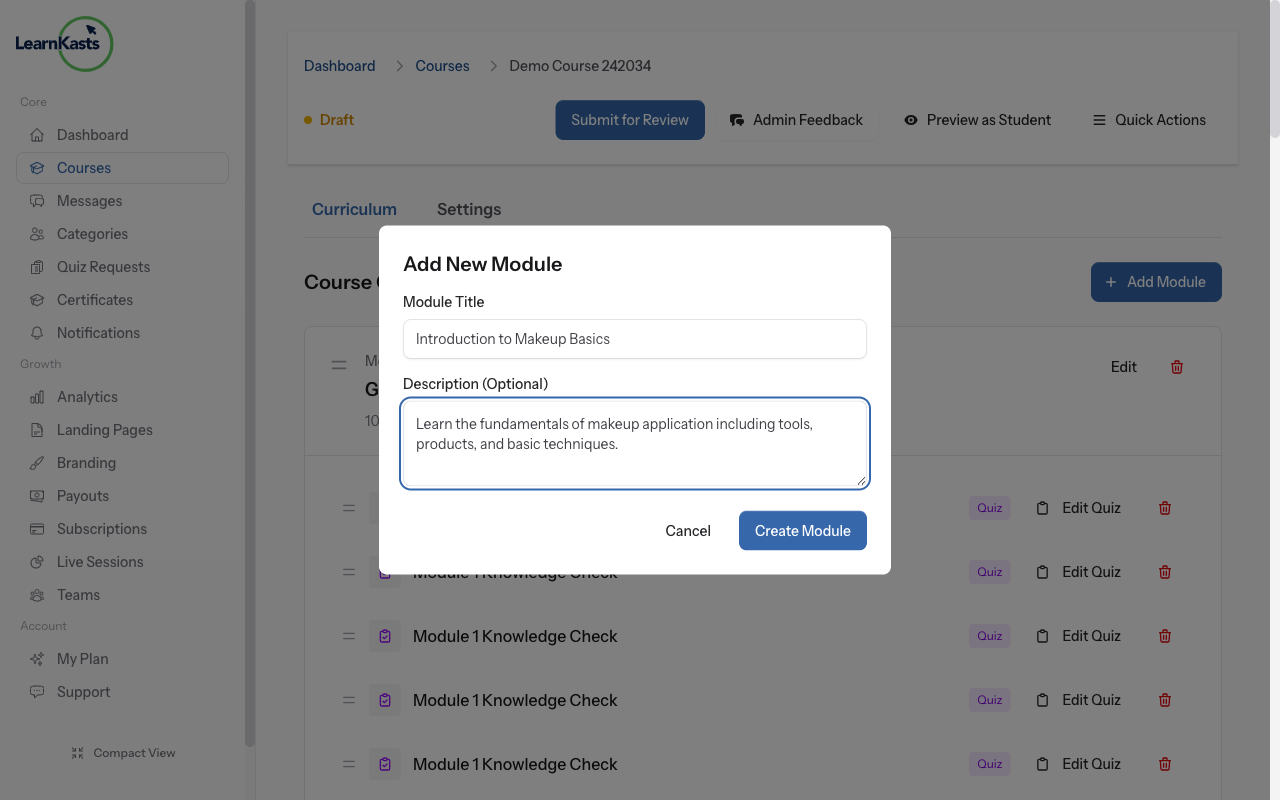
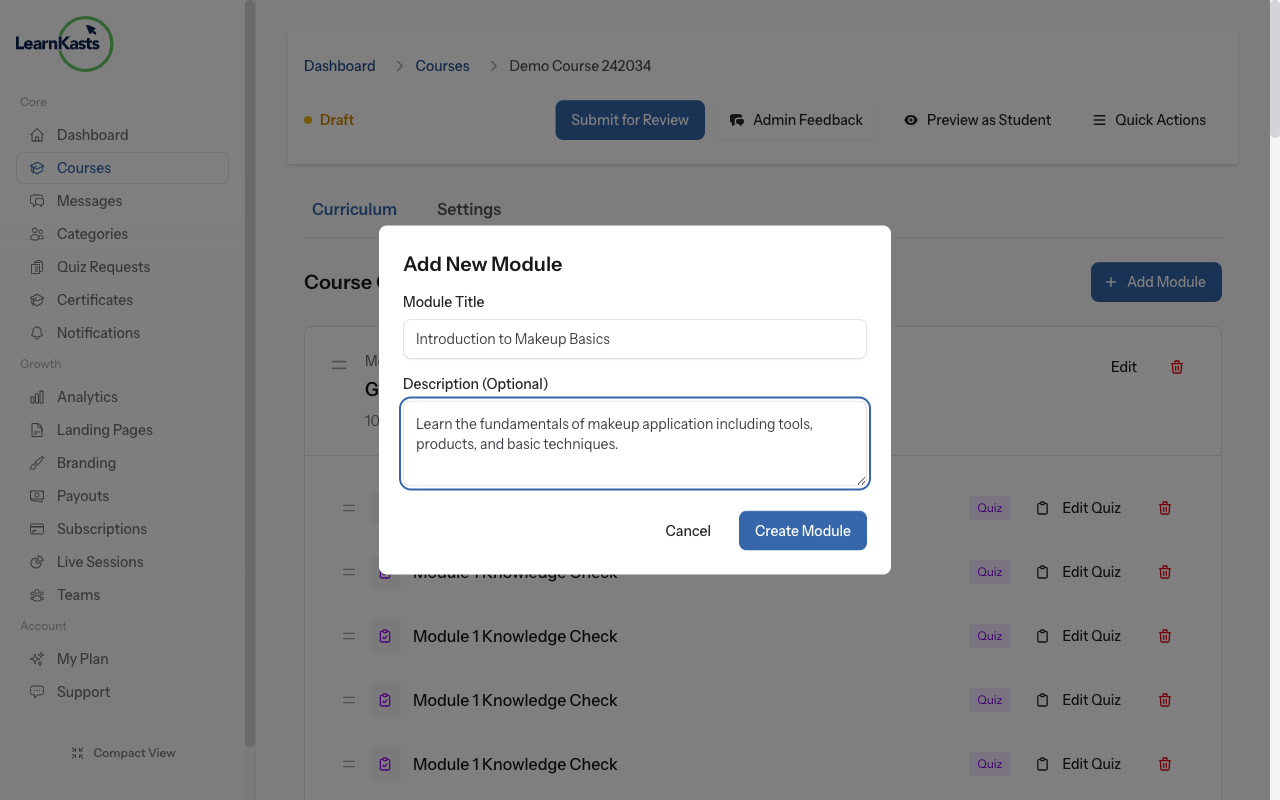
Add Module modal with filled fields
Click "Add Module" button. Enter a module title (e.g., "Introduction to Makeup Basics") and a brief description explaining what this module covers. Click "Create Module". Modules help you organize related lessons together.
-
Module with Add Lesson button highlighted
Click "Add Lesson" within your new module. You'll be taken to the lesson creator. Choose lesson type (Video, PDF, Text, Quiz, Assignment, Image, or External Link). Each lesson will be explained in detail in the "Uploading Video Lessons" guide.
-
Modules with drag handles visible
Hover over a module until you see the drag handle (≡ icon). Click and hold the drag handle, then move the module up or down. Release to drop it in the new position. The order is automatically saved.
-
Lessons being reordered with drag-and-drop
Similarly, you can drag and drop lessons within each module. This lets you control the exact order students will follow through your content. Logical ordering improves learning outcomes.
-
Module menu showing Edit and Delete options
Click the three dots (•••) menu on any module to edit its title/description or delete it. Warning: Deleting a module also deletes all lessons inside it! Make sure to move important lessons to another module first.
-
Preview button and student view of curriculum
Click the "Preview" button in the top right to see exactly how your course will appear to enrolled students. This helps you spot any organizational issues before publishing.
Autres guides
Guides formateurs
Des guides pas à pas pour créer des cours, animer des sessions en direct et développer votre activité de formation.
- Getting started as an educator
- Creating your first course
- Building course curriculum
- Uploading video lessons
- Using AI to generate quizzes
- Creating quizzes and assignments
- Assignments and grading queues
- Hosting live sessions
- Creating and managing webinars
- Managing course cohorts
- Adding students to cohorts
- Setting up subscriptions
- Course reviews and ratings
- Issuing certificates
- Understanding course analytics
- Live session usage and billing
- Setting up payout methods
- Viewing revenue and payouts
- Setting up your educator subdomain
- Creating landing pages
- Using the visual page editor
- Adding page sections
- Page styling and branding
- AI Studio Composer
- AI Voice Clone & Avatar
- Traffic sources & UTM attribution
Guides apprenants
Tout ce dont les apprenants ont besoin pour parcourir les cours, rejoindre les sessions en direct et suivre leur progression.
- Creating an account
- Browsing and finding courses
- Enrolling in a course
- Watching video lessons
- Taking notes during lessons
- Submitting assignments
- Taking quizzes
- Joining live classes
- Attending webinars
- Managing your subscriptions
- Viewing your certificates
- Writing course reviews
- Managing your orders
- Updating your profile
Équipe et administration
Gestion d'équipe, autorisations, facturation et outils d'administration pour les organisations.
Ce guide vous a-t-il aidé ?
Si vous avez besoin d'une vraie personne, notre équipe d'assistance répond en termes simples sous un jour ouvré. Plus vite sur WhatsApp.