Understanding Course Analytics
Track enrollment trends, completion rates, revenue, and student engagement for your courses.
-
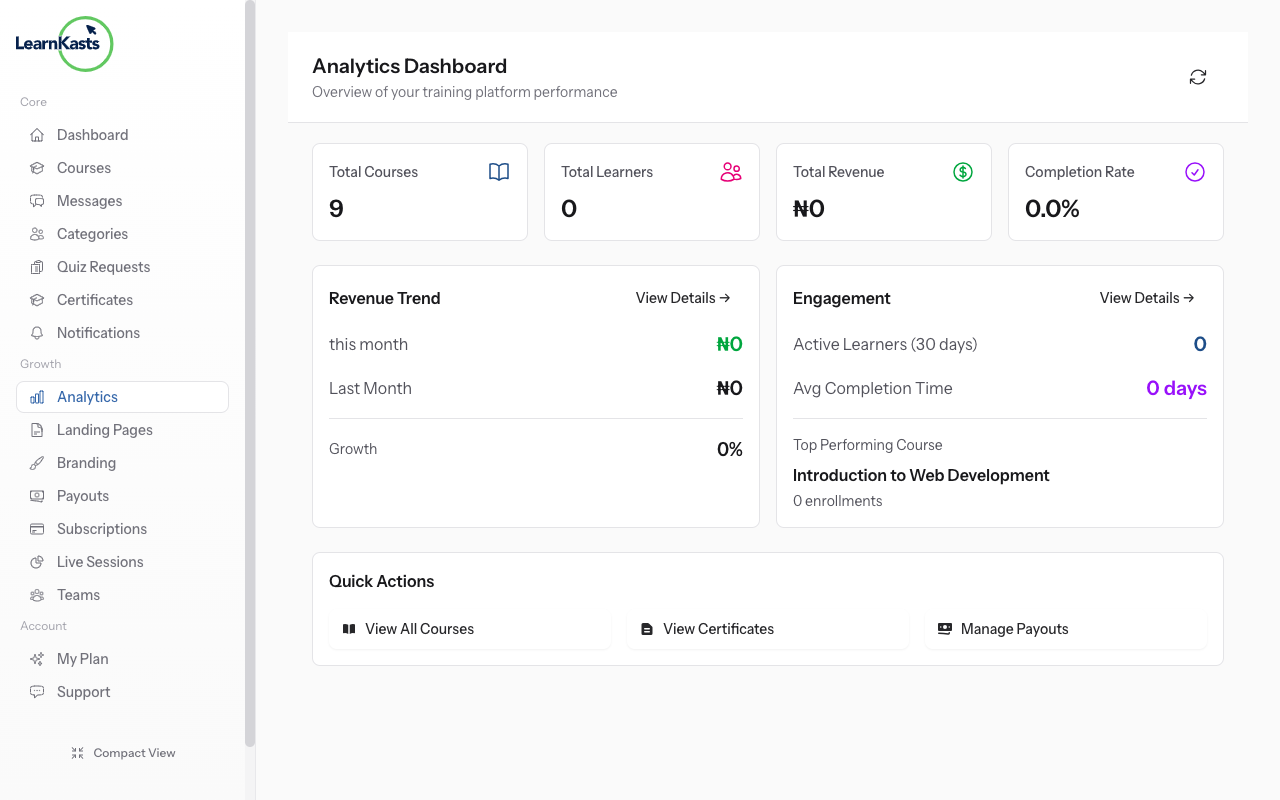
Access course analytics
Go to Educator Dashboard → Courses → Click "Edit" on your course → Click "Analytics" tab. Or click the three dots menu → "View Analytics". You'll see comprehensive data about your course performance.
-
View key metrics
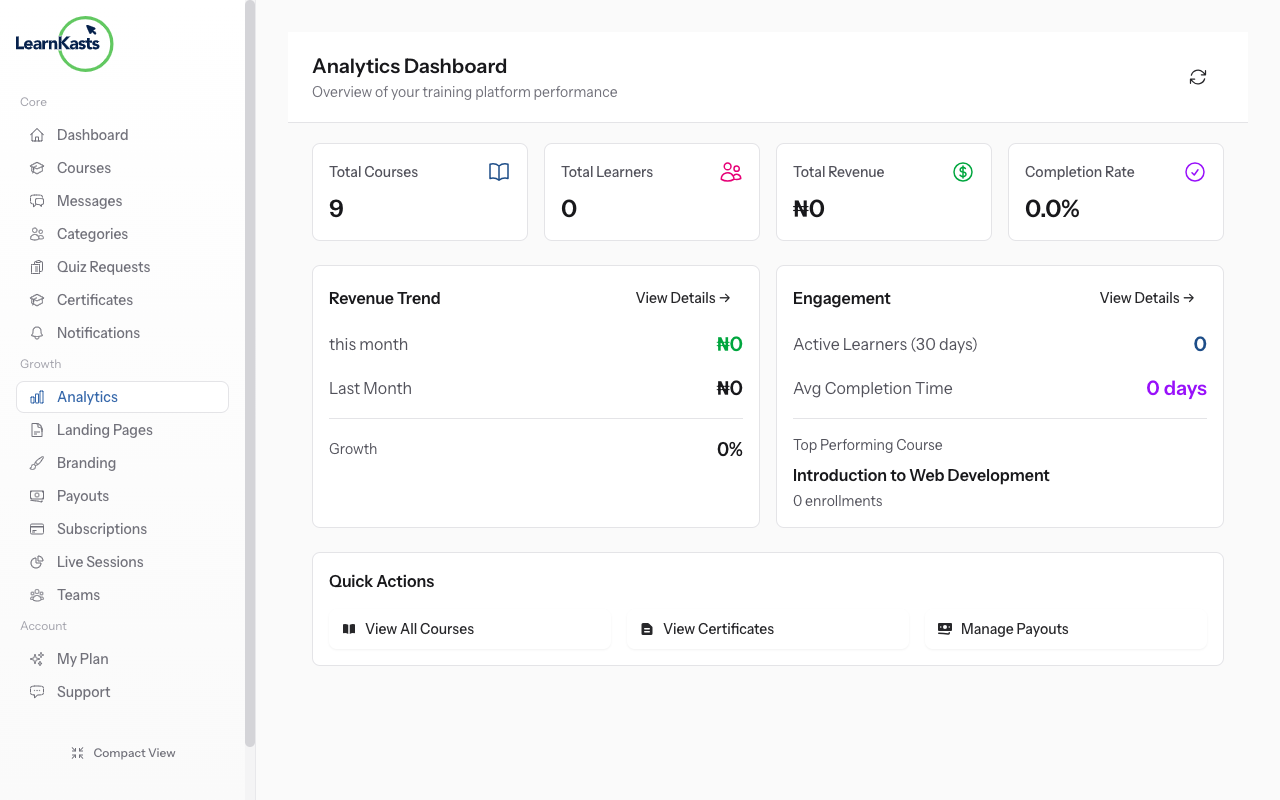
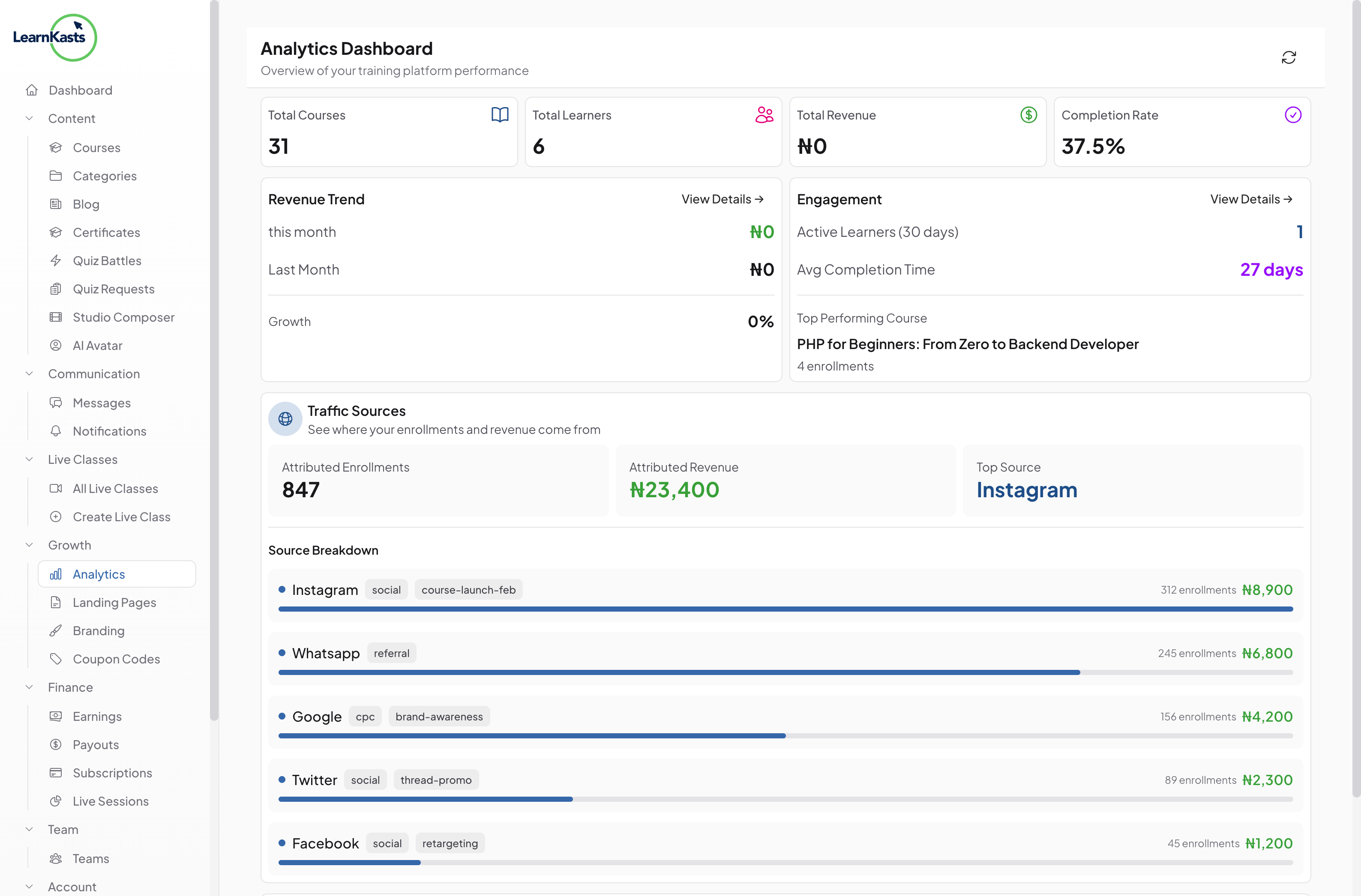
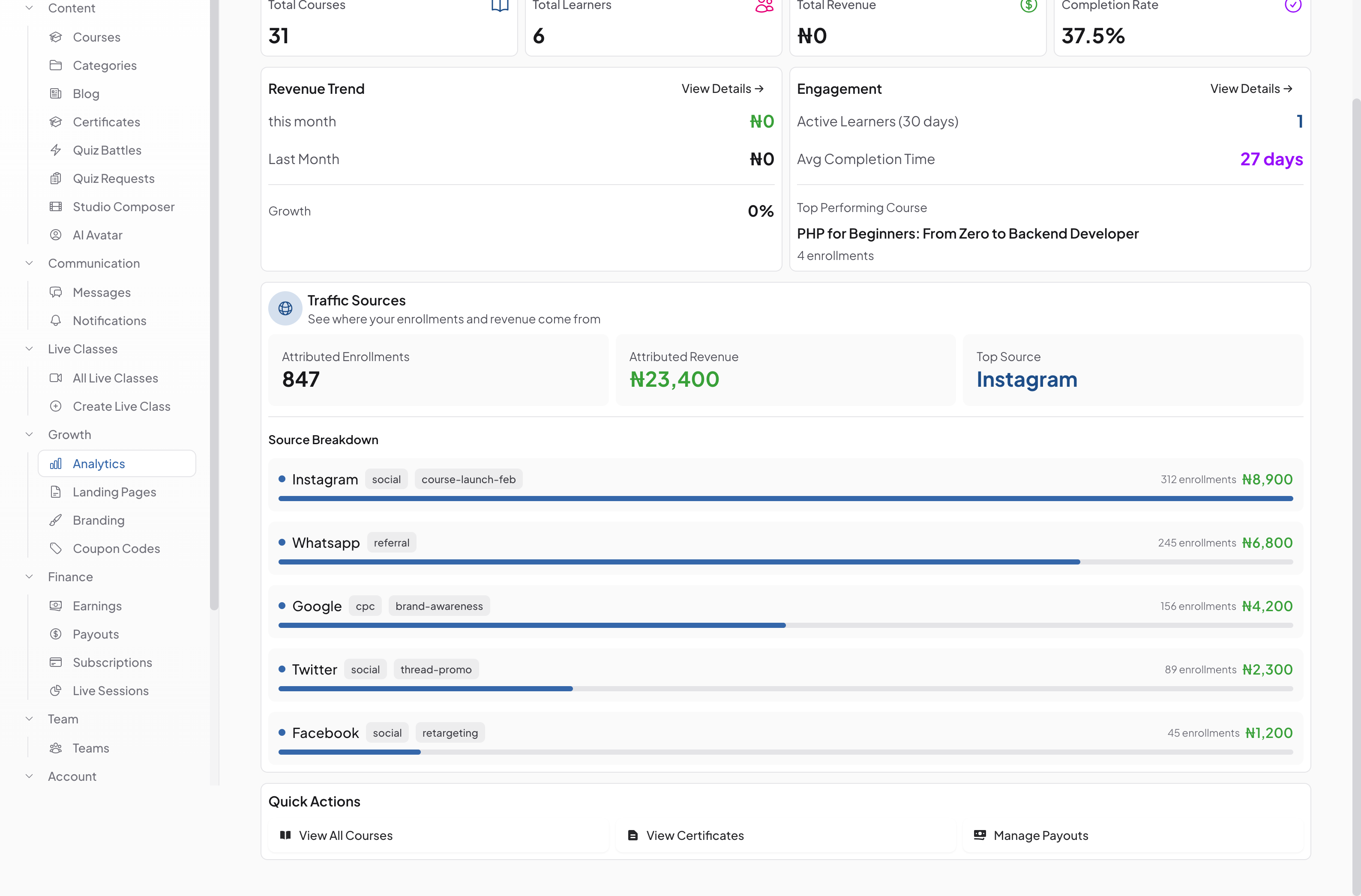
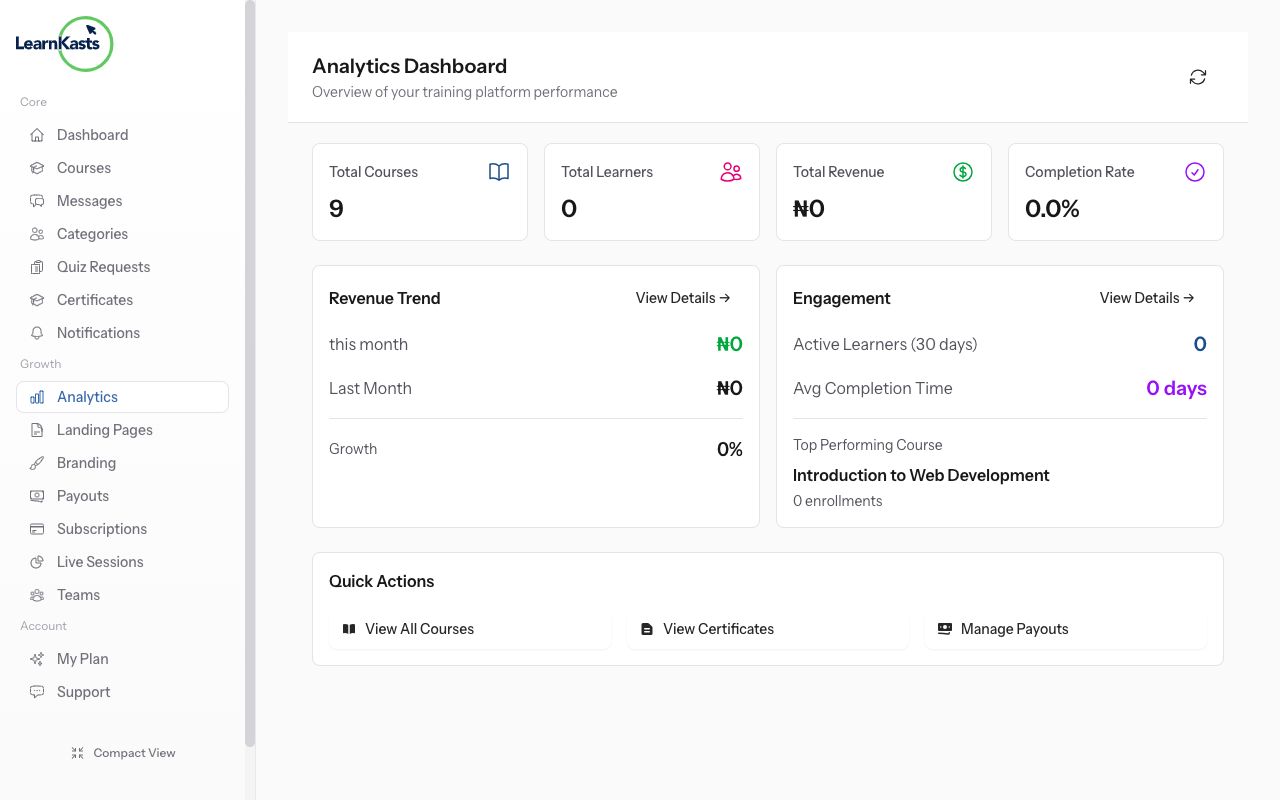
The top row shows 4 key metrics: Total Learners (with % change), Completion Rate (% who finished), Average Rating (from reviews), and Total Revenue (with % change). These give you an at-a-glance course health check.
-
Monitor revenue trends
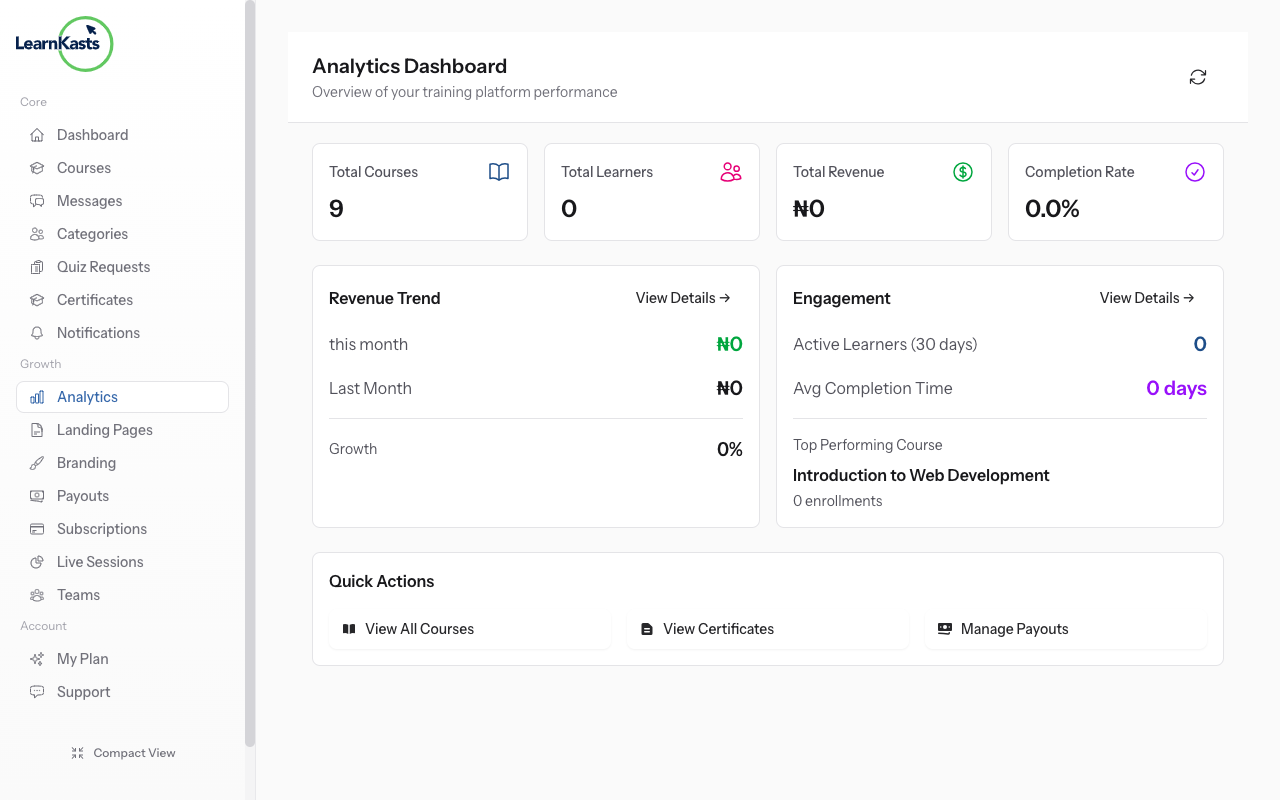
The enrollment trend chart shows how many students enrolled over time. Look for spikes (successful marketing campaigns) or drops (need more promotion). Use the date range selector to view different time periods.
-
Export analytics data
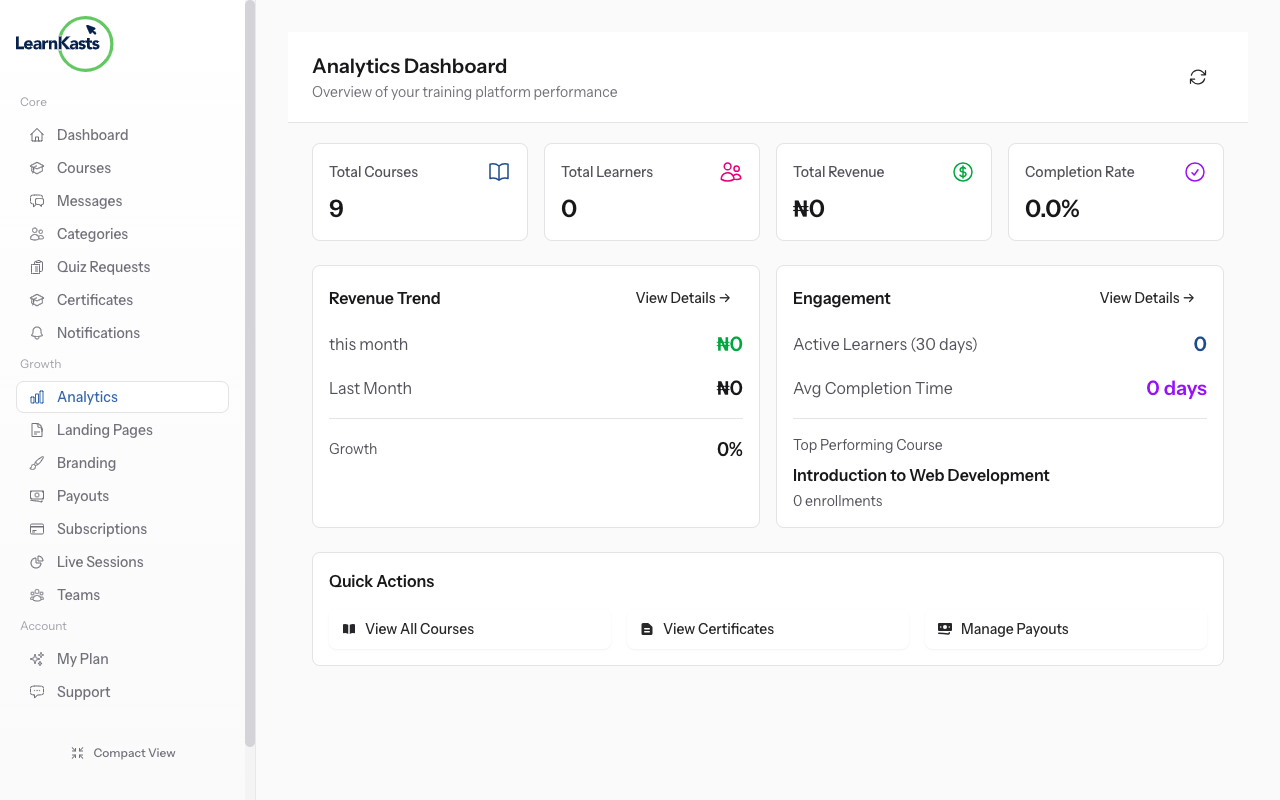
The revenue chart shows earnings over time. Compare with enrollment trends - more enrollments should mean more revenue. Track the impact of pricing changes or promotions.
-
Check engagement metrics
See Average Watch Time (progress bar showing % completion), Quiz Pass Rate, and Total Notes Created. Low watch time means content might be too long. Low quiz pass rates might mean content is too difficult or unclear.
-
Export analytics data
Click "Export Data" to download analytics as CSV. Use this for deeper analysis in Excel/Google Sheets, creating reports, or tracking historical performance over time.
-
Use insights to improve
Regularly review analytics to identify: lessons with high drop-off (need improvement), quizzes with low pass rates (too hard or unclear), modules students love (make more like these). Data-driven improvements boost satisfaction.
Autres guides
Guides formateurs
Des guides pas à pas pour créer des cours, animer des sessions en direct et développer votre activité de formation.
- Getting started as an educator
- Creating your first course
- Building course curriculum
- Uploading video lessons
- Using AI to generate quizzes
- Creating quizzes and assignments
- Assignments and grading queues
- Hosting live sessions
- Creating and managing webinars
- Managing course cohorts
- Adding students to cohorts
- Setting up subscriptions
- Course reviews and ratings
- Issuing certificates
- Understanding course analytics
- Live session usage and billing
- Setting up payout methods
- Viewing revenue and payouts
- Setting up your educator subdomain
- Creating landing pages
- Using the visual page editor
- Adding page sections
- Page styling and branding
- AI Studio Composer
- AI Voice Clone & Avatar
- Traffic sources & UTM attribution
Guides apprenants
Tout ce dont les apprenants ont besoin pour parcourir les cours, rejoindre les sessions en direct et suivre leur progression.
- Creating an account
- Browsing and finding courses
- Enrolling in a course
- Watching video lessons
- Taking notes during lessons
- Submitting assignments
- Taking quizzes
- Joining live classes
- Attending webinars
- Managing your subscriptions
- Viewing your certificates
- Writing course reviews
- Managing your orders
- Updating your profile
Équipe et administration
Gestion d'équipe, autorisations, facturation et outils d'administration pour les organisations.
Ce guide vous a-t-il aidé ?
Si vous avez besoin d'une vraie personne, notre équipe d'assistance répond en termes simples sous un jour ouvré. Plus vite sur WhatsApp.