Creating Quizzes and Assignments
Build engaging assessments with multiple question types and automated grading.
-
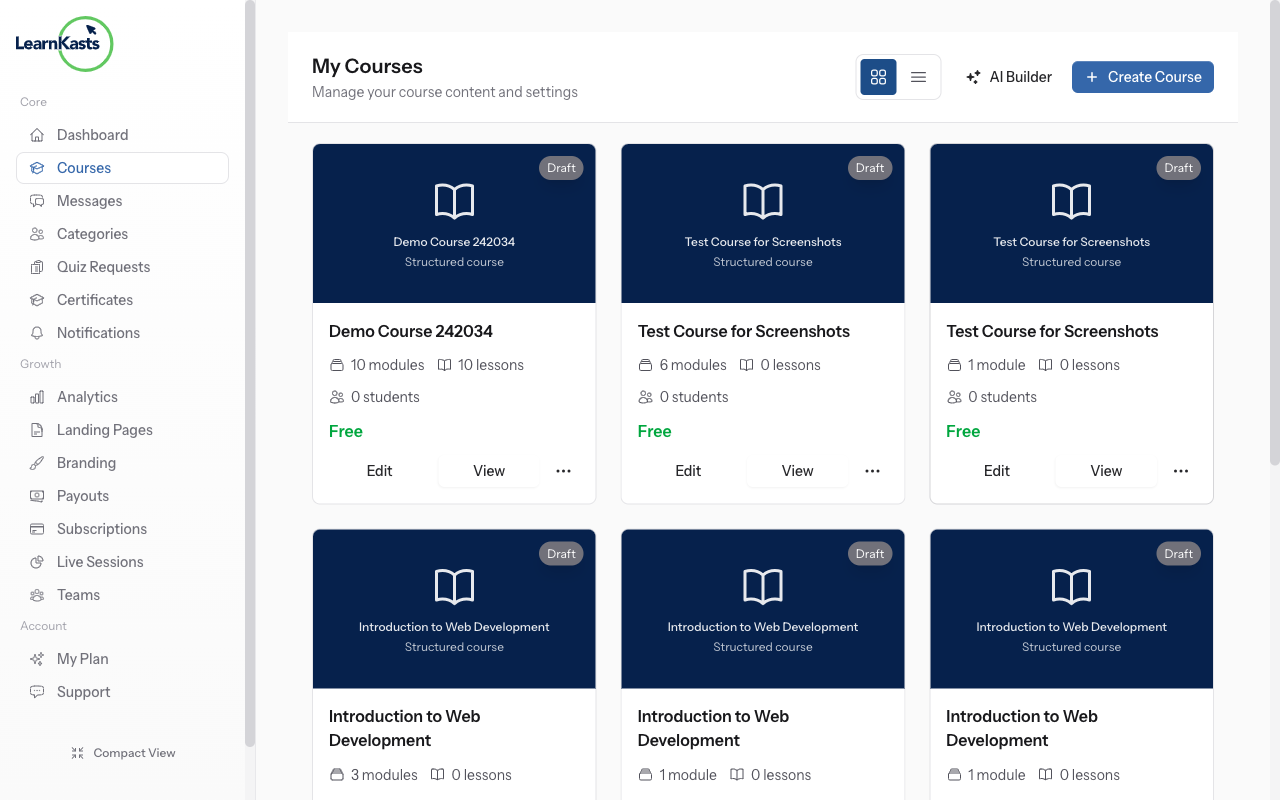
Navigate to your courses
From your Educator Dashboard, click "Courses" in the sidebar to see all your courses. Find the course where you want to add a quiz and click "Edit" to open the course editor.
-
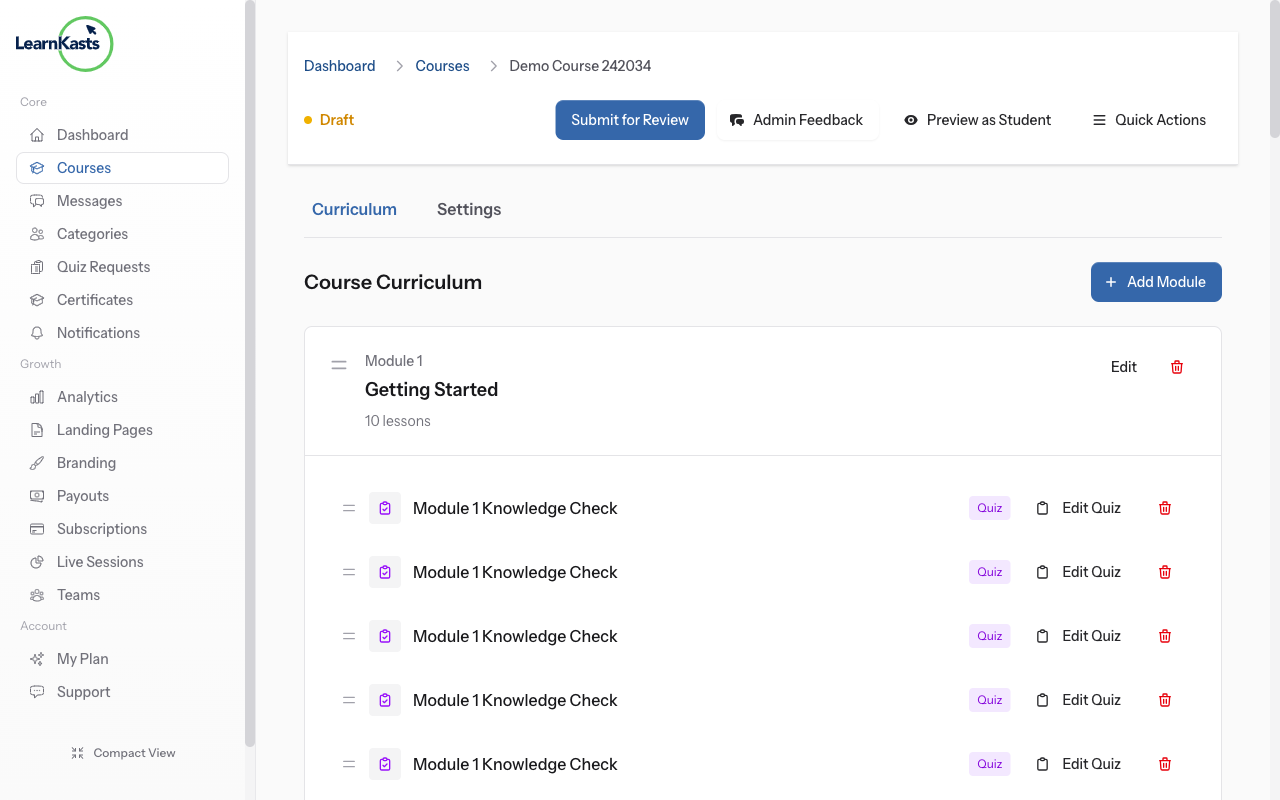
Open course curriculum
In the course editor, click on the "Curriculum" tab. You'll see your modules and lessons listed. Navigate to the module where you want to add the quiz.
-
View curriculum structure
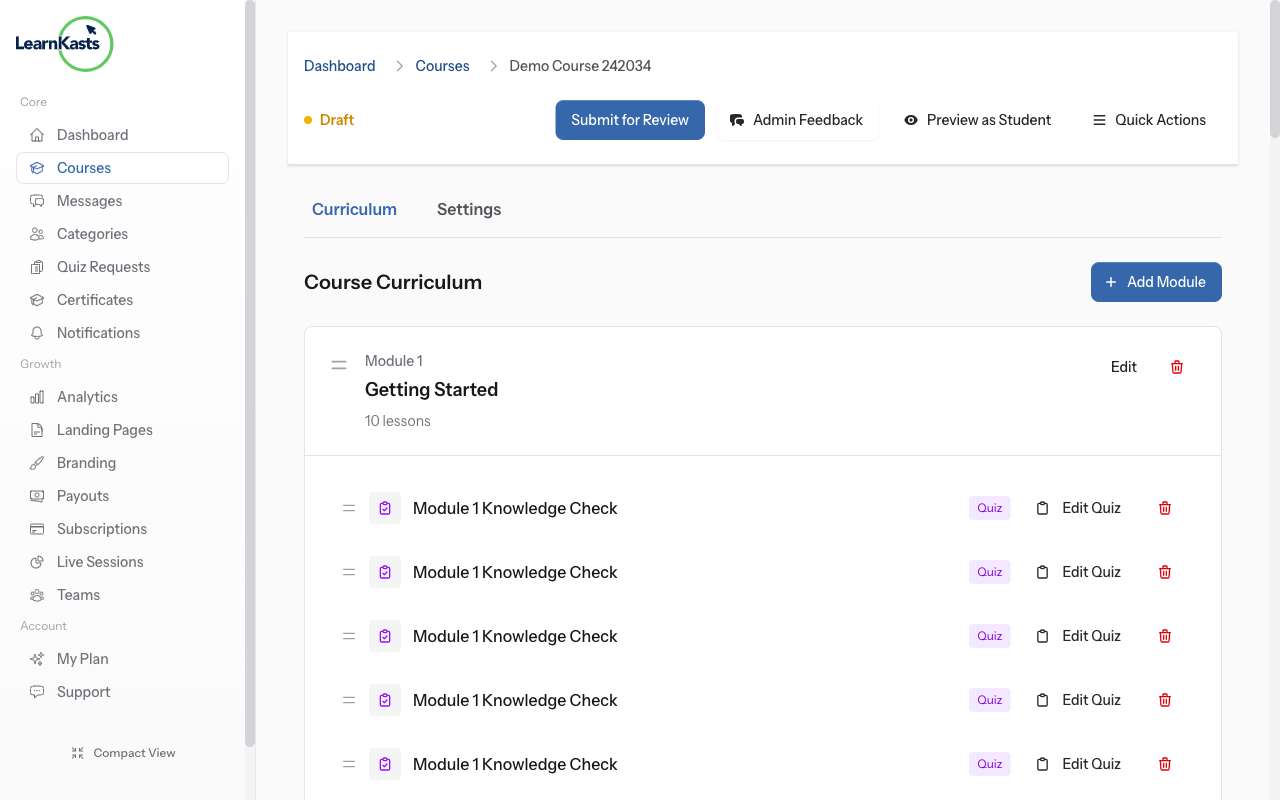
The curriculum view shows all your modules with their lessons. Each module can contain video lessons, documents, quizzes, and assignments. Click "Add Lesson" inside the module where you want to create the quiz.
-
Click Add Lesson
Click the "Add Lesson" button within your chosen module. A modal appears with lesson type options: Video, PDF, Image, Audio, Text, Quiz, Exam, and Assignment. Select "Quiz" to create a knowledge check.
-
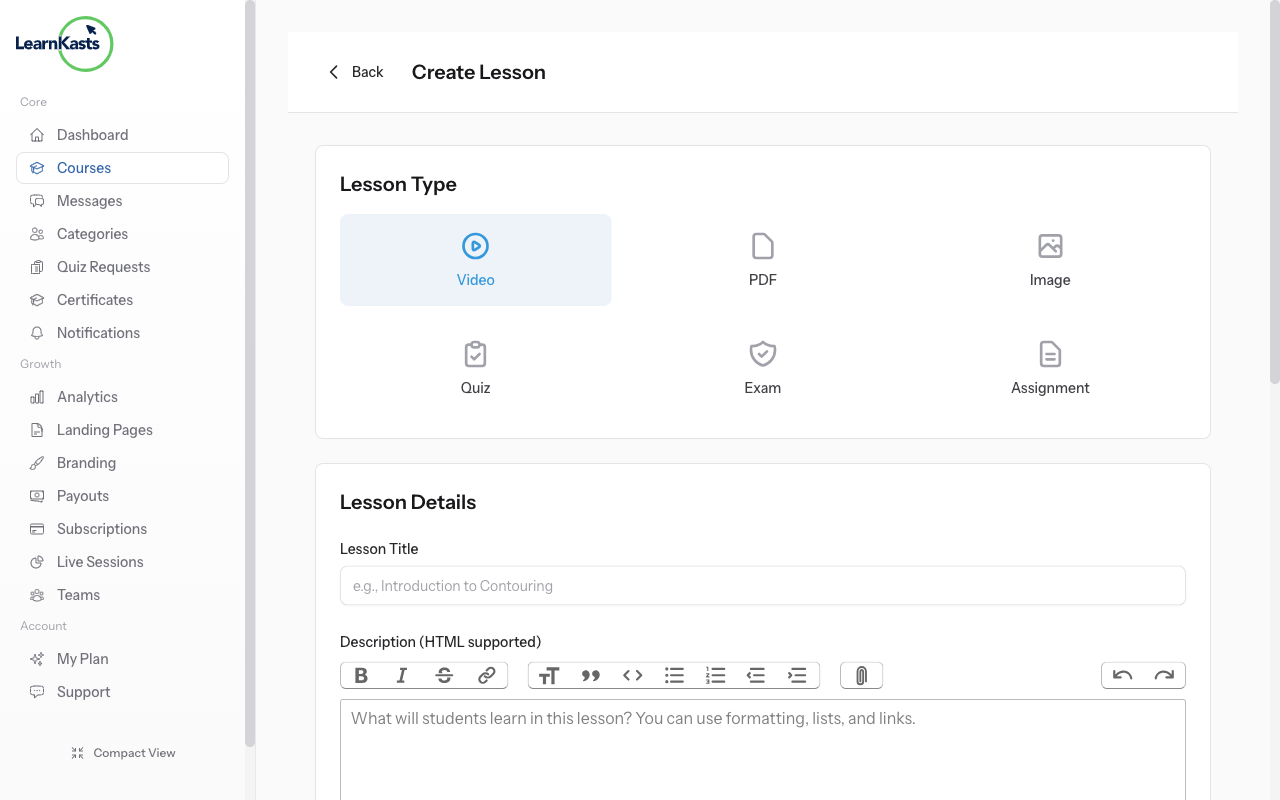
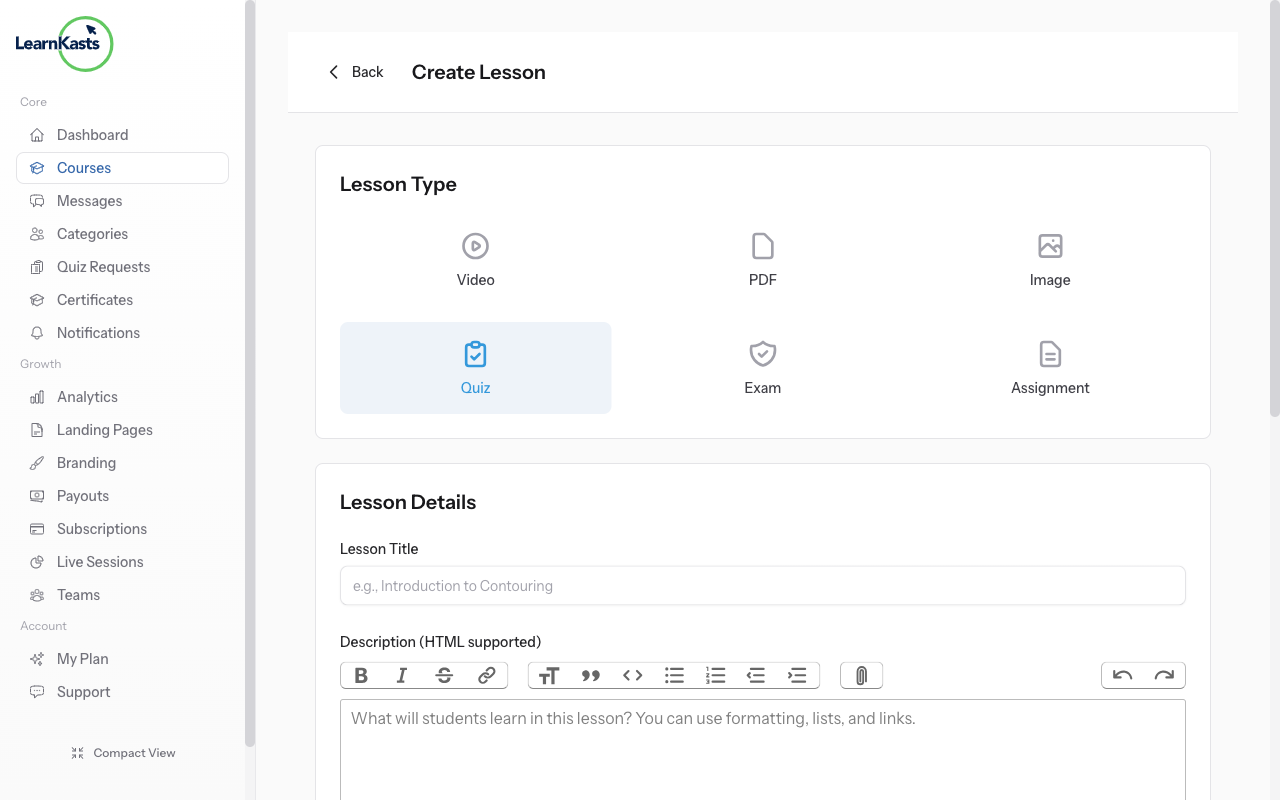
Select Quiz lesson type
Click on "Quiz" from the lesson type options. The form will update to show quiz-specific fields including title, description, time limit, passing score, and attempt settings.
-
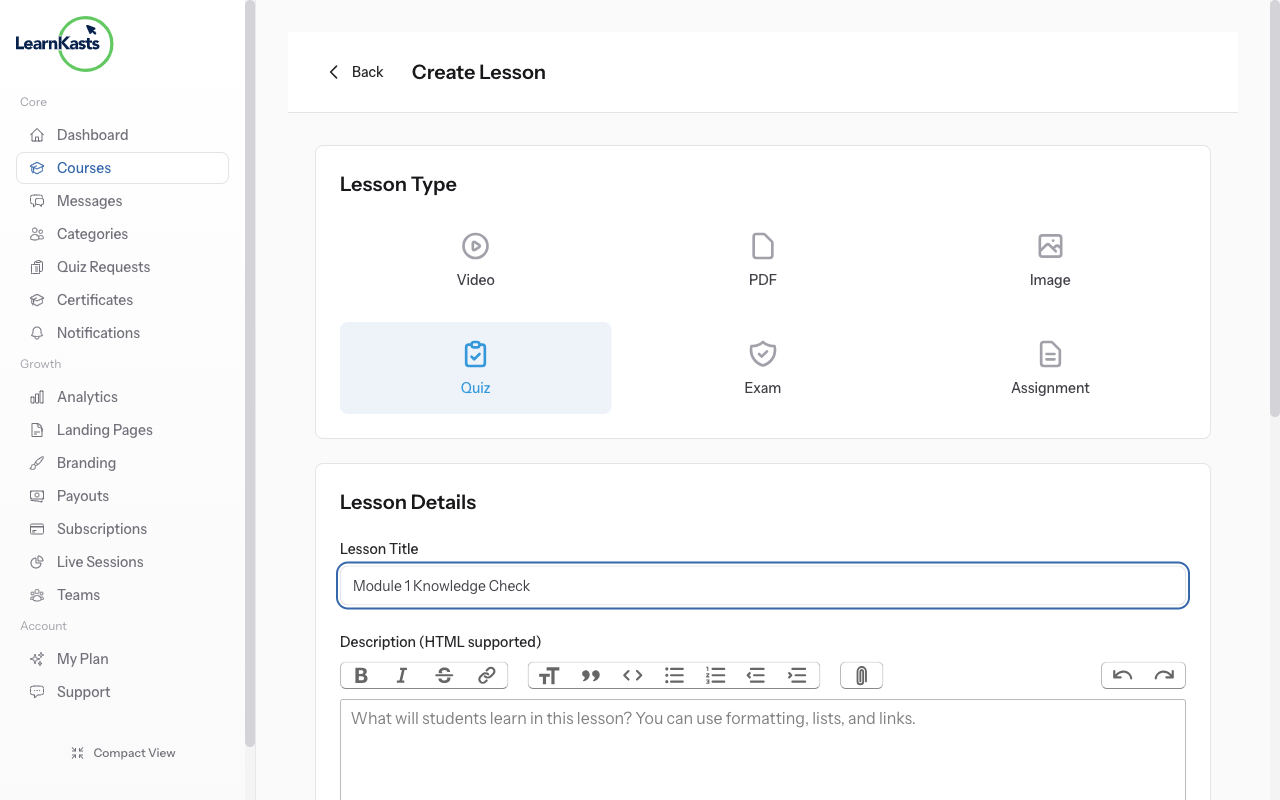
Enter quiz title and settings
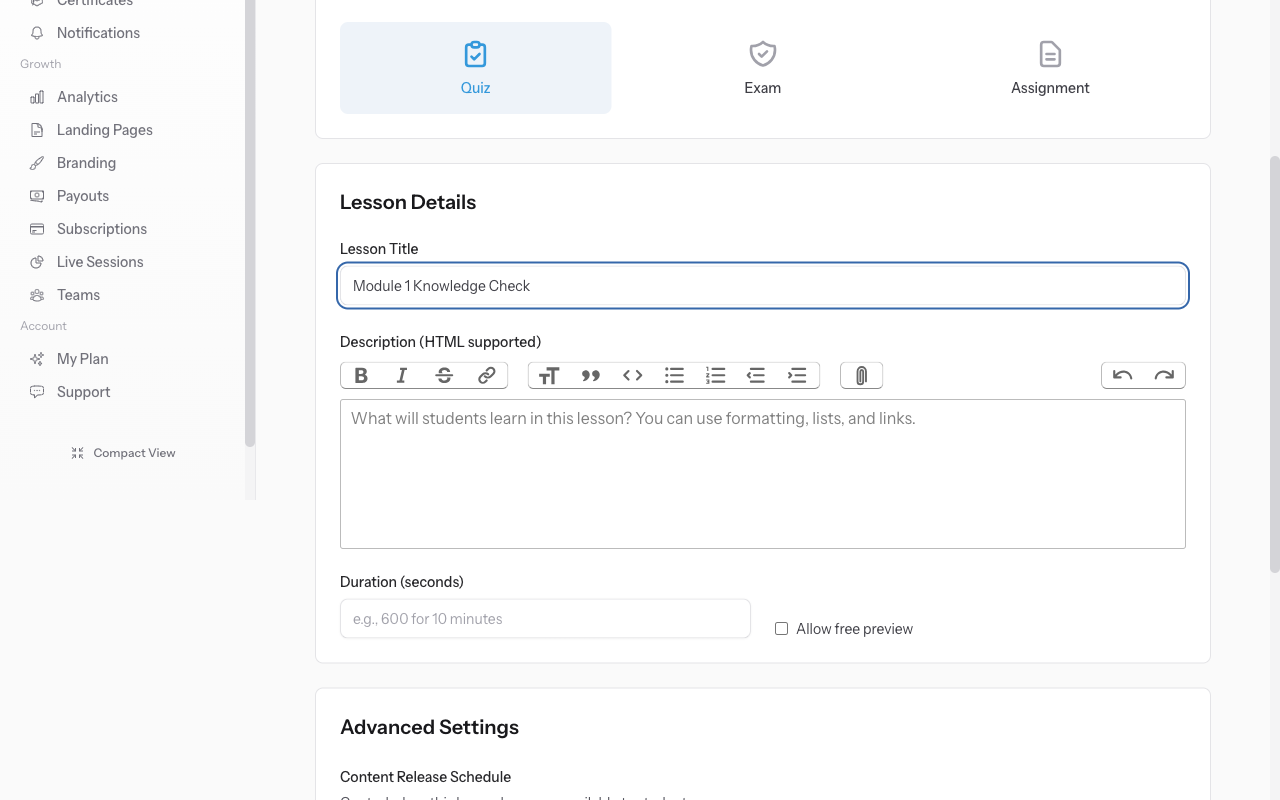
Enter a descriptive quiz title (e.g., "Module 1 Knowledge Check"). Set the time limit in minutes (leave blank for no limit). Configure passing percentage (default 70%). Set maximum attempts (leave blank for unlimited).
-
Create quiz and add questions
Click "Create Lesson" to save the quiz. You'll be redirected to the Quiz Editor page where you can add questions. Click "Add Question" to choose from Multiple Choice, True/False, or Free Text question types. Add your questions, mark correct answers, and save. You can also use AI to generate questions automatically.
Autres guides
Guides formateurs
Des guides pas à pas pour créer des cours, animer des sessions en direct et développer votre activité de formation.
- Getting started as an educator
- Creating your first course
- Building course curriculum
- Uploading video lessons
- Using AI to generate quizzes
- Creating quizzes and assignments
- Assignments and grading queues
- Hosting live sessions
- Creating and managing webinars
- Managing course cohorts
- Adding students to cohorts
- Setting up subscriptions
- Course reviews and ratings
- Issuing certificates
- Understanding course analytics
- Live session usage and billing
- Setting up payout methods
- Viewing revenue and payouts
- Setting up your educator subdomain
- Creating landing pages
- Using the visual page editor
- Adding page sections
- Page styling and branding
- AI Studio Composer
- AI Voice Clone & Avatar
- Traffic sources & UTM attribution
Guides apprenants
Tout ce dont les apprenants ont besoin pour parcourir les cours, rejoindre les sessions en direct et suivre leur progression.
- Creating an account
- Browsing and finding courses
- Enrolling in a course
- Watching video lessons
- Taking notes during lessons
- Submitting assignments
- Taking quizzes
- Joining live classes
- Attending webinars
- Managing your subscriptions
- Viewing your certificates
- Writing course reviews
- Managing your orders
- Updating your profile
Équipe et administration
Gestion d'équipe, autorisations, facturation et outils d'administration pour les organisations.
Ce guide vous a-t-il aidé ?
Si vous avez besoin d'une vraie personne, notre équipe d'assistance répond en termes simples sous un jour ouvré. Plus vite sur WhatsApp.