Getting Started as an Educator
Your complete onboarding guide to teaching on Learnkasts. From registration to your first course.
-
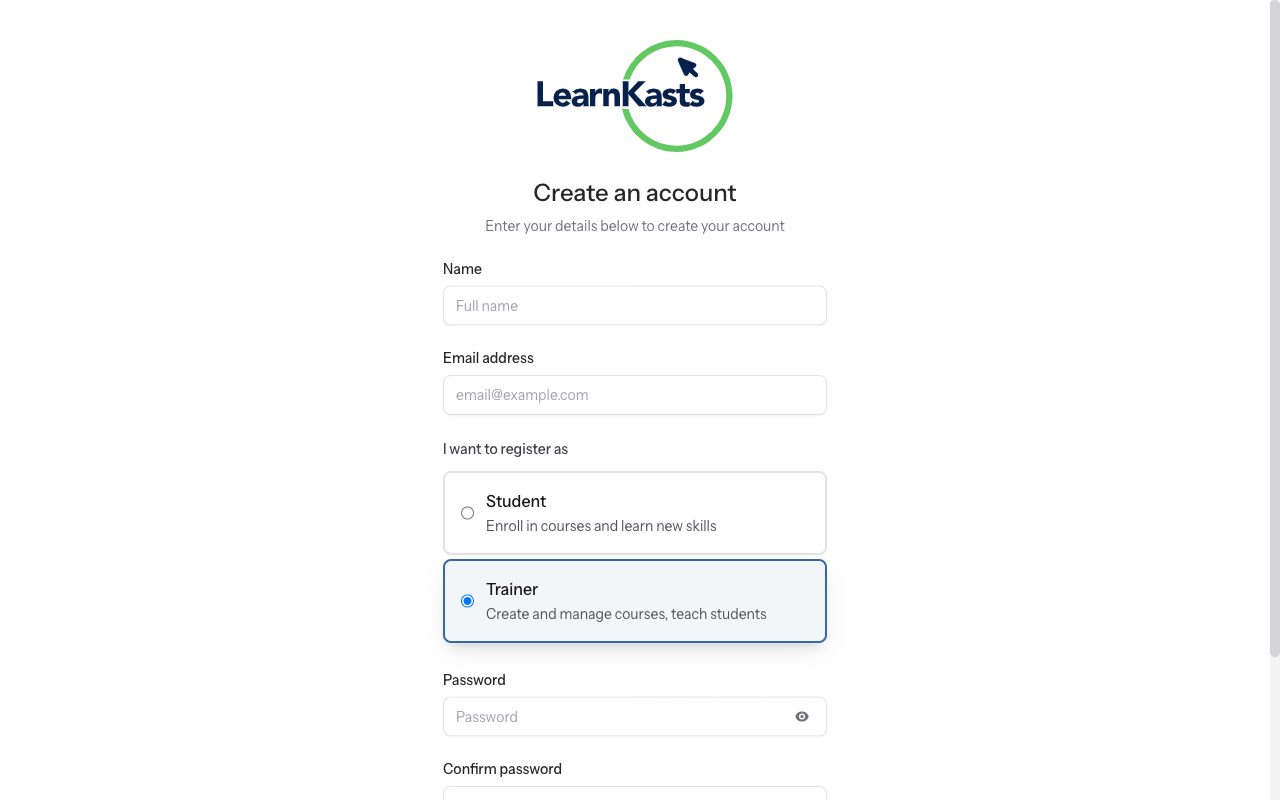
Create your educator account
Visit the Learnkasts homepage and click "For educators" in the navigation. On the registration page, enter your full name, email address, and create a strong password. Select "Educator" as your account type. Click "Create Account" to register. Check your email for a verification link and click it to activate your account.
-
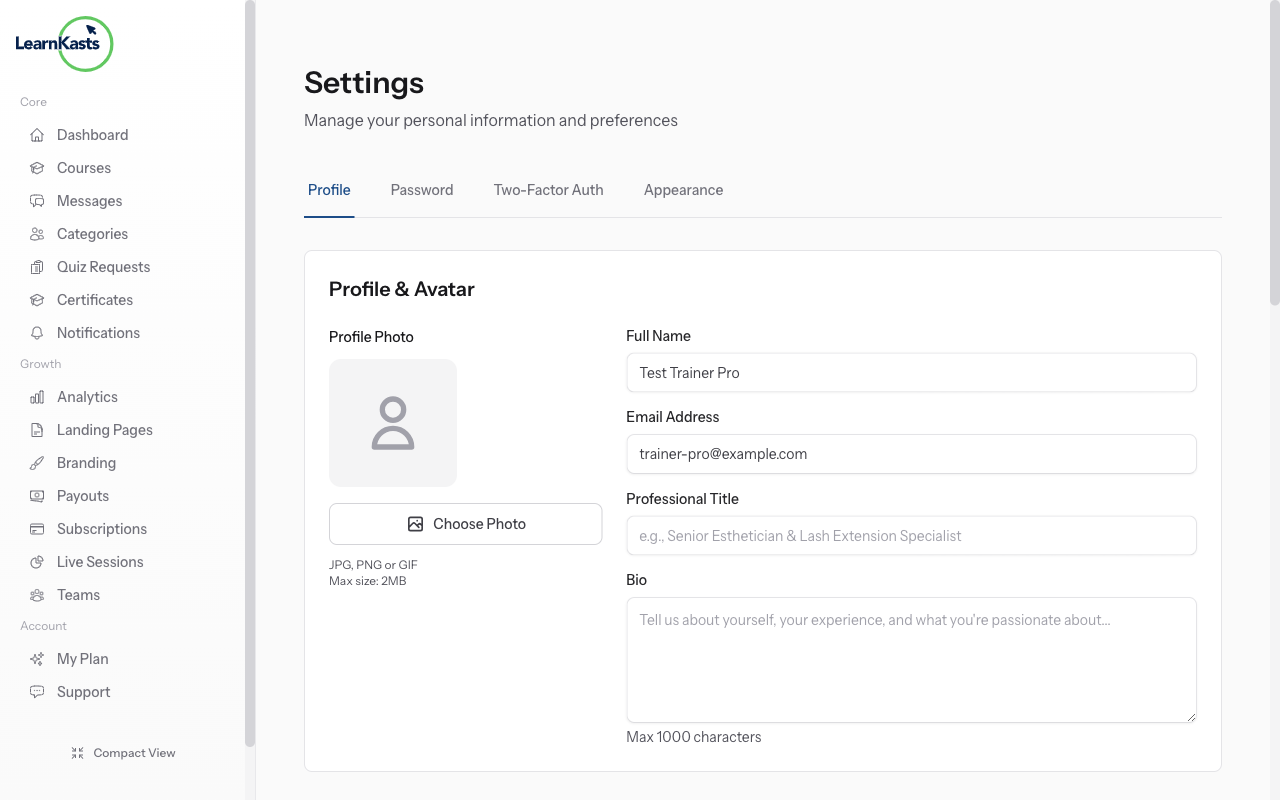
Complete your profile
After logging in, go to Settings → Profile (or click your avatar → Profile). Fill in your professional headline that describes your expertise (e.g., "Makeup Artist & Beauty Educator"). Write a bio that showcases your experience and teaching style. Upload a professional profile photo. Add your phone number and select your timezone for scheduling.
-
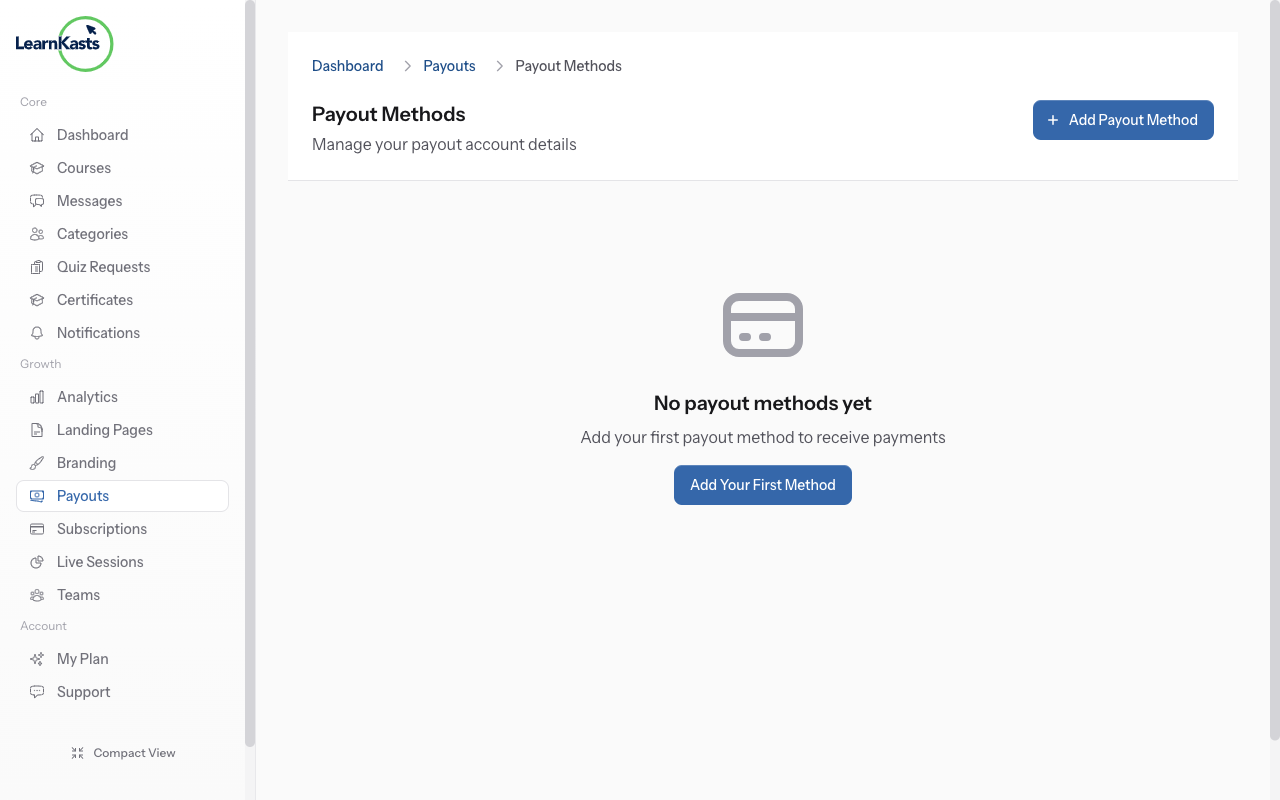
Set up your payout method
Navigate to your Educator Dashboard from the sidebar. Go to Payouts in the left menu, then click "Payout Methods". Click "Add Payout Method" and choose Bank Account or Mobile Money. Enter your account details carefully. This is where your course earnings will land. You must add at least one payout method before you can receive payments.
-
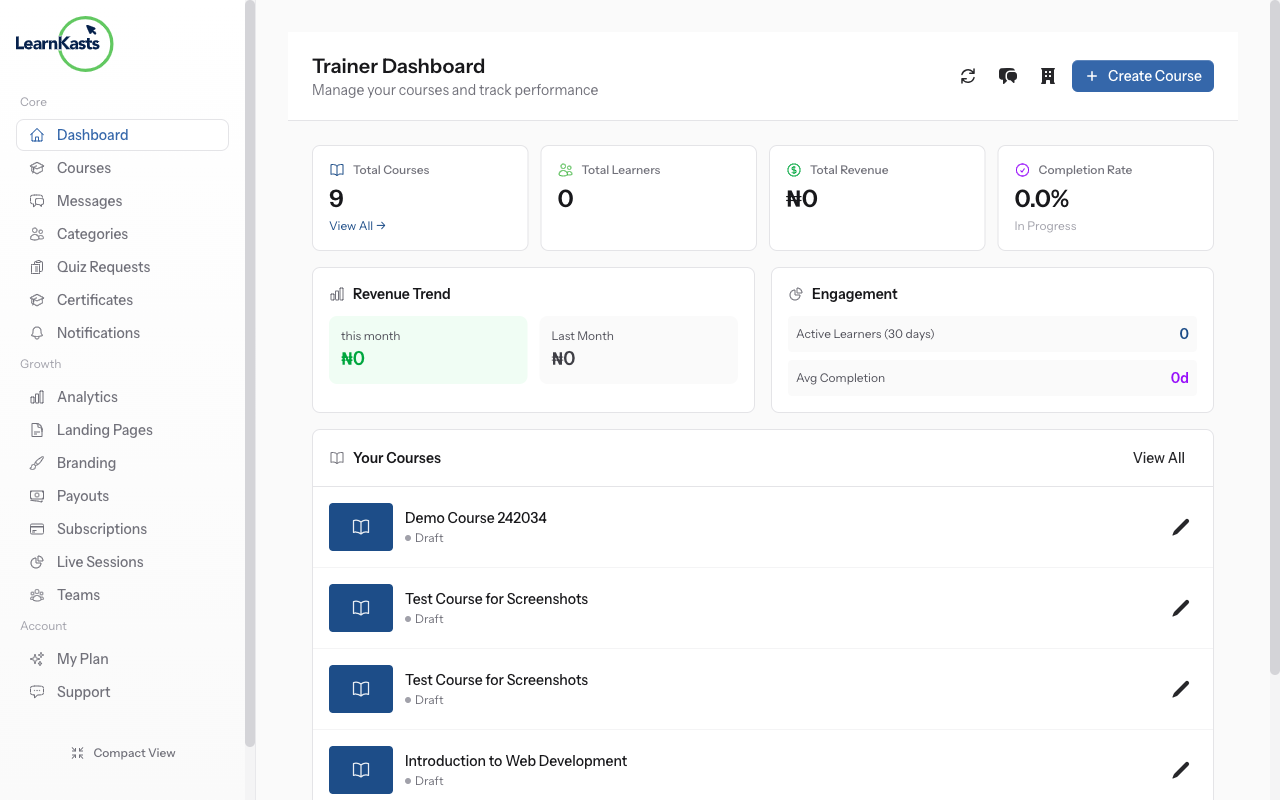
Explore your educator dashboard
Your Educator Dashboard is your command centre. The top section shows key stats: total courses, enrolled students, revenue earned, and your average rating. Below that you'll see your recent courses with quick actions to edit or view analytics. The left sidebar provides navigation to every educator feature including Courses, Analytics, Payouts, Teams, and Settings.
-
Create your first course
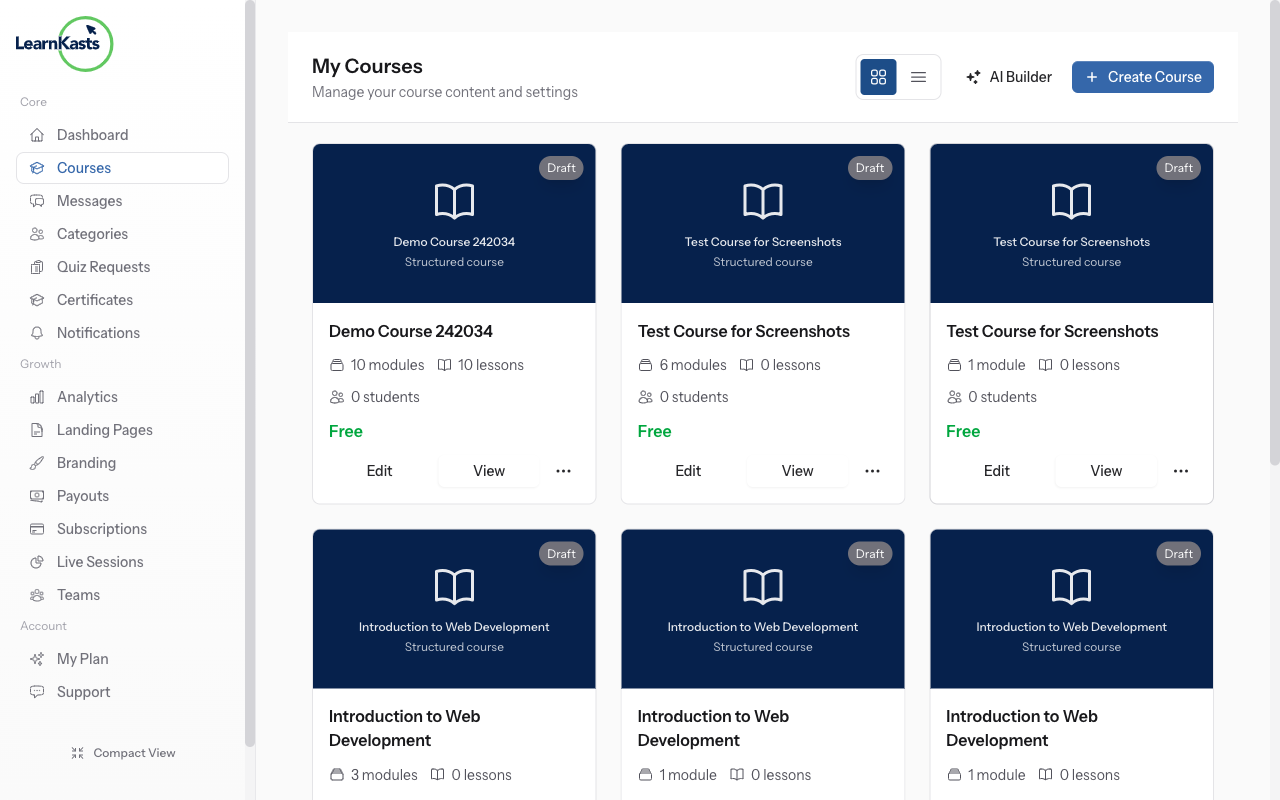
Click "Courses" in the sidebar, then click the "Create Course" button (or use the shortcut on your dashboard). This takes you to the course creation page where you'll enter your course title, description, and configure settings. You can save as draft at any time and return later to continue building your course.
Ntuziaka ndị ọzọ
Ntuziaka ndị nkuzi
Ntuziaka nzọụkwụ-na-nzọụkwụ maka imepụta ọmụmụ, ịme nzukọ ndụ na ito azụmahịa nkuzi gị.
- Getting started as an educator
- Creating your first course
- Building course curriculum
- Uploading video lessons
- Using AI to generate quizzes
- Creating quizzes and assignments
- Assignments and grading queues
- Hosting live sessions
- Creating and managing webinars
- Managing course cohorts
- Adding students to cohorts
- Setting up subscriptions
- Course reviews and ratings
- Issuing certificates
- Understanding course analytics
- Live session usage and billing
- Setting up payout methods
- Viewing revenue and payouts
- Setting up your educator subdomain
- Creating landing pages
- Using the visual page editor
- Adding page sections
- Page styling and branding
- AI Studio Composer
- AI Voice Clone & Avatar
- Traffic sources & UTM attribution
Ntuziaka ụmụ akwụkwọ
Ihe niile ụmụ akwụkwọ chọrọ iji lelee ọmụmụ, sonye na nzukọ ndụ ma soro ọganihu ha.
- Creating an account
- Browsing and finding courses
- Enrolling in a course
- Watching video lessons
- Taking notes during lessons
- Submitting assignments
- Taking quizzes
- Joining live classes
- Attending webinars
- Managing your subscriptions
- Viewing your certificates
- Writing course reviews
- Managing your orders
- Updating your profile
Otu na nchịkwa
Njikwa otu, ikike, ịkwụ ụgwọ na ngwaọrụ nchịkwa maka nzukọ.
Ntuziaka a ọ nyeere gị aka?
Ọ bụrụ na ịchọrọ mmadụ n'ezie, ndị otu nkwado anyị na-aza n'asụsụ doro anya n'ime otu ụbọchị ọrụ. Ọ dị ngwa karịa na WhatsApp.