Inviting Team Members
Add instructors, teaching assistants, and collaborators to your educator team.
-
Navigate to team management
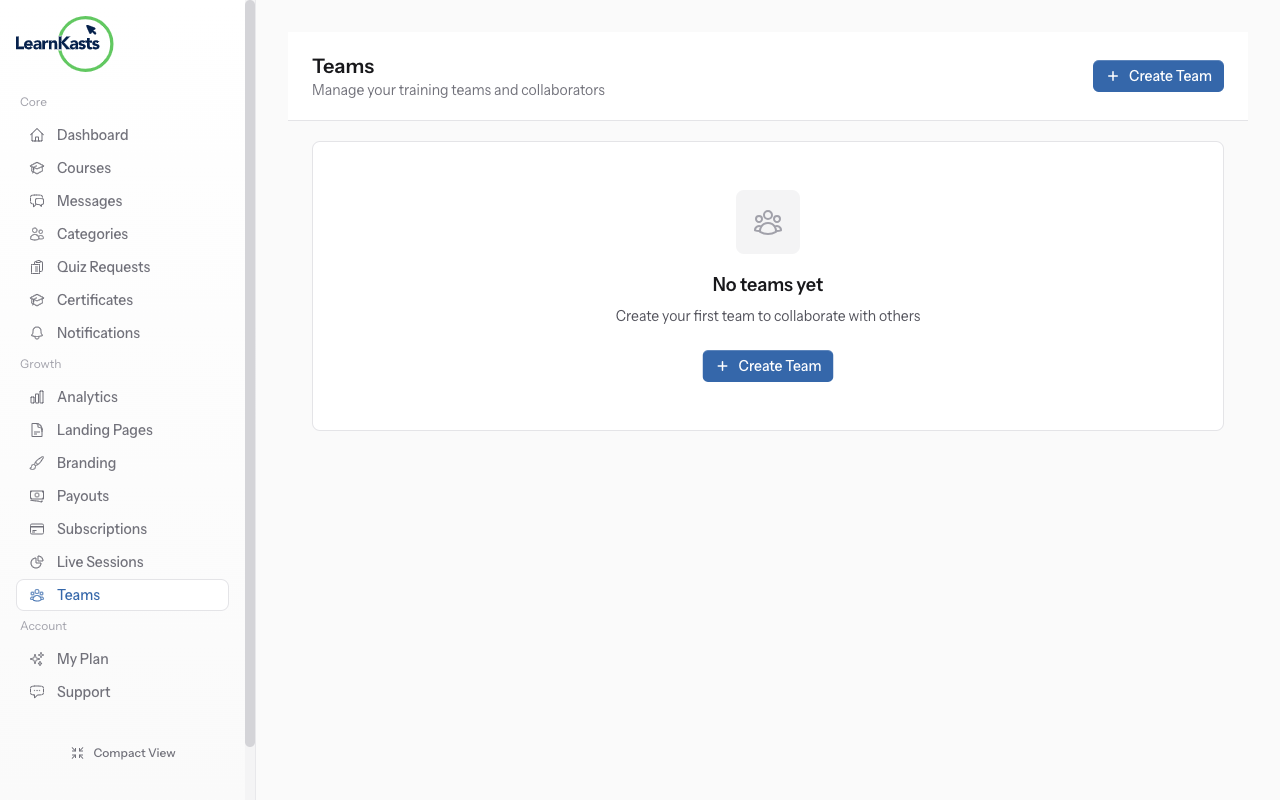
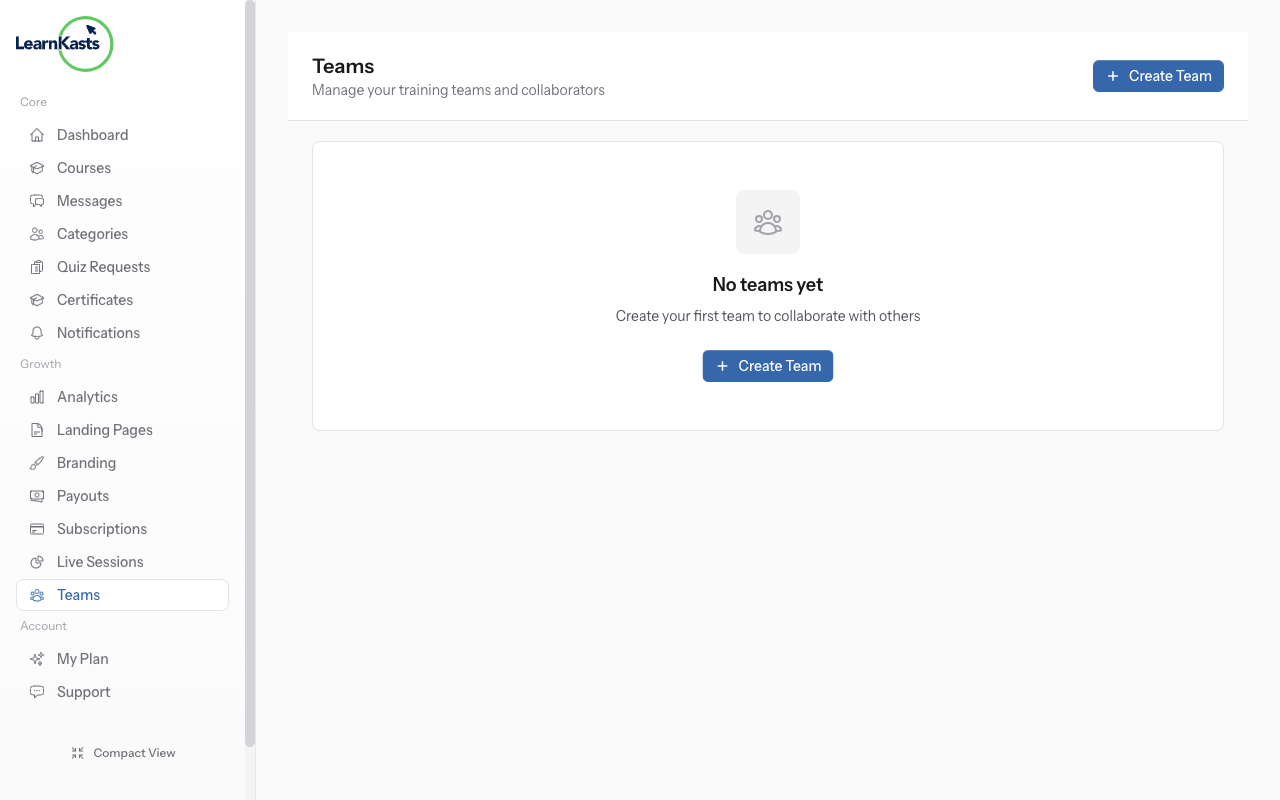
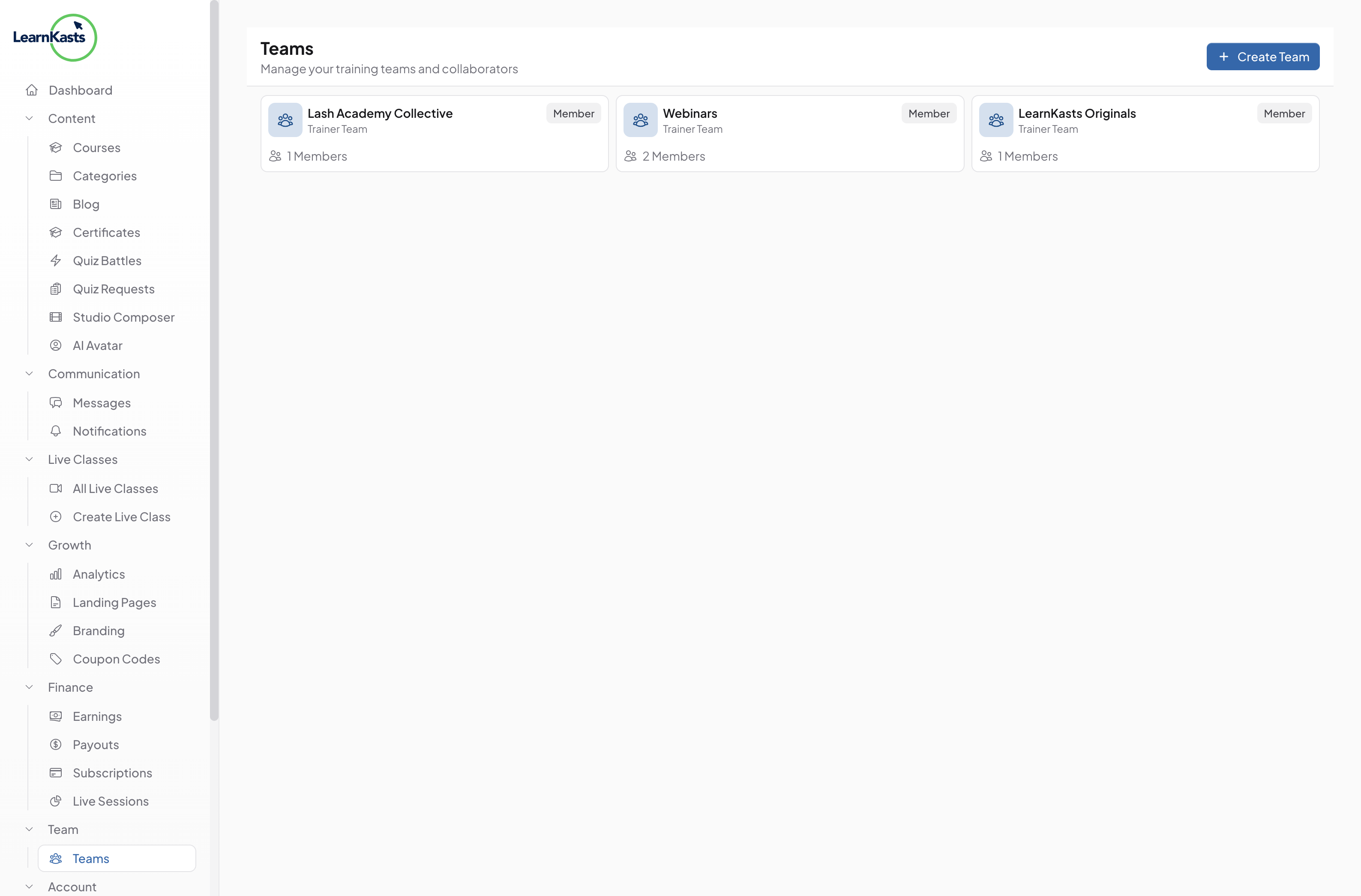
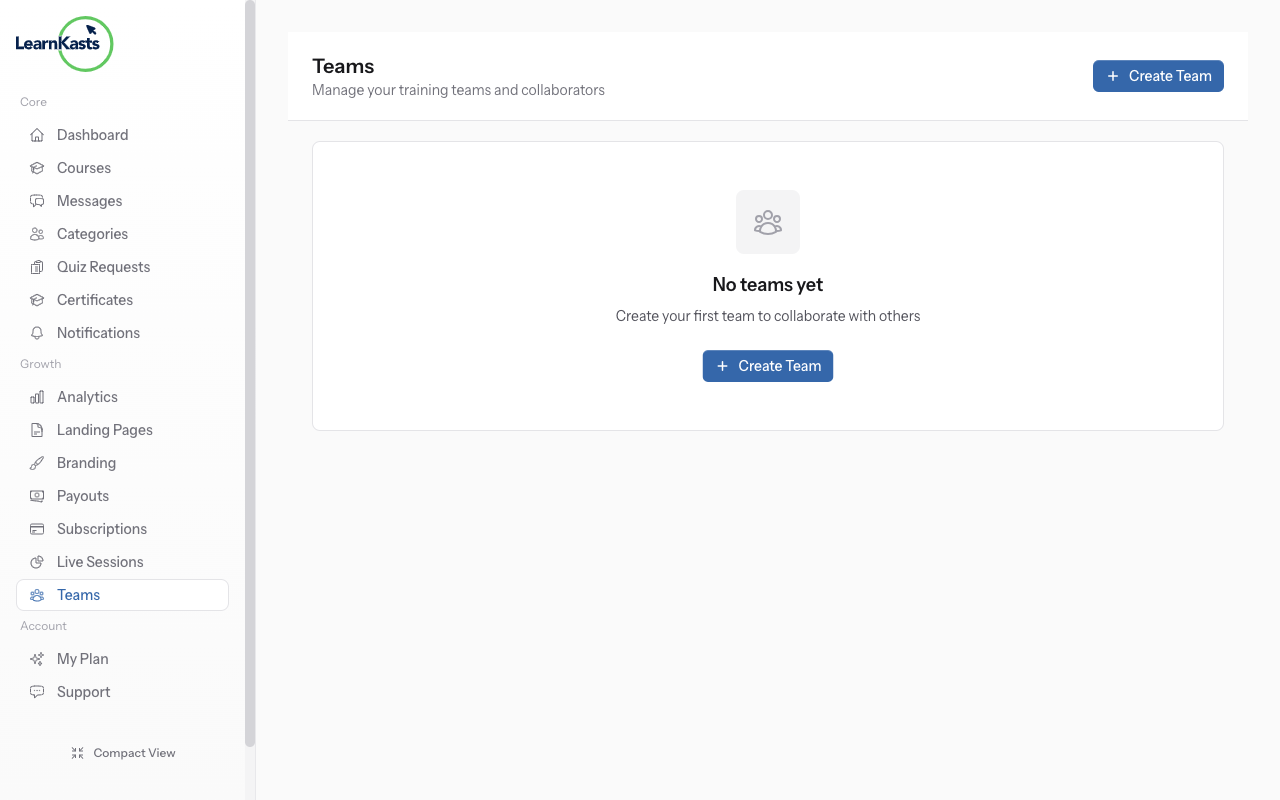
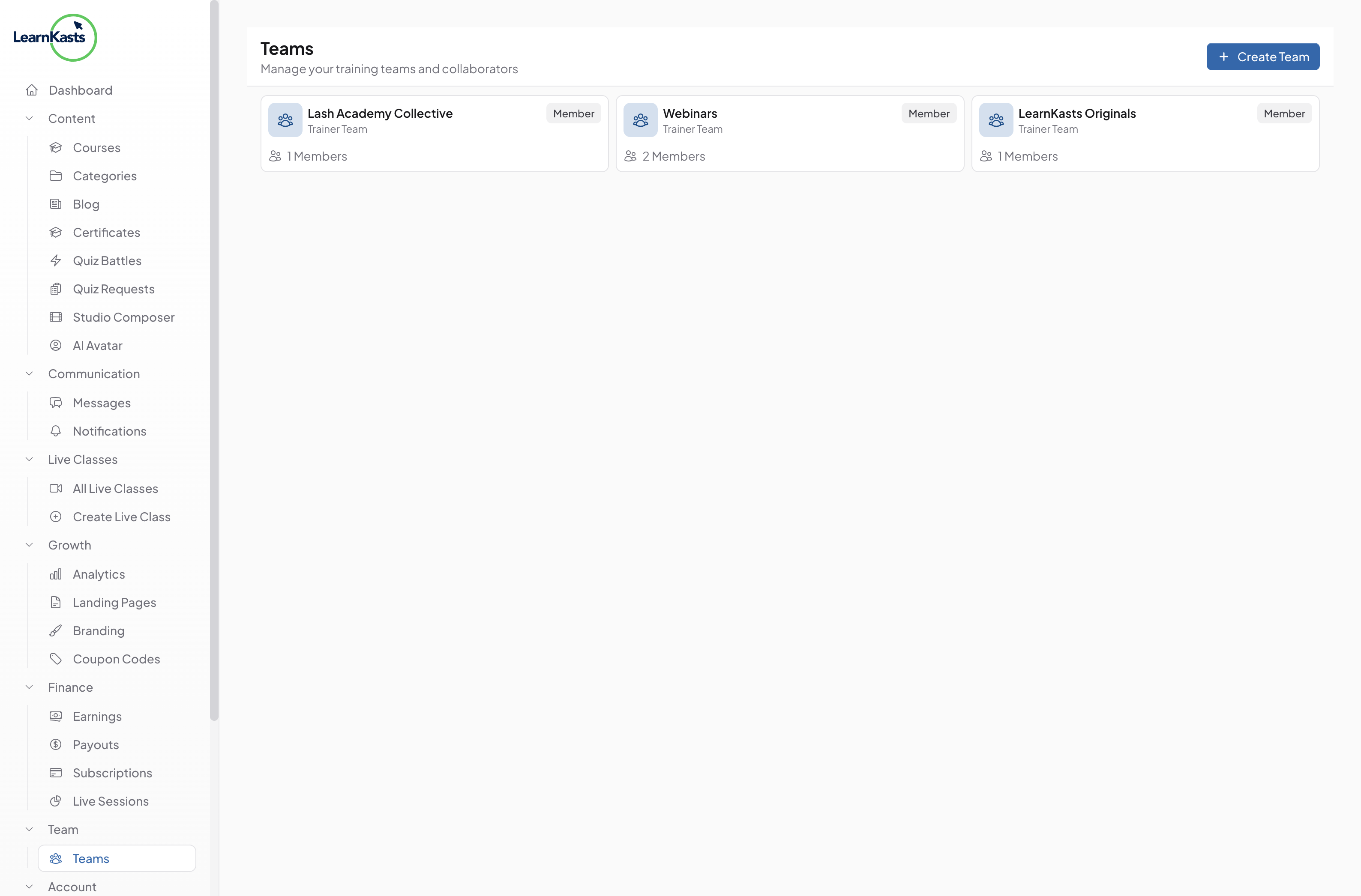
From Educator Dashboard, click "Team" or "Team Members" in the sidebar. You'll see your current team members and an "Invite" button. Only team owners and admins can invite members.
-
Click invite team member
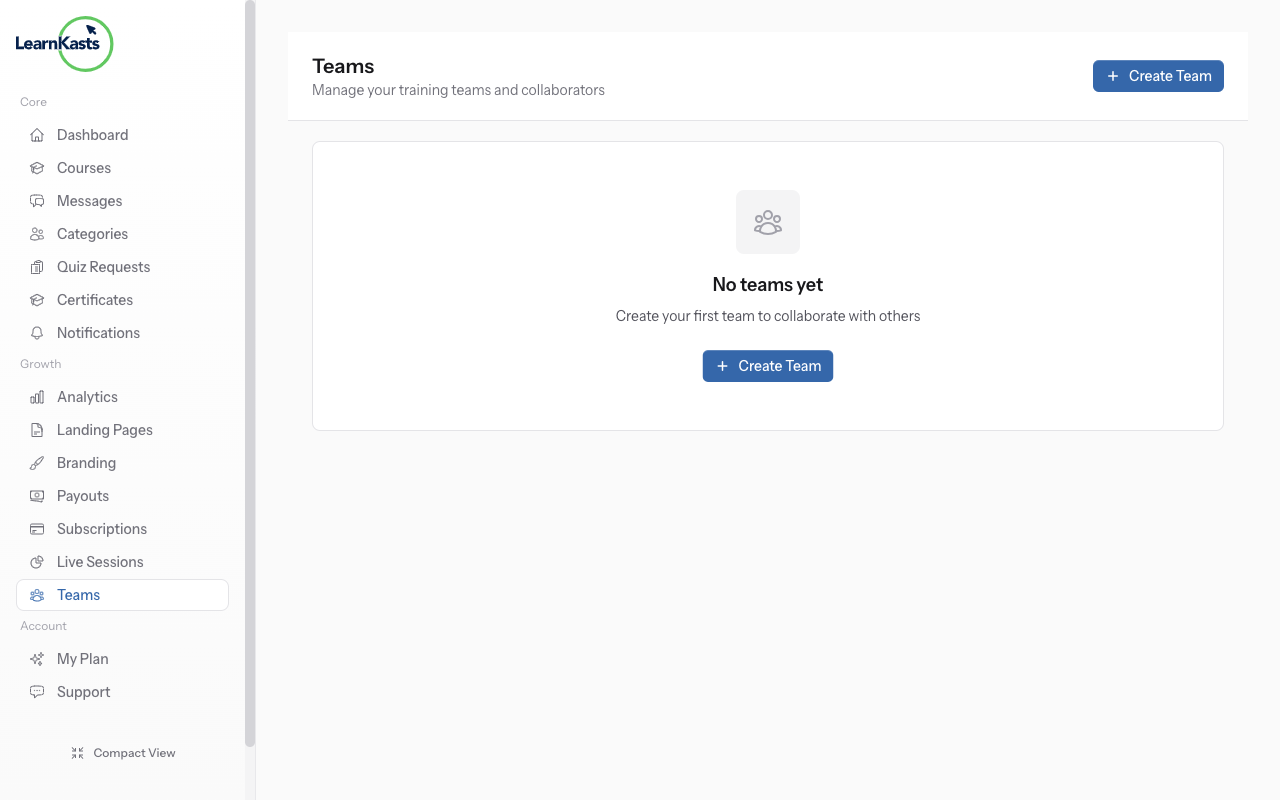
Click "Invite Team Member" or "+ Add Member" button. A modal or form will appear where you can enter the new member's details and assign their role.
-
Select team role
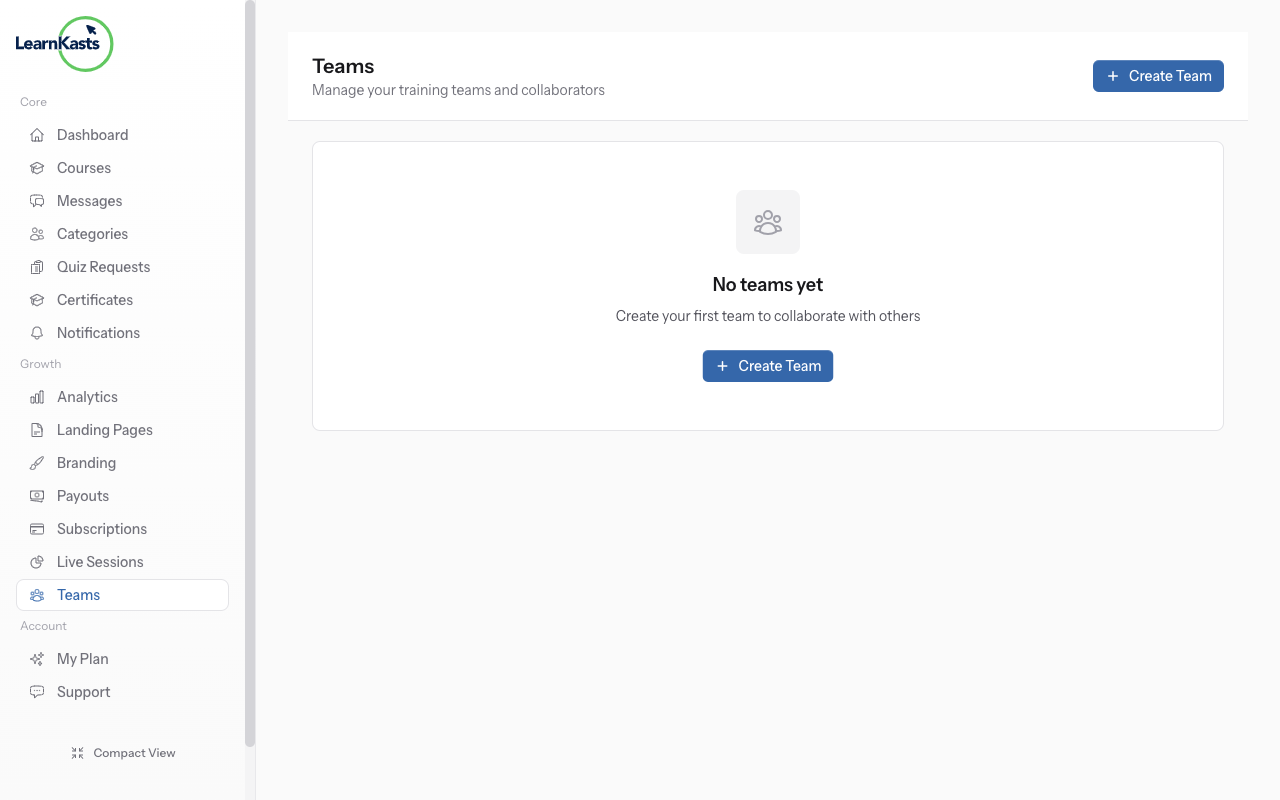
Type the email address of the person you want to invite. Add their full name. Make sure the email is correct - they'll receive an invitation link at this address.
-
Add personal message (optional)
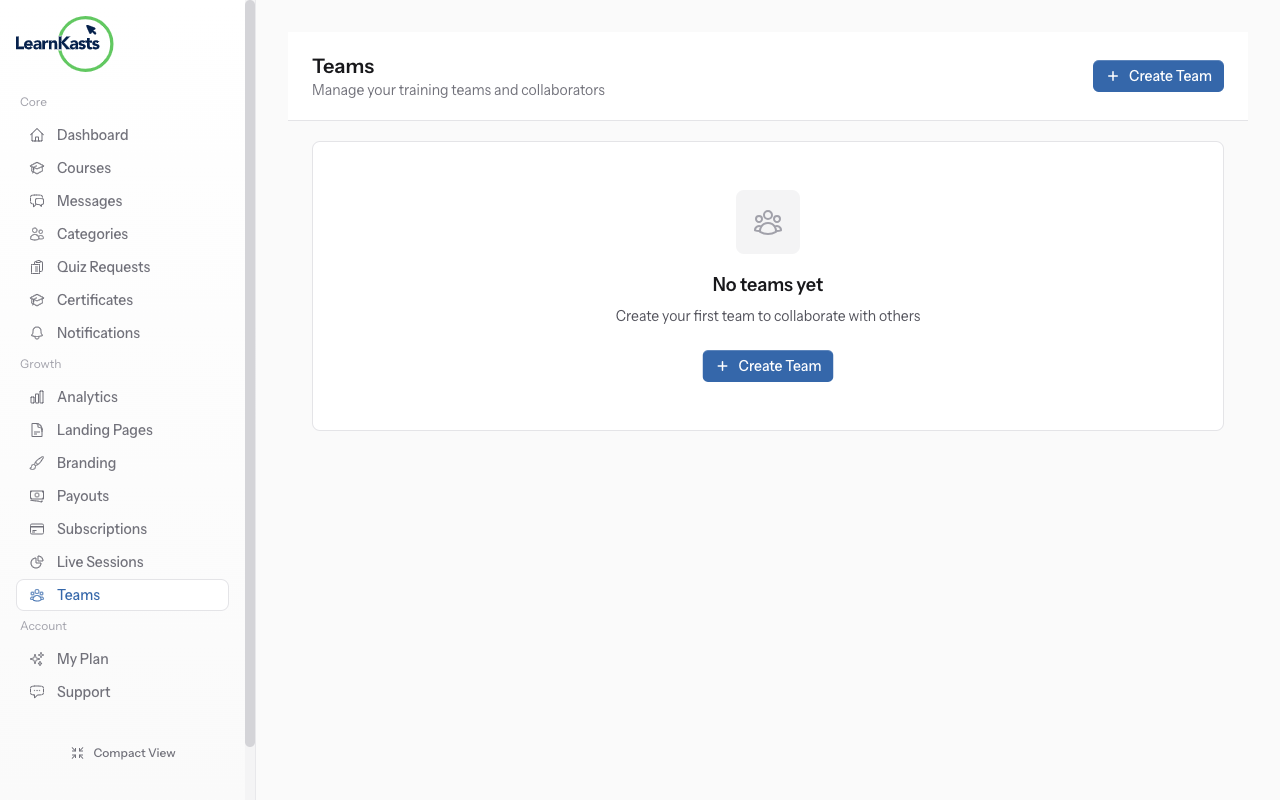
Choose their role from the dropdown: Owner (full access), Admin (manage team and courses), Instructor (create/edit courses), Teaching Assistant (grade assignments), or Editor (edit content only). Each role has different permissions.
-
Resend or cancel invitation
If you want to limit their access to specific courses only, check "Assign to specific courses" and select which courses they can access. Leave unchecked for access to all courses.
-
Add personal message (optional)
Include a personal note in the invitation email explaining why you're inviting them and what you'd like them to help with. Makes the invitation more welcoming and clear.
-
Send invitation
Click "Send Invitation" button. The person receives an email with an invite link. They have 7 days to accept (default). Pending invitations show in your team list with "Pending" status.
-
Resend or cancel invitation
If they didn't receive it, click "Resend Invitation". To cancel, click the three dots menu next to pending invite → "Cancel Invitation". Cancelled invites cannot be used even if they have the link.
More guides
Educator guides
Step-by-step guides for creating courses, hosting live sessions and growing your teaching business.
- Getting started as an educator
- Creating your first course
- Building course curriculum
- Uploading video lessons
- Using AI to generate quizzes
- Creating quizzes and assignments
- Assignments and grading queues
- Hosting live sessions
- Creating and managing webinars
- Managing course cohorts
- Adding students to cohorts
- Setting up subscriptions
- Course reviews and ratings
- Issuing certificates
- Understanding course analytics
- Live session usage and billing
- Setting up payout methods
- Viewing revenue and payouts
- Setting up your educator subdomain
- Creating landing pages
- Using the visual page editor
- Adding page sections
- Page styling and branding
- AI Studio Composer
- AI Voice Clone & Avatar
- Traffic sources & UTM attribution
Learner guides
Everything learners need to browse courses, join live sessions and track their progress.
- Creating an account
- Browsing and finding courses
- Enrolling in a course
- Watching video lessons
- Taking notes during lessons
- Submitting assignments
- Taking quizzes
- Joining live classes
- Attending webinars
- Managing your subscriptions
- Viewing your certificates
- Writing course reviews
- Managing your orders
- Updating your profile
Team & admin
Team management, permissions, billing and administrative tools for organisations.
Did this guide help?
If you need a real human, our support team replies in plain English within one working day. Faster on WhatsApp.