Managing Course Reviews
View, respond to, and moderate student reviews and ratings for your courses.
-
Access course reviews
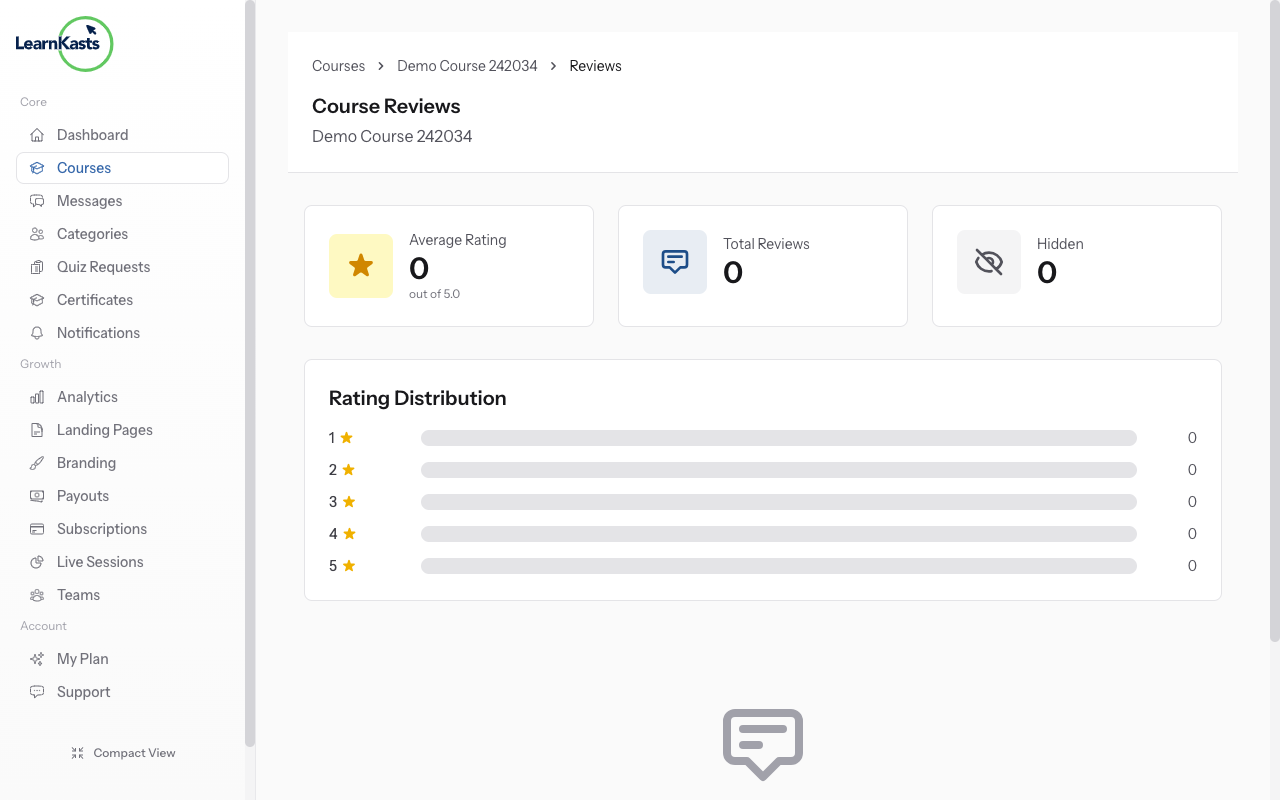
Go to Educator Dashboard → Courses → Click "Edit" on your course → Click the three dots (•••) menu in top right → Select "Manage Reviews". You'll see all reviews for this course.
-
View rating overview
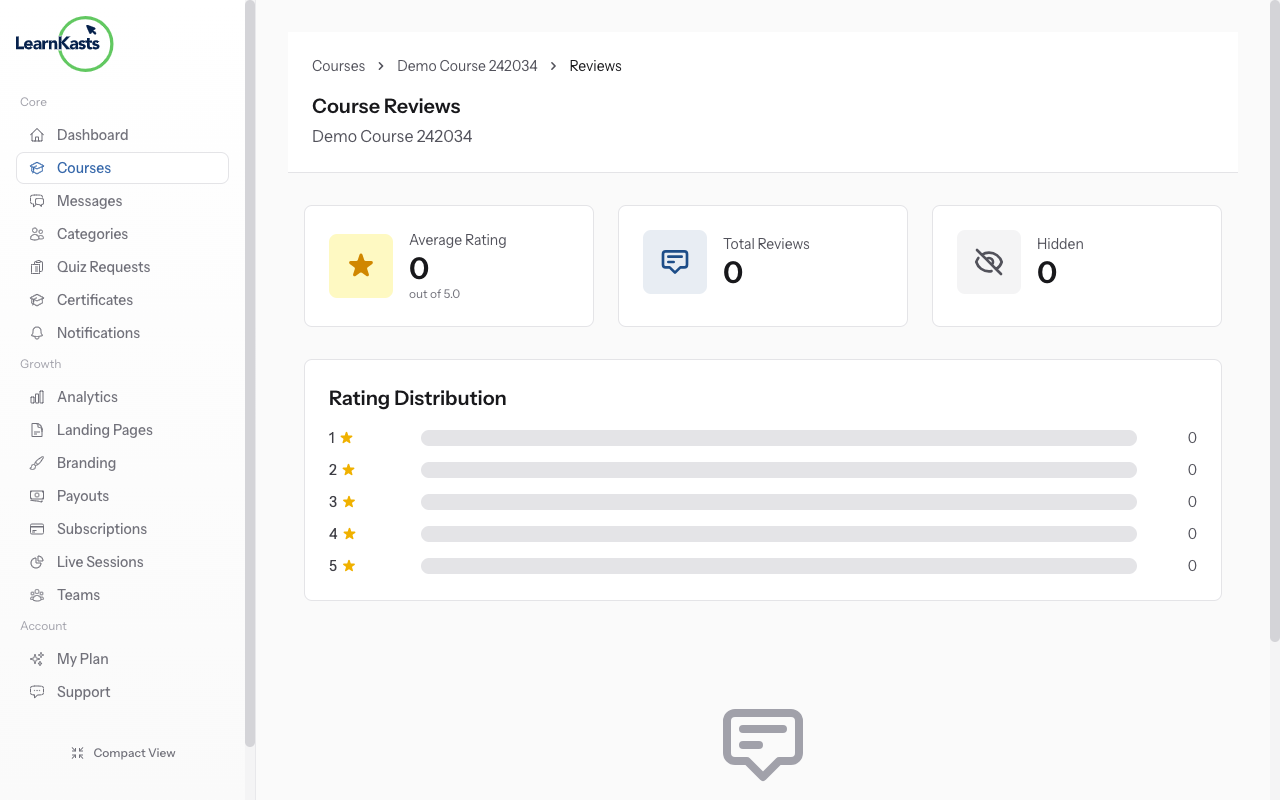
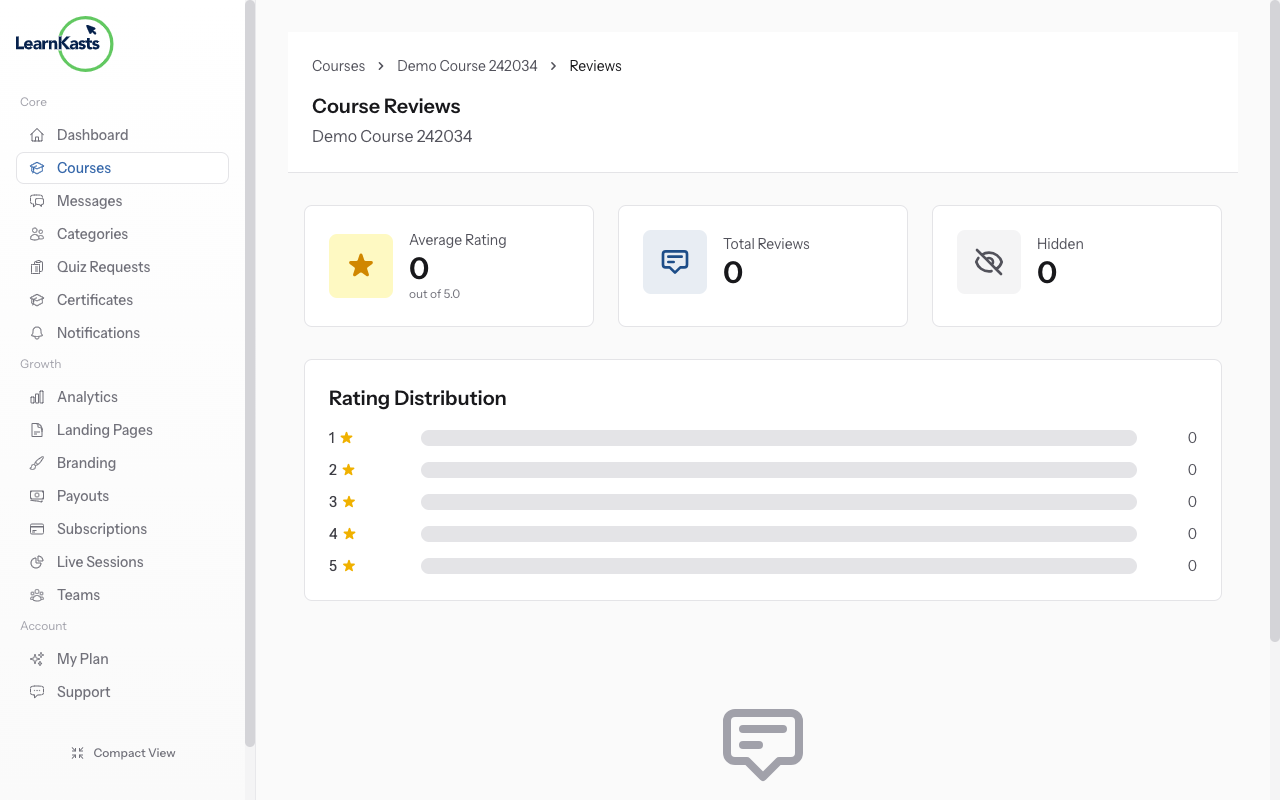
At the top, see your average rating (out of 5 stars), total number of reviews, and rating distribution chart showing how many 5-star, 4-star, etc. reviews you have. This helps you understand overall student satisfaction.
-
Hide inappropriate reviews
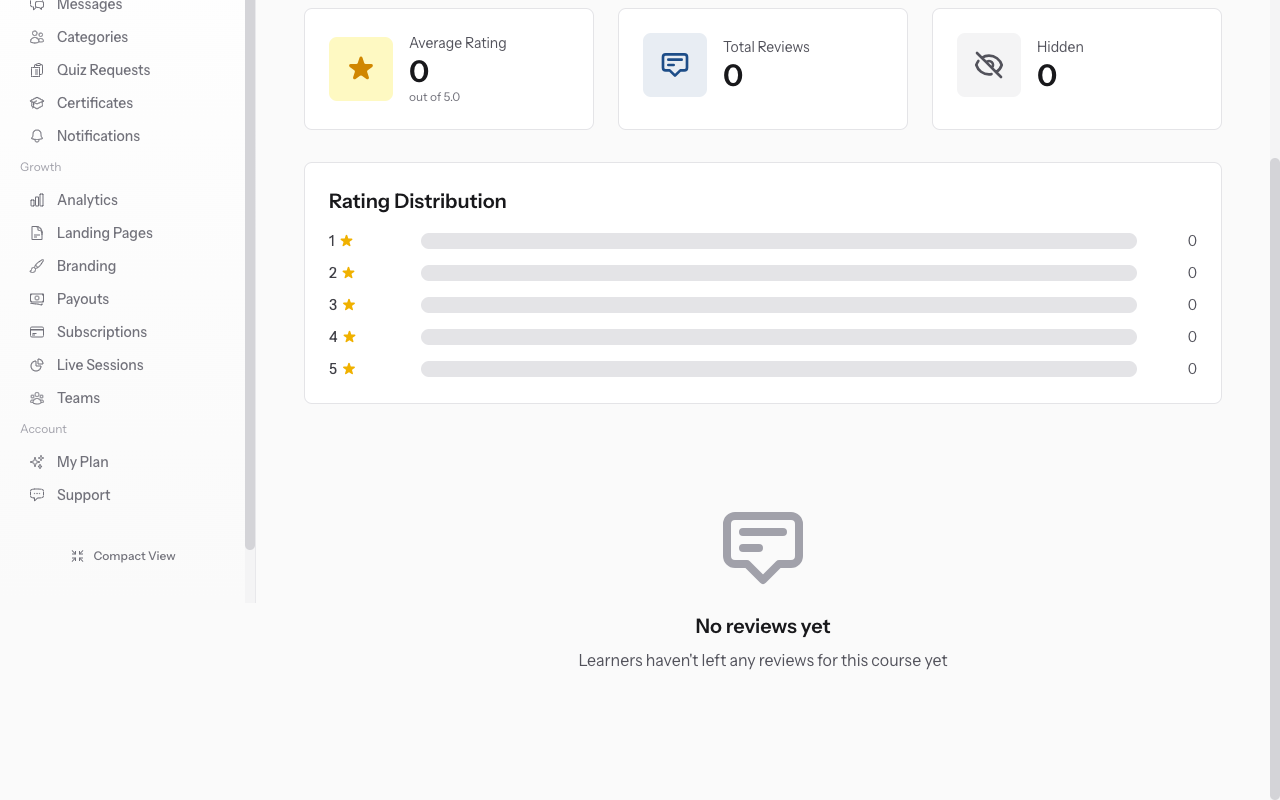
Scroll through all student reviews. Each shows: student name, rating (1-5 stars), comment text, and date posted. Reviews appear newest first. Use this feedback to improve your course.
-
Encourage more reviews
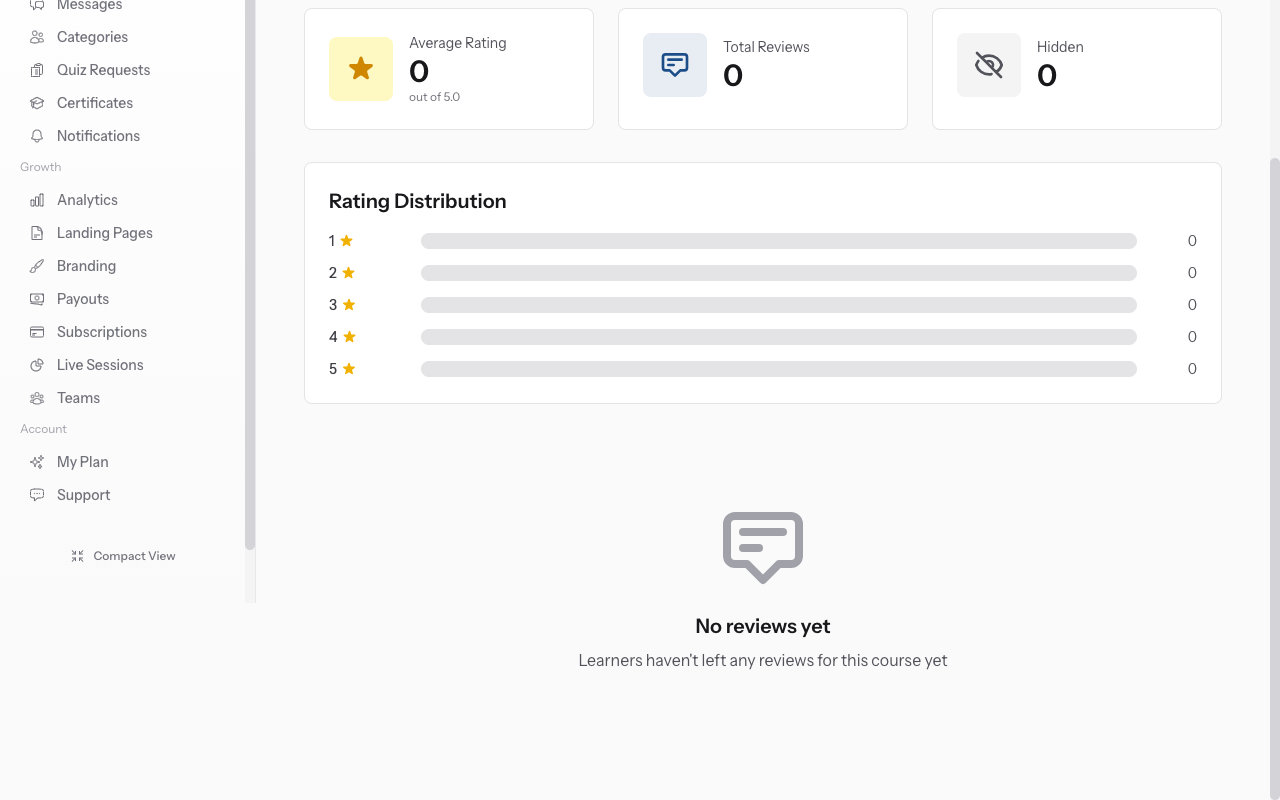
If a review violates guidelines, click the three dots menu next to it → "Hide Review". Hidden reviews won't show on your public course page but remain visible to you. You cannot delete reviews, only hide them.
-
Show previously hidden reviews
To unhide a review, find it in the hidden reviews section → Click three dots → "Show Review". It will reappear on your public course page. Use this if you hid a review by mistake.
-
Encourage more reviews
Reviews build trust with potential students. After students complete your course or major milestones, send a message encouraging them to leave honest feedback. More reviews = higher credibility.
More guides
Educator guides
Step-by-step guides for creating courses, hosting live sessions and growing your teaching business.
- Getting started as an educator
- Creating your first course
- Building course curriculum
- Uploading video lessons
- Using AI to generate quizzes
- Creating quizzes and assignments
- Assignments and grading queues
- Hosting live sessions
- Creating and managing webinars
- Managing course cohorts
- Adding students to cohorts
- Setting up subscriptions
- Course reviews and ratings
- Issuing certificates
- Understanding course analytics
- Live session usage and billing
- Setting up payout methods
- Viewing revenue and payouts
- Setting up your educator subdomain
- Creating landing pages
- Using the visual page editor
- Adding page sections
- Page styling and branding
- AI Studio Composer
- AI Voice Clone & Avatar
- Traffic sources & UTM attribution
Learner guides
Everything learners need to browse courses, join live sessions and track their progress.
- Creating an account
- Browsing and finding courses
- Enrolling in a course
- Watching video lessons
- Taking notes during lessons
- Submitting assignments
- Taking quizzes
- Joining live classes
- Attending webinars
- Managing your subscriptions
- Viewing your certificates
- Writing course reviews
- Managing your orders
- Updating your profile
Team & admin
Team management, permissions, billing and administrative tools for organisations.
Did this guide help?
If you need a real human, our support team replies in plain English within one working day. Faster on WhatsApp.