Platform Subscription Plans
Understand platform-level subscriptions and how to manage team billing.
-
Access platform subscriptions
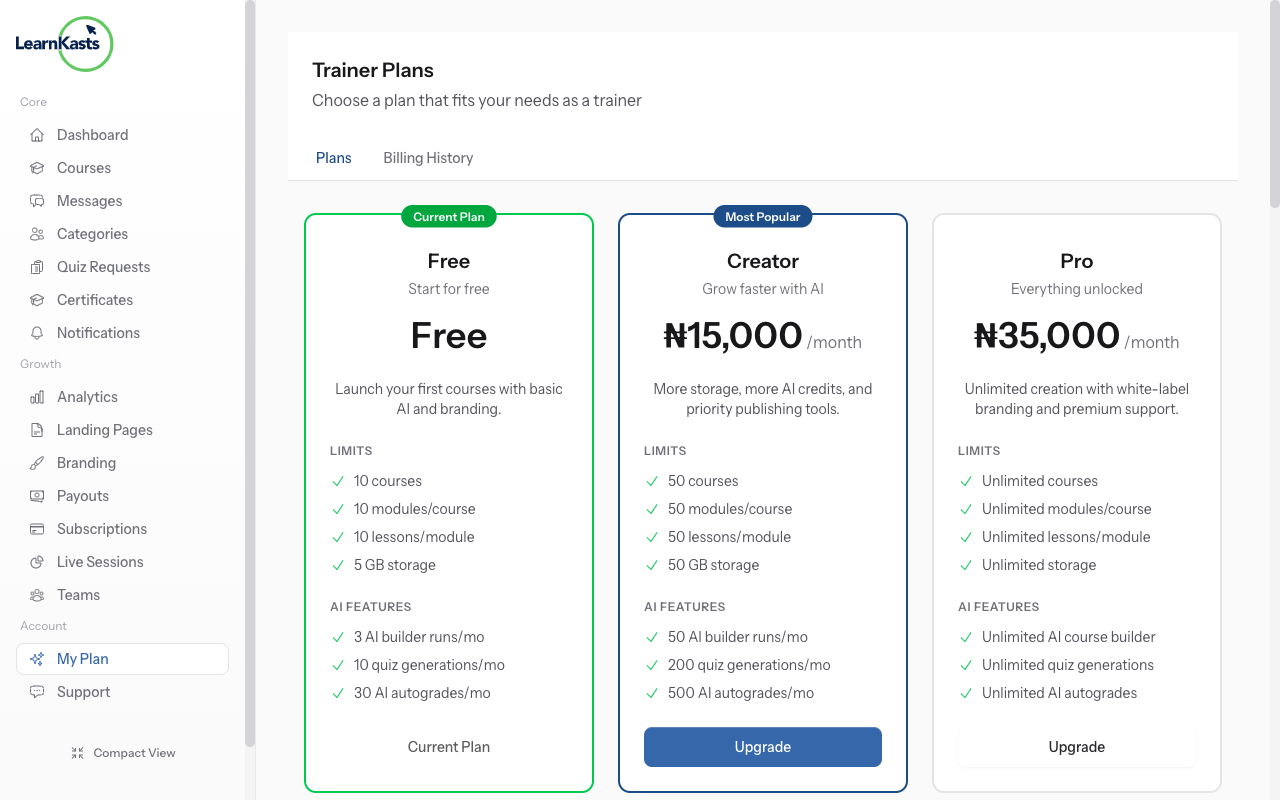
From your team admin dashboard, go to Settings → "Subscription" or "Billing". This shows your current platform plan, features, and billing status.
-
Compare available plans
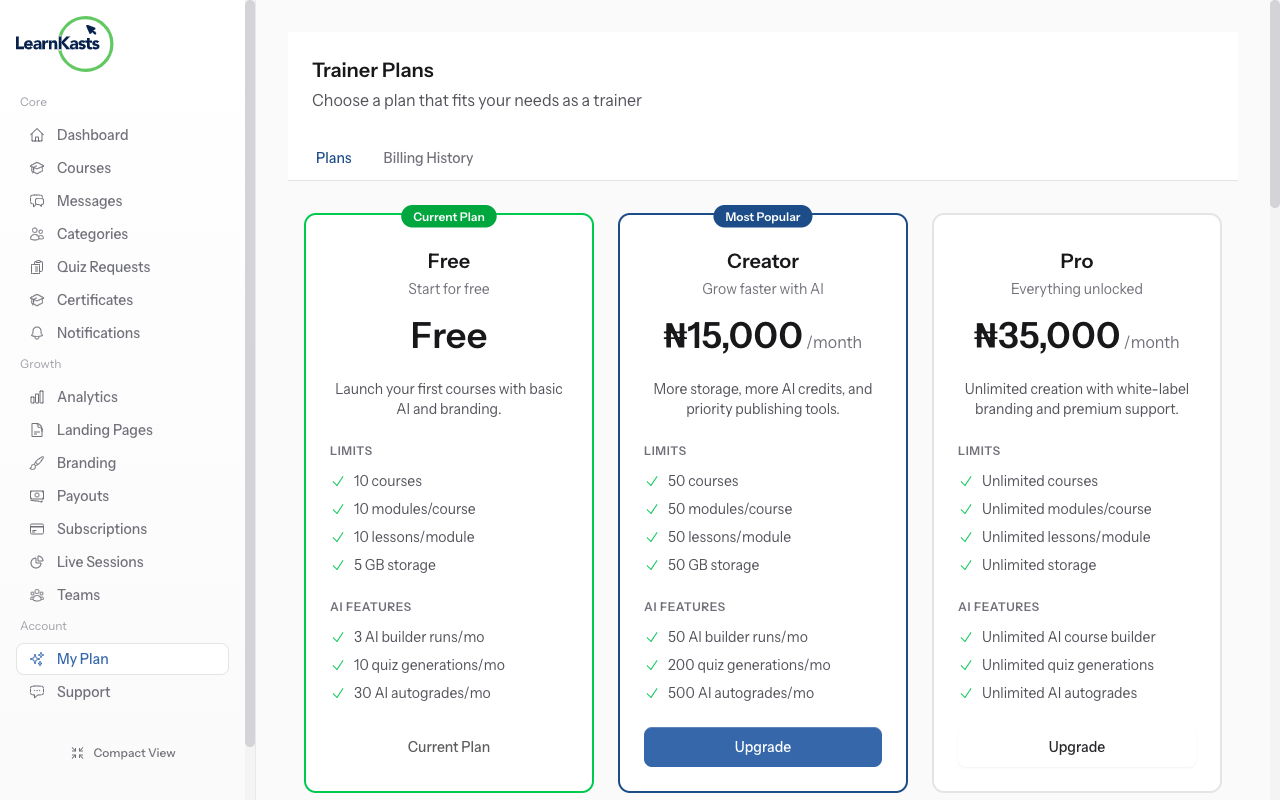
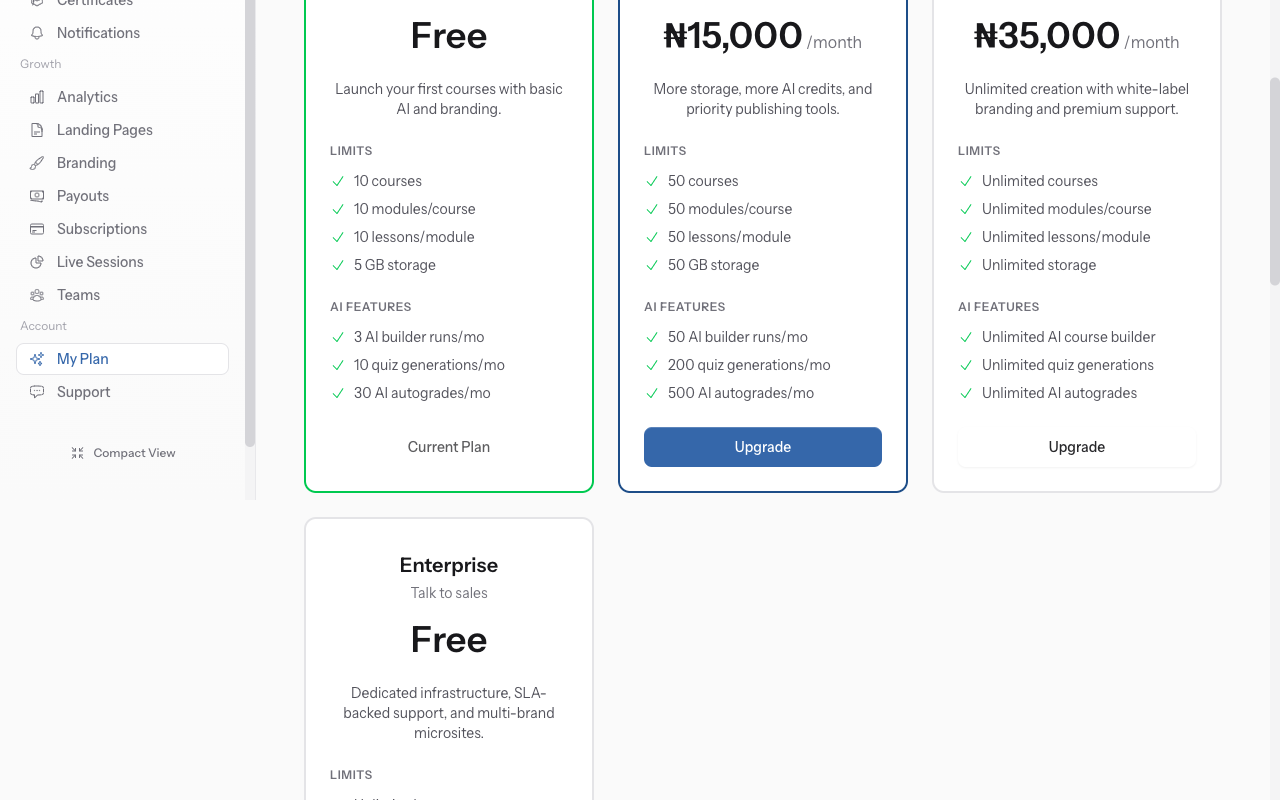
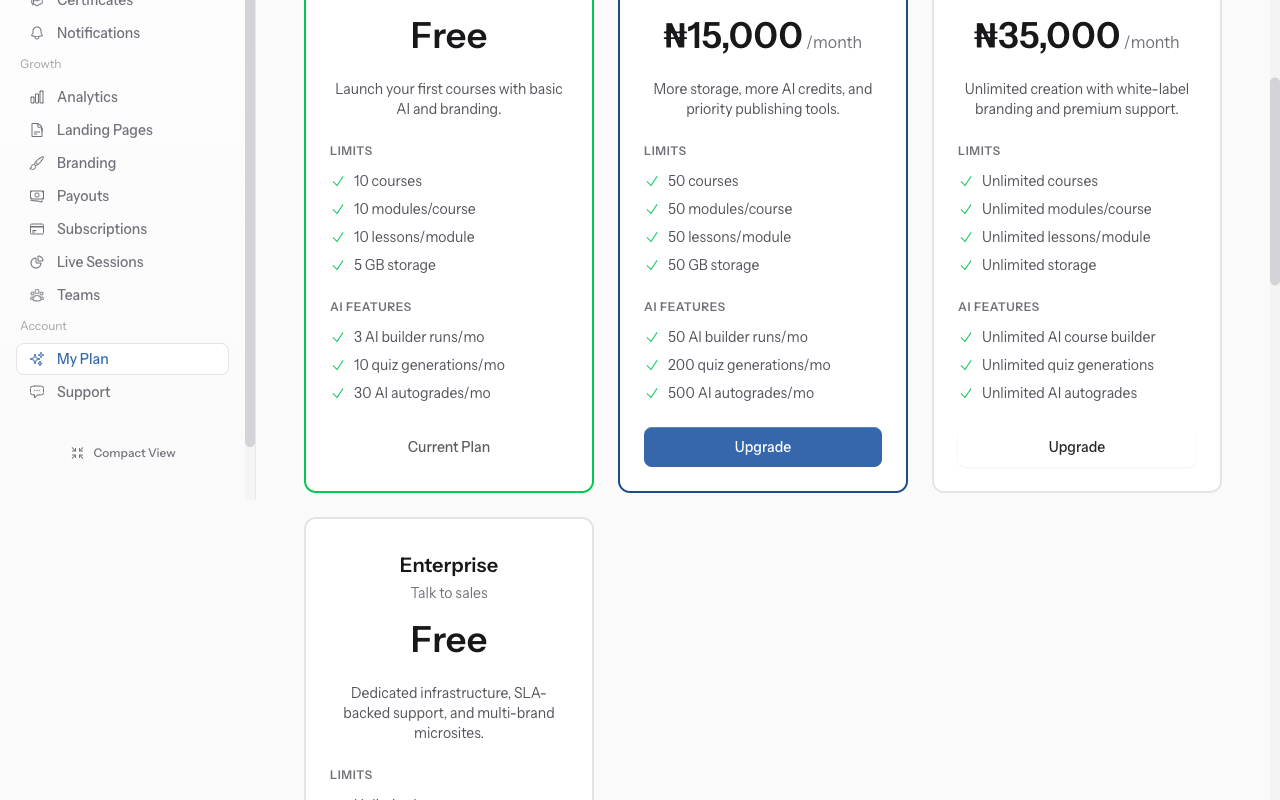
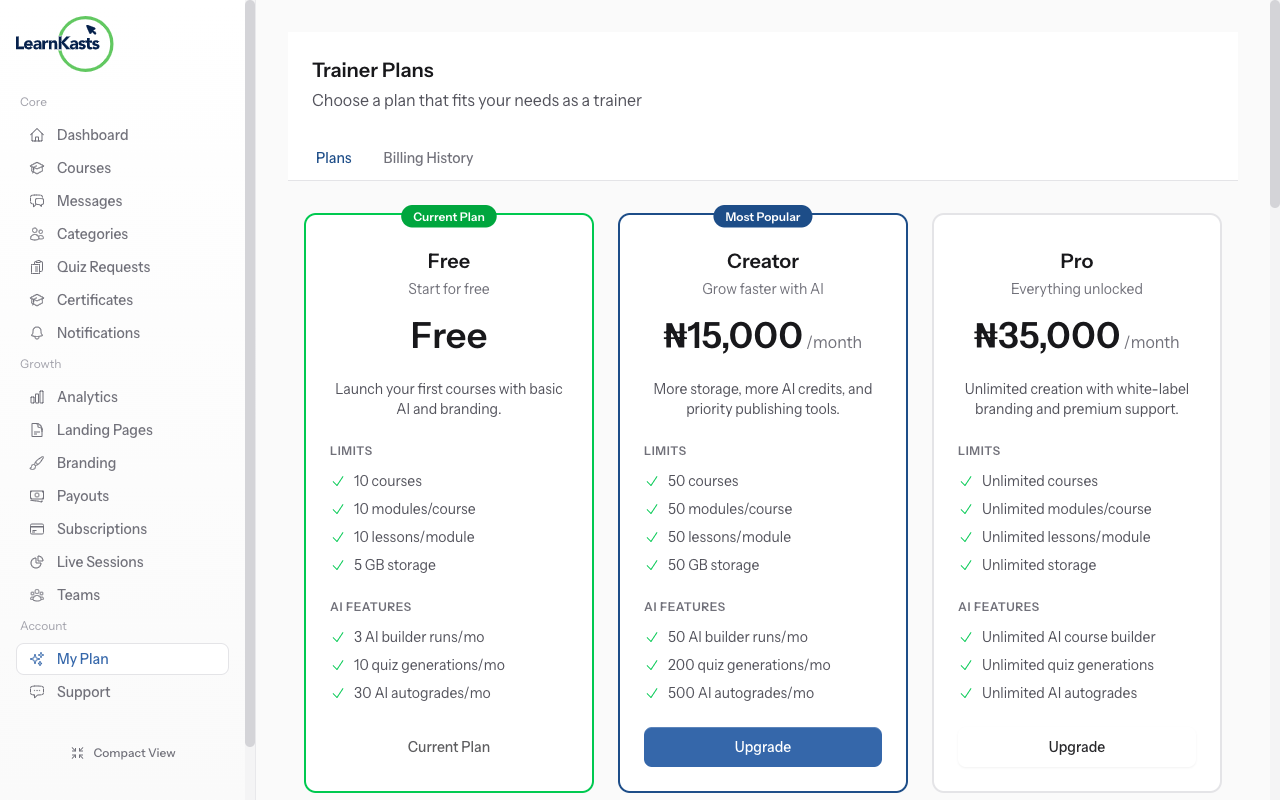
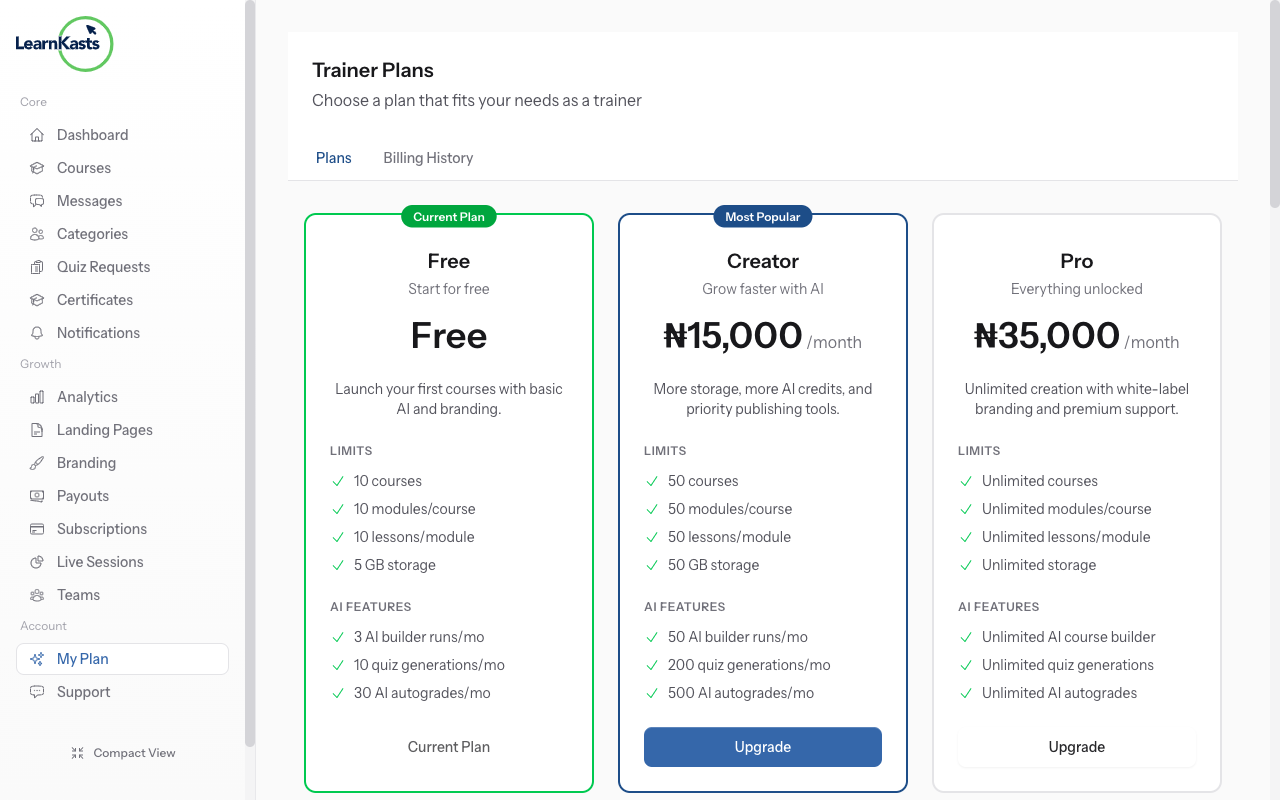
View all platform plans: Free, Starter, Professional, Enterprise. Compare features like number of courses, team members, storage, analytics, and support levels.
-
Manage billing information
Click "Upgrade" on a higher plan. Review what's included. Enter payment details. Your team immediately gets access to new features. Billing is prorated.
-
Downgrade or cancel
Update your billing email, payment method, or billing address. Download past invoices for accounting. Set up automatic billing notifications.
-
Add team seats
Some plans charge per team member. To add seats, click "Add Seats". Enter number needed. See updated pricing before confirming. New members can be invited immediately.
-
Downgrade or cancel
To downgrade, select a lower plan. Features above the new plan's limits become read-only. To cancel entirely, export your data first, then click "Cancel Subscription".
More guides
Educator guides
Step-by-step guides for creating courses, hosting live sessions and growing your teaching business.
- Getting started as an educator
- Creating your first course
- Building course curriculum
- Uploading video lessons
- Using AI to generate quizzes
- Creating quizzes and assignments
- Assignments and grading queues
- Hosting live sessions
- Creating and managing webinars
- Managing course cohorts
- Adding students to cohorts
- Setting up subscriptions
- Course reviews and ratings
- Issuing certificates
- Understanding course analytics
- Live session usage and billing
- Setting up payout methods
- Viewing revenue and payouts
- Setting up your educator subdomain
- Creating landing pages
- Using the visual page editor
- Adding page sections
- Page styling and branding
- AI Studio Composer
- AI Voice Clone & Avatar
- Traffic sources & UTM attribution
Learner guides
Everything learners need to browse courses, join live sessions and track their progress.
- Creating an account
- Browsing and finding courses
- Enrolling in a course
- Watching video lessons
- Taking notes during lessons
- Submitting assignments
- Taking quizzes
- Joining live classes
- Attending webinars
- Managing your subscriptions
- Viewing your certificates
- Writing course reviews
- Managing your orders
- Updating your profile
Team & admin
Team management, permissions, billing and administrative tools for organisations.
Did this guide help?
If you need a real human, our support team replies in plain English within one working day. Faster on WhatsApp.