Taking Notes During Lessons
Capture key points with timestamped notes that sync with your video lessons.
-
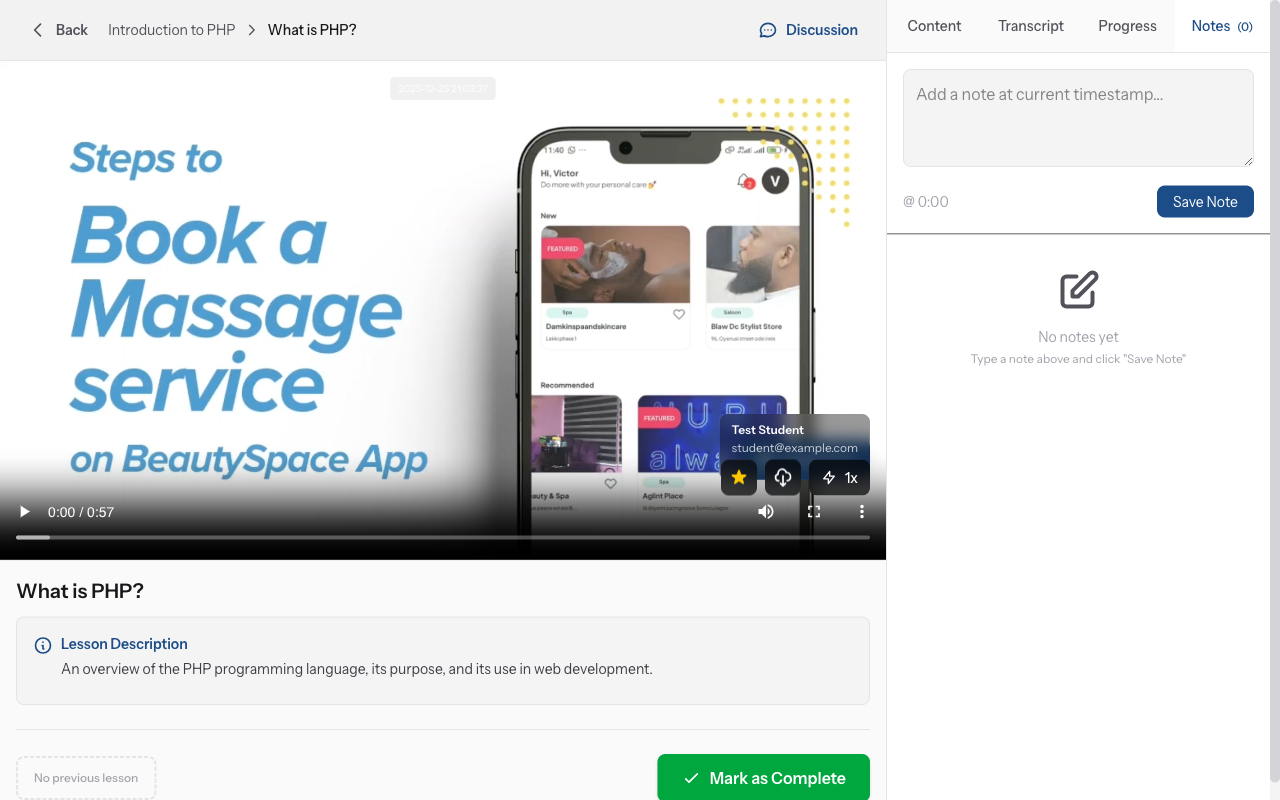
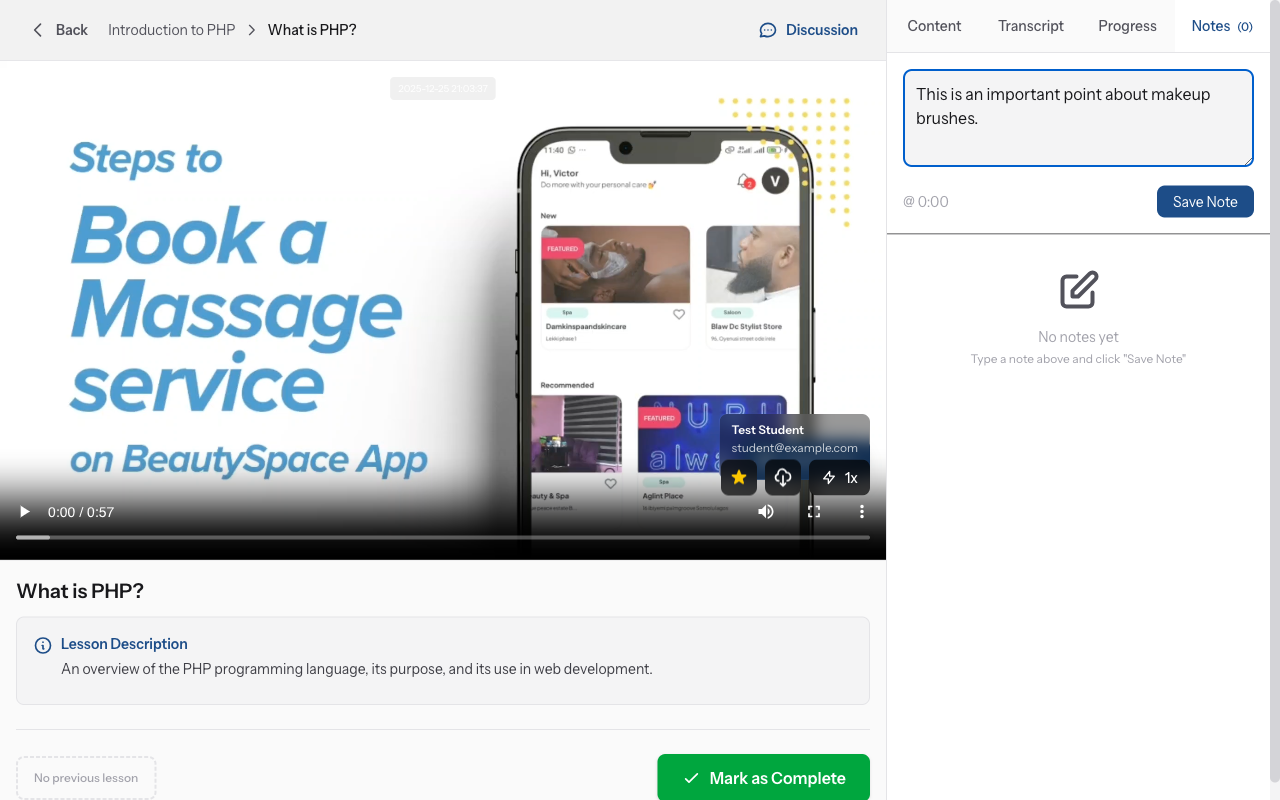
Open the notes panel
While watching a video lesson, look for the "Notes" tab next to or below the video player. Click it to open the notes panel. This is your personal notepad synced with the lesson.
-
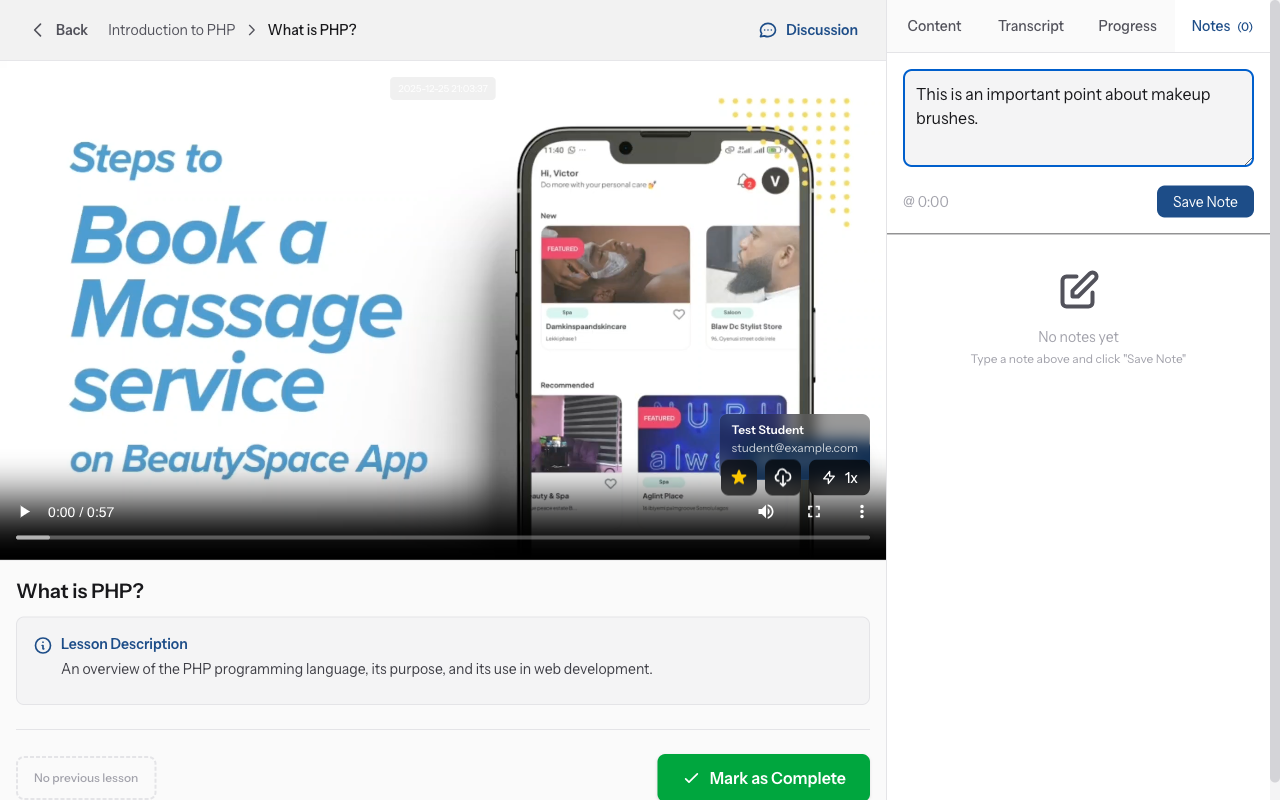
Create a new note
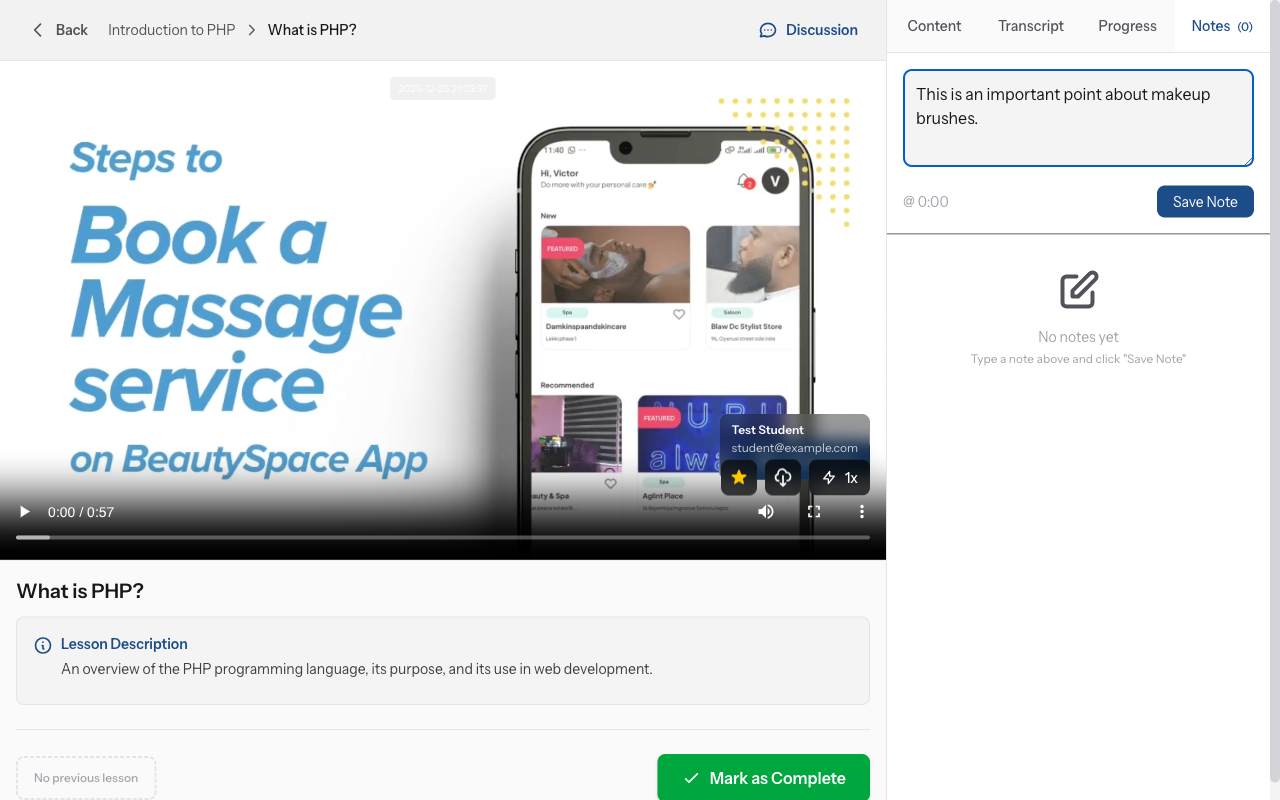
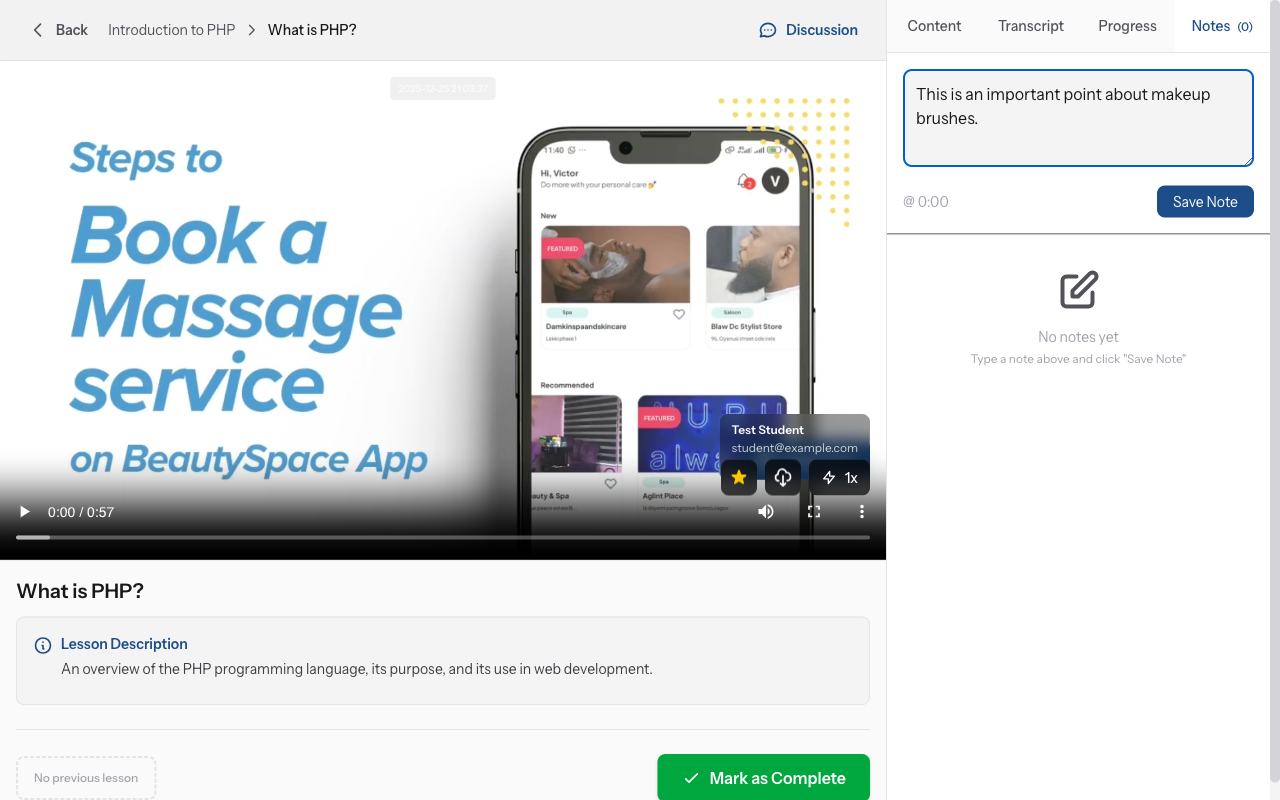
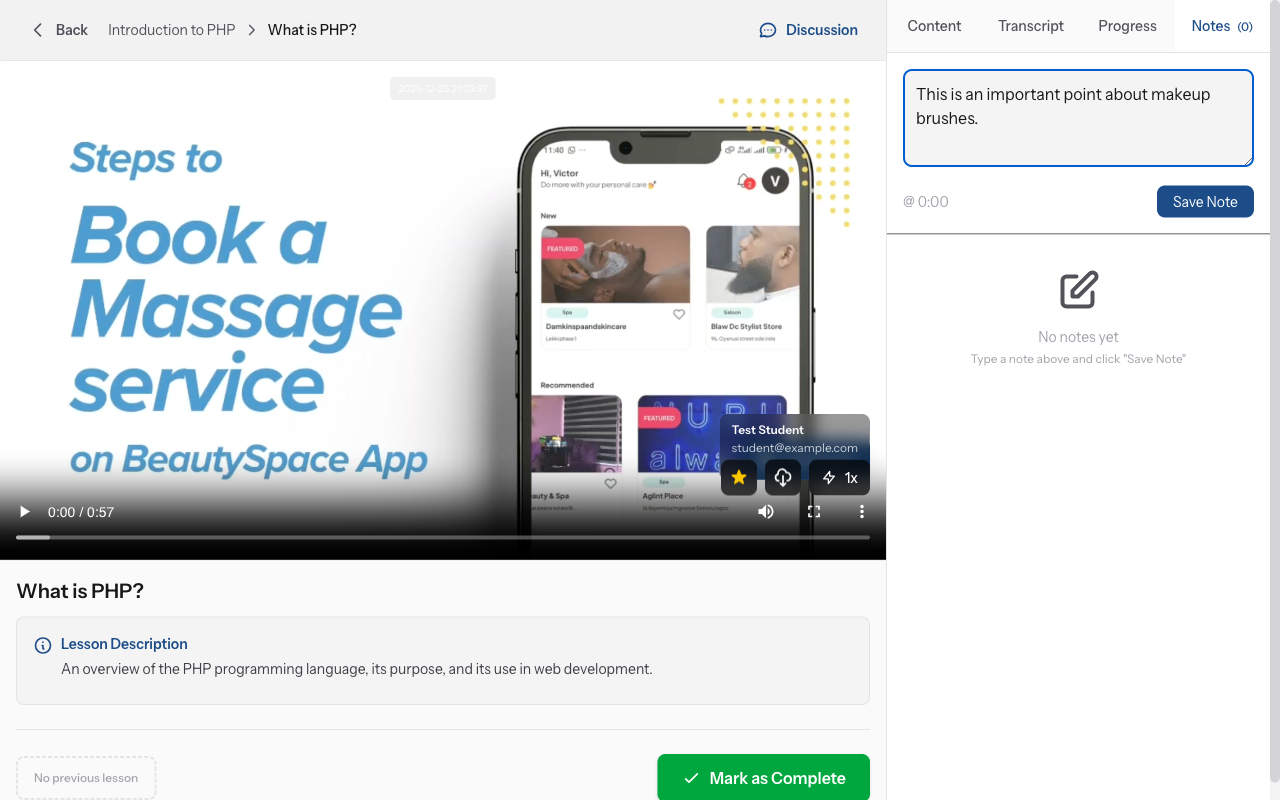
Click in the note text field and start typing. Write down important points, questions, or reminders. Press Enter or click "Save Note" to save it. Your note is automatically timestamped with the current video time.
-
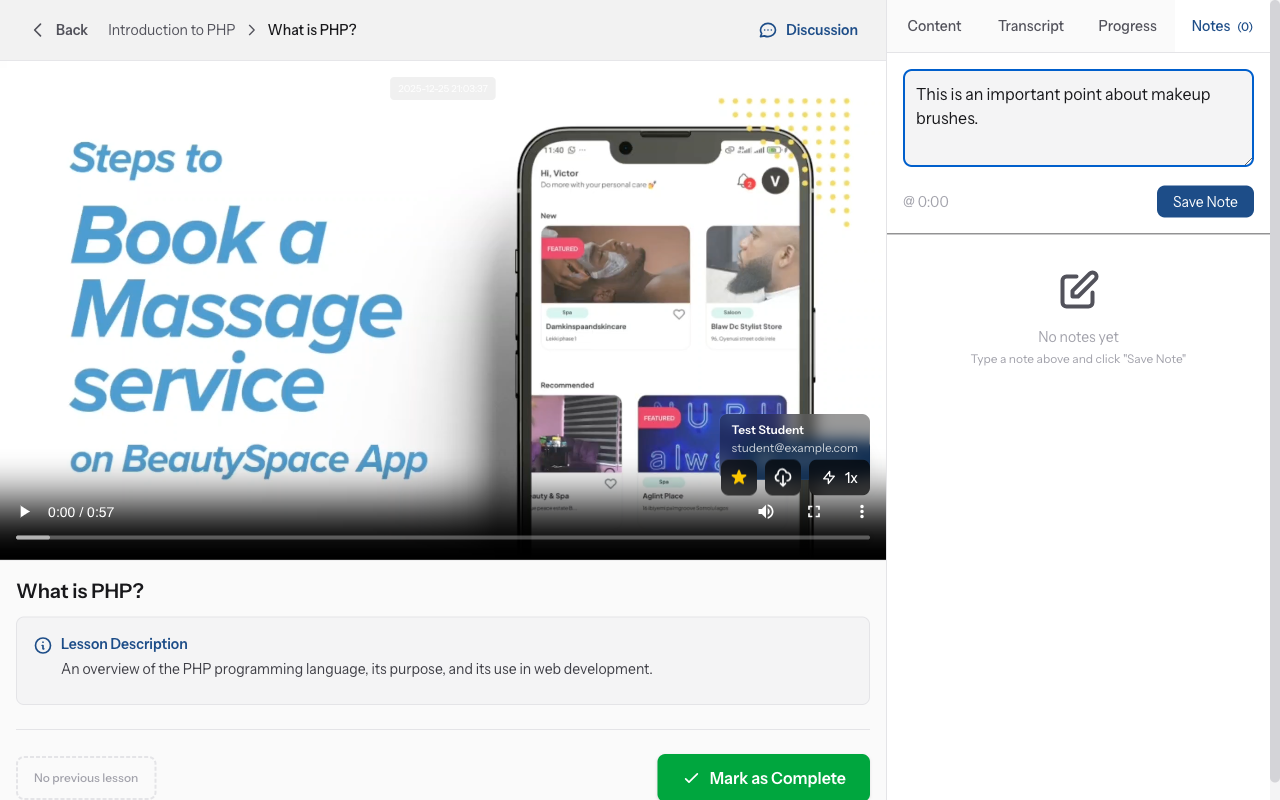
View your timestamped notes
All saved notes appear below the text field with timestamps (e.g., "05:23"). The timestamp shows when in the video you created that note. This helps you remember the context of each note.
-
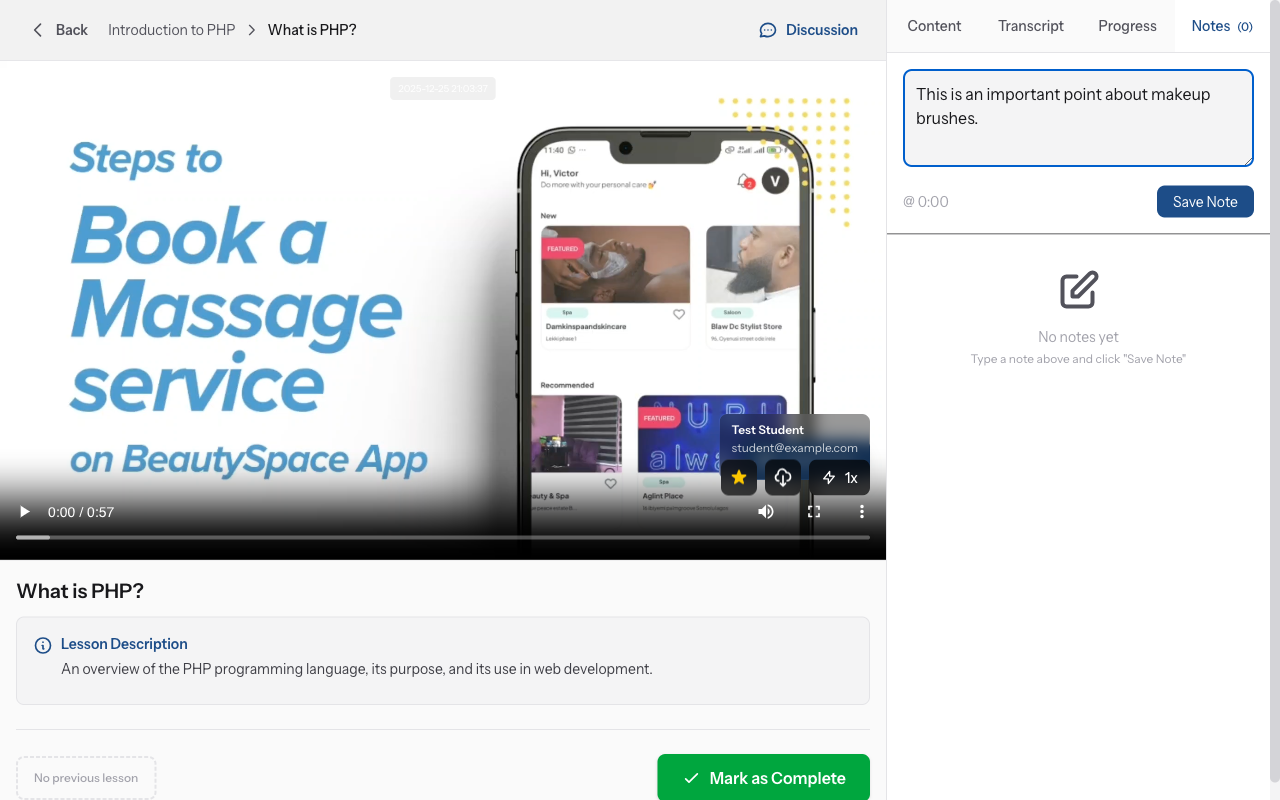
Jump to note timestamp
Click on any note's timestamp link. The video will jump directly to that moment, so you can review the content that inspired your note. Perfect for studying and reviewing key concepts.
-
Edit your notes
Click the edit icon (pencil) next to any note to modify it. Update your notes as you learn more or need to clarify points. Click "Save" to keep changes or "Cancel" to discard.
-
Delete notes
Click the delete icon (trash can) next to any note you no longer need. Confirm deletion when prompted. Deleted notes cannot be recovered, so be sure before deleting.
-
Export your notes
Click "Export Notes" button to download all your notes for this lesson as a text or PDF file. Use this for offline studying, sharing with study groups, or creating your own study materials.
-
Search through notes
Use the search box at the top of the notes panel to find specific notes by keyword. Helpful when you have many notes and need to quickly locate information.
Más guías
Guías para educadores
Guías paso a paso para crear cursos, dar sesiones en vivo y hacer crecer tu negocio de enseñanza.
- Getting started as an educator
- Creating your first course
- Building course curriculum
- Uploading video lessons
- Using AI to generate quizzes
- Creating quizzes and assignments
- Assignments and grading queues
- Hosting live sessions
- Creating and managing webinars
- Managing course cohorts
- Adding students to cohorts
- Setting up subscriptions
- Course reviews and ratings
- Issuing certificates
- Understanding course analytics
- Live session usage and billing
- Setting up payout methods
- Viewing revenue and payouts
- Setting up your educator subdomain
- Creating landing pages
- Using the visual page editor
- Adding page sections
- Page styling and branding
- AI Studio Composer
- AI Voice Clone & Avatar
- Traffic sources & UTM attribution
Guías para estudiantes
Todo lo que los estudiantes necesitan para explorar cursos, unirse a sesiones en vivo y seguir su progreso.
- Creating an account
- Browsing and finding courses
- Enrolling in a course
- Watching video lessons
- Taking notes during lessons
- Submitting assignments
- Taking quizzes
- Joining live classes
- Attending webinars
- Managing your subscriptions
- Viewing your certificates
- Writing course reviews
- Managing your orders
- Updating your profile
Equipo y administración
Gestión de equipos, permisos, facturación y herramientas administrativas para organizaciones.
¿Te ayudó esta guía?
Si necesitas a una persona real, nuestro equipo de soporte responde en lenguaje claro en un día hábil. Más rápido por WhatsApp.