Traffic Sources & UTM Attribution
Track where your students come from and measure the revenue impact of each marketing channel.
-
Access the Analytics dashboard
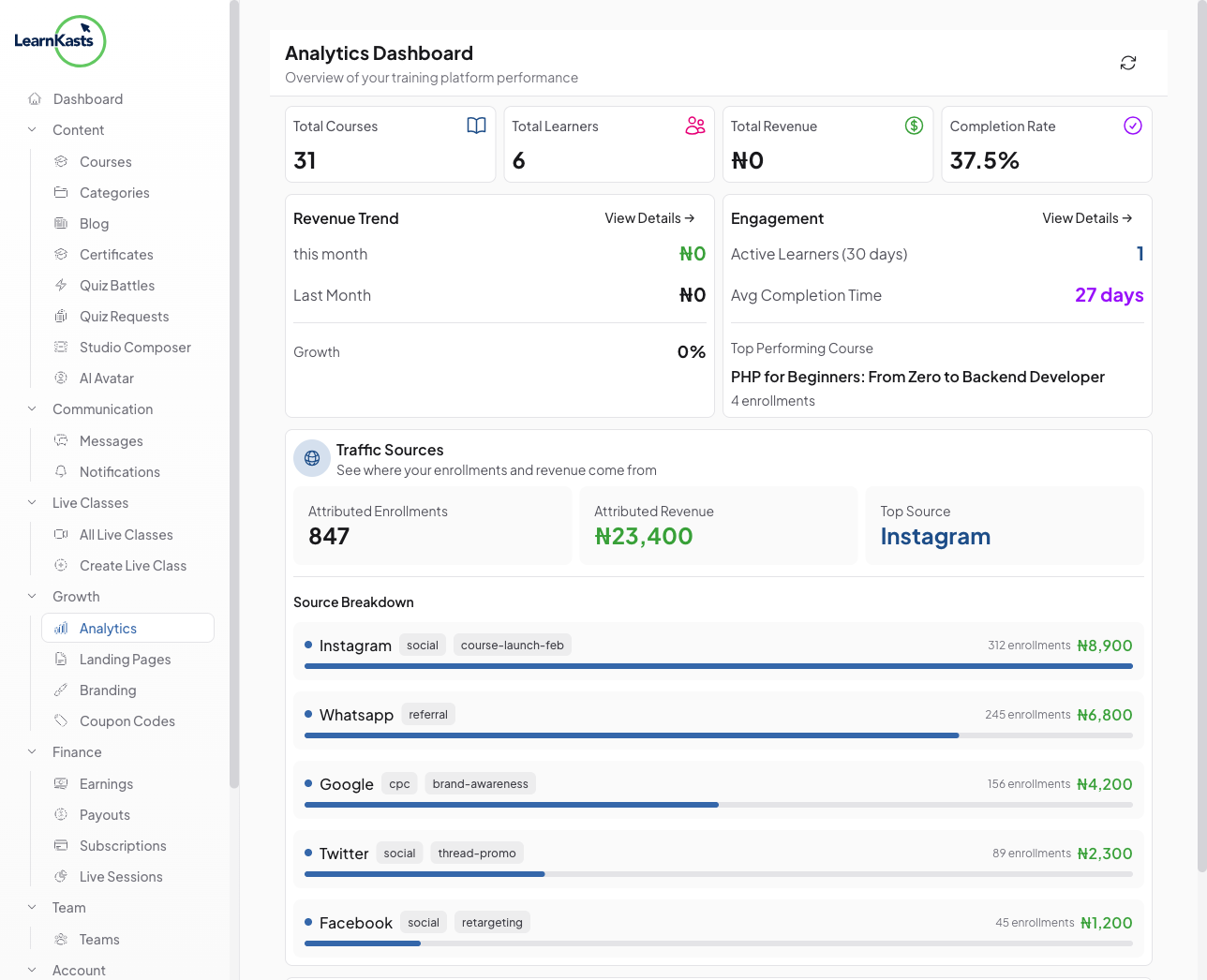
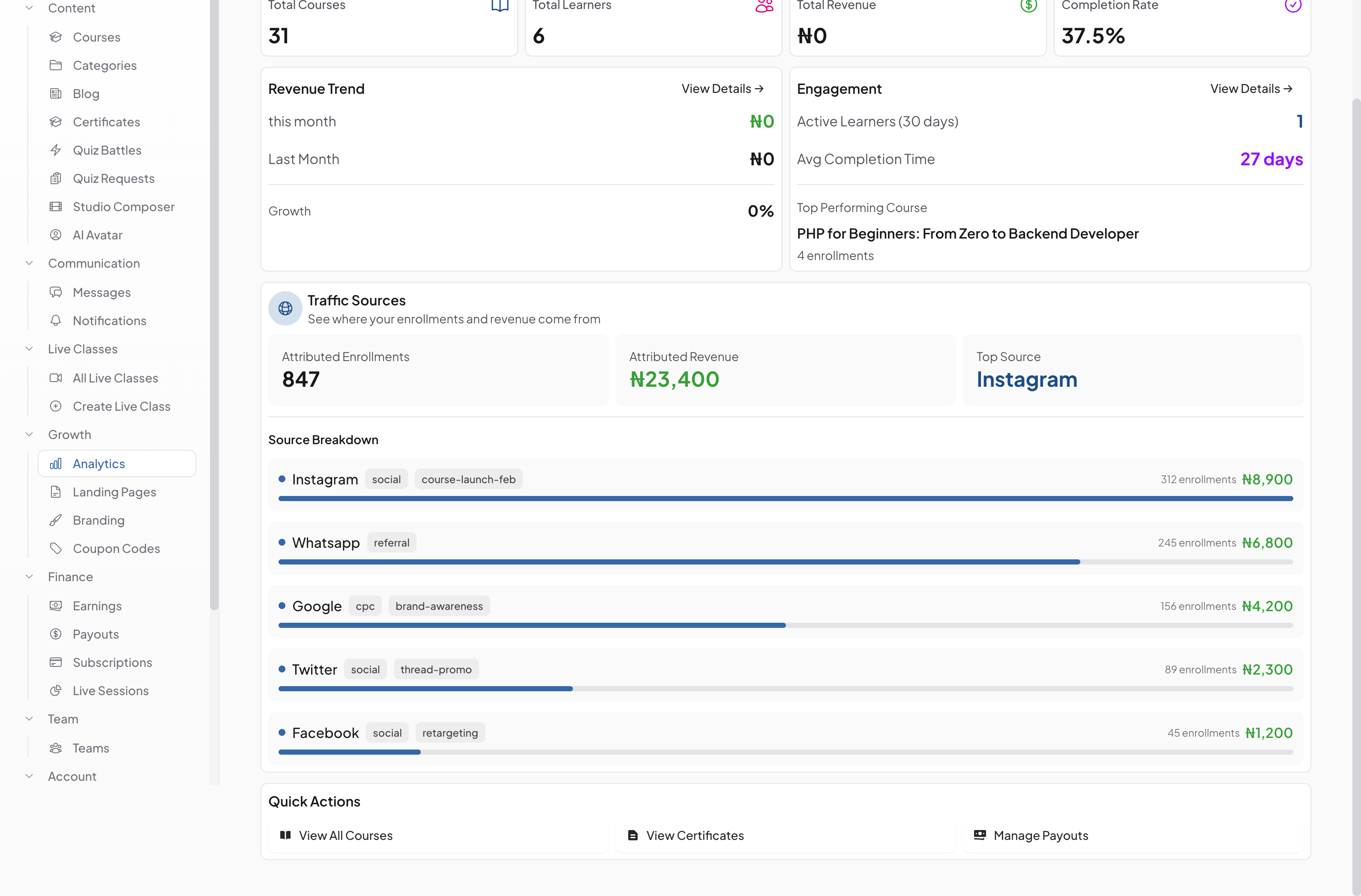
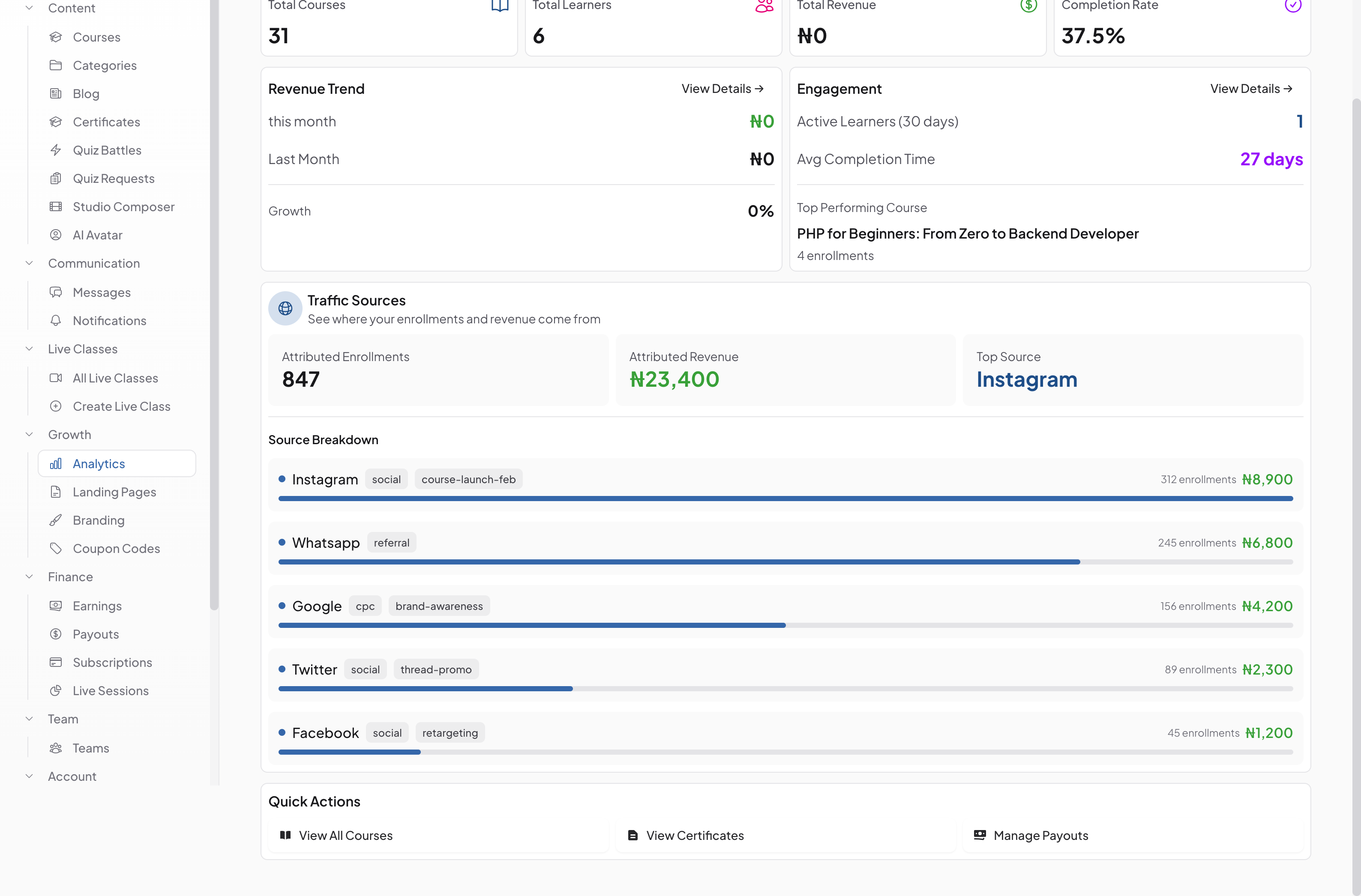
From your educator dashboard, click "Analytics" in the sidebar. The overview shows your key metrics - total revenue, student count, enrollments, and completion rates. Scroll down to find the Traffic Sources panel.
-
View Traffic Sources breakdown
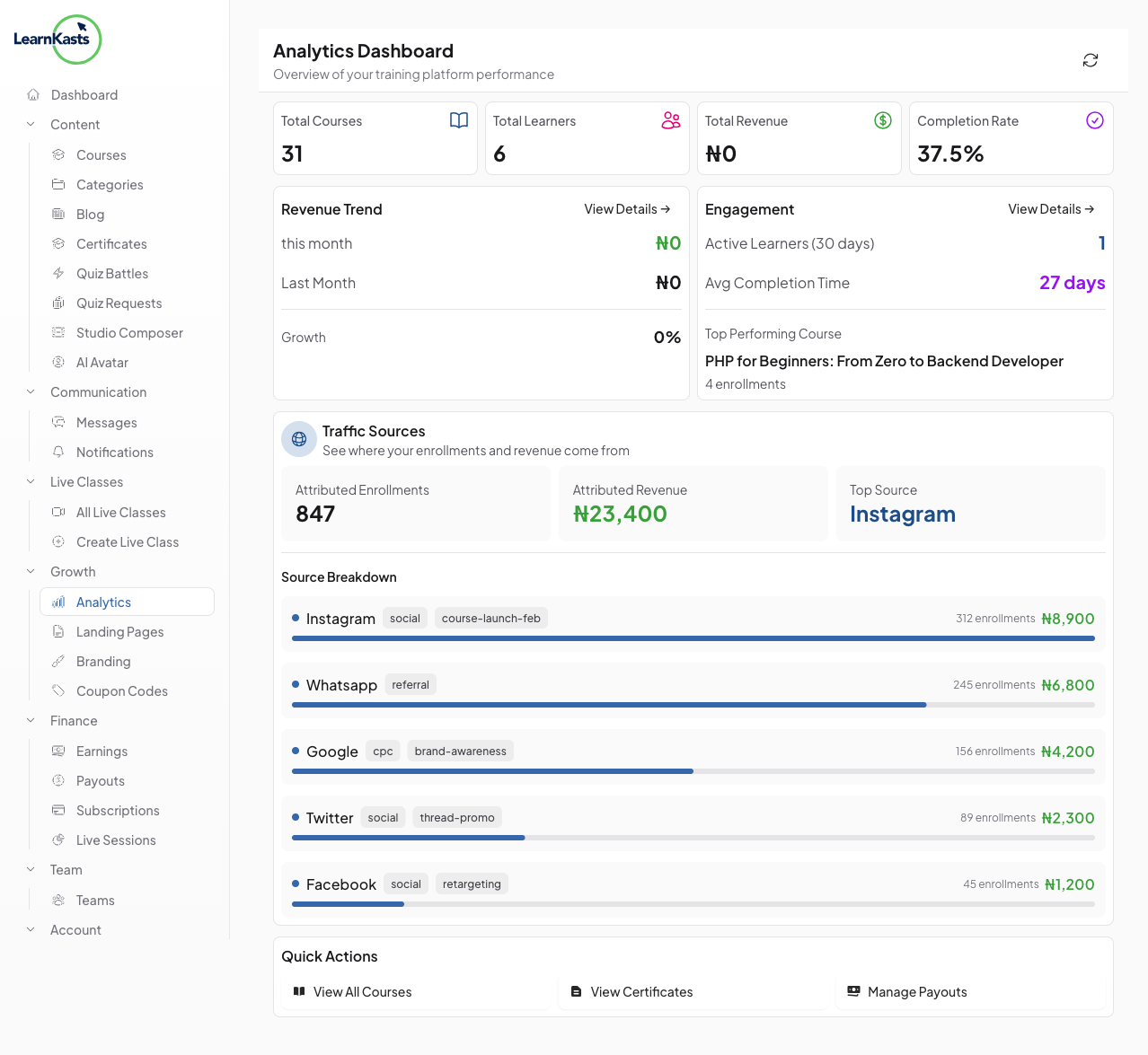
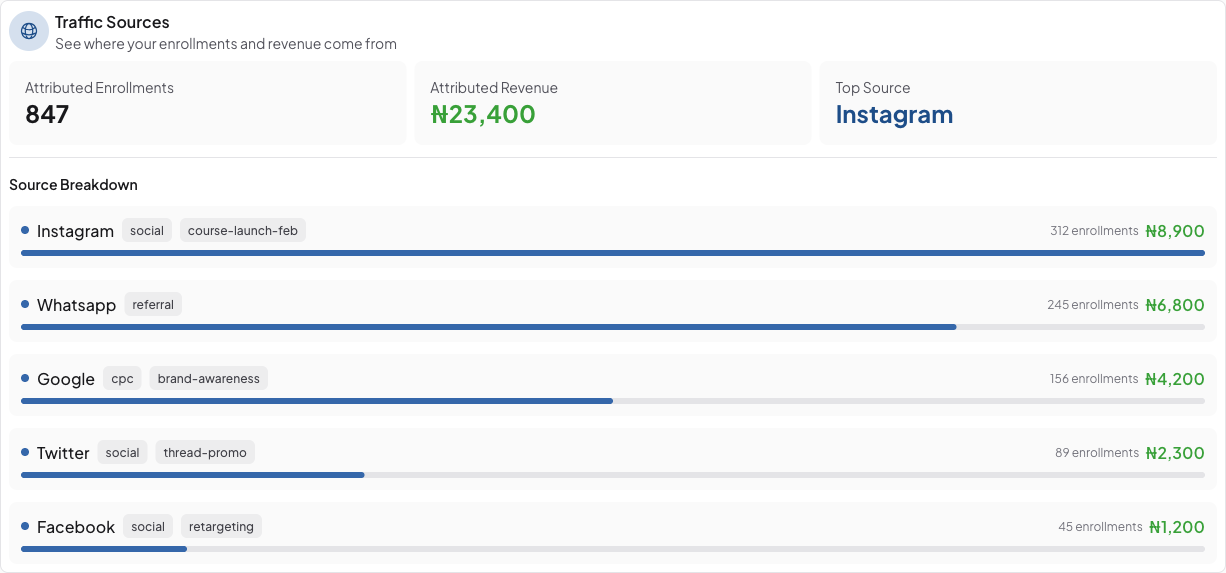
The Traffic Sources panel shows attributed enrollments, attributed revenue, and your top-performing source. Each marketing channel (Instagram, WhatsApp, Google, Twitter, Facebook, etc.) is listed with its enrollment count and revenue contribution.
-
Understand UTM parameters
UTM tags (like utm_source, utm_medium, and utm_campaign) are added to your course links to track where traffic originates. For example, a link shared on Instagram would include "utm_source=instagram&utm_medium=social" so you can attribute enrollments back to that channel.
-
Create tracked links
When sharing your course links on social media, email, or ads, add UTM parameters to the URL. Learnkasts automatically captures these tags when students enroll, connecting each sale back to the source.
-
Optimize your marketing
Use the traffic source data to identify which channels drive the most revenue. Double down on high-performing sources and experiment with underperforming ones. Compare attributed revenue across channels to calculate your return on marketing investment.
Más guías
Guías para educadores
Guías paso a paso para crear cursos, dar sesiones en vivo y hacer crecer tu negocio de enseñanza.
- Getting started as an educator
- Creating your first course
- Building course curriculum
- Uploading video lessons
- Using AI to generate quizzes
- Creating quizzes and assignments
- Assignments and grading queues
- Hosting live sessions
- Creating and managing webinars
- Managing course cohorts
- Adding students to cohorts
- Setting up subscriptions
- Course reviews and ratings
- Issuing certificates
- Understanding course analytics
- Live session usage and billing
- Setting up payout methods
- Viewing revenue and payouts
- Setting up your educator subdomain
- Creating landing pages
- Using the visual page editor
- Adding page sections
- Page styling and branding
- AI Studio Composer
- AI Voice Clone & Avatar
- Traffic sources & UTM attribution
Guías para estudiantes
Todo lo que los estudiantes necesitan para explorar cursos, unirse a sesiones en vivo y seguir su progreso.
- Creating an account
- Browsing and finding courses
- Enrolling in a course
- Watching video lessons
- Taking notes during lessons
- Submitting assignments
- Taking quizzes
- Joining live classes
- Attending webinars
- Managing your subscriptions
- Viewing your certificates
- Writing course reviews
- Managing your orders
- Updating your profile
Equipo y administración
Gestión de equipos, permisos, facturación y herramientas administrativas para organizaciones.
¿Te ayudó esta guía?
Si necesitas a una persona real, nuestro equipo de soporte responde en lenguaje claro en un día hábil. Más rápido por WhatsApp.