Updating Your Student Profile
Personalize your profile, manage account settings, and update preferences.
-
Access profile settings
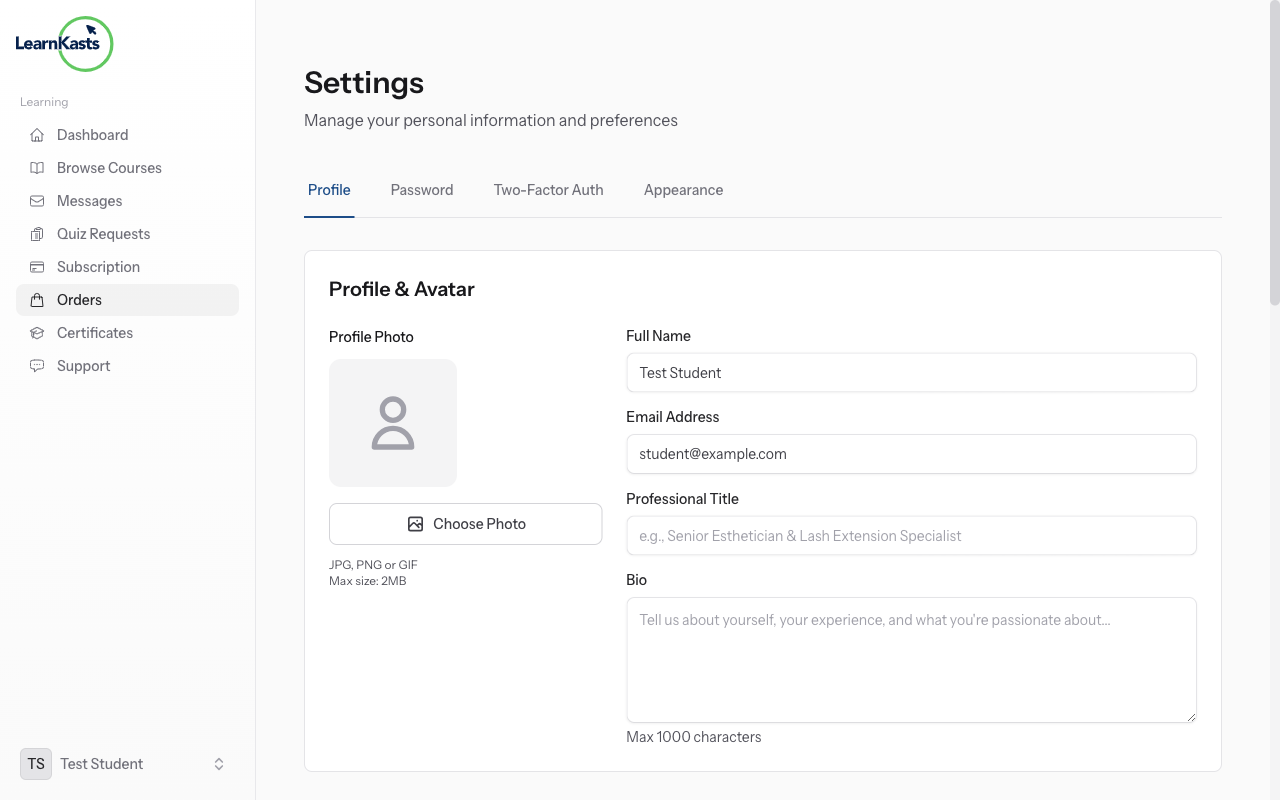
Click your profile icon or avatar in the top right corner → Select "Profile" or "Settings". You'll see tabs for Personal Info, Password, Preferences, and Notifications.
-
Update personal information
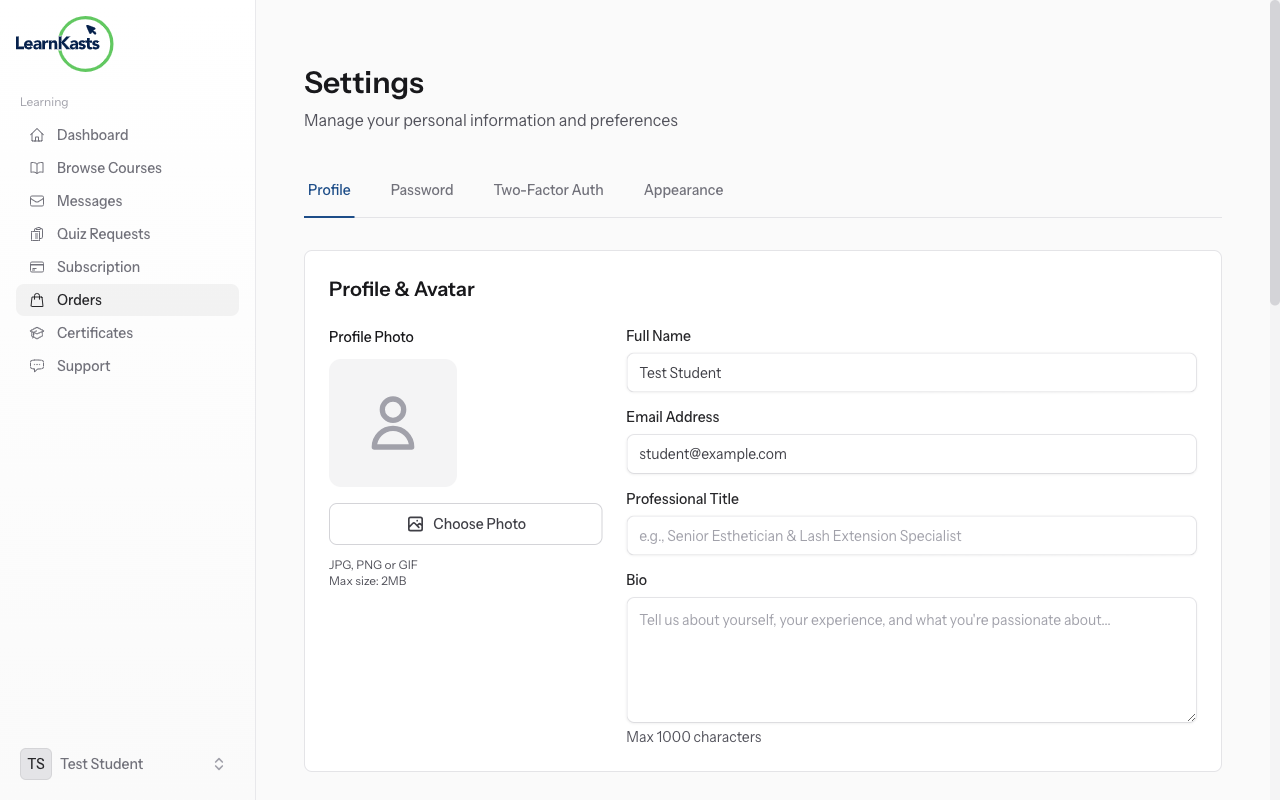
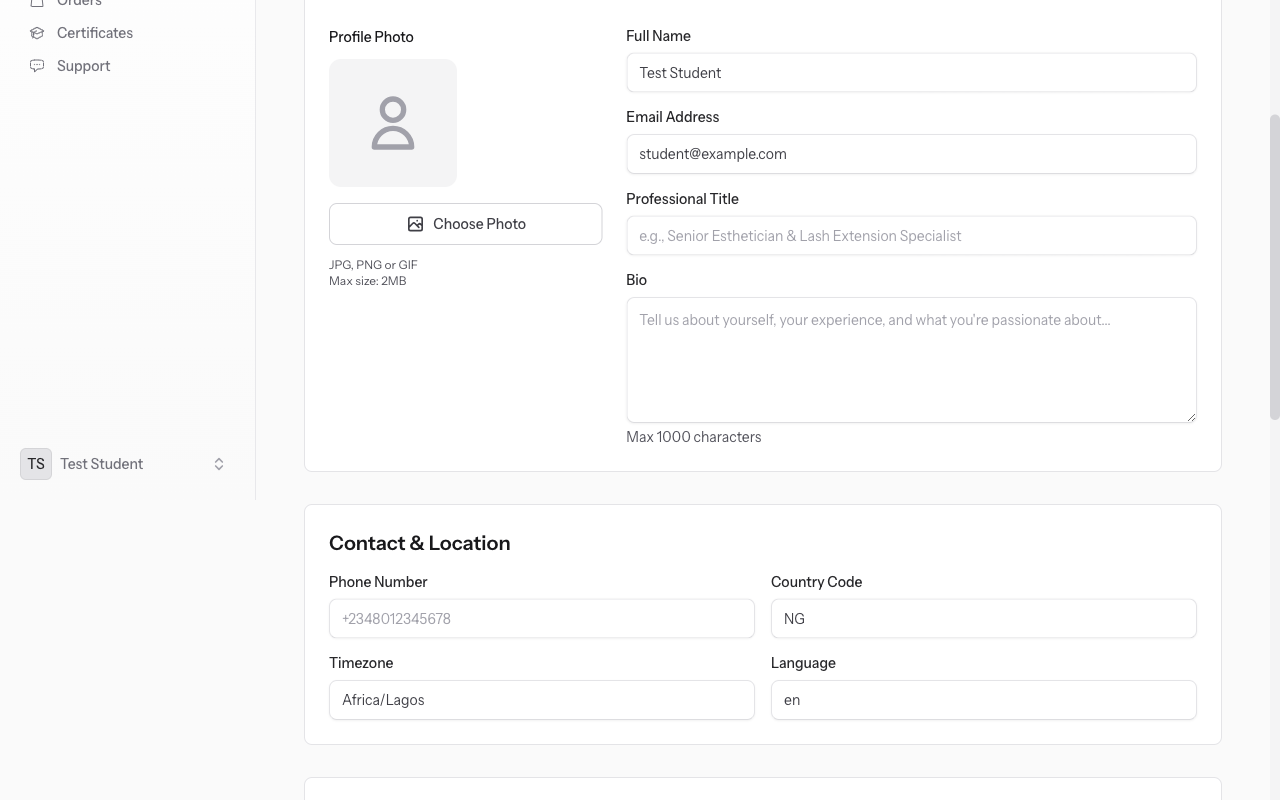
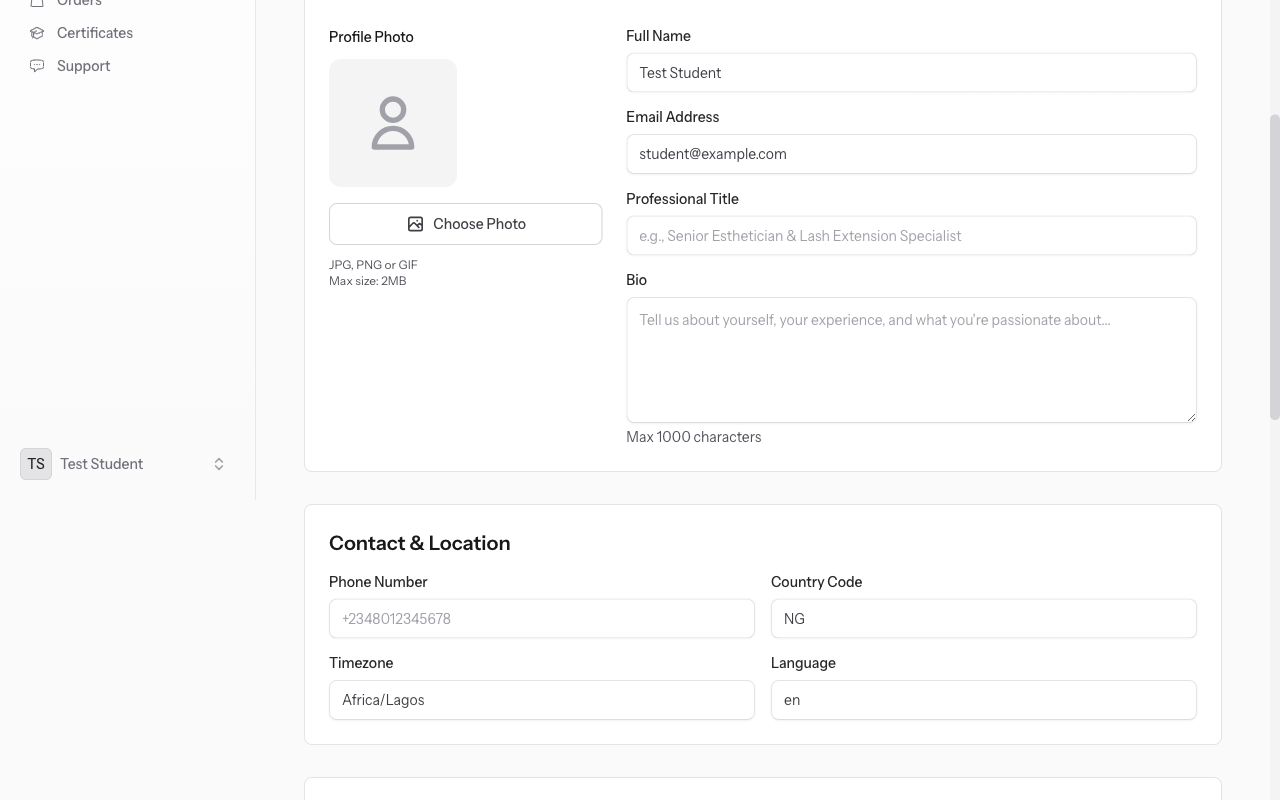
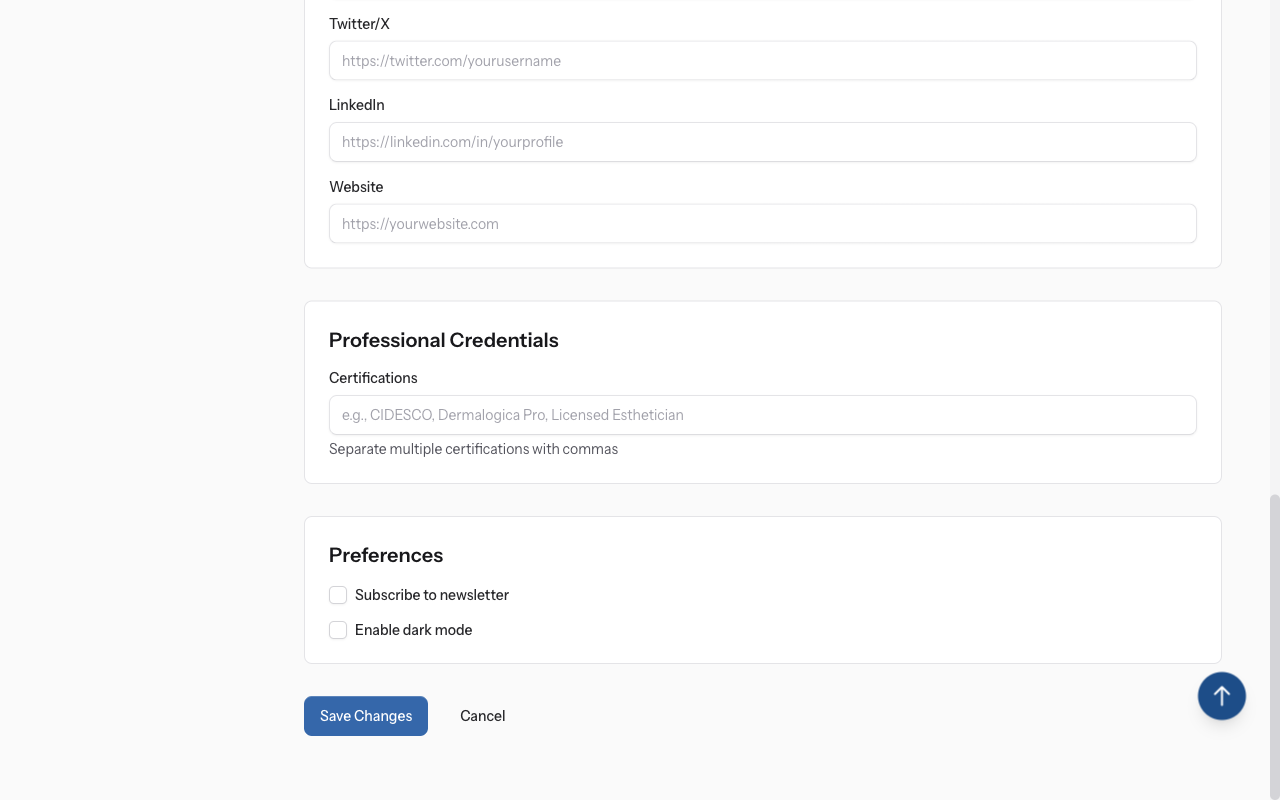
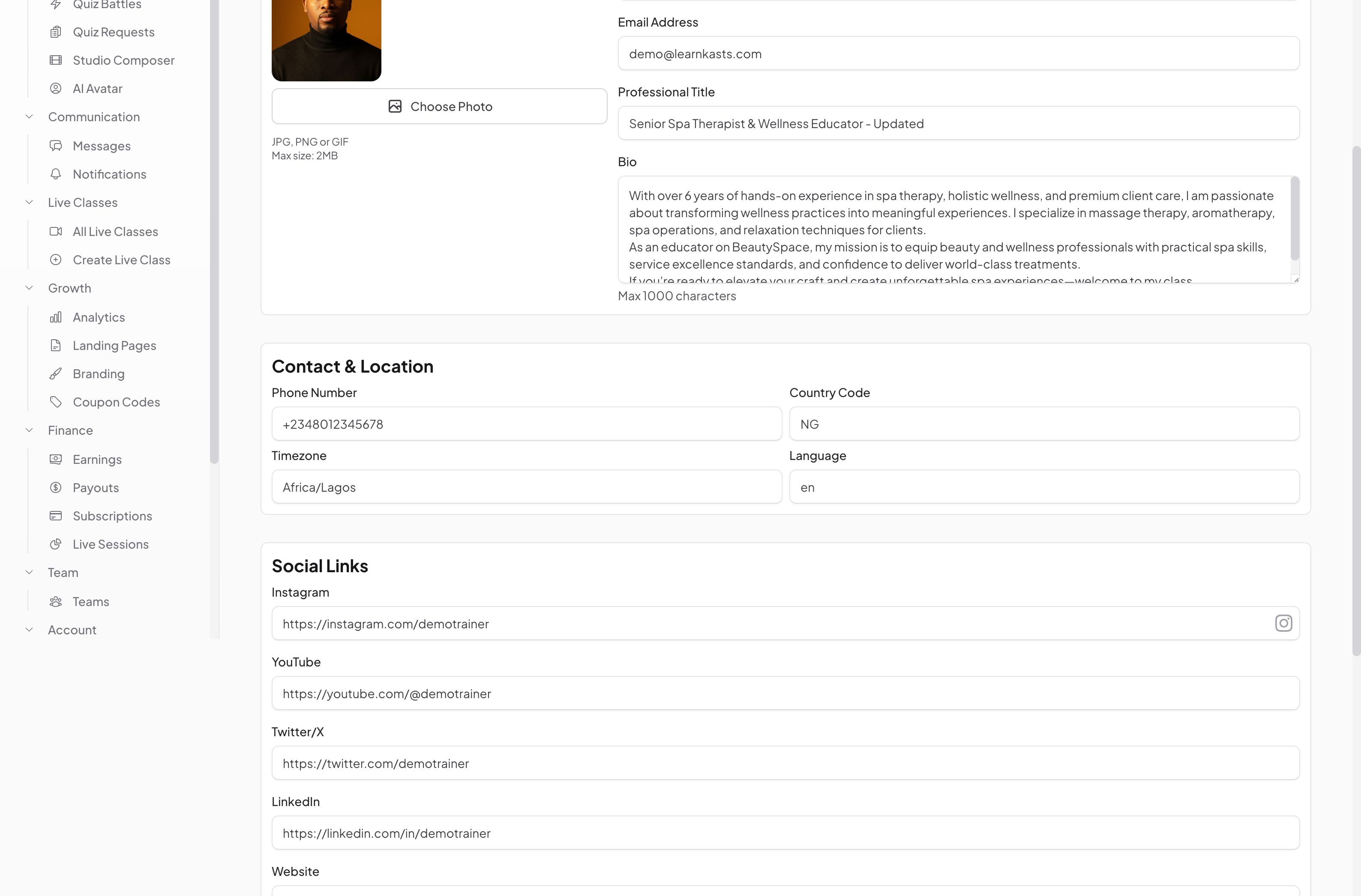
On the Personal Info tab, update your full name, email address, phone number, location (country/city), and timezone. Make sure your email is correct to receive course updates.
-
Write your bio (optional)
Click "Change Photo" or click on your current avatar. Upload a new photo (JPG, PNG, max 5MB). Crop if needed. Your photo appears on reviews and discussions. A clear photo builds credibility.
-
Set notification preferences
Add a short bio describing your learning goals, interests, or professional background. This appears on your public profile if you participate in course discussions or community features.
-
Save your changes
Click the "Password" tab. Enter your current password, then your new password twice. Use a strong password with mix of letters, numbers, and symbols. Click "Update Password" to save.
-
Set notification preferences
Go to Notifications tab. Choose which emails you want: course updates, new lessons, assignments due, promotions, weekly digest. Toggle each on/off. Save changes. Reduces email clutter while staying informed.
-
Update display preferences
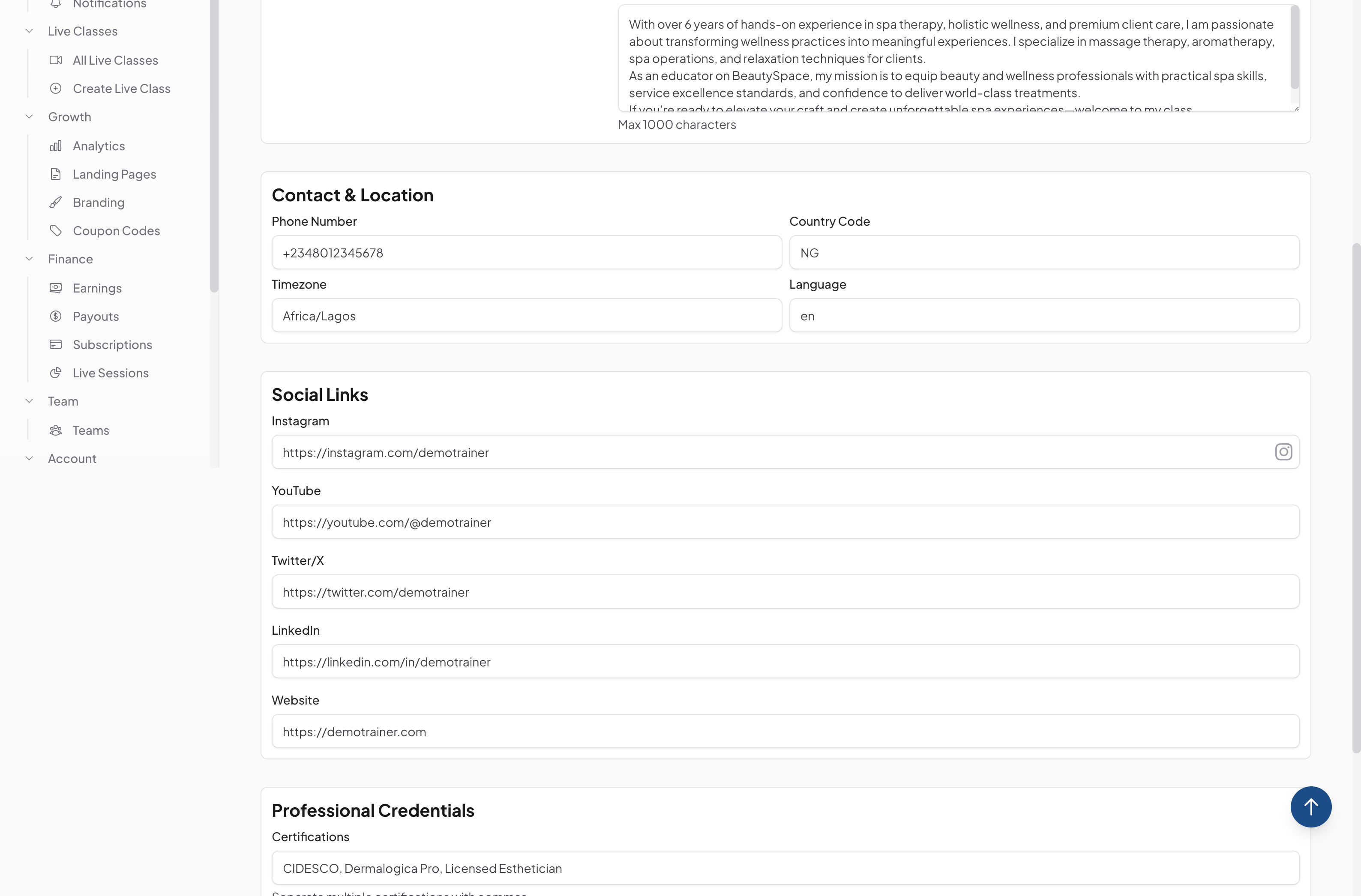
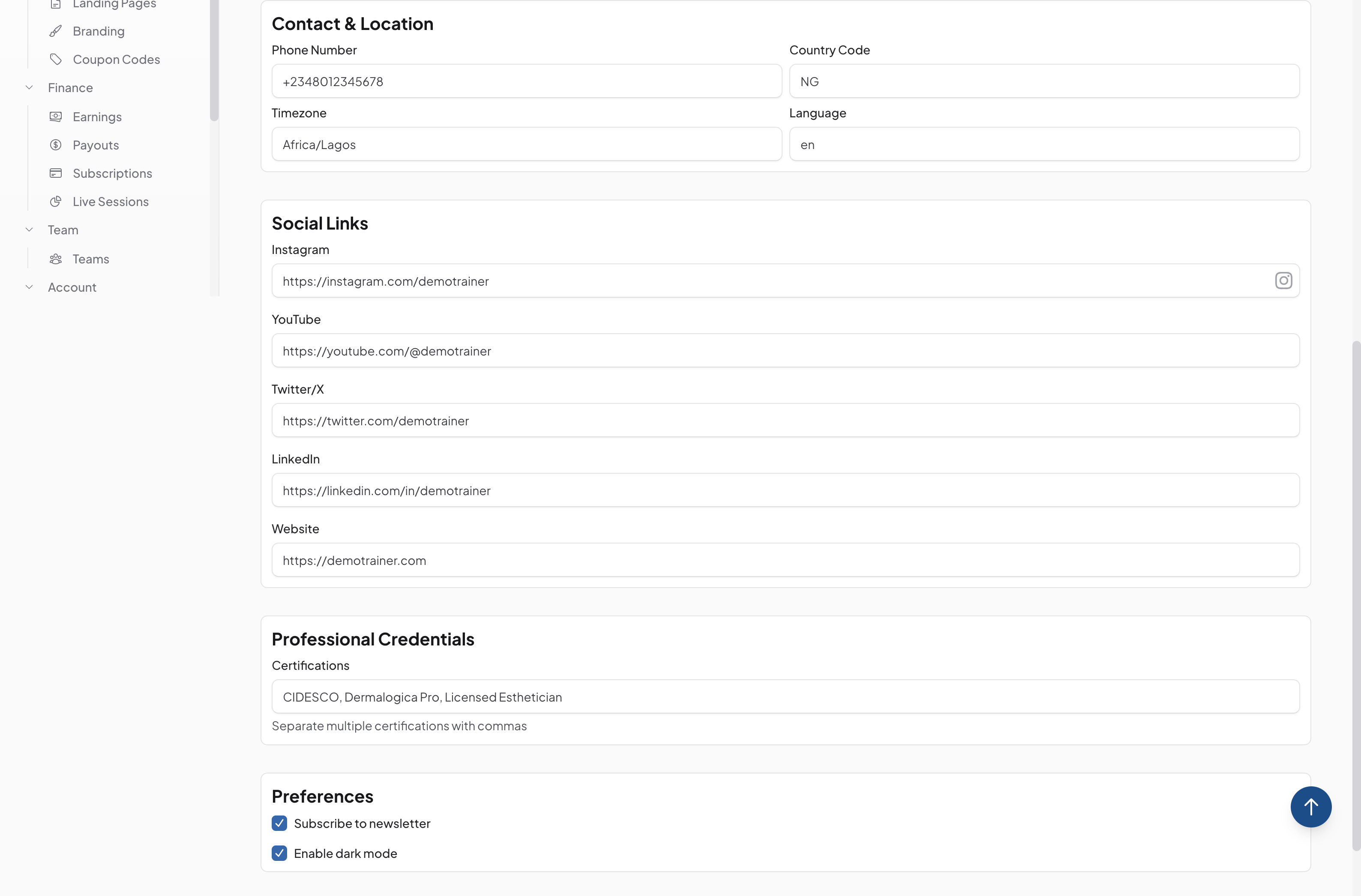
Select your preferred language, date format, and timezone. Enable dark mode if you prefer dark interface. Choose whether to show your profile publicly or keep it private.
-
Save your changes
After making any updates, click "Save Changes" or "Update Profile" button at the bottom. You'll see a success message confirming your profile was updated. Changes take effect immediately.
Àwọn ìtọ́sọ́nà mìíràn
Ìtọ́sọ́nà fún olùkọ́
Ìtọ́sọ́nà ìgbésẹ̀-sí-ìgbésẹ̀ fún ṣíṣẹ̀dá ẹ̀kọ́, ṣíṣe ìpàdé tààrà àti mímú iṣẹ́ ìkọ́ni rẹ dàgbà.
- Getting started as an educator
- Creating your first course
- Building course curriculum
- Uploading video lessons
- Using AI to generate quizzes
- Creating quizzes and assignments
- Assignments and grading queues
- Hosting live sessions
- Creating and managing webinars
- Managing course cohorts
- Adding students to cohorts
- Setting up subscriptions
- Course reviews and ratings
- Issuing certificates
- Understanding course analytics
- Live session usage and billing
- Setting up payout methods
- Viewing revenue and payouts
- Setting up your educator subdomain
- Creating landing pages
- Using the visual page editor
- Adding page sections
- Page styling and branding
- AI Studio Composer
- AI Voice Clone & Avatar
- Traffic sources & UTM attribution
Ìtọ́sọ́nà fún akẹ́kọ̀ọ́
Gbogbo ohun tí akẹ́kọ̀ọ́ nílò láti wo ẹ̀kọ́, darapọ̀ mọ́ ìpàdé tààrà àti tẹ̀lé ìlọsíwájú wọn.
- Creating an account
- Browsing and finding courses
- Enrolling in a course
- Watching video lessons
- Taking notes during lessons
- Submitting assignments
- Taking quizzes
- Joining live classes
- Attending webinars
- Managing your subscriptions
- Viewing your certificates
- Writing course reviews
- Managing your orders
- Updating your profile
Ẹgbẹ́ àti ìṣàkóso
Ìṣàkóso ẹgbẹ́, àṣẹ, ìsanwó àti irinṣẹ́ ìṣàkóso fún àwọn àjọ.
Ṣé ìtọ́sọ́nà yìí ràn ọ́ lọ́wọ́?
Bí o bá nílò ènìyàn gidi, ẹgbẹ́ ìrànlọ́wọ́ wa ń dáhùn ní èdè tó yé láàrin ọjọ́ iṣẹ́ kan. Ó yára jù lórí WhatsApp.