Watching Video Lessons
Learn how to navigate the video player, track progress, and control playback.
-
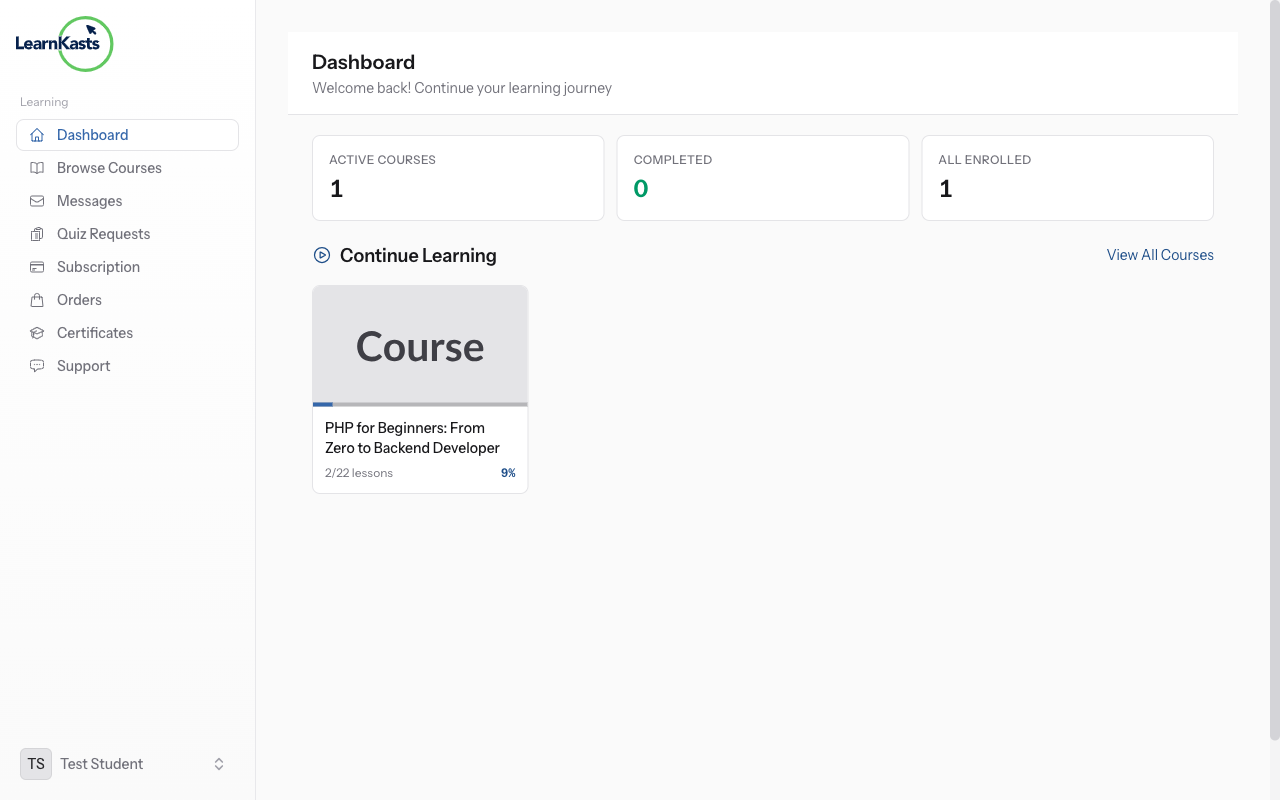
Student dashboard with enrolled courses
Go to your Student Dashboard and click "My Courses" or "Continue Learning". You'll see all courses you're enrolled in. Click on a course to view its curriculum.
-
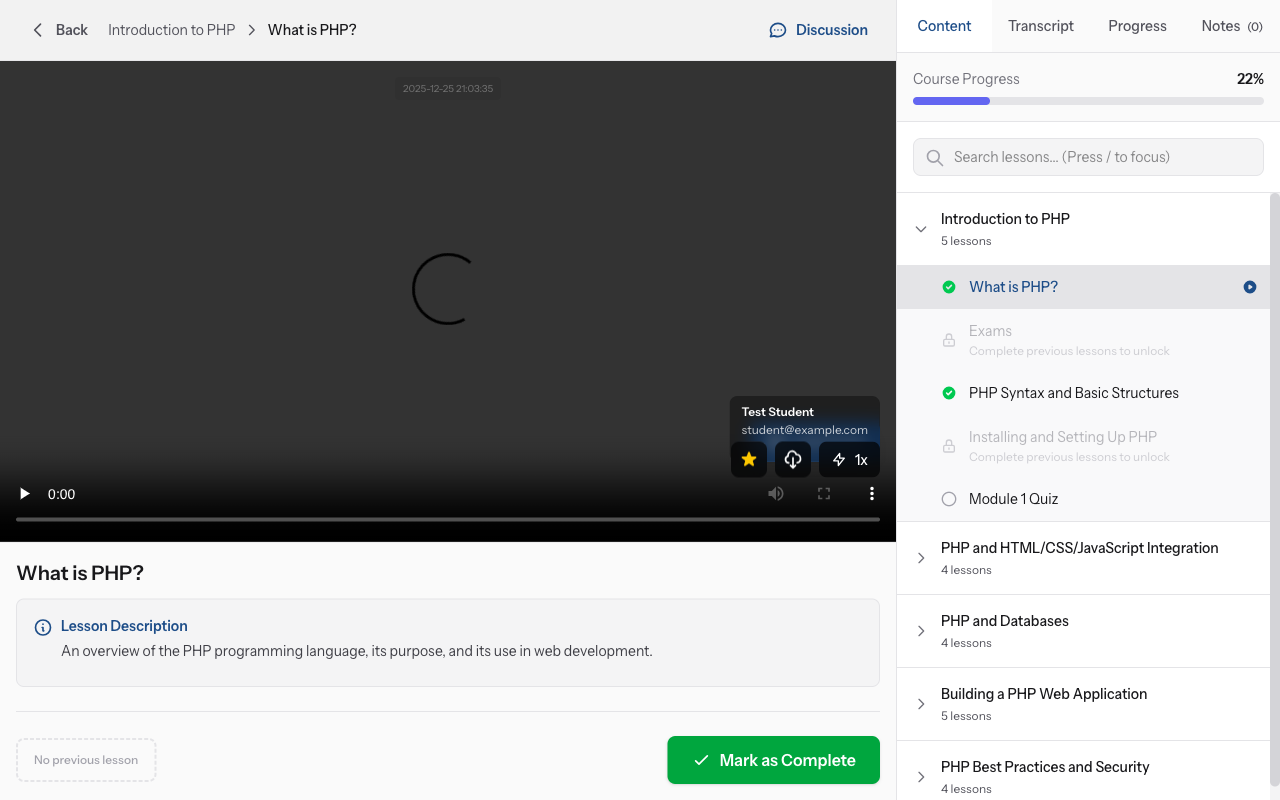
Course classroom with lessons
In the course curriculum, click on any video lesson (marked with a play icon). The video player will load. Your progress is automatically saved, so you can always pick up where you left off.
-
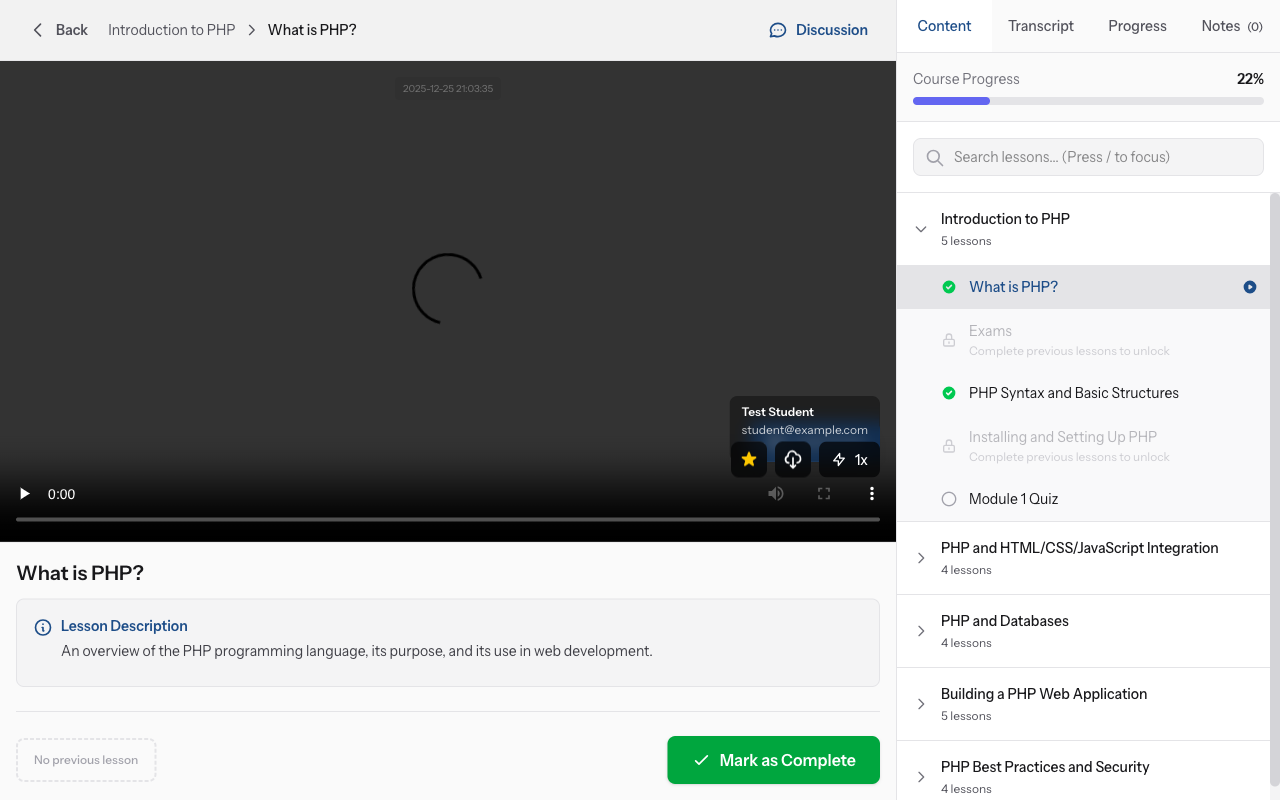
Course curriculum with video lessons
Click the play button to start the video. Use the pause button to stop. Drag the progress bar to skip forward or backward. Click the volume icon to adjust sound or mute. Click fullscreen icon for fullscreen view.
-
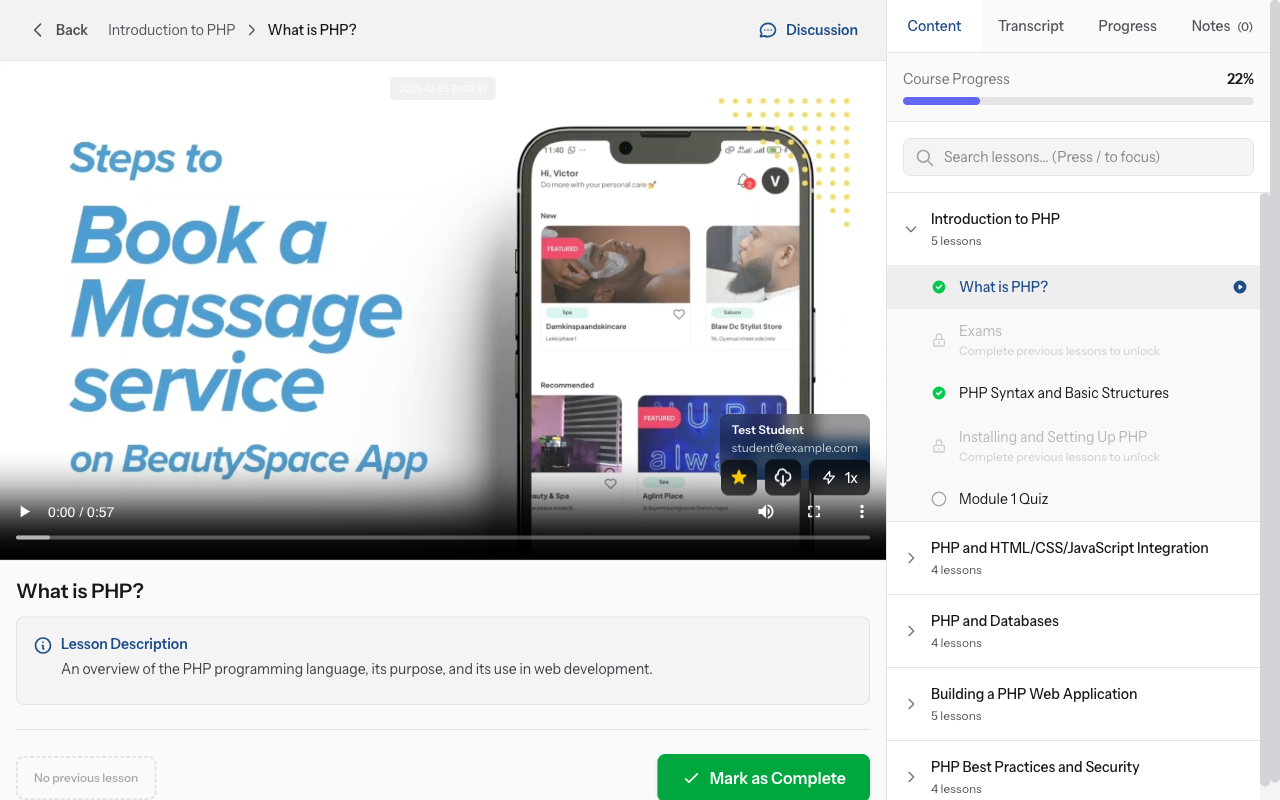
Video player interface
Click the settings (gear) icon → Select "Speed". Choose 0.5x (slower), 1x (normal), 1.25x, 1.5x, or 2x (faster). Faster speeds help you review content you're familiar with. Slower speeds help with complex topics.
-
Video player with all controls labeled
If available, click the CC (closed captions) button to show subtitles. Select your preferred language if multiple options are available. Subtitles help with understanding and learning in noisy environments.
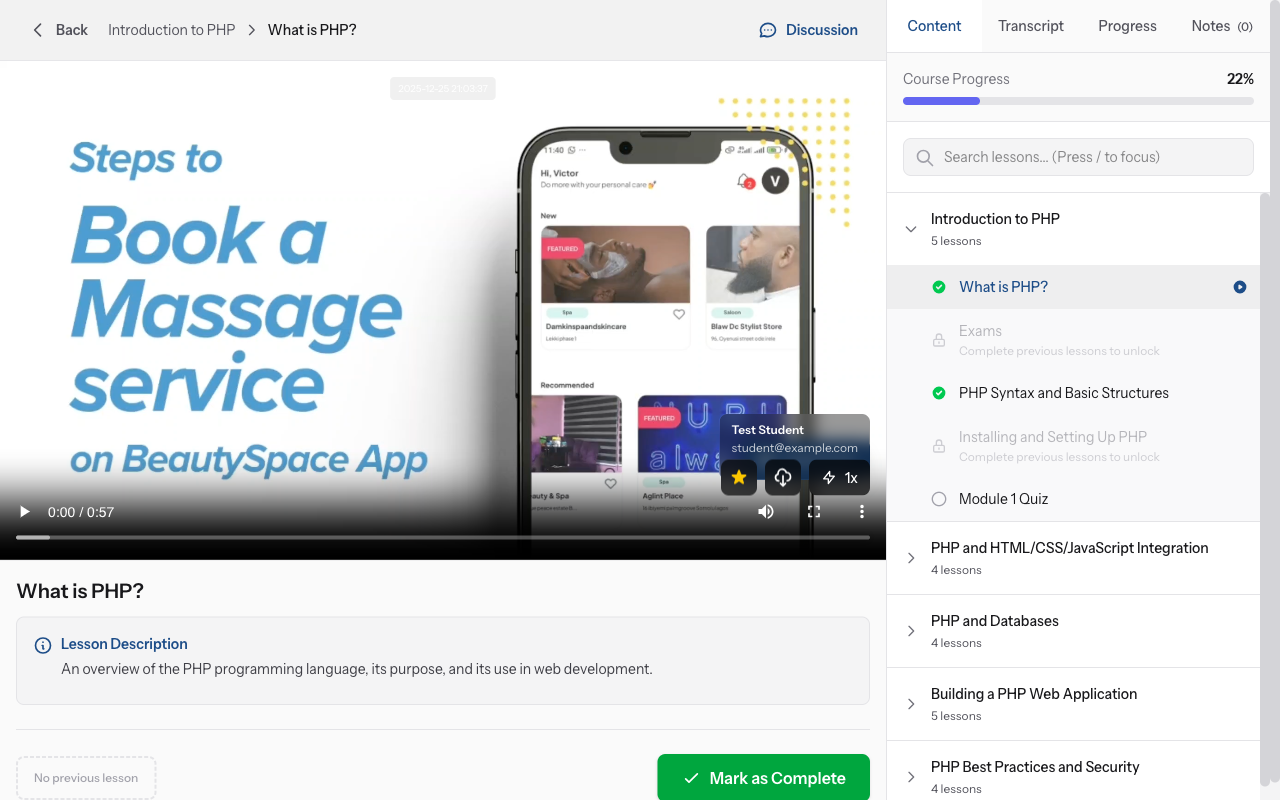
-
Mark as Complete button
Click the "Notes" tab next to the video player. Type your notes as you watch. Your notes are timestamped automatically, so you can click a note later to jump back to that moment in the video.
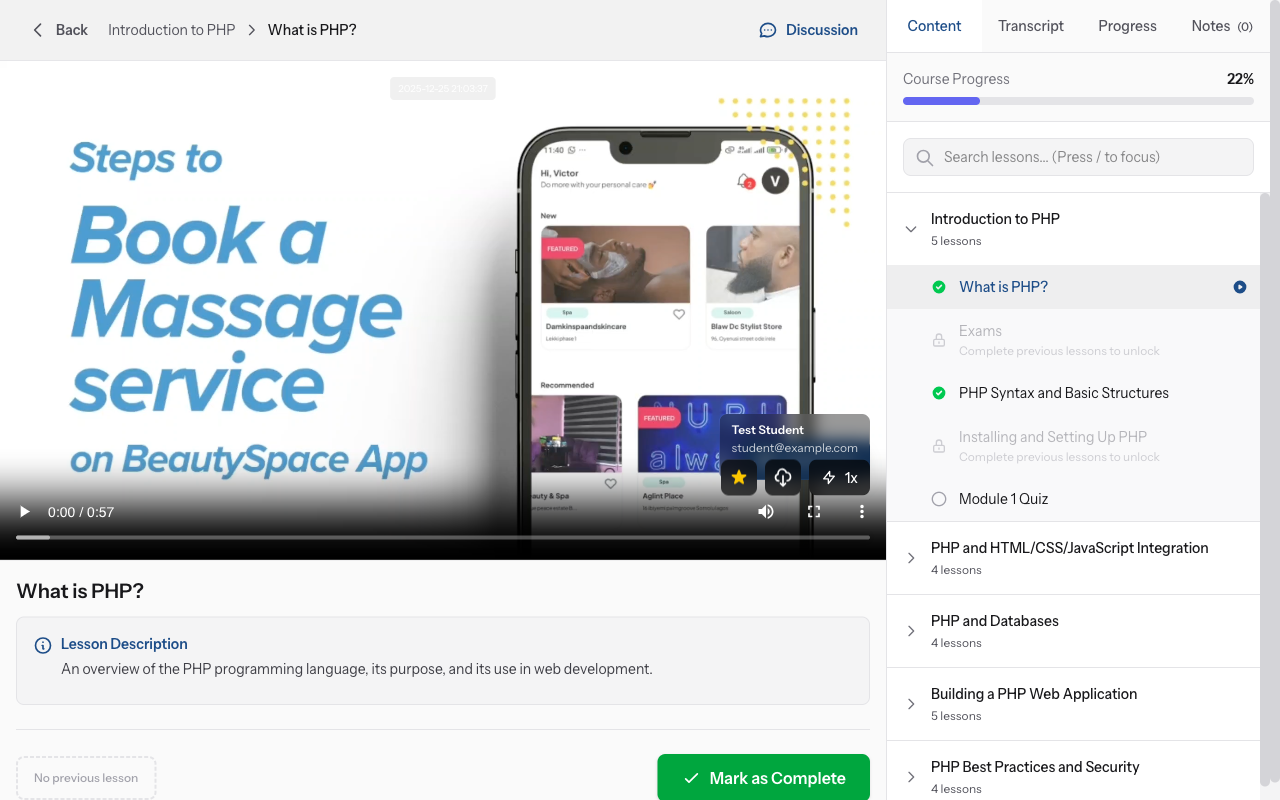
-
Lesson marked as complete with checkmark
When you finish watching, the lesson is automatically marked complete (usually at 90% progress). You can also manually click "Mark as Complete" button. Completed lessons show a checkmark and unlock the next lesson.
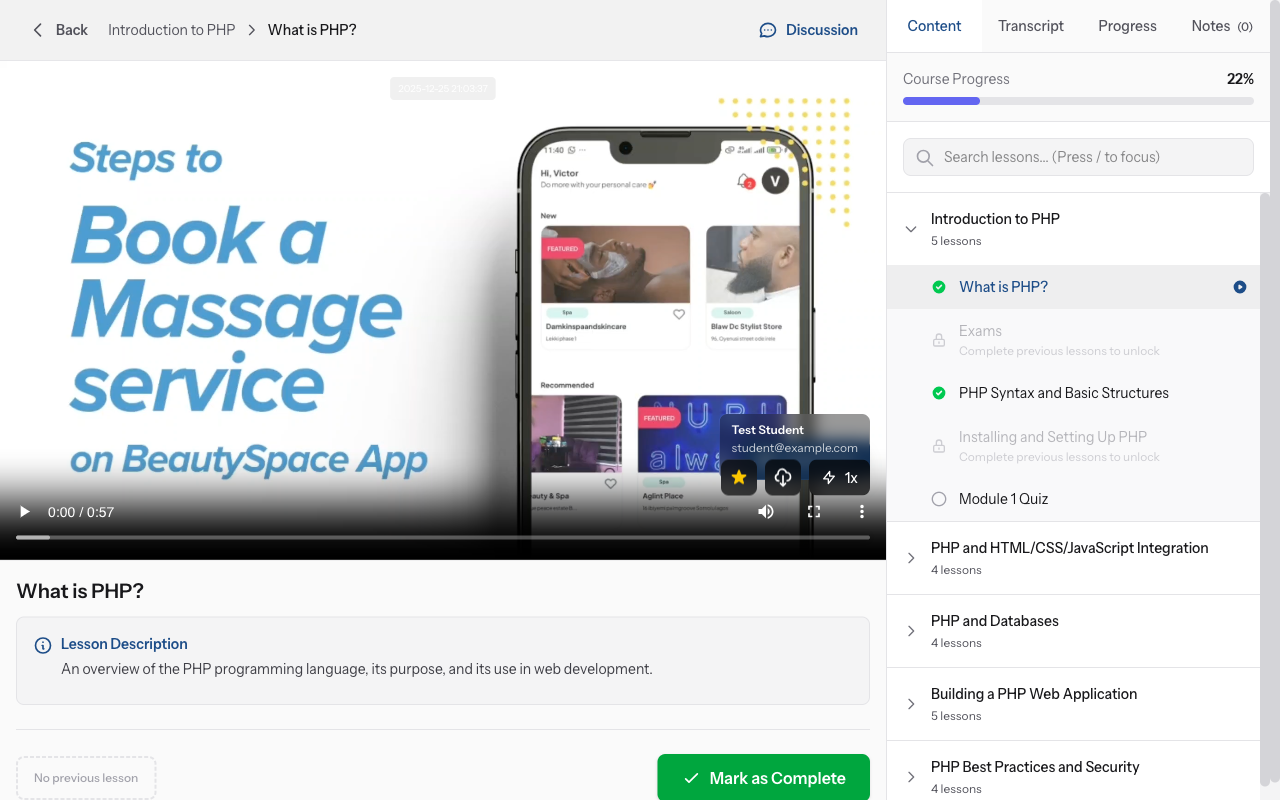
-
Next lesson unlocked in curriculum
If you close a video mid-way, your progress is saved. When you return, the video will resume from exactly where you stopped. Your overall course progress updates in real-time.
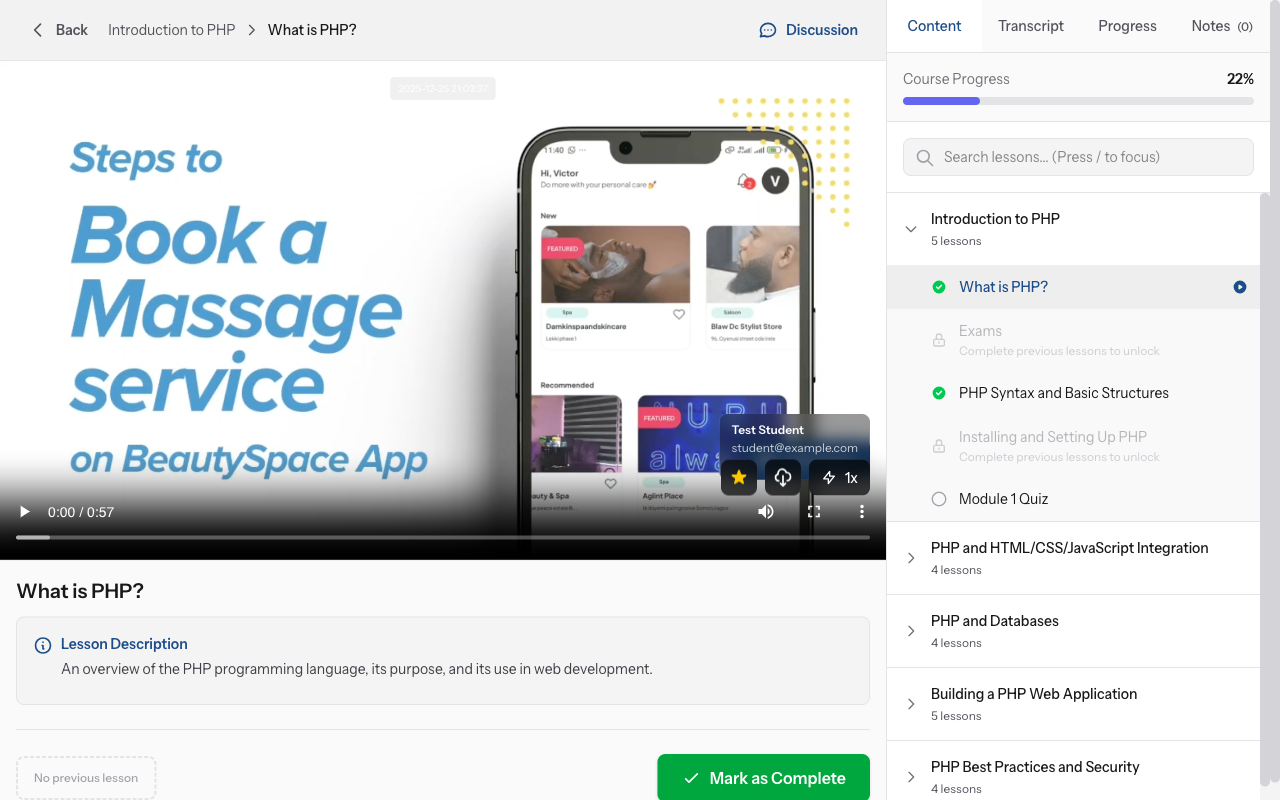
More guides
Educator guides
Step-by-step guides for creating courses, hosting live sessions and growing your teaching business.
- Getting started as an educator
- Creating your first course
- Building course curriculum
- Uploading video lessons
- Using AI to generate quizzes
- Creating quizzes and assignments
- Assignments and grading queues
- Hosting live sessions
- Creating and managing webinars
- Managing course cohorts
- Adding students to cohorts
- Setting up subscriptions
- Course reviews and ratings
- Issuing certificates
- Understanding course analytics
- Live session usage and billing
- Setting up payout methods
- Viewing revenue and payouts
- Setting up your educator subdomain
- Creating landing pages
- Using the visual page editor
- Adding page sections
- Page styling and branding
- AI Studio Composer
- AI Voice Clone & Avatar
- Traffic sources & UTM attribution
Learner guides
Everything learners need to browse courses, join live sessions and track their progress.
- Creating an account
- Browsing and finding courses
- Enrolling in a course
- Watching video lessons
- Taking notes during lessons
- Submitting assignments
- Taking quizzes
- Joining live classes
- Attending webinars
- Managing your subscriptions
- Viewing your certificates
- Writing course reviews
- Managing your orders
- Updating your profile
Team & admin
Team management, permissions, billing and administrative tools for organisations.
Did this guide help?
If you need a real human, our support team replies in plain English within one working day. Faster on WhatsApp.