Creating Landing Pages
Build custom landing pages to showcase and sell your courses.
-
Access landing pages
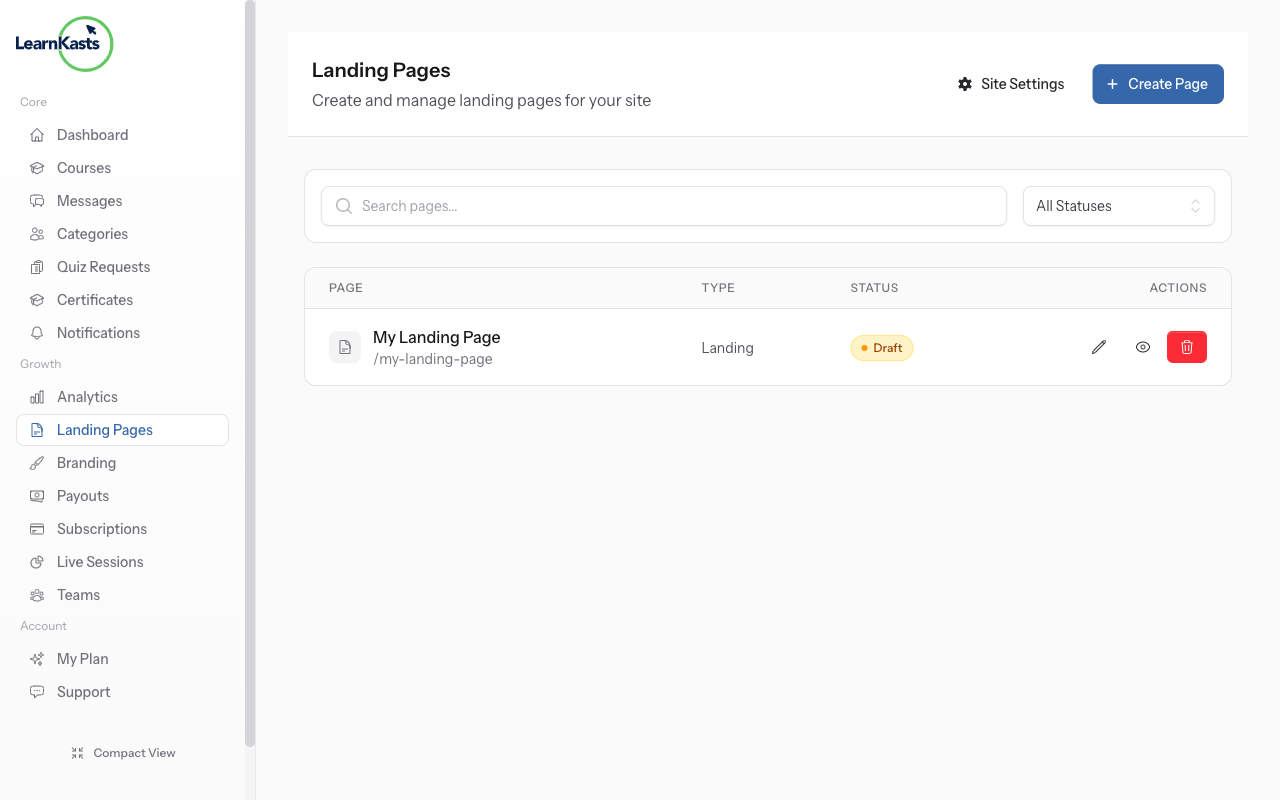
From your Educator Dashboard, click "Pages" in the sidebar to see all your landing pages. Here you can create new pages, edit existing ones, or manage page settings.
-
Click Create Page
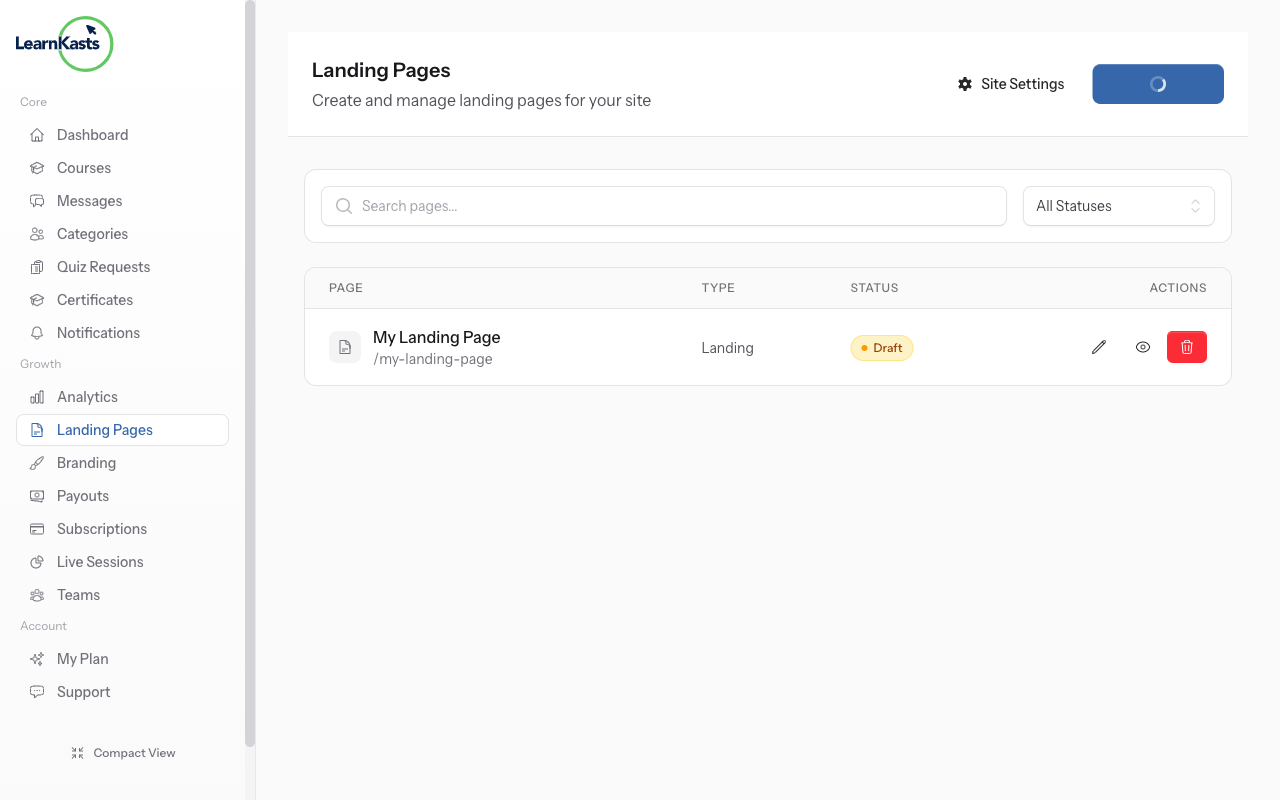
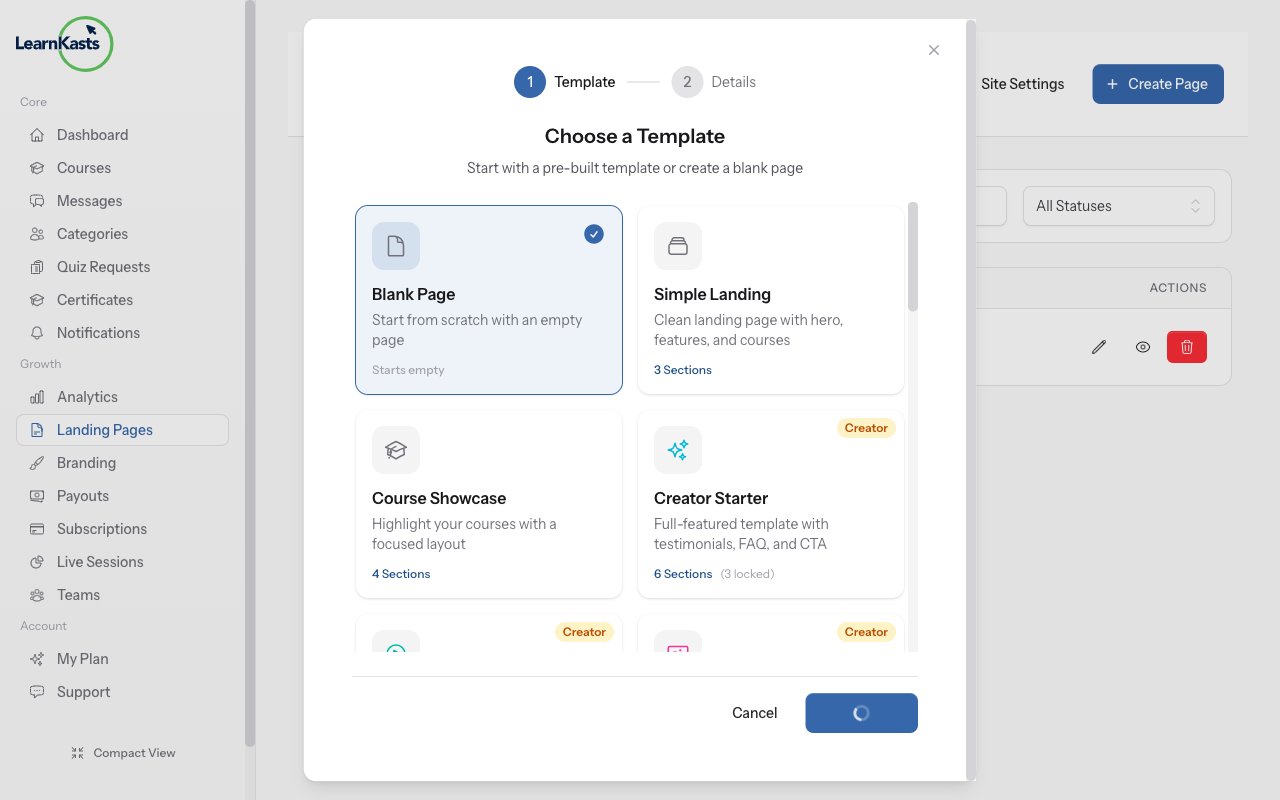
Click the "Create Page" button to start a new landing page. A modal will appear where you can configure your new page.
-
Enter page title
Give your page a descriptive title (e.g., "Makeup Masterclass Sales Page"). This title appears in your pages list and can be used in the page URL.
-
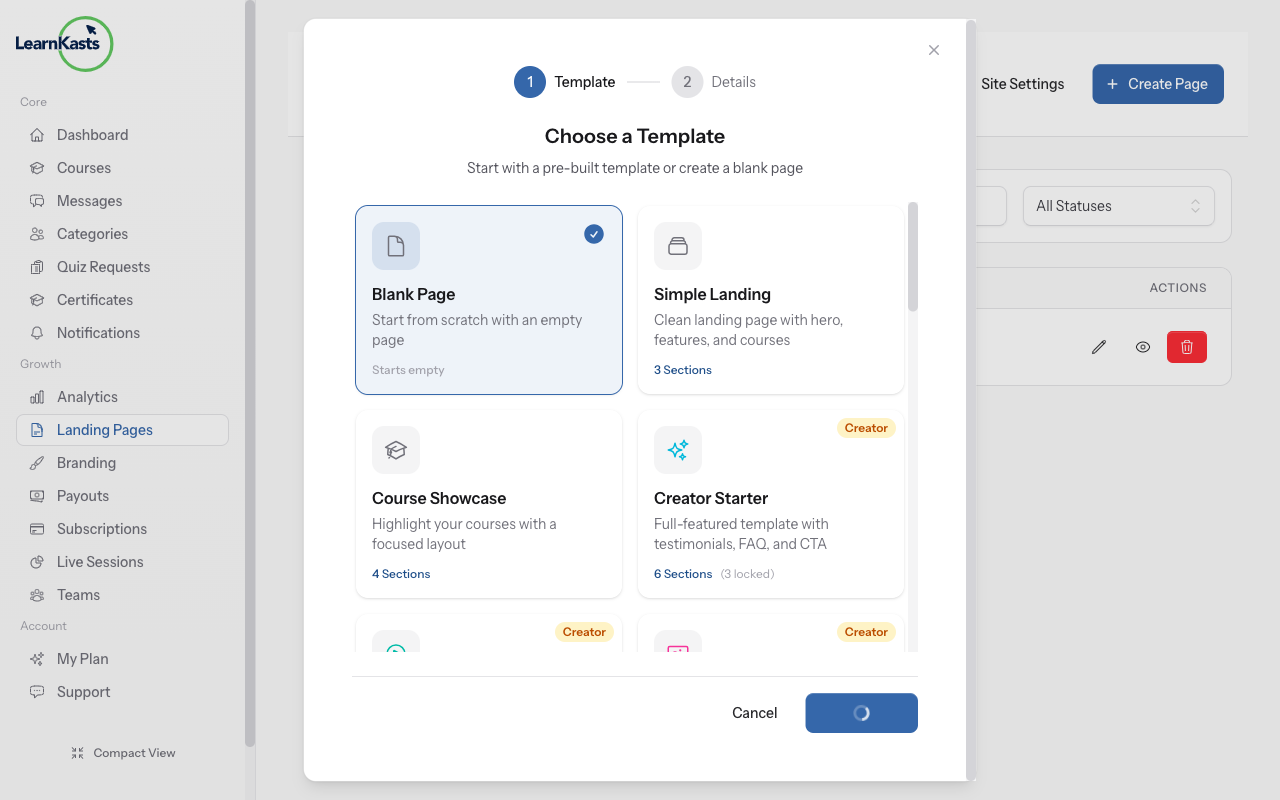
Choose a template
Select from available templates to get started quickly. Templates include pre-designed sections for courses, testimonials, and call-to-action buttons.
-
Edit in visual editor
After clicking "Create", you'll be taken to the visual editor. Here you can drag sections like Hero, Features, Courses, Testimonials, and more onto your page. Customize text, images, colors, and layout for each section. Click "Save" to publish your changes.
Autres guides
Guides formateurs
Des guides pas à pas pour créer des cours, animer des sessions en direct et développer votre activité de formation.
- Getting started as an educator
- Creating your first course
- Building course curriculum
- Uploading video lessons
- Using AI to generate quizzes
- Creating quizzes and assignments
- Assignments and grading queues
- Hosting live sessions
- Creating and managing webinars
- Managing course cohorts
- Adding students to cohorts
- Setting up subscriptions
- Course reviews and ratings
- Issuing certificates
- Understanding course analytics
- Live session usage and billing
- Setting up payout methods
- Viewing revenue and payouts
- Setting up your educator subdomain
- Creating landing pages
- Using the visual page editor
- Adding page sections
- Page styling and branding
- AI Studio Composer
- AI Voice Clone & Avatar
- Traffic sources & UTM attribution
Guides apprenants
Tout ce dont les apprenants ont besoin pour parcourir les cours, rejoindre les sessions en direct et suivre leur progression.
- Creating an account
- Browsing and finding courses
- Enrolling in a course
- Watching video lessons
- Taking notes during lessons
- Submitting assignments
- Taking quizzes
- Joining live classes
- Attending webinars
- Managing your subscriptions
- Viewing your certificates
- Writing course reviews
- Managing your orders
- Updating your profile
Équipe et administration
Gestion d'équipe, autorisations, facturation et outils d'administration pour les organisations.
Ce guide vous a-t-il aidé ?
Si vous avez besoin d'une vraie personne, notre équipe d'assistance répond en termes simples sous un jour ouvré. Plus vite sur WhatsApp.