
-
01
Access landing pages
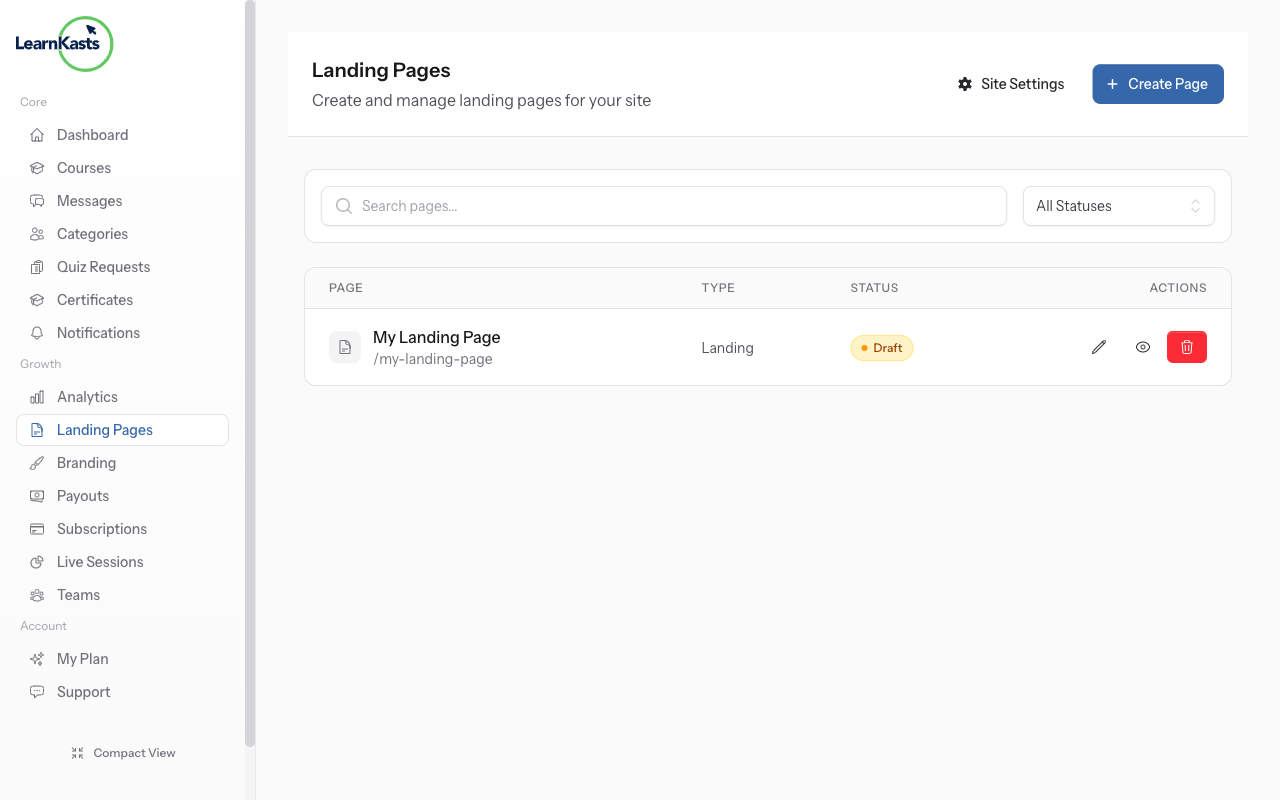
From your Educator Dashboard, click "Pages" in the sidebar to see all your landing pages. Here you can create new pages, edit existing ones, or manage page settings.
-
02
Click Create Page
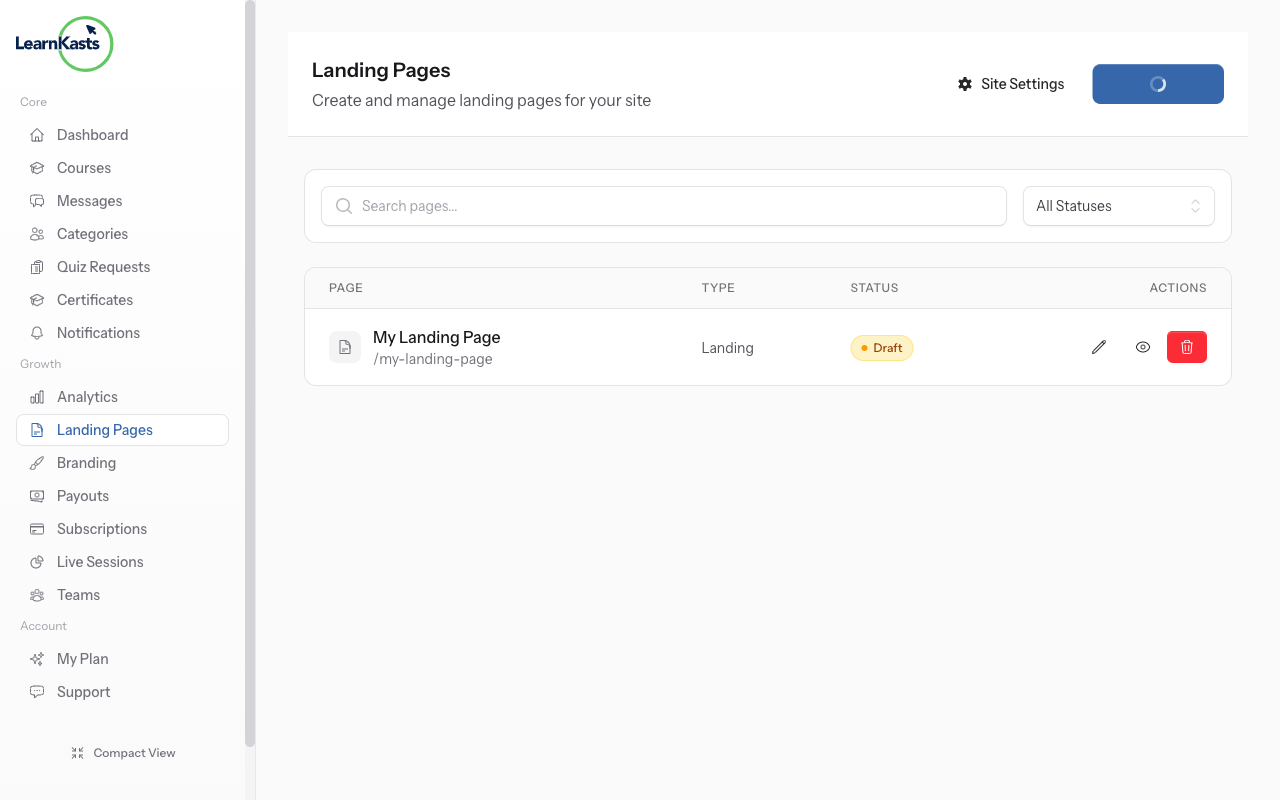
Click the "Create Page" button to start a new landing page. A modal will appear where you can configure your new page.
-
03
Enter page title
Give your page a descriptive title (e.g., "Makeup Masterclass Sales Page"). This title appears in your pages list and can be used in the page URL.
-
04
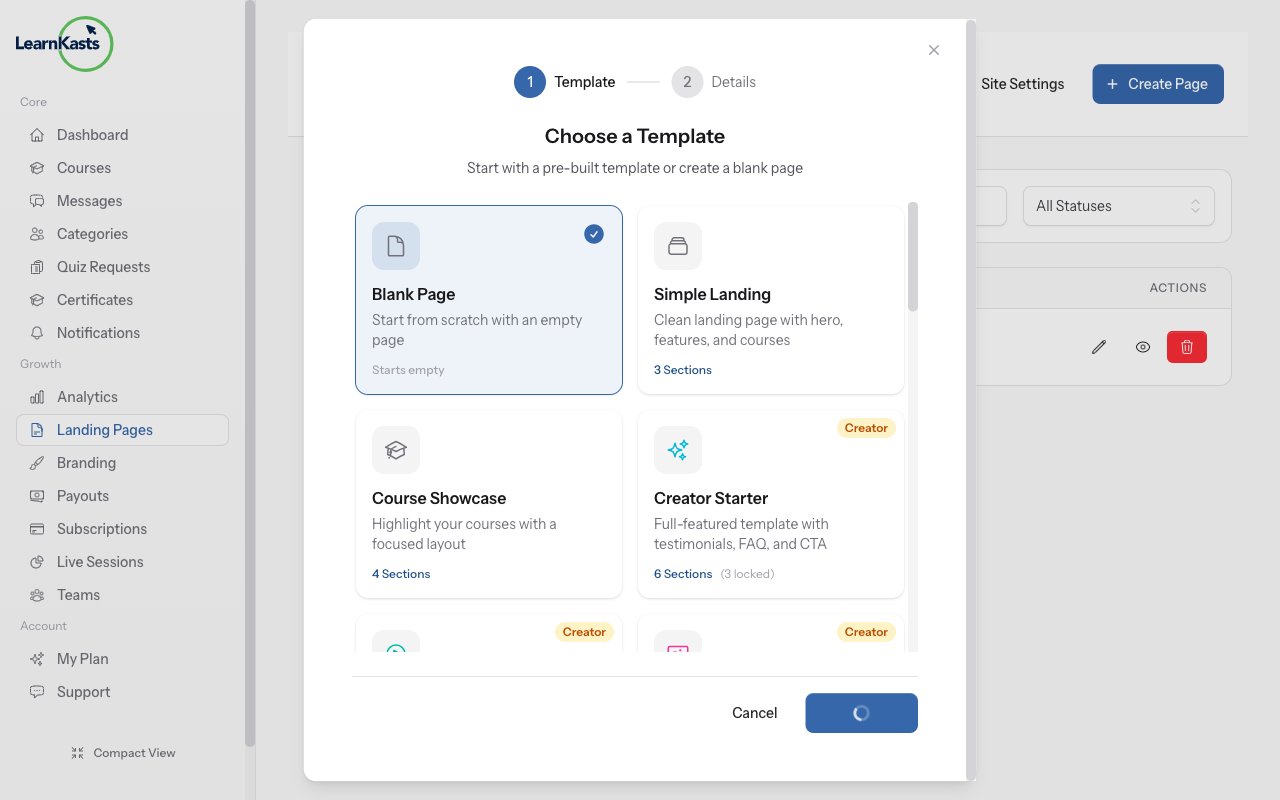
Choose a template
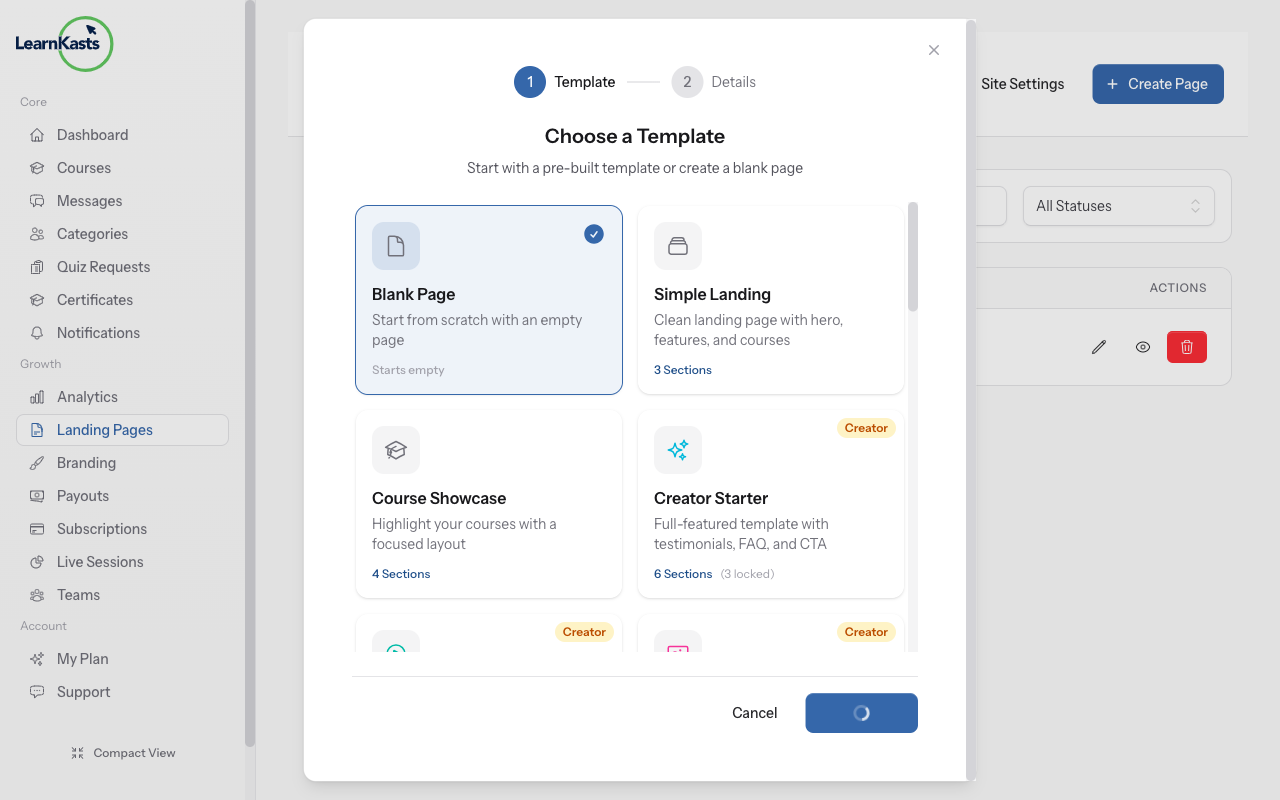
Select from available templates to get started quickly. Templates include pre-designed sections for courses, testimonials, and call-to-action buttons.
-
05
Edit in visual editor
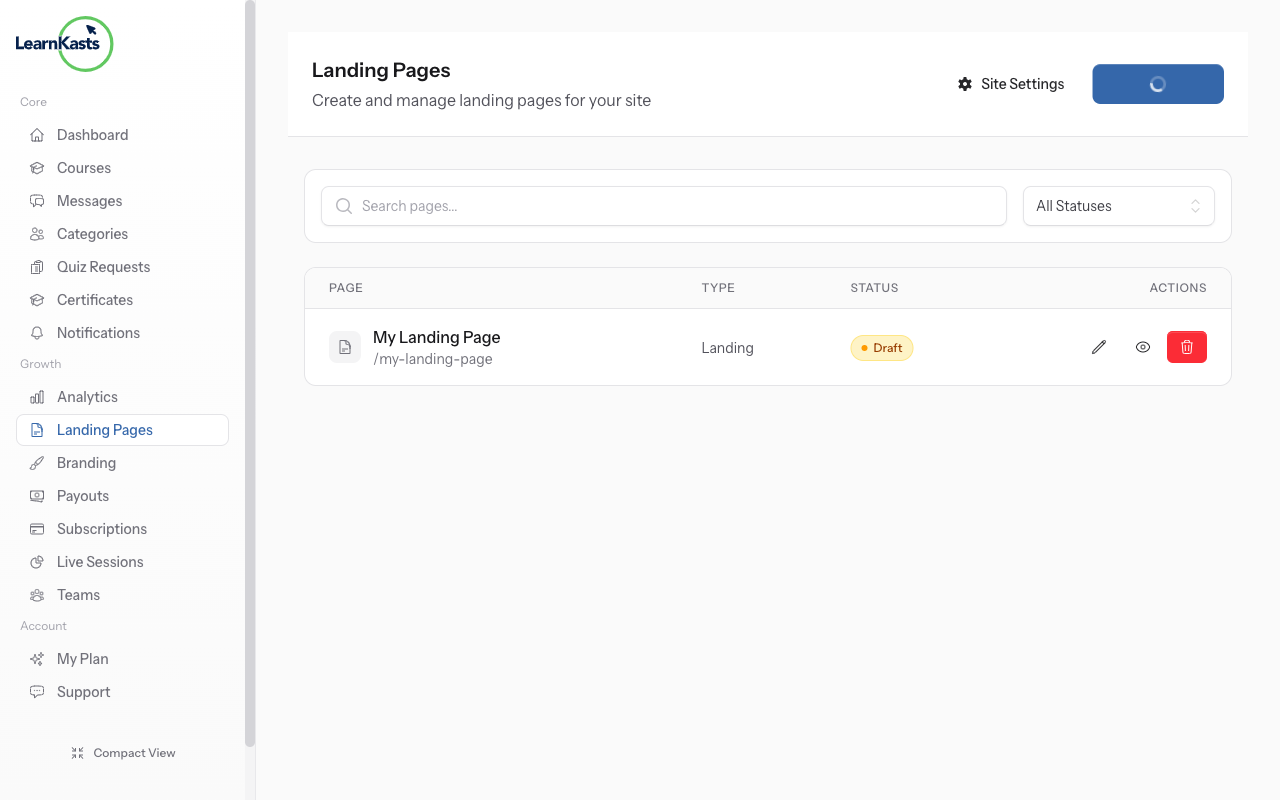
After clicking "Create", you'll be taken to the visual editor. Here you can drag sections like Hero, Features, Courses, Testimonials, and more onto your page. Customize text, images, colors, and layout for each section. Click "Save" to publish your changes.
Did this guide help?
If you need a real human, our support team replies in plain English within one working day. Faster on WhatsApp.