Managing Cohort Learners
Add, remove, and organize students in your course cohorts for live and in-person classes.
-
Navigate to cohort roster
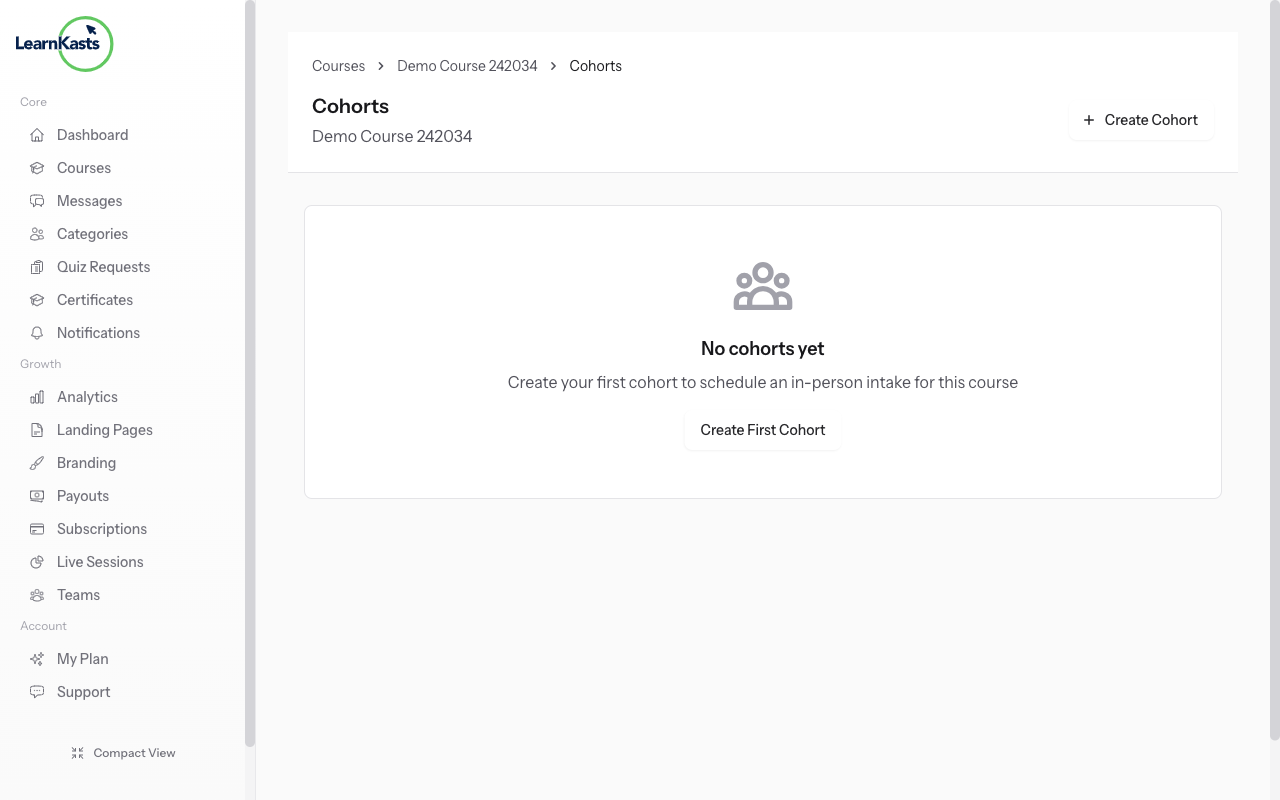
Go to Educator Dashboard → Courses → Select your course → Click "Cohorts" tab → Click on a specific cohort → Click "View Roster" button. This shows all students enrolled in this cohort.
-
View enrolled students
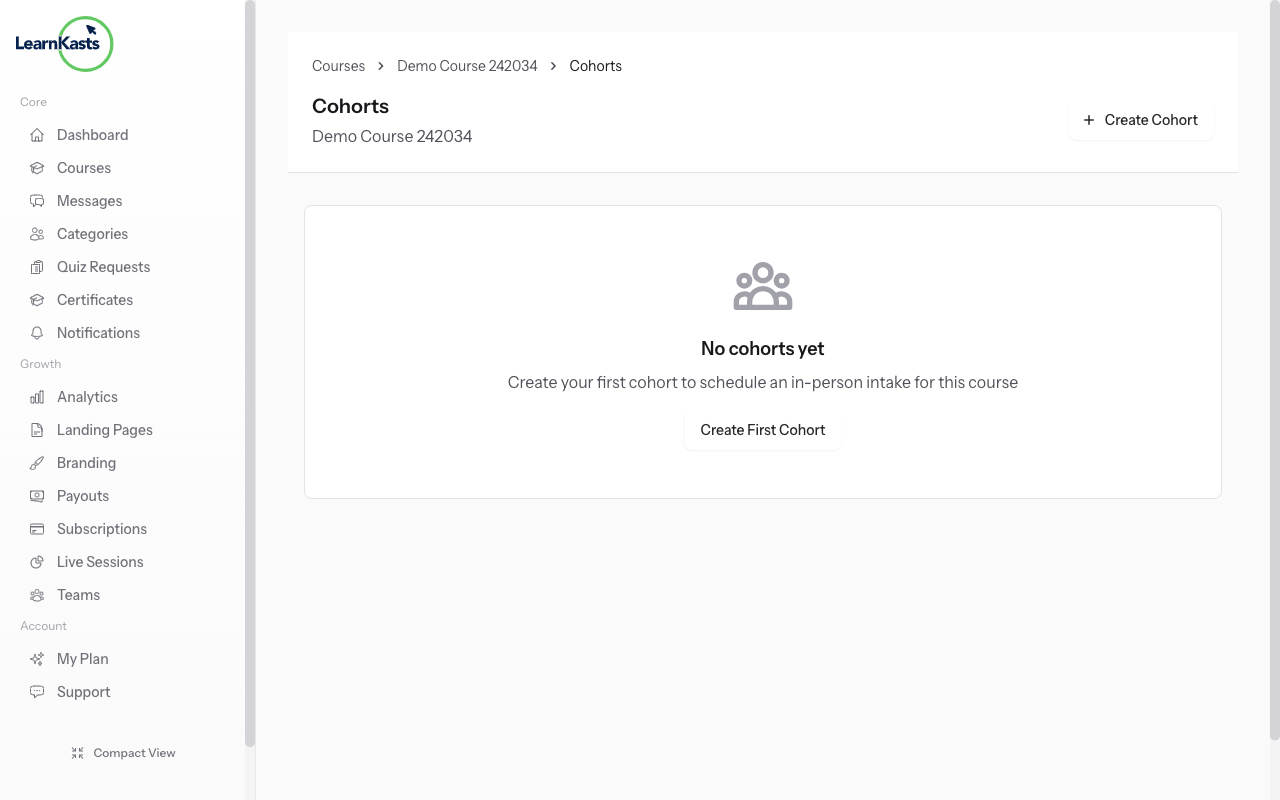
The roster page displays all students with their name, email, enrollment status, enrollment date, and attendance records. Use the search bar to quickly find specific students in large cohorts.
-
Remove students from cohort
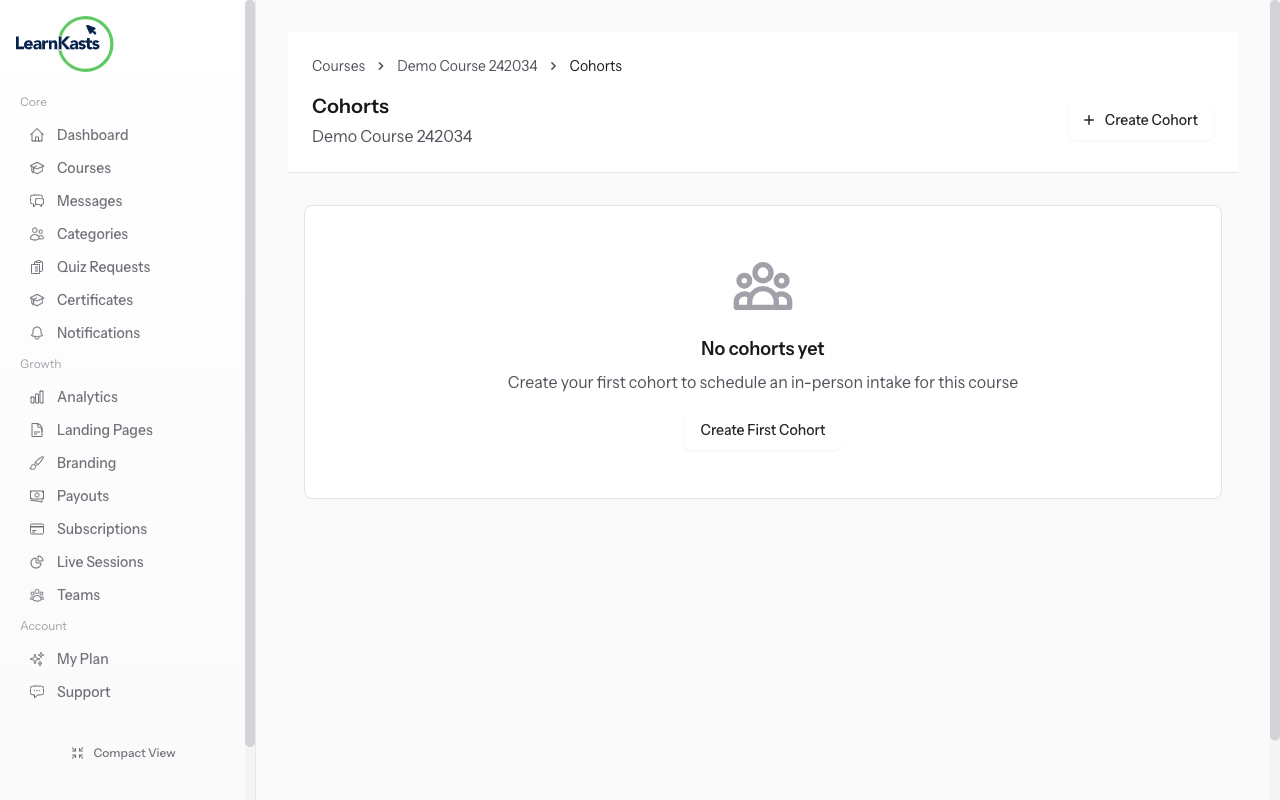
Click "Add Learners" button in the top right. You'll see a modal with checkboxes of all learners who have purchased the course but aren't in this cohort yet. Check the boxes next to learners you want to add. Click "Add Selected Learners".
-
Export roster data
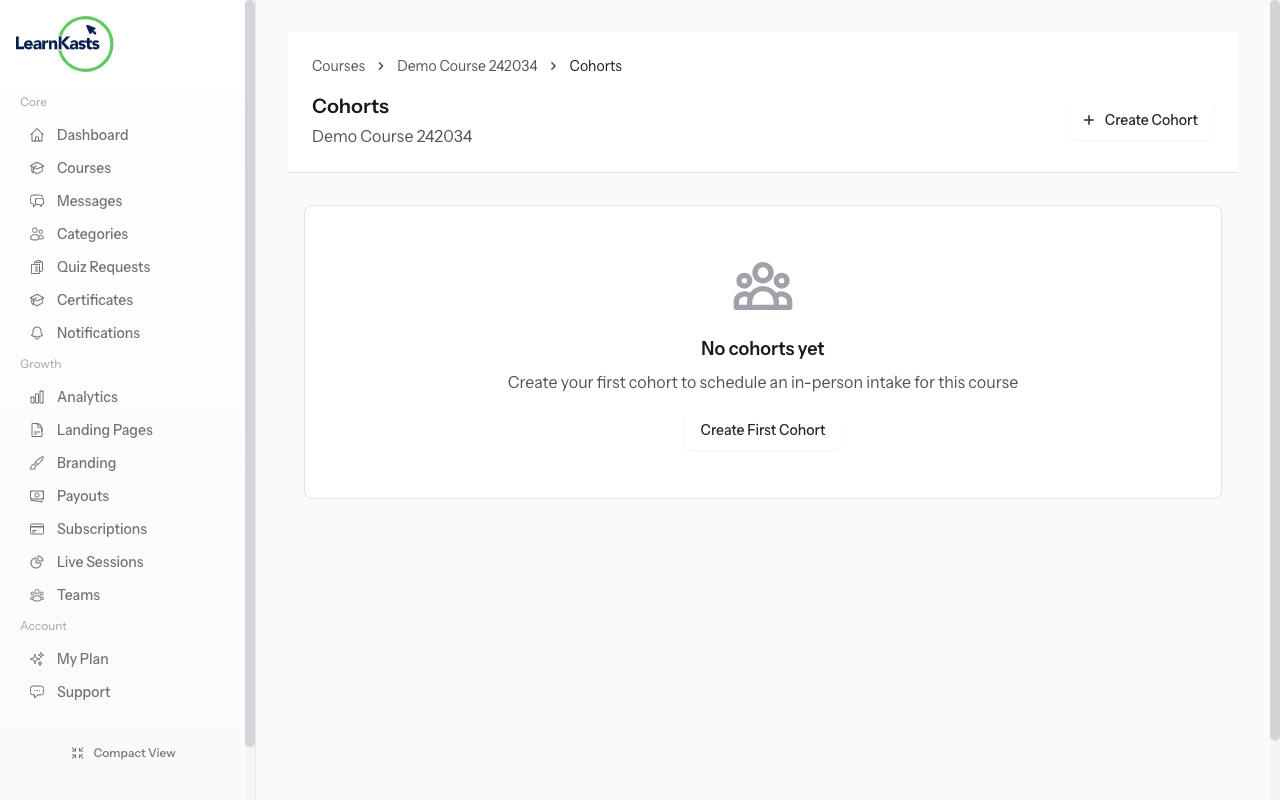
Click the "Remove" button next to any student name. A confirmation dialog appears. Confirm removal. Note: This only removes them from the cohort, not from the course entirely. They can still access course materials.
-
Track attendance
For live and in-person sessions, use the attendance column to mark who attended. Click the checkbox or "Mark Present" button. Attendance data appears in your analytics and can be exported.
-
Export roster data
Click "Export" button to download roster as CSV file. Includes student names, emails, enrollment dates, and attendance records. Perfect for record-keeping or importing into other tools.
More guides
Educator guides
Step-by-step guides to create courses, run live sessions and grow your teaching business.
- Getting started as an educator
- Creating your first course
- Building course curriculum
- Uploading video lessons
- Using AI to generate quizzes
- Creating quizzes and assignments
- Assignments and grading queues
- Hosting live sessions
- Creating and managing webinars
- Managing course cohorts
- Adding students to cohorts
- Setting up subscriptions
- Course reviews and ratings
- Issuing certificates
- Understanding course analytics
- Live session usage and billing
- Setting up payout methods
- Viewing revenue and payouts
- Setting up your educator subdomain
- Creating landing pages
- Using the visual page editor
- Adding page sections
- Page styling and branding
- AI Studio Composer
- AI Voice Clone & Avatar
- Traffic sources & UTM attribution
Learner guides
Everything learners need to check courses, join live sessions and follow their progress.
- Creating an account
- Browsing and finding courses
- Enrolling in a course
- Watching video lessons
- Taking notes during lessons
- Submitting assignments
- Taking quizzes
- Joining live classes
- Attending webinars
- Managing your subscriptions
- Viewing your certificates
- Writing course reviews
- Managing your orders
- Updating your profile
Team & admin
Team management, permissions, billing and admin tools for organisations.
This guide help you?
If you need real human, our support team dey reply for plain English inside one working day. E faster for WhatsApp.